Imagine looking into your mirror every morning and seeing more than just your reflection. What if your mirror could show you the weather, news, calendar events, and even your daily reminders—all while you get ready?
Building a smart mirror with your Nexus 7 can turn this idea into reality. In this guide, you’ll discover simple steps to transform your tablet into a powerful, interactive mirror that fits perfectly into your daily routine. Ready to upgrade your morning routine and impress your friends?
Let’s dive in and make your smart mirror come to life.
Choosing The Right Nexus 7 Model
Choosing the right Nexus 7 model is key to building a smart mirror that works well. The Nexus 7 tablet has different versions. Each version has unique features that affect your smart mirror project. Picking the best model saves time and frustration later.
Comparing Nexus 7 Versions
The Nexus 7 comes in two main versions: 2012 and 2013. The 2012 model has a 1.2 GHz quad-core processor. The 2013 model is faster with a 1.5 GHz quad-core processor. The newer model also has a better screen with higher resolution. Screen size stays the same at 7 inches for both models.
Memory also differs. The 2012 model has 1 GB RAM, while the 2013 model offers 2 GB RAM. More RAM means smoother performance for apps you run on the smart mirror. Storage options vary from 8 GB to 32 GB. Choose a model with enough storage for your apps and files.
Hardware Requirements
Your smart mirror needs a responsive screen and good performance. The tablet should handle apps like weather, calendar, and news without lag. A model with higher RAM and a faster processor is better. Battery life is less important because the tablet stays plugged in.
Check for Wi-Fi capability to connect to the internet. Most Nexus 7 models have Wi-Fi, but some include cellular options. Cellular is not necessary for a smart mirror. Also, look at the tablet’s physical condition. A working touchscreen and no cracks are essential.
Credit: www.reddit.com
Gathering Materials And Tools
Building a smart mirror with a Nexus 7 is a fun project. It needs some specific parts and tools. Gathering these before you start makes the process smooth. Knowing what to get helps avoid delays and frustration.
Essential Components
The main part is the Nexus 7 tablet. It acts as the mirror’s screen and brain. You need a two-way mirror glass. It lets you see the screen behind it. A frame is necessary to hold the mirror and tablet. Power cables and adapters keep the Nexus 7 running. A Raspberry Pi or similar microcomputer can control the display software. Optional parts include sensors or speakers for added features.
Recommended Tools
You will need a screwdriver set for assembling parts. A drill helps make holes in the frame. Wire cutters are useful for managing cables. A hot glue gun or strong tape keeps components in place. A utility knife is handy for trimming materials. A level tool ensures the mirror hangs straight on the wall. A computer or laptop is necessary for software setup.
Preparing The Mirror Frame
Preparing the mirror frame is an important step in building a smart mirror with a Nexus 7. The frame holds the mirror and device securely. It also affects the mirror’s look and durability.
Choosing the right materials and design helps create a sturdy and stylish frame. Follow these steps to get started.
Selecting Mirror Glass
Pick a two-way mirror glass for your smart mirror project. This type allows light to pass through from behind. The Nexus 7 screen will be visible through the mirror.
Look for acrylic or glass types that fit your size needs. Acrylic is lighter and safer but scratches easier. Glass offers better clarity but is heavier.
Make sure the mirror size matches your Nexus 7 screen and frame dimensions. A clean, smooth mirror surface improves display visibility.
Building The Frame Structure
Start with a frame that fits the mirror and device snugly. Use wood or plastic for easy cutting and assembly. Wood is strong and easy to paint.
Cut the frame pieces to fit around the mirror edges. Join them with nails or glue for stability. Add a back panel to hold the Nexus 7 securely.
Leave space for cables and ventilation to keep the device cool. Sand and paint the frame for a smooth, finished look.

Credit: www.reddit.com
Setting Up The Nexus 7 Device
Setting up the Nexus 7 device is the first key step in building your smart mirror. This process prepares the tablet to display useful information clearly. Proper setup ensures smooth operation and a great user experience. Follow the steps carefully to get the best results from your device.
Installing Custom Firmware
Custom firmware changes the tablet’s software to fit smart mirror needs. It removes unnecessary apps and adds features like always-on display. Start by unlocking the Nexus 7 bootloader. Download the custom firmware from a trusted source. Use a USB cable to connect the tablet to your computer. Follow the instructions to flash the firmware. This process may take several minutes. After flashing, the tablet will restart with the new software.
Configuring Display Settings
Adjusting the display settings makes information easy to read. Set the brightness to a medium or low level to save power. Choose a dark or black background for better contrast. Disable the screen timeout to keep the display on continuously. Enable auto-rotate if you want to change the tablet’s orientation. Use font size settings to make text larger and clearer. These tweaks help your smart mirror display important data smoothly.
Installing Smart Mirror Software
Installing the right software is key to building a smart mirror with the Nexus 7. The software controls what the mirror shows and how it reacts. Choose software that fits your needs and works well with your device. Follow clear steps to install it smoothly. This section guides you through picking and installing smart mirror software.
Choosing The Right Software
Pick software made for smart mirrors and compatible with Nexus 7. Some popular options include MagicMirror² and DakBoard. MagicMirror² offers many modules like weather, news, and calendar. DakBoard is simpler and easy to use. Think about what features you want before choosing.
Check if the software supports touch or voice commands. Also, see if it updates regularly and has good community support. Easy setup and customization help a lot too. Choose software that matches your skill level and goals.
Step-by-step Installation
First, prepare your Nexus 7 by installing a fresh version of Android or a custom OS. Connect it to Wi-Fi and enable developer mode. Download the chosen smart mirror software from its official site or GitHub.
Next, follow the installation guide provided by the software. Usually, this involves running commands in a terminal or using an installer app. Install required dependencies like Node.js if needed. Configure the software settings to fit your mirror’s size and preferred modules.
Finally, test the software on your Nexus 7. Make sure the display updates and modules work correctly. Adjust settings if some parts don’t show right. After successful setup, place the device behind the mirror glass. Your smart mirror is ready to use.
Integrating Sensors And Voice Control
Integrating sensors and voice control into your smart mirror makes it more interactive and user-friendly. Sensors detect your presence and activate the display automatically. Voice control allows hands-free commands for convenience. Both features improve the mirror’s functionality and user experience.
Adding Motion Sensors
Motion sensors help the smart mirror turn on only when you approach. This saves energy and extends the device’s life. Use a simple PIR sensor connected to the Nexus 7 through a microcontroller. Place the sensor behind the mirror glass but in a spot with a clear view.
Wire the sensor to detect movement and send a signal to the Nexus 7. Program the tablet to wake the display on this signal. Test the sensor range and adjust its sensitivity. This setup ensures the mirror stays off when no one is nearby.
Enabling Voice Commands
Voice commands let you control the mirror without touching it. Use a voice recognition app or software compatible with the Nexus 7. Google Voice or open-source alternatives work well for simple commands.
Configure the voice software to understand phrases like “show weather” or “play music.” Connect the commands to actions on the mirror’s interface. Make sure the microphone is clear and placed where it can pick up your voice easily.
Test the voice control in a quiet environment. Adjust the settings for accuracy and response time. Voice control creates a hands-free experience that feels natural and smooth.
Assembling The Smart Mirror
Assembling the smart mirror is an exciting step. It brings all parts together into one useful device. Careful assembly ensures your smart mirror works well and looks great. Follow these simple steps to mount and secure the Nexus 7 and other parts inside the frame.
Mounting The Nexus 7
Place the Nexus 7 tablet in the center of the mirror frame. Use double-sided tape or Velcro strips to hold it firmly. Make sure the screen faces outward and is clean. Avoid blocking any buttons or ports on the tablet. Check that the tablet fits snugly without wobbling. This keeps the display clear and easy to see.
Securing Components Inside Frame
Organize cables and small parts inside the frame. Use cable ties or clips to keep wires tidy and safe. Attach the power supply in a corner where it fits well. Avoid putting pressure on the tablet or glass surface. Ensure all components are stable and will not move. Proper securing prevents damage and keeps your mirror neat.
Customizing The User Interface
Customizing the user interface is key to making your smart mirror truly yours. It lets you control what you see and how you interact with your Nexus 7 mirror. A well-designed interface improves daily use and adds fun.
By tailoring the interface, you create a mirror that fits your routine. You decide which information appears and how it looks. This makes checking weather, news, or calendar events easy and quick.
Adding Widgets And Apps
Widgets and apps bring useful features to your smart mirror. You can add weather, clock, calendar, news, or even fitness trackers. Choose apps that help your daily life.
Most smart mirror platforms allow simple drag-and-drop for widgets. Pick the size and position that suits your style. Keep the layout clean to avoid clutter.
Try apps that update automatically. This keeps your mirror fresh with new information every time you look.
Personalizing Display Options
Display options control how information looks on your smart mirror. Adjust brightness to match room light. This keeps the screen easy to read at any time.
Choose fonts that are clear and large enough to read from a distance. Select colors that are soft on the eyes but stand out well.
Set your mirror to show day or night mode. This helps reduce glare and makes the display comfortable to view.
Personal touches make your smart mirror more than a gadget. They turn it into a helpful, stylish part of your home.
Troubleshooting Common Issues
Building a smart mirror with a Nexus 7 is exciting but may bring some challenges. Troubleshooting helps fix common problems fast. This keeps your project running smoothly without stress.
Some issues involve the display, while others come from software glitches. This section shows easy ways to solve these problems. Clear steps help you get your smart mirror working well again.
Fixing Display Problems
Check the screen brightness first. Sometimes it is too low or off. Adjust brightness in the settings menu to see if the display improves.
Look for loose cables behind the Nexus 7. A bad connection can cause a blank or flickering screen. Secure all cables tightly.
Try rebooting the device. A simple restart can fix many display errors. Press and hold the power button, then select restart.
If the screen stays black, connect the Nexus 7 to a charger. The battery may be too low to power the display.
Resolving Software Glitches
Restart the smart mirror app. Closing and opening it again can clear temporary bugs.
Update the app and Android system regularly. Updates fix bugs and improve performance. Check the Google Play Store for the latest versions.
Clear the app cache. Go to settings, apps, select the smart mirror app, and tap “Clear Cache.” This removes old data that can cause crashes.
If problems persist, uninstall and reinstall the app. This resets the software and can solve deep glitches.
Maintenance And Upgrades
Keeping your smart mirror with Nexus 7 in good shape is key. Regular care helps it work well and last longer. Also, upgrades can add new features. This section covers how to maintain and improve your smart mirror.
Regular Cleaning Tips
Clean the mirror surface often. Use a soft, dry cloth to avoid scratches. Avoid harsh chemicals that can damage the glass.
Turn off the device before cleaning. Wipe the screen gently to remove dust and fingerprints. Keep the frame free from dirt to maintain a neat look.
Check the Nexus 7’s ports and buttons. Remove dust with a small brush or compressed air. This keeps everything working smoothly.
Future Enhancements
Upgrade the software to add new functions. Nexus 7 supports various apps for weather, news, and more. Update apps regularly to improve performance.
Consider adding voice control for hands-free use. Connect smart home devices to your mirror. This makes your smart mirror more useful.
Replace old parts like the battery or screen if needed. Use compatible components to avoid damage. Regular upgrades keep your smart mirror fresh and efficient.
Credit: www.monohelixlabs.com
Frequently Asked Questions
What Is A Smart Mirror Using Nexus 7?
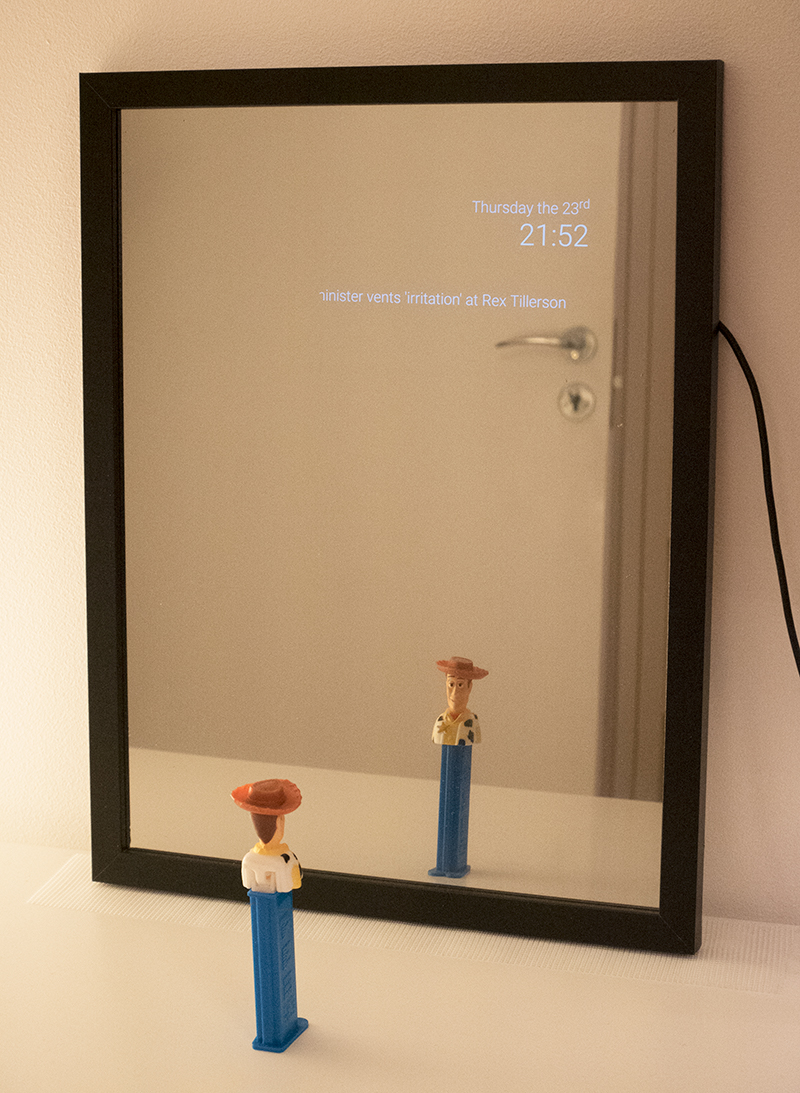
A smart mirror with Nexus 7 combines a reflective surface and a tablet display. It shows useful information like weather, news, and calendar updates. Nexus 7 acts as the smart interface behind the mirror.
How Do I Start Building A Nexus 7 Smart Mirror?
Begin by gathering materials: a Nexus 7 tablet, two-way glass, frame, and software. Install a smart mirror app on Nexus 7. Mount the tablet behind the glass and assemble the frame securely.
Can I Customize The Display On My Smart Mirror?
Yes, you can customize widgets and information shown. Use apps or software that support customization. Adjust weather, calendar, news, and other modules to fit your daily needs.
What Power Supply Is Needed For A Nexus 7 Smart Mirror?
Use the original Nexus 7 charger or a compatible USB power adapter. Ensure continuous power for uninterrupted mirror display. Consider cable management for a clean, professional look.
Conclusion
Building a smart mirror with a Nexus 7 is a fun project anyone can try. It brings technology into your daily routine easily. You learn new skills while creating something useful. The steps are simple and clear to follow. Just take your time and enjoy the process.
Soon, you will have a smart mirror that shows weather, news, and more. It adds convenience to your home without much cost. Start small, and you can always improve it later. A smart mirror is a great way to mix tech and creativity.