Have you ever wondered why your video doorbell doesn’t make a sound when someone rings it? It can be frustrating to miss visitors or deliveries just because your doorbell stays silent.
The good news is, you don’t have to live with this problem. You can easily fix your video doorbell’s sound settings and make sure you never miss a visitor again. Keep reading, and you’ll discover simple steps that will get your doorbell ringing loud and clear in no time.
Check Volume Settings
Checking the volume settings is a simple step to make your video doorbell sound work. Many times, the sound is off or too low. Adjusting these settings can fix the problem fast. Follow the steps below to ensure your doorbell rings loud enough.
Adjust Doorbell Volume
Most video doorbells have a volume button or switch. Check the physical device for this control. Turn the volume up to a higher level. If your doorbell is hardwired, check the chime inside your home. The chime may have its own volume control. Make sure it is loud enough to hear from other rooms.
App Volume Controls
Your doorbell’s app often controls sound settings too. Open the app on your phone or tablet. Look for sound or volume options in the settings menu. Slide the volume bar to increase sound. Test the doorbell sound from the app. Keep the volume high enough to hear clearly.
Credit: www.hackster.io
Inspect Power Supply
Checking the power supply is the first step to fix your video doorbell sound issues. Without enough power, the doorbell cannot ring or send alerts. Power problems are common and easy to fix. A quick inspection can save you time and frustration.
Verify Battery Levels
Start by checking the battery level if your doorbell uses batteries. Low or dead batteries stop the sound from working. Remove the battery cover and look at the indicator. Some models show battery status on their app. Replace old batteries with fresh ones. Use the type recommended by the manufacturer for best results.
Check Wiring Connections
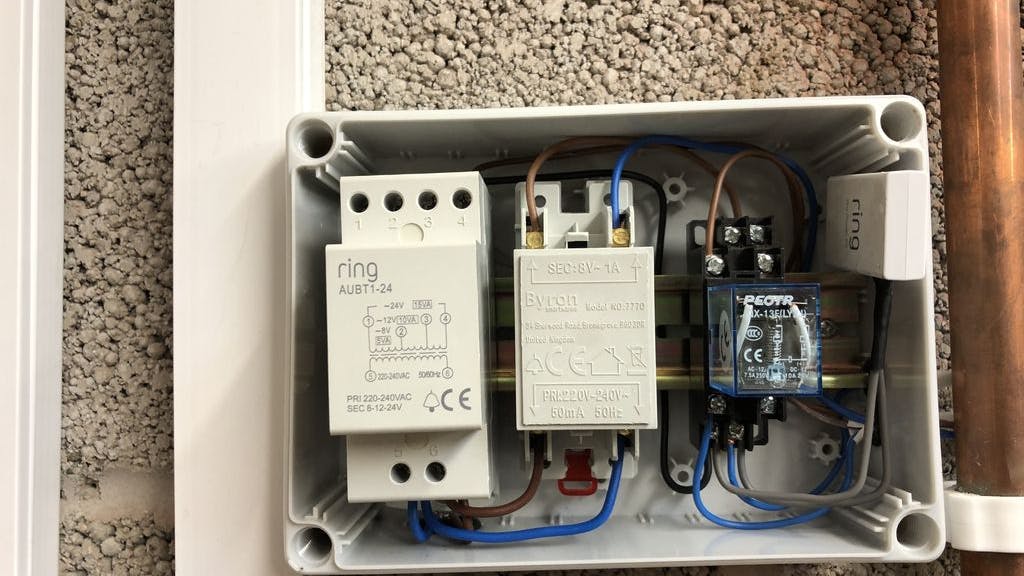
For wired doorbells, loose or damaged wires can cause no sound. Turn off the power before inspecting wires. Check if wires are firmly connected to the doorbell and chime. Look for frayed or broken wires that need repair. Tighten any loose connections carefully. Proper wiring ensures steady power flow and sound function.
Update Firmware
Updating the firmware of your video doorbell is key to fixing sound issues. Firmware controls how your device works. New updates often solve bugs and improve features. Keeping it current helps your doorbell ring properly and alerts you on time.
Check For Updates
Start by opening the doorbell’s app on your phone. Look for the settings or device menu. Find the section labeled “Firmware” or “Software Update.” The app will tell you if a new update is available. Make sure your phone and doorbell are connected to the internet.
Install Latest Version
If an update is available, tap to download it. The update process can take a few minutes. Do not turn off the doorbell or close the app during this time. After installation, your doorbell will restart. Test the sound once the update finishes.
Reset The Doorbell
Resetting your video doorbell can fix many sound issues. It clears minor bugs and refreshes the device. Two common reset types exist: soft reset and factory reset. Each has its own steps and results. Follow these steps carefully to make your doorbell sound work again.
Soft Reset Steps
Start with a soft reset to fix small glitches. Find the reset button on your doorbell. Press and hold it for about 10 seconds. Release the button once the lights flash or change color. The doorbell will restart automatically. Wait a minute for it to power back on. Test the sound after the reboot. This reset keeps your settings and data safe.
Factory Reset Process
Use factory reset for deeper problems. It erases all settings and data. Locate the reset button on your device. Hold the button for 20 to 30 seconds. Watch for a steady light or sound signal. Release the button to start the reset. The doorbell will reboot and restore factory settings. Set up your doorbell again after this. Use factory reset only if soft reset does not solve the issue.
Test Speaker Functionality
Testing the speaker functionality of your video doorbell is a key step to ensure it makes sound. Without a working speaker, you might miss important alerts or conversations. This section helps you check the speaker and find any issues.
Run Sound Test
Most video doorbells have a built-in sound test feature. Use the app connected to your doorbell to start this test. The device will play a sound through its speaker. Listen closely. If you hear clear sound, the speaker works fine. If no sound plays, try restarting the doorbell and run the test again.
Identify Hardware Issues
When the sound test fails, the problem might be hardware-related. Check if the speaker holes are blocked by dirt or debris. Clean gently with a soft brush. Also, inspect the doorbell for any physical damage. If the device was dropped or hit, the speaker may be broken. In such cases, contact support or consider replacing the speaker unit.
Adjust Notification Settings
Adjusting your video doorbell’s notification settings is key to hearing alerts. Without proper settings, your device might stay silent. It is easy to change these settings to suit your needs.
Start by checking the app linked to your doorbell. This app controls sounds and notifications. You can turn on or off the sound alerts. Also, you can select different tones for alerts.
Enable Sound Alerts
Open the doorbell’s app on your phone. Look for the notifications or settings menu. Find the option for sound alerts. Make sure this option is switched on.
Sometimes, sound alerts are off by default. Turning them on allows your phone to ring or beep. This lets you know someone is at your door. Check the volume level in the app too. Set it loud enough to hear from anywhere in your home.
Customize Alert Tones
Many apps let you pick different sounds for alerts. Choose a tone that grabs your attention quickly. Some sounds are soft, others are loud or sharp. Try a few and pick the one you like best.
Custom tones help you recognize doorbell alerts easily. You can also change the tone for different events. For example, one sound for visitors and another for deliveries. This makes it simple to know what’s happening without looking at your phone.
Troubleshoot Common Issues
Troubleshooting common issues can help your video doorbell make sound properly. Problems with sound often come from simple causes. Fixing these can restore your doorbell’s alert tones fast. Check common issues first before calling support. This saves time and gets your doorbell working quickly.
Interference Problems
Wireless signals can interfere with your doorbell sound. Other devices using the same frequency cause interruptions. Move routers or cordless phones away from the doorbell. Thick walls or metal objects also block signals. Make sure your doorbell is within range of your Wi-Fi router. Restart your router to clear network issues. Interference often stops sound alerts from reaching your phone or chime.
App Glitches
The app controlling your doorbell may have bugs. Update the app to the latest version. Close and reopen the app to reset it. Clear the app’s cache in your phone settings. Log out and log back in to refresh the connection. Sometimes, reinstalling the app solves sound problems. Check app permissions to allow notifications and sounds. App glitches frequently cause missed alerts or no sound.

Credit: forums.wyze.com
When To Contact Support
Knowing when to contact support can save time and frustration. Some issues with your video doorbell need expert help. Troubleshooting at home works for small problems. But persistent sound issues might need professional advice. Recognizing signs for support ensures your device works well. It also helps avoid further damage or voiding warranties.
Warranty Information
Check your video doorbell’s warranty before seeking repairs. Most manufacturers cover sound problems under warranty. Keep your purchase receipt and warranty details handy. Contact the company if the doorbell stops making sound. They often repair or replace the device free of charge. Do not try to fix hardware issues yourself. This might void your warranty and cost more.
Professional Repairs
Some sound problems need professional repairs beyond basic fixes. If your doorbell has physical damage or internal faults, call support. Certified technicians can diagnose and fix complex issues safely. Avoid opening or tampering with the device yourself. This can cause permanent damage or safety risks. Professional repairs ensure the doorbell works properly again. They also keep the device’s warranty valid.

Credit: www.reddit.com
Frequently Asked Questions
How Do I Enable Sound On My Video Doorbell?
To enable sound, access your doorbell’s app settings. Look for the “Audio” or “Sound” option. Toggle it on to activate sound notifications and two-way talk features. Ensure your phone volume is up for alerts.
Why Is My Video Doorbell Not Making Sound?
Check your doorbell’s volume settings in the app. Confirm the device firmware is updated. Also, verify your smartphone’s notification settings allow sounds from the doorbell app.
Can I Customize The Sound On My Video Doorbell?
Yes, most video doorbells let you choose alert tones. Open the app, navigate to sound settings, and select your preferred chime or ringtone for notifications.
How To Fix No Sound During Video Calls On Doorbell?
Make sure the microphone and speaker permissions are enabled on your device. Restart the doorbell and app. Check for app updates to resolve potential bugs affecting audio.
Conclusion
Making your video doorbell sound is simple and useful. Check the volume settings first. Ensure the device is properly connected to power. Use the app to adjust notifications and alerts. Test the sound after changes to confirm it works. Remember, clear sound helps you hear visitors easily.
Follow these steps to keep your home safer. Stay alert and enjoy the convenience of your video doorbell.