
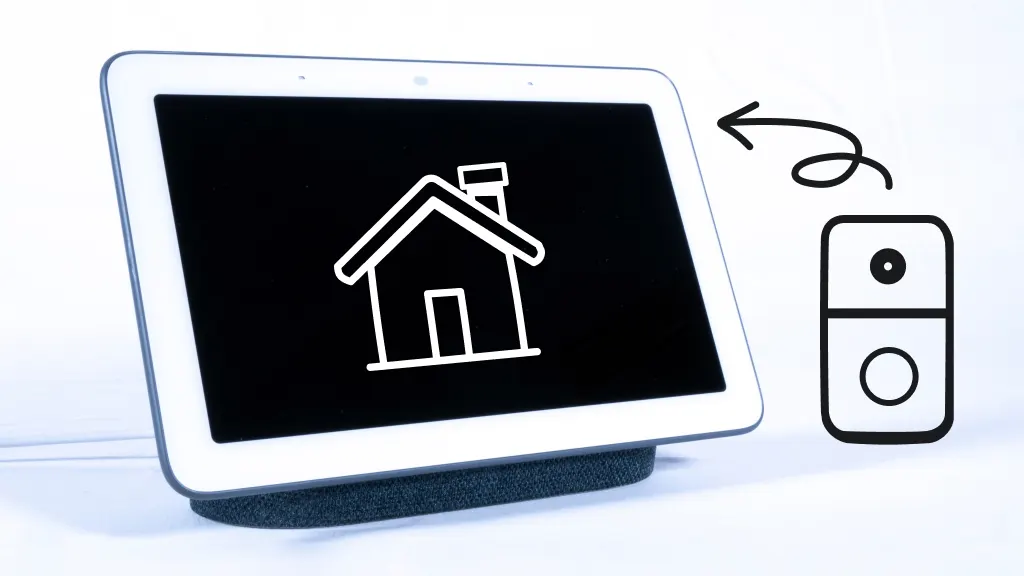
Imagine never missing a visitor at your door, no matter where you are. Connecting your video doorbell to your phone makes this possible, giving you instant alerts and live video right in your hand.
If you want to boost your home’s security and convenience, learning how to link your video doorbell to your phone is the first step. Keep reading, and you’ll discover simple, clear instructions to get you set up quickly—so you can start feeling safer and more in control today.
Credit: www.asurion.com
Choose The Right Video Doorbell
Choosing the right video doorbell is important before connecting it to your phone. The right device fits your home setup and phone features. It makes installation and use easier. This section helps you pick the best option for your needs.
Wired Vs Wireless Models
Wired video doorbells connect to your home’s electrical system. They offer constant power and stable connection. Installation may take more time and tools.
Wireless models use batteries and connect via Wi-Fi. They are easy to install and move if needed. Batteries need charging or replacement over time.
Choose wired if you want a permanent, reliable solution. Choose wireless if you want flexibility and easy setup.
Compatibility With Your Phone
Check if the video doorbell app works with your phone’s operating system. Most support Android and iOS devices. Some apps may not have full features on all phones.
Confirm the app version matches your phone’s software. This ensures smooth connection and notifications.
Choose a doorbell that offers easy app setup and clear instructions. This saves time and frustration during installation.
Prepare Your Phone
Preparing your phone is the first step to connect your video doorbell. It ensures smooth setup and proper function. Your phone must be ready to link with the device easily. Follow these simple steps to get started.
Download The App
Find the official app for your video doorbell on the App Store or Google Play. Search using the exact model name or brand. Download and install the app to your phone. This app controls the doorbell and sends alerts. Without it, you cannot use the video features or receive notifications.
Enable Necessary Permissions
After installing, open the app and allow required permissions. These may include camera access, microphone, and notifications. Permissions help the app record video and alert you in real time. Denying permissions may cause the app to work poorly. Check your phone settings if you miss any permission prompts.
Set Up The Video Doorbell
Setting up your video doorbell is the first step to secure your home. This process involves powering the device and connecting it to your Wi-Fi network. Both steps are simple and essential for proper function.
Follow the instructions carefully to avoid any issues. A correct setup ensures smooth operation and clear video streaming to your phone.
Powering The Device
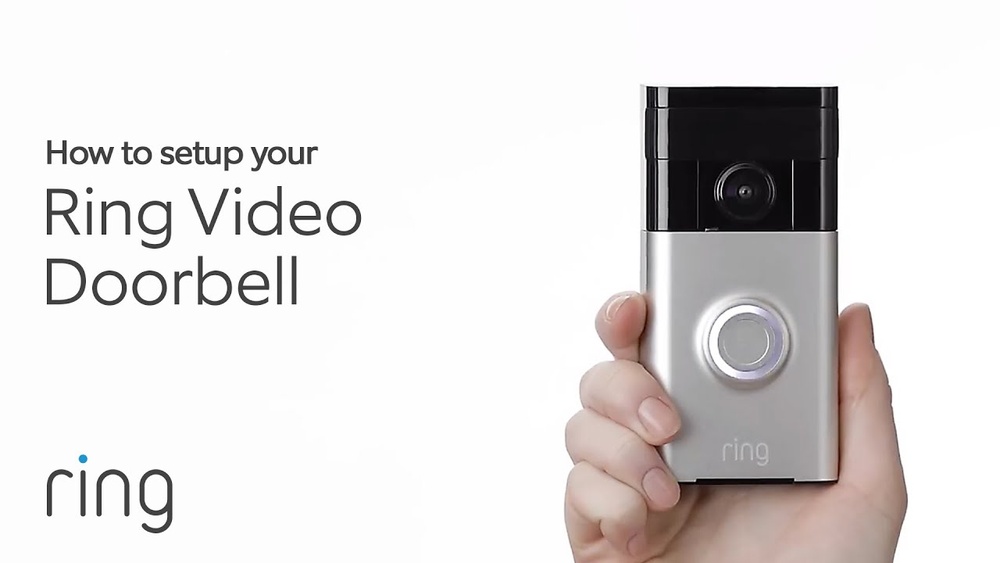
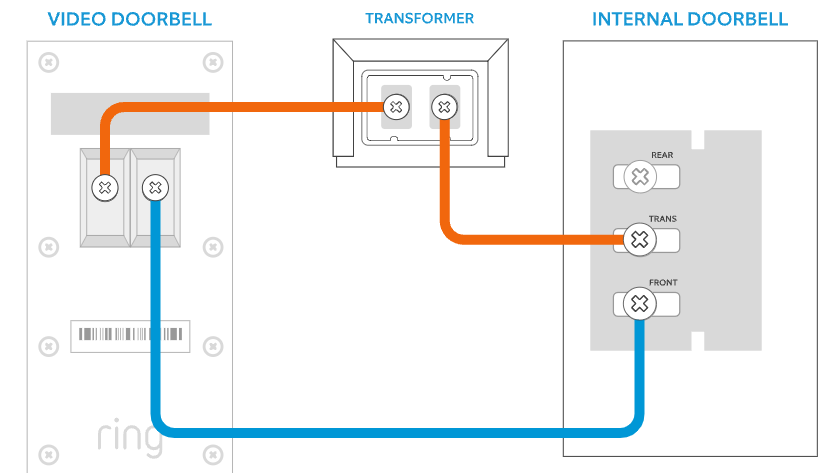
Most video doorbells use batteries or connect to existing doorbell wires. Check your device’s manual to see which power option suits you. Insert the batteries or connect the wires safely. Use a screwdriver to secure the doorbell on the wall. Ensure the power source is stable before moving to the next step.
Connecting To Wi-fi
Power on your video doorbell. Open the companion app on your phone. Follow the app instructions to find your doorbell. Select your home Wi-Fi network and enter the password. Wait for the device to connect. A strong Wi-Fi signal is important for clear video and notifications.
Pair Doorbell With Phone
Pairing your video doorbell with your phone is a key step to control it easily. This connection lets you see visitors and get alerts directly on your phone. The process is simple and quick, even for beginners.
Follow clear steps to link your device and start using it fast. The app guides you through each part, making setup smooth and hassle-free.
Launching The App
First, find the app that matches your video doorbell brand. Download and install it from your phone’s app store. Open the app and create an account if needed. Sign in to access the setup features.
The app is designed to work with your device. It helps find your doorbell and prepares it for pairing. Keep your phone close to the doorbell for better connection.
Following On-screen Instructions
Once the app detects your doorbell, it shows step-by-step instructions. These guide you through connecting the device to your home Wi-Fi. Enter your Wi-Fi details carefully to avoid errors.
The app may ask you to press buttons on the doorbell. This confirms the device is ready to pair. Wait for the app to confirm the successful connection.
After pairing, test the doorbell by pressing its button. Check if you receive a notification on your phone. This confirms the device and app are linked correctly.
Test The Connection
Testing the connection between your video doorbell and phone is a crucial step. It ensures everything works smoothly. You want clear video and quick alerts. This section guides you through the testing process.
Live Video Feed
Open the video doorbell app on your phone. Check if the live video shows up clearly. The image should be sharp without lag or freezing. Try moving around to test the camera’s range. Make sure the video updates in real time. A good connection means you see visitors instantly.
Notification Alerts
Press the doorbell button or trigger motion detection. Watch for notifications on your phone. Alerts should arrive within seconds. The alert sound and message must be clear and easy to notice. Test alerts from different distances to check reliability. Quick notifications keep you informed at all times.
Credit: ring.com
Troubleshoot Common Issues
Connecting a video doorbell to your phone may sometimes face small problems. These issues can stop the doorbell from working well. Troubleshooting common problems helps keep your device running smoothly. Simple steps fix most issues fast.
Wi-fi Connectivity Problems
Strong Wi-Fi is key for your video doorbell. Poor signal causes delays or no connection. Check your router is on and working. Move the doorbell closer to the router if possible. Restart your Wi-Fi router to refresh the connection.
Make sure the doorbell is connected to the correct Wi-Fi network. Use 2.4 GHz band if your doorbell does not support 5 GHz. Enter the Wi-Fi password carefully to avoid errors. Update your router’s firmware for better performance.
App Crashes Or Freezes
App crashes can stop you from using your doorbell. Close and reopen the app to clear temporary glitches. Clear the app cache from your phone’s settings. Check for app updates to fix bugs and improve stability.
Restart your phone to free up memory and resources. Uninstall and reinstall the app if crashes continue. Ensure your phone’s operating system is up to date. These steps help the app work smoothly and reliably.
Enhance Security Features
Enhancing your video doorbell’s security features helps protect your home better. These features let you see and respond to visitors instantly. Setting up motion detection and customizing alerts make your doorbell smarter and more useful.
You get real-time updates and can react quickly to any activity outside your door. These steps improve your peace of mind and make your home safer.
Set Up Motion Detection
Start by opening your video doorbell app on your phone. Find the motion detection settings in the menu. Turn on motion detection to activate this feature.
You can adjust the sensitivity to avoid false alarms. Set the detection zones to focus on key areas like your porch or driveway. This way, you only get alerts for important movements.
Test the motion detection by moving in front of the doorbell. Check if your phone receives the alert. Adjust settings if needed for better accuracy.
Customize Alert Settings
Go to the alert settings in the app. Choose how you want to receive notifications—push alerts, emails, or sounds. Set quiet hours to avoid alerts during sleep time.
You can also decide which alerts are most important. For example, get notified only for human movement and ignore pets. This keeps your alerts useful and not overwhelming.
Personalize alert tones to recognize your doorbell quickly. This helps you respond faster to visitors or unexpected activity.

Credit: www.youtube.com
Frequently Asked Questions
How Do I Connect My Video Doorbell To My Phone?
Download the doorbell’s app, create an account, and follow the in-app setup steps. Connect the doorbell to Wi-Fi. Pair it with your phone using Bluetooth or QR code as instructed.
What Phone Apps Work With Video Doorbells?
Most video doorbells use proprietary apps like Ring, Nest, or Arlo. Check your doorbell’s brand for the recommended app. These apps enable live video, notifications, and settings control.
Can I Connect Multiple Phones To One Video Doorbell?
Yes, many video doorbells allow multiple users. Share access through the app by inviting family members or friends. Each user can receive alerts and view video feeds.
Why Won’t My Video Doorbell Connect To Wi-fi?
Check your Wi-Fi password and signal strength near the doorbell. Ensure your router supports 2. 4 GHz frequency, as many doorbells don’t support 5 GHz. Restart your router and try again.
Conclusion
Connecting your video doorbell to your phone is simple and useful. You can see visitors anytime, even when away. Just follow the steps carefully and use the app provided. A good connection keeps your home safer and helps you respond faster.
Try it yourself and enjoy the peace of mind it brings. Small effort, big benefits.