Are you ready to boost your home’s security with a Eufy Video Doorbell but don’t know where to start? Adding this smart device is easier than you think, and it can give you peace of mind by letting you see who’s at your door from anywhere.
In this guide, you’ll discover simple, step-by-step instructions to install your Eufy Video Doorbell quickly and correctly. Keep reading to make sure you get it right the first time and enjoy the safety and convenience it brings to your home.
Prepare For Installation
Preparing for the installation of your Eufy Video Doorbell is the first step. It helps the process go smoothly and saves time. You need to be ready with the right tools and choose the best spot for your doorbell. This section guides you through each preparation stage.
Check Package Contents
Start by opening the box carefully. Make sure all parts are inside. You should find the doorbell, mounting bracket, screws, anchors, and a quick start guide. Check if any item is missing or damaged. Having everything ready prevents delays during installation.
Gather Necessary Tools
Collect the tools you will need. Usually, a drill, screwdriver, and a level are important. You might also need a pencil to mark spots on the wall. Having the right tools on hand makes the job easier and faster.
Choose Installation Location
Pick a spot near your main door with good lighting. The doorbell should be at about chest height for clear video. Avoid areas with direct sunlight or heavy rain exposure. A strong Wi-Fi signal is crucial here to keep the video clear and reliable.
Set Up The Eufy App
Setting up the Eufy app is the first step to using your new video doorbell. The app lets you control the doorbell, see live video, and get alerts. This guide walks you through each step to get the app ready quickly.
Download And Install The App
Find the Eufy Security app in the Apple App Store or Google Play Store. Tap the download button. Wait a few moments for it to install on your phone. The app is free and safe to use.
Create Or Log Into Account
Open the app after installation. You will see options to create an account or log in. If new, enter your email and create a password. If you already have an account, just log in with your details.
Connect To Wi-fi Network
Next, connect your phone to a strong 2.4GHz Wi-Fi network. The app will ask you to enter your Wi-Fi password. This connection allows the doorbell to send videos and alerts. Make sure your internet is stable for the best experience.
Power Options For Doorbell
Choosing the right power option for your Eufy Video Doorbell is important. It affects how you install and maintain the device. Eufy offers two main power choices. Each has its own benefits and suits different home setups. This guide explains these options clearly.
Battery-powered Setup
The battery-powered setup uses a rechargeable battery inside the doorbell. This option is easy to install since no wiring is needed. You can place the doorbell anywhere near your door. The battery life usually lasts several months. When the battery runs low, recharge it with a USB cable.
This setup works well for homes without existing doorbell wiring. It is also good for renters or those who want a simple install. Remember to check the battery level regularly. You don’t want the doorbell to stop working when you need it most.
Wired Connection Setup
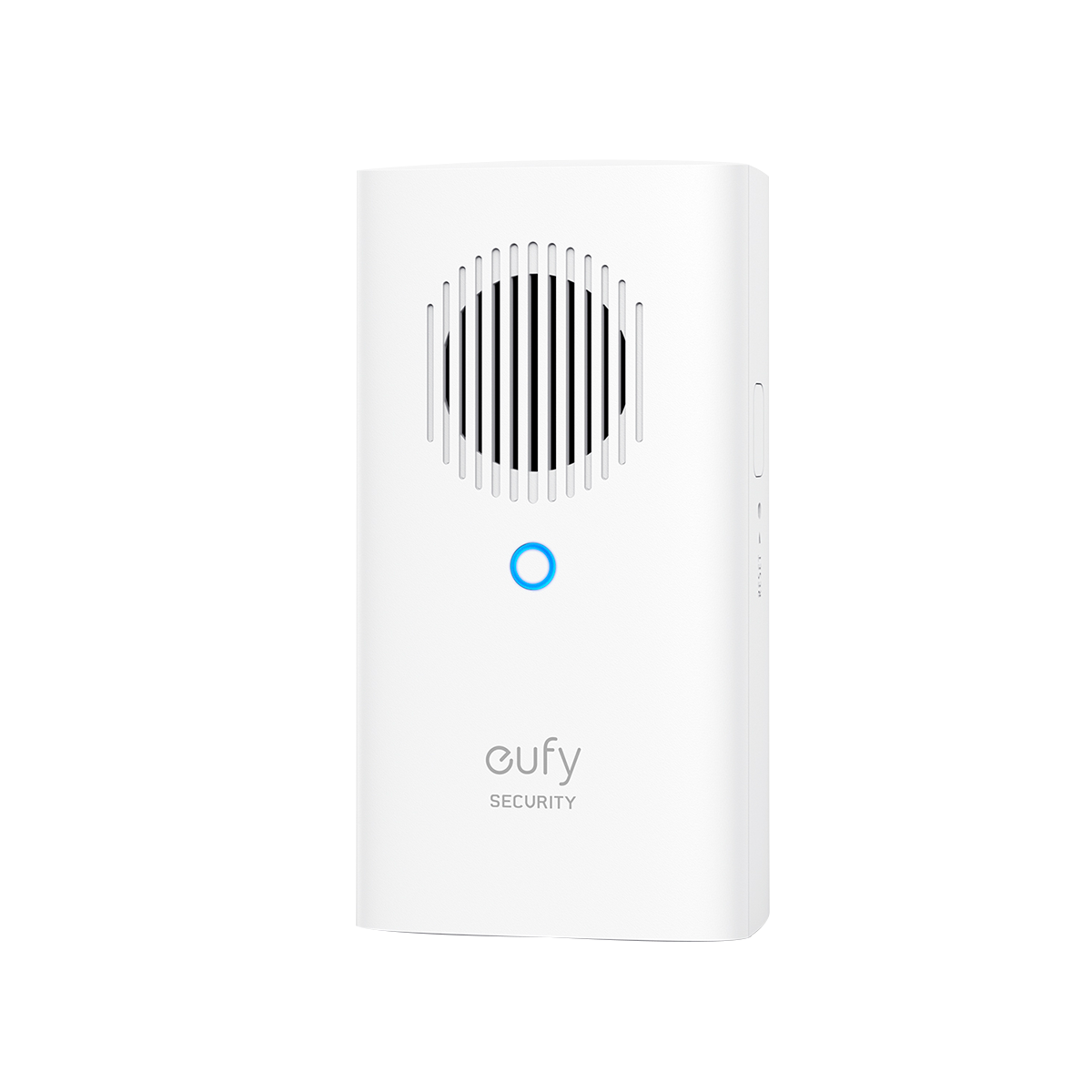
The wired connection setup uses your home’s existing doorbell wiring. This option provides continuous power to the doorbell. It eliminates the need to recharge batteries. The wired doorbell stays charged all the time. Your video doorbell will stay active without interruptions.
This setup requires some electrical work. You may need to turn off power and connect wires safely. It suits homes with a traditional doorbell system. Wired connection also supports features like chime integration. It offers a reliable and constant power source for your doorbell.
Credit: www.eufy.com
Mount The Doorbell
Mounting the Eufy Video Doorbell correctly is key to its performance. It must be steady and at the right height. This ensures clear video and easy access for visitors.
Follow the steps carefully to fix the doorbell firmly. Use the tools provided or recommended. A strong mount keeps the device safe from weather and tampering.
Mark Mounting Points
Hold the mounting bracket against the wall. Position it where you want the doorbell. Use a pencil to mark the holes on the wall. Double-check the marks for accuracy before drilling.
Drill Holes And Insert Anchors
Choose a drill bit that matches the size of the anchors. Drill holes at the marked points carefully. Insert the plastic anchors into the holes. Push them in until they are flush with the wall.
Attach The Doorbell To Wall
Align the mounting bracket with the anchors. Screw the bracket into place using the provided screws. Snap the doorbell onto the bracket firmly. Test its stability by gently pulling on it.
Pair Doorbell With App
Pairing your Eufy video doorbell with the app is the first step to control and monitor your device. This connection lets you see visitors, receive alerts, and manage settings easily. Follow simple steps to connect the doorbell to your smartphone.
Scan Qr Code On Device
Open the Eufy Security app on your phone. Find the option to add a new device. The app will ask you to scan the QR code on your doorbell. This code is usually on the back or inside the device. Use your phone camera to scan it clearly.
Scanning the QR code links your doorbell to the app. This process ensures your device is recognized quickly. It saves time and avoids manual entry errors.
Follow In-app Instructions
The app guides you through setup steps after scanning. Connect the doorbell to your home Wi-Fi network. Make sure your phone is near the doorbell during this step. The app will confirm when the connection is successful.
You may also customize settings like notifications and motion detection here. Follow each prompt carefully for smooth setup. The app offers clear directions to help you at every step.
Test Video And Audio
Once paired, test the doorbell’s video and audio features. Check the live video feed on your phone. Speak through the app to test the two-way audio. This ensures the doorbell works well and you can hear visitors.
Testing early helps fix issues before full use. Confirm clear video and sound quality for best experience. Adjust settings if needed for better performance.
Credit: yourpghlawyer.com
Customize Settings
Customizing your Eufy Video Doorbell settings helps you get the best experience. You control how the doorbell reacts and what alerts you receive. This makes your home safer and keeps you informed without unnecessary noise.
Adjust Motion Detection
Set the motion detection to focus on important areas. You can choose zones around your door to watch closely. This reduces false alerts from passing cars or pets. Adjust the sensitivity level to catch real movement only. This keeps your notifications useful and timely.
Set Notification Preferences
Choose how and when to get alerts from your doorbell. Select push notifications on your phone for instant updates. You can turn off alerts during certain hours for quiet times. This helps avoid disturbances at night or during work. Customize sounds and vibration to suit your needs.
Configure Video Quality
Change video quality to match your internet speed and storage. Higher quality shows clearer images but uses more data. Lower quality saves space and loads faster on slow networks. Pick a balance that works for you. Clear video helps identify visitors easily.
Troubleshooting Tips
Adding a Eufy Video Doorbell should be easy. Sometimes, small problems can stop it from working right. Troubleshooting helps fix these problems fast. This saves time and keeps your doorbell working well. Here are some common issues and tips to solve them.
Wi-fi Connection Issues
Check if your Wi-Fi is on and strong. The doorbell needs a good signal to work. Move your router closer to the doorbell if the signal is weak. Restart your router to refresh the connection. Make sure the Wi-Fi password is correct in the app. Avoid using 5GHz Wi-Fi; Eufy doorbells work best with 2.4GHz networks.
Doorbell Not Responding
Press the button firmly and wait a few seconds. If nothing happens, check the battery level. Replace or recharge the battery if it is low. Ensure the doorbell is properly mounted and connected. Restart the doorbell by removing and reinserting the battery. This can fix minor glitches quickly.
App Sync Problems
Open the Eufy Security app and check for updates. Update the app to the latest version if needed. Log out and log back into your account. Clear the app cache to fix loading issues. Make sure your phone’s Bluetooth and Wi-Fi are enabled. Sync the doorbell again following the app instructions carefully.

Credit: www.amazon.com
Frequently Asked Questions
How Do I Install A Eufy Video Doorbell?
To install a Eufy video doorbell, first turn off power to your existing doorbell. Mount the Eufy bracket, connect wires, and attach the doorbell. Restore power and follow the app setup instructions for Wi-Fi and configuration.
What Tools Are Needed To Add A Eufy Video Doorbell?
You need a drill, screwdriver, wire stripper, voltage tester, and level. These tools help safely mount and connect the Eufy doorbell to your home’s existing wiring.
Can I Use Eufy Doorbell Without Existing Wiring?
Yes, Eufy offers battery-powered models that require no existing wiring. These models are easier to install but may need periodic recharging.
How Do I Connect Eufy Doorbell To Wi-fi?
After installation, open the Eufy Security app, select “Add Device,” and follow prompts to connect the doorbell to your 2. 4GHz Wi-Fi network for live streaming and alerts.
Conclusion
Adding a Eufy video doorbell is easier than you think. Follow each step with care and take your time. This device helps you see visitors right from your phone. It adds safety to your home without complicated setup. Enjoy knowing who’s at the door anytime, anywhere.
Stay secure and connected with simple technology. Now, your home feels smarter and safer. Give it a try and see the difference.