Are you ready to make your home smarter and more secure? Setting up your Kwikset door lock with SmartThings is easier than you think.
Imagine unlocking your door right from your phone, giving access to family or friends no matter where you are. In this guide, you’ll discover simple, step-by-step instructions to connect your Kwikset lock to SmartThings quickly and without frustration. Keep reading, and soon you’ll enjoy the convenience and peace of mind that comes with a smart, connected door lock.
Kwikset Lock Basics
Kwikset locks offer a reliable way to secure your home. They combine traditional locking methods with smart technology. Understanding the basics helps you pick the right lock and use it well. This section explains the types of Kwikset locks and their main features.
Types Of Kwikset Locks
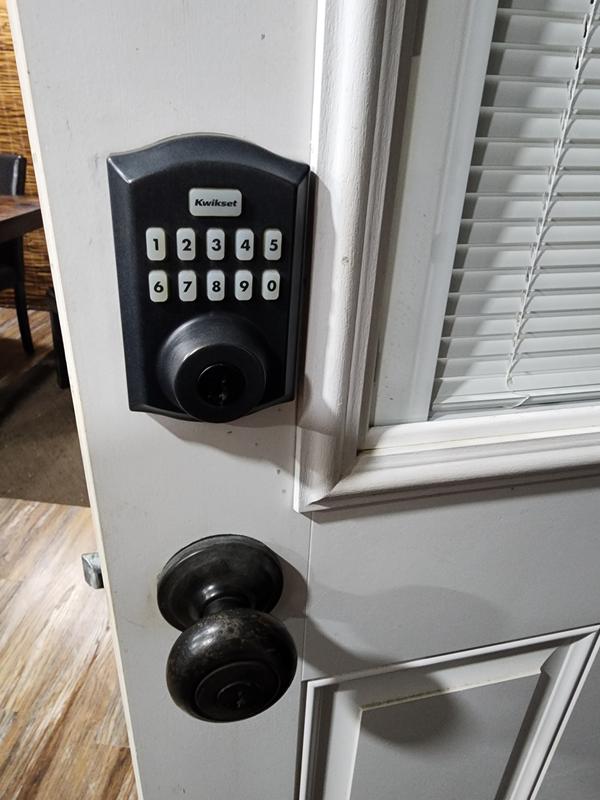
Kwikset has many locks to fit different needs. The standard deadbolt is common for home security. Smart locks connect to your phone or smart home devices. Keypad locks allow entry with a code, no key needed. Some models combine these features for extra convenience. Choose one that fits your door and lifestyle.
Features And Benefits
Kwikset locks provide strong security with easy use. Smart locks can be controlled from anywhere using an app. You can give temporary access to guests or workers. Many models have alarms to warn of break-in attempts. The locks are easy to install and fit most doors. They work well with Smart Things for home automation.
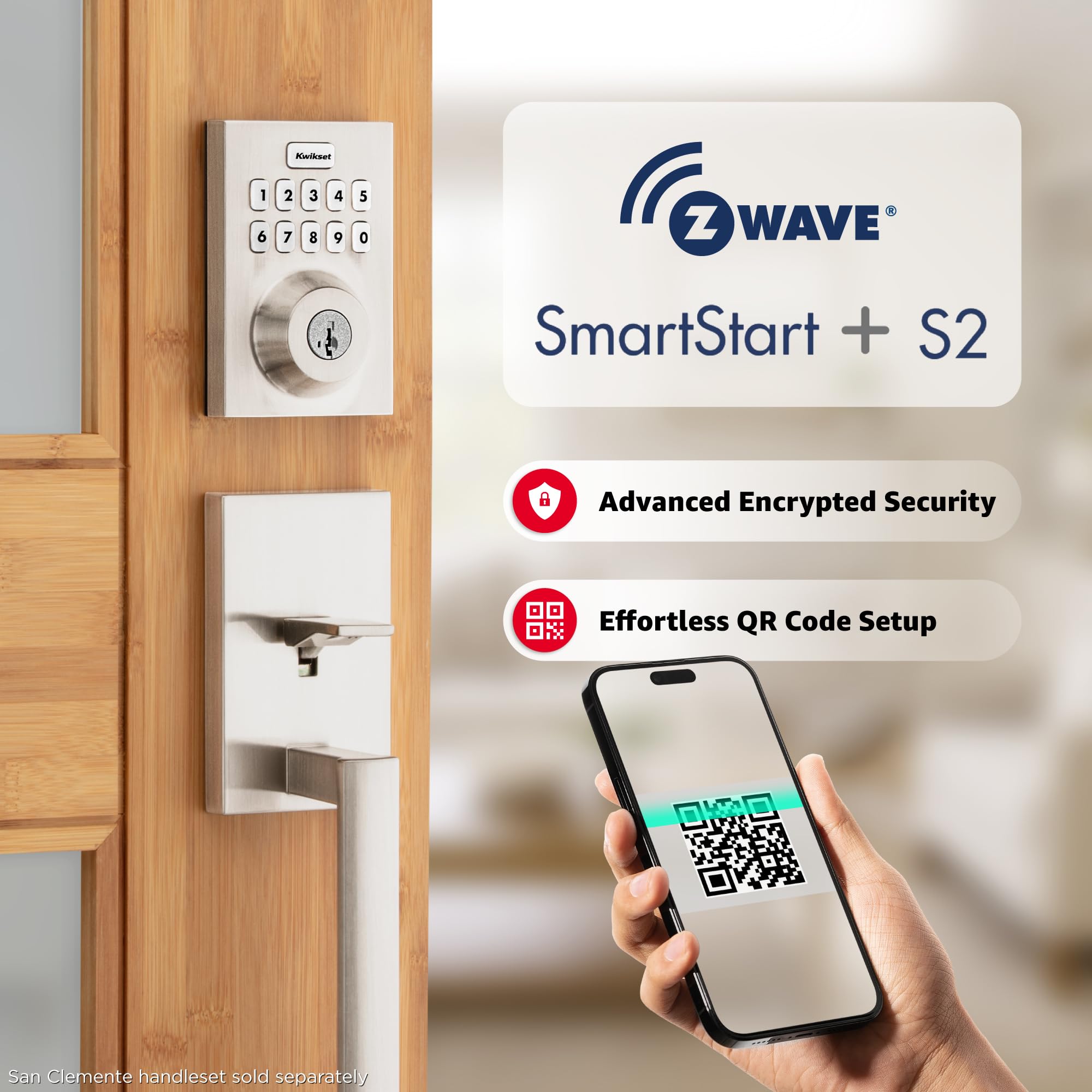
Credit: www.amazon.com
Smartthings Hub Setup
Setting up the SmartThings Hub is the first step to connect your Kwikset door lock with SmartThings. The hub acts as the central point for all your smart devices. It lets you control your door lock remotely through the SmartThings app. This section guides you through the process of preparing your SmartThings Hub for use.
Connecting The Hub
Start by plugging the SmartThings Hub into a power outlet. Use the Ethernet cable to connect it to your home router. Wait for the LED light on the hub to turn solid green. This means the hub is online and ready to pair with devices. Keep the hub near your router during setup for a stable connection.
Creating A Smartthings Account
Download the SmartThings app from the App Store or Google Play. Open the app and tap on “Create Account.” Enter your email address and create a password. Follow the prompts to verify your email. Once verified, sign in to your new account. This account lets you manage all your smart home devices in one place.
Preparing Kwikset Lock
Preparing your Kwikset lock is the first step to connect it with Smart Things. This ensures smooth operation and quick setup. Proper preparation avoids issues during installation and syncing.
Start by checking the lock’s power source and settings. A ready lock responds better to commands and integrates easily with smart systems.
Installing Batteries
Open the battery compartment on the inside of the lock. Use a screwdriver if needed. Insert fresh AA batteries in the correct direction. Close the compartment firmly. Test the lock by pressing the keypad buttons. If the lock does not respond, check the battery contacts for dirt or corrosion.
Resetting The Lock
Resetting clears previous settings and allows a fresh start. Find the reset button inside the battery compartment. Press and hold it for about 10 seconds. Release the button when the lock beeps or the LED flashes. This signals the lock is ready to pair with Smart Things. Resetting ensures no old data blocks the setup process.
Credit: www.kwikset.com
Pairing Lock With Smartthings
Pairing your Kwikset door lock with SmartThings lets you control your lock from anywhere. It makes managing home security easier and more convenient. Follow the steps below to connect your lock smoothly with the SmartThings app.
Enabling Pairing Mode
Start by putting your Kwikset lock into pairing mode. Press and hold the program button on the lock’s interior until the LED blinks green. This means the lock is ready to connect. Keep the lock close to your phone for a better connection.
Adding Device To Smartthings App
Open the SmartThings app on your phone. Tap the ‘+’ icon to add a new device. Select ‘Lock’ and choose Kwikset from the list. Follow the on-screen instructions to complete the pairing. Wait for the confirmation that the lock is connected.
Configuring Lock Settings
Configuring the lock settings is a key step in using your Kwikset door lock with SmartThings. It lets you control who can enter and how you get alerts about your door. Setting up these options helps keep your home safe and makes managing your lock easy. The process is simple and can be done through the SmartThings app.
Setting User Codes
Creating user codes allows different people to have their own entry numbers. Open the SmartThings app and select your Kwikset lock. Find the user codes section in the lock settings menu. Tap on “Add User” or “Create Code.”
Choose a name for the user, like “Mom” or “Guest.” Then, enter a new code with 4 to 8 digits. Save the code to activate it. You can add multiple codes for family or friends. Delete or change codes anytime through the app.
Customizing Notifications
SmartThings can send alerts about your lock’s activity. Notifications tell you when the door locks or unlocks. Open the SmartThings app and go to your lock’s settings. Find the notifications or alerts option.
Turn on notifications for events you want to track. For example, get alerts when someone uses a user code or if the door is left unlocked. You can choose to receive alerts on your phone or email. Adjust these settings to fit your needs and stay informed about your home’s security.
Troubleshooting Tips
Setting up your Kwikset door lock with SmartThings is simple, but some problems can occur. This section helps you fix common issues fast. Follow these tips to keep your smart lock working smoothly.
Connection Issues
Check if your phone and lock are on the same Wi-Fi network. Move closer to your router for a stronger signal. Restart your SmartThings hub and app to refresh connections. Make sure your lock’s firmware is up to date. Remove and re-add the lock in the SmartThings app if needed.
Battery Problems
Low battery can cause the lock to stop responding. Replace batteries with fresh AA alkaline ones. Check the battery contacts for dirt or corrosion. Clean them gently with a dry cloth. Avoid mixing old and new batteries to prevent damage.
App Sync Errors
App sync errors can prevent commands from reaching your lock. Close and reopen the SmartThings app to refresh it. Log out and log back in to your account. Clear the app cache from your phone settings. Update the app to the latest version for best performance.
Enhancing Security
Enhancing security is a key benefit of setting up your Kwikset door lock with SmartThings. Smart locks add a layer of protection by allowing remote control and monitoring. You can check your lock status anytime and from anywhere. This helps prevent unauthorized access and keeps your home safer. The system also gives alerts for unusual activities, so you stay informed.
Using Automations
Automations let you create rules for your Kwikset lock. For example, you can set it to lock automatically at a certain time. Or unlock when your phone is nearby. This reduces the chance of forgetting to lock the door. You can also receive notifications if the door is left open. Automations make your home more secure without extra effort.
Integrating With Other Devices
SmartThings connects your Kwikset lock with other smart devices. Link it with cameras to record when the door opens. Connect with motion sensors to trigger alarms. You can also sync with smart lights to turn on at entry. This creates a strong security network around your home. Integration helps you respond quickly to any security threat.

Credit: www.youtube.com
Frequently Asked Questions
How Do I Connect Kwikset Door Lock To Smartthings?
To connect, open the SmartThings app and select “Add device. ” Choose Kwikset from the lock list, then follow pairing instructions. Ensure your lock is in pairing mode and within range of the hub for successful connection.
What Are The Compatibility Requirements For Kwikset Locks?
Kwikset locks must support Z-Wave or Zigbee to work with SmartThings. Ensure your SmartThings hub supports the lock’s communication protocol. Check the lock’s manual or product details for compatibility before setup.
Can I Control Kwikset Lock Remotely Via Smartthings?
Yes, you can lock and unlock your Kwikset remotely using SmartThings. The app allows you to monitor lock status and receive notifications from anywhere with internet access.
How Do I Troubleshoot Kwikset Lock Connection Issues?
Restart your SmartThings hub and ensure the lock is in pairing mode. Check battery levels and verify the lock is within range. Remove and re-add the device if connection problems persist.
Conclusion
Setting up your Kwikset door lock with SmartThings is simple and quick. Follow each step carefully to ensure smooth connection. This setup helps you control your lock from anywhere. It adds convenience and security to your home. Keep your app updated for the best experience.
Enjoy easy access and peace of mind every day. Now, your smart lock works perfectly with SmartThings.