Have you ever wanted to remove your Ring Video 2 Doorbell device but didn’t know where to start? Whether you’re upgrading, troubleshooting, or simply clearing out old devices, deleting your Ring doorbell from your account can seem tricky.
But don’t worry—this guide will walk you through the process step-by-step, making it quick and hassle-free. By the end, you’ll have full control over your devices and know exactly how to manage them with ease. Keep reading to find out how to delete your Ring Video 2 Doorbell device without any confusion or frustration.
Prepare Your Ring App
Preparing your Ring app is the first step to deleting your Ring Video 2 Doorbell device. This ensures the app works smoothly and connects properly to your device. Taking a moment to update and sign in makes the process faster and easier.
Follow these simple steps to get your Ring app ready before deleting your device.
Check For App Updates
Open your device’s app store. Search for the Ring app. See if an update is available. Updates fix bugs and add new features. Installing the latest version helps avoid errors. It also improves app stability. Always keep your app updated for the best experience.
Sign Into Your Account
Launch the Ring app on your phone or tablet. Enter your email and password carefully. Make sure you use the account linked to your doorbell. Signing in lets you access your device settings. It also verifies your identity. Staying logged in saves time during setup.
Credit: ring.com
Locate Your Ring Video 2 Device
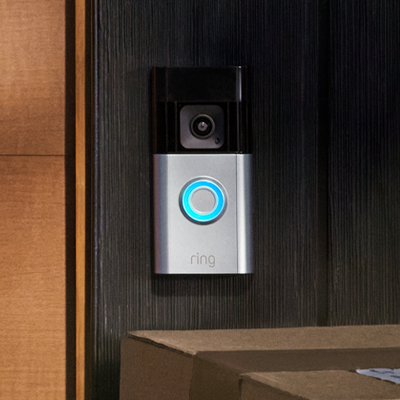
To delete a Ring Video 2 doorbell device, start by opening the Ring app. Find your device in the list, then select the option to remove it from your account. This clears the device and stops notifications from that doorbell.
Access Device List
Start by opening the Ring app on your smartphone or tablet. Make sure you are logged into your account. On the main screen, find the menu icon, usually at the top left corner. Tap it to open the side menu. Select “Devices” from the list. This section shows all Ring devices linked to your account. You can see cameras, alarms, and doorbells here. This helps you find the exact device you want to delete.
Select The Doorbell
Scroll through the device list carefully. Look for your Ring Video 2 Doorbell by its name or location. Tap on the doorbell device to open its settings. Check the details to confirm it is the correct device. Knowing the right device prevents accidental deletion. Once confirmed, you can proceed with managing or deleting the device safely.
Steps To Remove The Device
Removing your Ring Video 2 Doorbell device is a simple process. It helps clear your account or prepare the device for a new owner. Follow these clear steps to complete the removal quickly and safely.
Each step guides you through the app settings. You do not need technical skills. Just follow the instructions in order.
Open Device Settings
Start by opening the Ring app on your phone. Tap on the menu icon in the top left corner. Select “Devices” from the list. Find your Ring Video 2 Doorbell device. Tap on it to open its settings.
Choose Remove Device Option
Scroll down in the device settings. Look for the “Remove Device” button. Tap on this option to begin the removal process. This tells the app you want to delete the device from your account.
Confirm Removal
The app asks you to confirm your choice. Read the message carefully. Tap “Remove” or “Confirm” to complete the action. The device will no longer be linked to your Ring account.

Credit: www.youtube.com
Troubleshoot Removal Issues
Removing a Ring Video 2 Doorbell device can sometimes be tricky. Problems may arise during the process. This section helps fix common removal issues. Follow these steps to troubleshoot easily.
Resetting The Doorbell
Start by resetting your Ring Video 2 Doorbell. Press and hold the setup button for 15 seconds. Wait for the light to flash. This clears old settings and prepares the device for removal.
Resetting often solves connection or removal errors. After reset, try removing the device again through the app.
Reinstalling The App
App problems can block device removal. Delete the Ring app from your phone. Then, download and install the latest version.
Log in with your account details. Reinstalling fixes bugs and refreshes app data. This step can clear glitches stopping device removal.
Contacting Support
Still stuck? Reach out to Ring support. They offer expert help for device issues. Use the Ring website or app to contact them.
Prepare your device details and account info. Support can guide you through tough removal problems quickly.
After Deletion Tips
Deleting your Ring Video 2 Doorbell device is just the start. After removal, some steps help keep your system smooth and organized. These tips make sure your home security stays strong and your notifications stay clear.
Reassigning Devices
After deleting a device, you may want to reassign other Ring devices. Move them to different rooms or users. This keeps your account neat and easy to manage. It also helps avoid confusion in alerts or settings.
Open the Ring app and go to the device list. Choose the device to reassign. Tap settings and select a new location or user. This simple step keeps your devices in order.
Managing Notifications
Deleting a doorbell might change your alert setup. Check your notification settings next. Turn off alerts for the deleted device to stop unwanted messages. Adjust alerts for remaining devices to match your needs.
Open the app’s notification menu. Review each device’s settings. Customize alerts for motion, rings, or live views. Manage these to stay informed without overload.
Credit: ring.com
Frequently Asked Questions
How Do I Remove My Ring Video 2 Doorbell Device?
Open the Ring app, select your device, go to Device Settings, and tap Remove This Device. Confirm removal to delete it.
Can I Delete A Ring Doorbell Without The App?
No, you must use the Ring app to delete your Ring Video 2 Doorbell device. The app controls device management.
What Happens After Deleting The Ring Doorbell Device?
Deleting removes the device from your account and stops all notifications. You must reconnect to use it again.
Is Factory Reset Needed Before Deleting The Ring Doorbell?
Factory reset is not required to delete the device from your account, but it helps if transferring ownership.
Conclusion
Deleting your Ring Video 2 doorbell device is simple and quick. Just follow the easy steps described earlier. This helps keep your app organized and secure. Removing old or unused devices frees up space. It also stops unwanted access to your home.
Take a moment to check your devices regularly. Stay in control of your Ring system. Now, managing your doorbell is stress-free and clear.