Imagine this: someone rings your Ring Video Doorbell, and instead of rushing to your phone or door, you instantly see who’s there right on your Fire TV screen. Sounds convenient, right?
If you want to make your home smarter and keep an eye on visitors with ease, connecting your Ring Video Doorbell to your Fire TV is the perfect solution. In this guide, you’ll learn exactly how to set it up step-by-step, so you never miss a visitor or package again.
Ready to make your home safer and more connected? Let’s dive in.
Prepare Your Devices
Preparing your devices is the first step to connect your Ring Video Doorbell to Fire TV. Proper preparation makes the setup smooth and fast. You need to ensure both devices are ready to work together.
Check Compatibility
Make sure your Fire TV supports the Ring app. Most Fire TV Stick models do, but older versions may not. Also, confirm your Ring Video Doorbell model works with Fire TV. Visit Ring’s official site for the latest compatibility list.
Update Software
Keep your Fire TV and Ring Doorbell apps up to date. Updates fix bugs and add new features. On Fire TV, go to Settings > My Fire TV > About > Check for Updates. For the Ring app, update via the app store on your smartphone.
Connect To Wi-fi
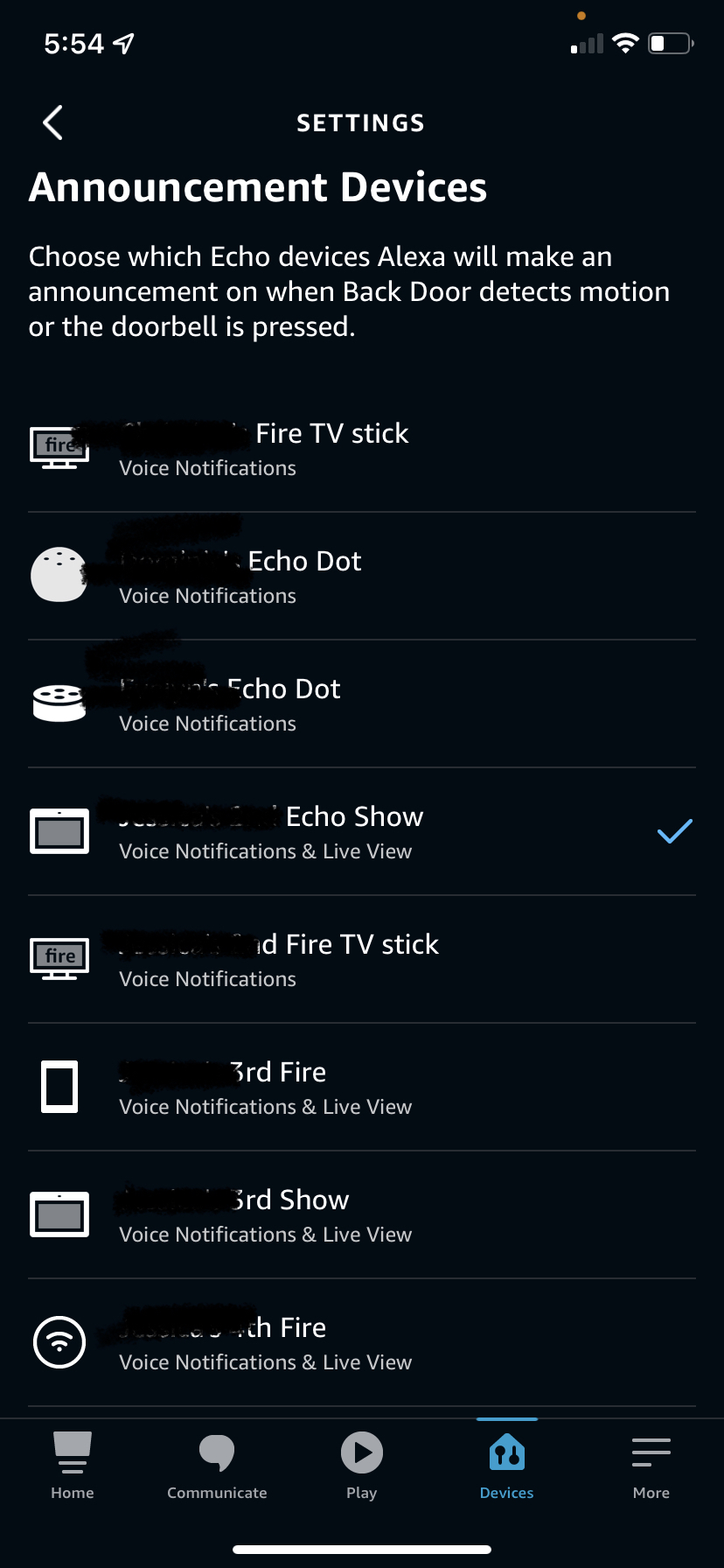
Both devices must connect to the same Wi-Fi network. A strong and stable connection ensures smooth video streaming. Check Wi-Fi settings on your Fire TV in Settings > Network. For the Ring Doorbell, use the Ring app to confirm or change Wi-Fi settings.
Credit: kdfoundation.org
Set Up Ring Video Doorbell
Setting up your Ring Video Doorbell is the first step to connect it with your Fire TV. This process ensures your doorbell works well and sends alerts to your devices. Follow simple steps to get your Ring Doorbell ready for use.
Install The Ring App
Download the Ring app from the Apple App Store or Google Play Store. The app is free and easy to find. Open the app and allow necessary permissions to use your phone’s camera and microphone. This helps with setting up and using the doorbell.
Create Or Log In To Ring Account
Open the Ring app and choose to create a new account if you do not have one. Enter your email, create a password, and follow the prompts. If you already have an account, simply log in using your details. This step links your doorbell to your personal account.
Configure Doorbell Settings
After logging in, select your Ring Video Doorbell from the devices list. Adjust settings like motion detection and alert preferences. Set up Wi-Fi connection to ensure the doorbell works smoothly. Customize notifications to receive alerts on your phone or Fire TV.
Set Up Fire Tv
Setting up your Fire TV is the first step to connect your Ring Video Doorbell. A properly set Fire TV ensures smooth streaming and device control. Follow these simple steps to get your Fire TV ready for use.
Starting with the basics makes the process faster and easier. This setup allows you to enjoy your Ring Video Doorbell on the big screen.
Access Fire Tv Home Screen
Turn on your TV and Fire TV device. Use the remote to navigate. The home screen shows apps and settings. It is the main place to start.
Look for the Fire TV logo during startup. Wait until the home screen fully loads. You will see options like Search, Your Apps, and Settings.
Connect Fire Tv To Wi-fi
Go to the Settings menu on the home screen. Select “Network” to see available Wi-Fi options. Choose your home Wi-Fi network.
Enter your Wi-Fi password carefully. Confirm the connection to link your Fire TV to the internet. A strong connection helps the Ring app work well.
Update Fire Tv Software
Stay updated for better performance and security. Open Settings and select “My Fire TV” or “Device.” Choose “About,” then “Check for Updates.”
Download and install any available updates. Your Fire TV may restart during this process. Updated software ensures compatibility with the Ring app.
Credit: kdfoundation.org
Enable Ring Skill On Fire Tv
To connect your Ring Video Doorbell to Fire TV, enabling the Ring Skill on Fire TV is essential. This skill allows your Fire TV to communicate with your Ring devices. Once enabled, you can view your doorbell’s live feed directly on your TV screen. The process is simple and takes just a few steps.
Open Alexa App
Start by opening the Alexa app on your smartphone or tablet. This app controls your Fire TV and smart devices. Make sure you are signed in with the same Amazon account linked to your Fire TV.
Search For Ring Skill
Within the Alexa app, go to the menu and select “Skills & Games.” Use the search bar to type “Ring.” Find the official Ring Skill in the results. Click on it to open the skill page.
Link Ring Account
Tap the “Enable to Use” button to start linking your Ring account. A login page will appear. Enter your Ring username and password. Grant permission to connect your Ring devices with Alexa. The skill will now be active on your Fire TV.
View Ring Doorbell On Fire Tv
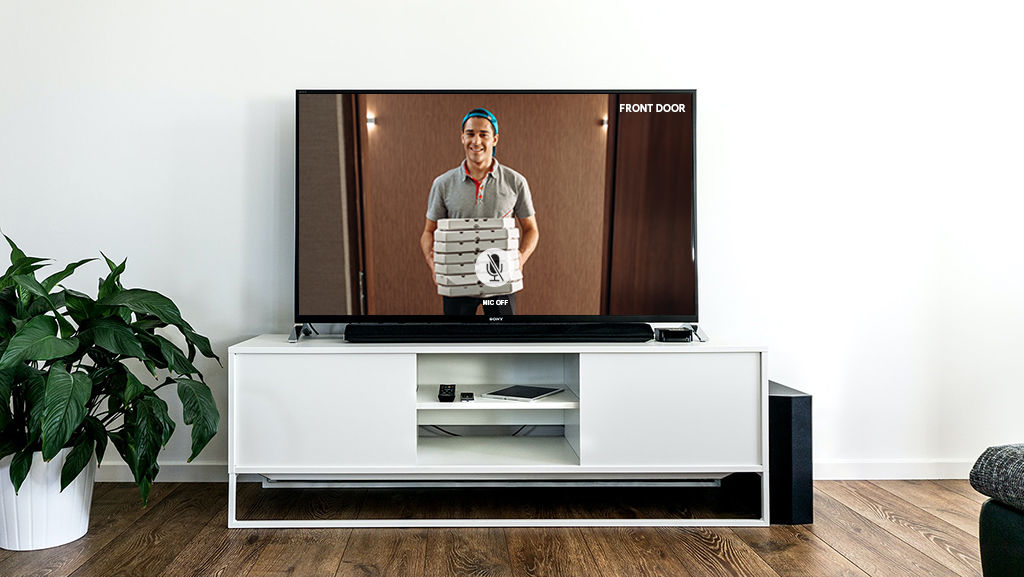
Viewing your Ring Video Doorbell on Fire TV makes home security easier. You can see who is at your door without leaving your couch. This feature helps you stay aware and respond fast. The setup is simple and offers clear video right on your big screen.
Use Voice Command With Alexa
Say, “Alexa, show me the front door” to your Fire TV. Alexa will open the Ring app and display the live video feed. No need to use your hands or remote. This voice command saves time and is very handy. Make sure your Fire TV and Ring device are linked in the Alexa app.
Access Live View Manually
Open the Ring app on your Fire TV using the remote. Navigate to your devices list and select your Ring Doorbell. Choose the Live View option to see real-time video. This manual method works well if voice commands fail or are unavailable. Use your Fire TV remote to control the video.
Troubleshoot Common Issues
Check your Wi-Fi connection for both Fire TV and Ring Doorbell. Weak signals cause video delays or no feed at all. Restart your Fire TV and Ring device to fix minor glitches. Ensure the Ring app is updated to the latest version. If problems continue, unlink and relink your devices in the Alexa app.

Credit: www.youtube.com
Frequently Asked Questions
How Do I Connect Ring Doorbell To Fire Tv?
To connect, open the Fire TV app store and download the Ring app. Sign in with your Ring account and follow the on-screen instructions to link your devices.
Can I View Ring Doorbell On Fire Tv?
Yes, you can view live video from your Ring Doorbell on Fire TV using the Ring app. It allows easy access to your front door camera feed.
Is The Ring App Free On Fire Tv?
Yes, the Ring app is free to download and use on Fire TV devices. You only need a Ring account to access your video doorbell feed.
What Fire Tv Devices Support Ring Doorbell?
Most Fire TV Stick models and Fire TV Cube support the Ring app. Ensure your device has the latest software updates for compatibility.
Conclusion
Connecting your Ring Video Doorbell to Fire TV makes home monitoring easy. You can see visitors without moving from your couch. The steps are simple and quick to follow. Just ensure both devices are on the same Wi-Fi network. Use the Ring app on Fire TV to get started.
This setup helps you stay aware and secure at all times. Try it today and enjoy hands-free home security. Simple, effective, and convenient—just what you need.