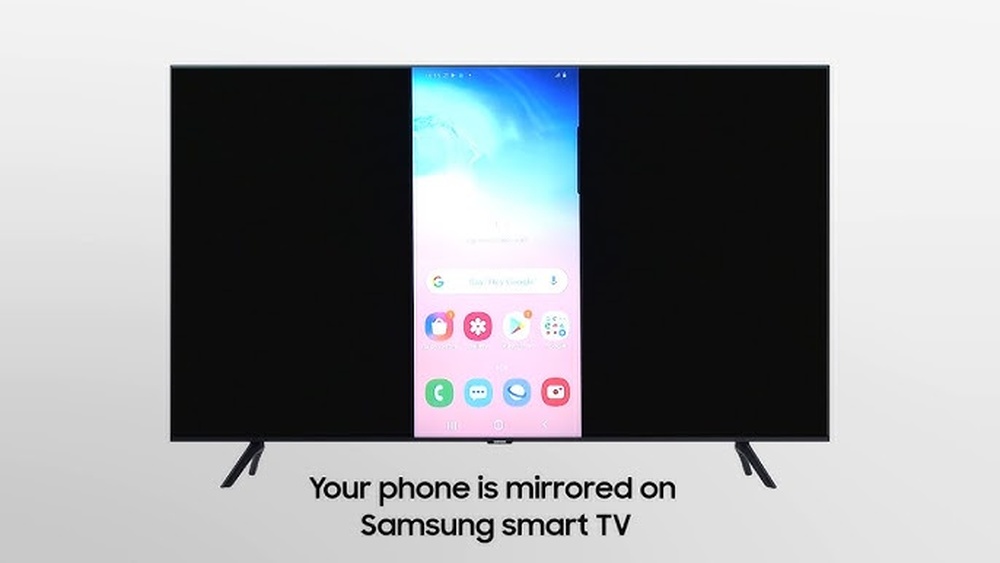

Want to enjoy your phone or tablet’s content on a bigger screen without any hassle? Screen mirroring your Samsung Smart device lets you do just that.
Whether it’s sharing photos, watching videos, or playing games, mirroring brings everything to life on your TV. If you’ve ever struggled with complicated setups or unclear instructions, this guide is for you. Keep reading, and you’ll learn simple, step-by-step ways to mirror your Samsung Smart device quickly and smoothly.
Your viewing experience is about to get a whole lot better!

Credit: www.youtube.com
Prepare Your Devices
Preparing your devices is the first step to screen mirror your Samsung Smart TV. This step ensures both your phone and TV are ready to connect smoothly. A little setup saves a lot of trouble later.
Check Compatibility
Make sure your Samsung TV supports screen mirroring. Most models from 2015 or later have this feature. Check your TV manual or settings menu to confirm. Also, your phone must support screen mirroring. Samsung Galaxy phones usually do.
Connect To The Same Network
Both your TV and phone need to be on the same Wi-Fi network. This connection allows them to communicate easily. Open Wi-Fi settings on each device and select the same network name. Avoid using mobile data or different Wi-Fi bands.
Enable Screen Mirroring On Tv
Turn on screen mirroring on your Samsung Smart TV. Go to the TV’s settings menu and find the screen mirroring option. Activate it to make your TV discoverable by your phone. Some TVs call this feature “Smart View” or “Mirroring.”

Credit: www.samsung.com
Use Smart View On Samsung Phone
Using Smart View on your Samsung phone makes screen mirroring simple. This feature lets you share your phone’s screen with your Samsung Smart TV quickly. Follow easy steps to connect and enjoy your photos, videos, and apps on a bigger screen.
Access Quick Settings
Swipe down from the top of your phone screen. This opens the Quick Settings panel. Look for the Smart View icon. It looks like a screen with a Wi-Fi signal. Tap the icon to start the process.
Select Your Tv
Your phone searches for nearby devices automatically. Find your Samsung Smart TV on the list. Tap your TV name to connect. Both devices must be on the same Wi-Fi network for this to work.
Start Mirroring
After selecting your TV, a connection request appears on the TV. Accept the request using your TV remote. Your phone screen now shows on the TV. Use your phone as usual, and enjoy the bigger view.
Mirror Using Third-party Apps
Screen mirroring your Samsung Smart TV can be easy with third-party apps. These apps help connect your phone or tablet to your TV. You can share videos, photos, and more on the big screen. Many apps work well and offer extra features.
Choose A Reliable App
Select an app with good reviews and high ratings. Check if the app supports your Samsung TV model. Look for apps that are free or have a trial version. This helps you test the app before buying.
Install And Set Up
Download the app from Google Play or the App Store. Open the app and follow the setup instructions. You may need to allow permissions for the app to work. Make sure your phone and TV are on the same Wi-Fi network.
Connect And Mirror
Open the app and find your Samsung TV in the list. Tap on your TV name to connect. Start mirroring your screen or choose files to share. Control playback and settings directly from your device.

Credit: www.samsung.com
Troubleshoot Common Issues
Screen mirroring your Samsung Smart device should be simple. Sometimes, issues arise that stop the process. These common problems can often be fixed quickly. Knowing how to troubleshoot helps keep your streaming smooth and easy.
Fix Connection Problems
Start by checking your Wi-Fi network. Make sure both devices connect to the same network. Restart your router and devices to refresh connections. Turn off Bluetooth and then turn it back on. Use the Samsung Smart View app to reconnect if needed. Clear the cache on your phone or tablet to improve connection. Try moving closer to your Wi-Fi router to strengthen the signal.
Improve Streaming Quality
Close apps running in the background to free up memory. Lower the screen resolution on your device to reduce lag. Pause other internet activities to increase bandwidth. Use a wired connection for your Samsung Smart TV if possible. Reduce the distance between your device and the TV. Restart your devices to clear temporary glitches. Disable VPNs or proxies that might slow down streaming.
Update Software
Keep your Samsung Smart TV’s software up to date. Go to Settings, then Support, and select Software Update. Update your phone or tablet’s operating system regularly. Use the latest version of the Smart View app. Updates fix bugs and improve compatibility. Check for updates if screen mirroring stops working suddenly. Restart devices after updates to apply changes fully.
Enhance Your Viewing Experience
Screen mirroring your Samsung Smart device can bring your content to life. You can watch movies, share photos, or play games on a bigger screen. Enhancing your viewing experience makes it more enjoyable and smooth. Small changes can make a big difference.
Here are some easy ways to get the best picture and sound quality. These tips help you enjoy every moment on your TV or monitor.
Adjust Display Settings
Change the brightness and contrast for clearer images. Set the screen resolution to match your TV. This reduces blurriness and makes details sharp. Use the display mode that fits your content, like movie or game mode. It improves colors and reduces eye strain.
Use External Devices
Connect speakers or soundbars for better audio. A strong sound system makes movies more exciting. Use HDMI cables if your TV supports them for a stable connection. Wireless options like Bluetooth also work well. Choose the device that fits your setup and budget.
Manage Battery Usage
Screen mirroring uses more battery power than usual. Lower your device’s brightness to save energy. Close apps running in the background to improve performance. Keep your device charged or use a power bank for long sessions. This way, your viewing won’t be interrupted.
Frequently Asked Questions
How Do I Enable Screen Mirroring On Samsung Smart Tv?
To enable screen mirroring, open your TV’s settings and select “Screen Mirroring” or “Smart View. ” Make sure your phone and TV connect to the same Wi-Fi network. Then, activate mirroring on your phone and choose your Samsung TV from the device list.
Which Devices Support Samsung Screen Mirroring?
Samsung screen mirroring supports most Samsung smartphones, tablets, and some Windows PCs. Both devices must support Miracast or Smart View technology. Ensure your Samsung Smart TV is compatible and connected to the same Wi-Fi network for smooth mirroring.
Can I Screen Mirror Without Wi-fi On Samsung Tv?
Yes, you can screen mirror without Wi-Fi using a direct Wi-Fi Direct connection. Both your Samsung phone and TV must support Wi-Fi Direct. Enable Wi-Fi Direct on your TV and connect your phone directly for screen mirroring without a router.
What Apps Work Best For Samsung Screen Mirroring?
The best apps include Samsung Smart View, Miracast, and Google Home. These apps offer stable connections and easy controls. They support video, photos, and audio mirroring, enhancing your Samsung Smart TV experience with minimal setup.
Conclusion
Screen mirroring your Samsung Smart device is simple and useful. It helps you share videos, photos, and apps on a bigger screen. Just follow the steps carefully for a smooth connection. Make sure both devices are on the same Wi-Fi network.
Enjoy watching your favorite content with family and friends. Try different apps to find what works best for you. Keep your device updated to avoid any issues. Screen mirroring opens new ways to enjoy your Samsung Smart device easily. Give it a try today!