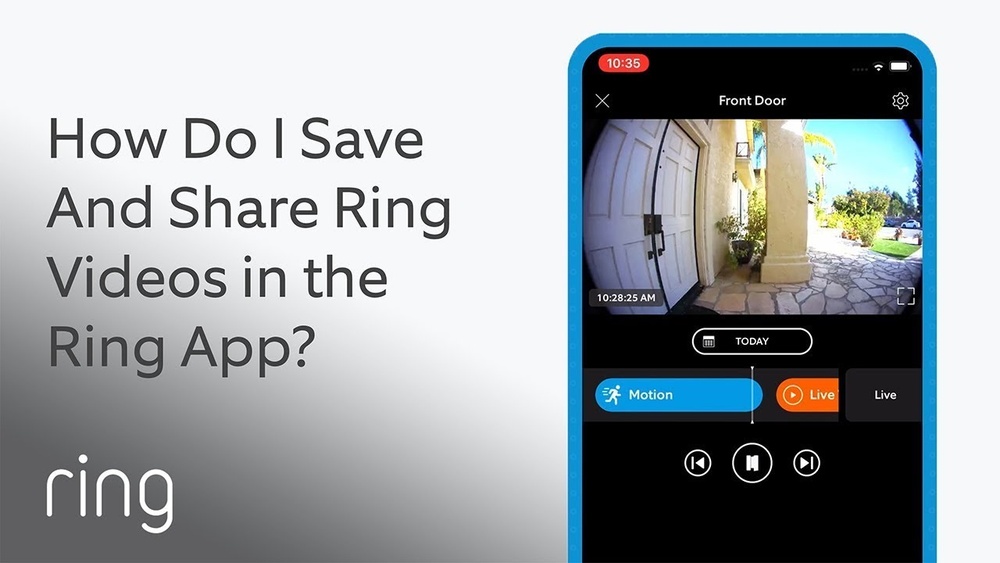

Have you ever missed an important moment caught on your Ring Doorbell and wished you could save the video forever? Whether it’s a delivery, a visitor, or something unexpected, knowing how to save Ring Doorbell video can give you peace of mind and easy access to the footage you need.
In this guide, you’ll discover simple and effective steps to store your videos securely. By the end, you’ll never have to worry about losing important recordings again. Ready to take control of your Ring videos? Let’s dive in.
Choose Your Storage Option
Choosing the right storage option for your Ring Doorbell videos is important. It helps you keep your footage safe and easy to access. There are two main ways to save your videos: cloud storage and local storage. Each has its own benefits. Pick the one that fits your needs best.
Cloud Storage Plans
Cloud storage saves your videos online. This means you can view them from any device. Ring offers different plans based on how many videos you want to keep. Plans usually include 30 days of video history. This way, you can check past events anytime.
Cloud storage also protects videos from being lost or deleted. Even if your doorbell is damaged, your videos stay safe. Access is simple through the Ring app. You only need an internet connection to watch or download videos.
Local Storage Choices
Local storage means saving videos on a device near you. Some Ring models support saving videos on a microSD card or a USB drive. This option does not require a monthly fee. You keep full control of your videos.
Local storage can be faster to access. You do not need internet to view your clips. But if the storage device is damaged, your videos may be lost. It also limits how many videos you can save. Choose a storage size that matches your needs.
Set Up Cloud Storage
Saving your Ring Doorbell videos to cloud storage keeps them safe and easy to access. Cloud storage offers a secure place to save videos. You can watch or download videos anytime. Setting up cloud storage is a smart step for video security.
Subscribe To Ring Protect
Ring Protect is the service that stores your videos in the cloud. Start by choosing a plan that fits your needs. Plans vary by number of devices and video history length. After subscribing, link your Ring account to the service. This connection lets your videos upload automatically.
Enable Video Saving
Once subscribed, turn on video saving in the Ring app. Go to device settings and find the video saving option. Enable it to allow videos to upload to the cloud. This step ensures all your recordings are stored safely. You can also set alerts for new videos.
Save Video Locally
Saving Ring Doorbell videos locally helps keep your footage safe and easily accessible. It lets you store videos without relying only on cloud services. Local storage can save space and reduce monthly fees. You control where and how videos are saved. This guide shows two simple ways to save videos on your own devices.
Using Microsd Cards
Some Ring Doorbell models support microSD cards for local storage. Insert the card into the device to save videos directly. This method offers quick access and easy transfer of files. Choose a card with enough space for your recording needs. Format the card correctly to avoid errors. Check your Ring model’s instructions to confirm microSD card compatibility.
Connecting To External Drives
Another option is to connect your Ring Doorbell to an external drive. Use a USB or network-attached storage (NAS) device for this. External drives provide larger storage capacity than microSD cards. Set up the drive to automatically save videos from your Ring device. This setup allows you to organize and back up your footage easily. Make sure the external drive is always connected and powered on.
Credit: kdfoundation.org
Download Videos To Your Device
Downloading Ring Doorbell videos to your device helps keep important footage safe. You can watch videos anytime without internet access. Saving videos also makes sharing easy with family or friends. Below are simple steps to download videos using the Ring app and on your desktop.
Using The Ring App
Open the Ring app on your smartphone. Tap on the “History” or “Event History” tab. Find the video you want to save. Tap the video to open it. Look for the download icon or “Save” option. Tap it to download the video to your phone’s gallery. The video saves as a file you can play offline. Make sure your app is updated for the latest features.
Accessing Videos On Desktop
Go to the Ring website on your computer browser. Log in with your Ring account details. Select your Ring Doorbell from the dashboard. Click on the “Event History” section. Choose the video you want to download. Click the download button below the video player. The video file will save to your computer’s default folder. You can then move or share the video as needed.
Manage And Organize Saved Footage
Managing and organizing saved footage from your Ring Doorbell is key to easy access. It helps you find important videos quickly. Proper management also saves storage space on your device or cloud. Well-organized videos keep your records neat and easy to review later.
Creating Folders
Create folders to group videos by date or event. For example, make folders for “Front Door” or “Backyard” footage. Label folders clearly to avoid confusion. This way, you spend less time searching for specific clips. Use simple names that make sense to you.
Backing Up Important Videos
Backup important videos to prevent loss. Save copies on a computer, external drive, or cloud storage. Choose reliable backup options to keep videos safe. Regularly update backups to include new footage. This protects your videos from accidental deletion or device failure.
Troubleshoot Common Saving Issues
Saving Ring Doorbell videos can sometimes be tricky. Users may face problems that stop videos from saving properly. Knowing common issues helps fix these problems fast. This section covers two main troubles: storage limits and connectivity problems. Each can affect how your videos are saved and accessed.
Storage Limits
Ring videos need space to save. If your storage is full, new videos won’t save. Check your Ring app for available storage. Clear old videos or upgrade your plan if storage is low. Limited space can cause missed recordings and lost clips. Managing storage keeps your videos safe and accessible.
Connectivity Problems
Good internet connection is key to saving videos. Poor Wi-Fi can stop videos from uploading to the cloud. Test your Wi-Fi speed near the doorbell. Move your router closer or add a Wi-Fi extender if needed. Strong connection ensures videos save quickly and correctly. Without it, videos may be delayed or lost.
Enhance Video Security
Protecting your Ring Doorbell videos is important for your home security. Enhancing video security helps keep your recordings safe from hackers and unauthorized access. Simple steps can improve your video protection and give you peace of mind.
Use Strong Passwords
Create passwords that are hard to guess. Use a mix of letters, numbers, and symbols. Avoid common words or easy patterns. Change your password regularly to keep it secure. Strong passwords reduce the chance of someone breaking into your account.
Enable Two-factor Authentication
Two-factor authentication adds an extra layer of security. It requires a code sent to your phone or email to log in. This makes it harder for others to access your videos. Turn on this feature in your Ring app settings for better protection.

Credit: www.eufy.com

Credit: kdfoundation.org
Frequently Asked Questions
How Can I Save Ring Doorbell Videos To My Phone?
You can save Ring Doorbell videos by opening the Ring app, selecting the video, and tapping the download button. This saves the video directly to your phone’s gallery for easy access and sharing.
Does Ring Offer Cloud Storage For Videos?
Yes, Ring provides cloud storage through its Protect Plan. It stores your videos securely, allowing you to view and download recordings anytime within your subscription period.
Can I Save Ring Videos Without A Subscription?
Without a subscription, you can view live videos but cannot save recorded videos. A Protect Plan subscription is required to access and save recorded footage.
How Long Are Ring Doorbell Videos Stored?
Ring stores videos for 30 days with an active Protect Plan. After this period, recordings are automatically deleted unless downloaded or saved manually.
Conclusion
Saving your Ring Doorbell videos keeps important moments safe. You can store videos on the cloud or download them to your device. Regularly saving clips helps you review events anytime. This practice also protects your home by keeping evidence ready.
Small steps make a big difference in security. Start saving videos today to feel more secure. Easy and useful for every Ring Doorbell user.