
Imagine controlling your battery-powered device just by speaking to it—no buttons, no switches, no hassle. Adding voice control can transform how you interact with your gadgets, making them smarter, easier to use, and more convenient wherever you go.
But how do you bring this futuristic feature to a device that runs solely on battery power without draining it fast? If you’ve been wondering how to combine seamless voice commands with efficient battery use, you’re in the right place.
You’ll discover practical tips and smart strategies to add voice control to your battery-powered device, so you can enjoy hands-free convenience without sacrificing battery life. Keep reading to unlock the secrets behind powerful, portable voice control.

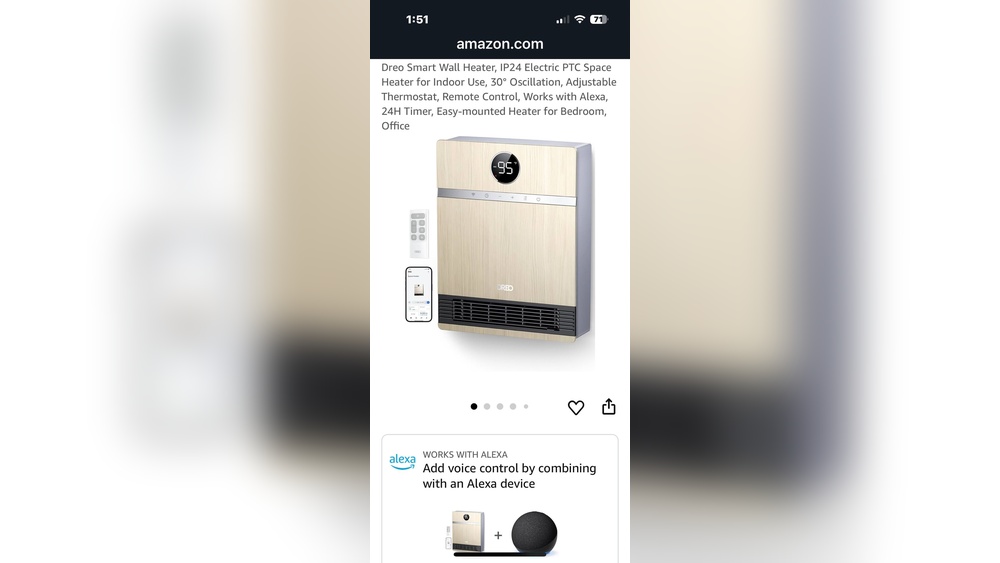
Credit: www.amazon.com
Choosing The Right Voice Module
Choosing the right voice module is key for adding voice control to a battery powered device. The module affects power use, command accuracy, and ease of setup. Selecting a module that fits your device’s needs helps keep battery life long. It also ensures smooth voice interaction and quick responses. Focus on the module’s firmware, wake-up features, and command settings for best results.
Built-in Vs Custom Firmware
Voice modules come with either built-in or custom firmware. Built-in firmware is ready to use and simple to set up. It supports basic voice commands and replies. Custom firmware allows more control and personalization. You can add unique commands and adjust settings. Custom options often need programming skills but can match your device perfectly. Choose built-in for quick setup and custom for tailored features.
Selecting Wake-up Commands
Wake-up commands activate the voice module from sleep mode. They must be short and easy to say. Common choices are simple words like “Hello” or “Start.” Custom wake-up commands help avoid accidental triggers. They also improve security by using unique phrases. Test commands to find ones that work well in noisy places. The right wake-up command saves battery by keeping the module inactive until needed.
Configuring Voice Commands And Replies
Setting voice commands and replies defines how the device responds. Commands should be clear and easy to remember. Replies confirm that the device heard and understood the command. Use short, polite phrases for replies to keep conversations natural. Custom commands let you control specific functions on your device. Proper configuration improves user experience and reduces errors. Update commands as you add new features or fix issues.
Power Management Strategies
Power management strategies play a key role in adding voice control to battery-powered devices. Effective power use extends battery life and improves user experience. Careful planning ensures the device remains responsive without draining power quickly. Below are important methods to manage power efficiently in such devices.
Optimizing Battery Life
Use low-power components to reduce energy use. Choose efficient microphones and processors. Limit the device’s active time to save battery. Adjust voice recognition sensitivity to avoid false triggers. Reduce screen brightness or turn off displays when not needed. Regularly monitor battery health for optimal performance.
Sleep Mode And Timeout Settings
Implement sleep mode to lower power during inactivity. Set short timeout periods to enter sleep quickly. Wake the device only on specific voice commands or button presses. Sleep mode stops unnecessary processing and saves energy. Balance timeout length to keep the device responsive but efficient.
Power Sources For Portability
Choose lightweight, rechargeable batteries for easy portability. Consider lithium-ion or lithium-polymer batteries for high energy density. Use power banks or solar panels as backup options. Design for easy battery replacement or charging. Ensure the power source matches the device’s size and usage needs.
Hardware Integration
Integrating voice control into a battery powered device requires careful hardware planning. The device must handle voice commands while preserving battery life. Selecting the right components and setting up communication interfaces are key steps. Hardware integration ensures smooth interaction between voice modules and the main device. This section explains how to connect and control hardware elements effectively.
Gpio Control Via Voice
General Purpose Input/Output (GPIO) pins allow the device to interact with external components. Voice commands can trigger actions by toggling these pins. For example, turning lights on or off uses GPIO signals. The voice module sends control signals to the microcontroller. The microcontroller then changes the state of the GPIO pins. This setup consumes minimal power, ideal for battery use. Proper wiring and programming make the process reliable and fast.
Uart Communication Setup
Universal Asynchronous Receiver/Transmitter (UART) is a common way to connect voice modules. UART allows serial data exchange between the voice chip and microcontroller. It uses just two wires for transmission and reception. Setting up UART involves configuring baud rates and data bits. This ensures clear communication without errors. UART communication helps send voice commands as data packets. It is simple and energy-efficient, fitting battery powered designs well.
Selecting Compatible Components
Choosing the right parts affects performance and battery life. Components must support low power modes and quick wake-up times. The voice recognition module should match the microcontroller’s voltage and interface. Sensors and actuators connected via GPIO should also be energy efficient. Check datasheets for current consumption and compatibility. Using components from the same manufacturer can simplify integration. Good component selection reduces design issues and extends device runtime.

Credit: all-u-re.com
Building And Flashing Firmware
Building and flashing firmware is a vital step to add voice control to any battery powered device. It involves preparing the software that allows the device to understand and respond to voice commands. This process lets you customize how your device behaves and interacts with you. Properly building and flashing firmware ensures smooth operation and efficient power use.
Sdk Setup And Customization
Start by downloading the correct Software Development Kit (SDK) for your device. The SDK contains tools and libraries needed to build firmware. Set up the SDK on your computer following the official guide. Customize the firmware by editing configuration files. Add your voice commands and responses here. Keep your changes simple to avoid errors. Save your work frequently to prevent data loss.
Flashing Tools And Procedures
Flashing is the process of installing firmware on your device. Use the recommended flashing tool for your hardware. Connect the device to your computer using a USB or serial cable. Put the device into flashing mode as instructed by the manufacturer. Load the firmware file into the flashing tool. Start the flashing process and wait until it completes. Avoid disconnecting the device during flashing to prevent damage.
Testing Firmware Functionality
After flashing, test your device to ensure firmware works correctly. Power the device and try speaking the programmed voice commands. Check if the device responds as expected. Note any commands that fail or behave oddly. Debug the firmware if you find issues. Repeat testing until the device performs reliably. Proper testing improves user experience and extends battery life.
Connectivity Considerations
Adding voice control to a battery powered device needs careful thought about connectivity. The way the device connects to the internet affects voice command speed and reliability. Low power use and stable connection are key for good user experience. This section covers the main connectivity points to consider for voice control features.
Wi-fi Requirements
Most voice assistants rely on Wi-Fi to send and receive commands. The device needs a strong and stable Wi-Fi signal to work well. Choose Wi-Fi modules that consume low power to save battery life. Support for common Wi-Fi standards like 802.11n helps with compatibility. Consider how the device will handle weak signals or network changes.
Handling Offline Scenarios
Voice control often needs internet access. But devices can lose connection or go offline. Design the system to recognize offline status and respond properly. Add basic voice commands that work without internet. Use local processing for simple tasks to avoid delays. This approach improves user trust and device usability.
Alternatives To Cloud-based Voice Assistants
Cloud voice assistants need constant internet connection. Alternatives like on-device voice recognition can reduce this need. Embedded voice processing uses less data and works offline. This method saves battery and protects privacy. Evaluate these options based on device power limits and voice command complexity.
Practical Applications
Adding voice control to a battery powered device opens many practical uses. It lets users interact with gadgets hands-free. Voice commands make devices easier and more fun to use. Below are some common and useful ways to apply voice control in battery powered projects.
Smart Home Integration
Battery powered devices with voice control fit well in smart homes. Lights, fans, and locks can respond to simple voice commands. You do not need to find a switch or app. Voice control adds convenience and speed to daily tasks. It also helps people with limited mobility manage their homes easily.
Portable Voice Control Projects
Battery powered voice control suits portable projects perfectly. You can create voice-activated toys, cameras, or music players. These devices work anywhere without plugging in. Voice commands allow users to control gadgets on the go. This freedom makes outdoor and travel use much easier.
Range Testing And Performance
Testing range is crucial for battery powered voice devices. It shows how far you can speak clearly to the device. Good range means better user experience and more flexibility. Battery life may affect how long voice control works well. Developers test both range and power use to balance performance and battery life.

Credit: www.homedepot.ca
Frequently Asked Questions
Can Alexa Work Without Being Plugged In?
No, Alexa devices like Echo Dot need constant power and cannot work unplugged. Use a compatible battery base for portability.
Does Alexa Run On Batteries?
No, standard Alexa devices like Echo Dot need constant power and do not run on built-in batteries. Use a compatible battery base for portable use.
How To Voice Activate A Smart Plug?
To voice activate a smart plug, first connect it to Wi-Fi using its app. Then, link the app with your voice assistant like Alexa or Google Assistant. Use voice commands such as “Turn on the plug” to control it hands-free.
Does Voice Control Drain Battery On Iphone?
Yes, voice control uses some battery on iPhones. Constant listening for wake words slightly drains battery life. Using it sparingly helps preserve power.
Conclusion
Adding voice control to battery-powered devices brings convenience and ease. It lets users interact without touching buttons or screens. Careful design ensures low power use for longer battery life. Choosing the right voice module and commands makes the device smarter.
Testing helps find and fix issues early. Voice control fits many uses, from home gadgets to portable tools. Simple setup and clear commands improve user experience. Voice control adds value without draining power fast. This approach suits modern, wireless device needs perfectly.