Are you ready to make your home smarter and more secure? Installing the Ring Video Doorbell 2 Chime Pro might sound tricky, but with the right steps, you can do it quickly and easily.
Imagine hearing every visitor clearly, even when you’re not near the door. This guide will walk you through each step, so you won’t miss a thing. Keep reading, and you’ll have your Ring Video Doorbell 2 Chime Pro up and running in no time.
Your peace of mind is just a few simple steps away.
Preparing For Installation
Preparing for the installation of your Ring Video Doorbell 2 Chime Pro is important. It helps ensure a smooth setup process. Taking time to prepare saves effort and avoids problems during installation.
This section guides you through key steps before starting. Follow these steps carefully to get the best results.
Checking Compatibility
Make sure your home’s Wi-Fi meets Ring’s requirements. The Chime Pro needs a strong Wi-Fi signal to work well. Check if your existing doorbell wiring supports Ring Video Doorbell 2. Look at the voltage and wiring type. Confirm your smartphone or tablet supports the Ring app. This ensures you can control the device easily after installation.
Gathering Required Tools
Collect all tools needed before starting. You will need a drill, screwdriver, and level. Have the mounting screws and anchors ready. A tape measure helps place the doorbell correctly. Keep your smartphone nearby for setup instructions and app control. Having tools at hand speeds up the installation.
Charging The Doorbell Battery
Fully charge your Ring Video Doorbell 2 battery. Use the supplied USB cable and a power adapter. Charging the battery before installation prevents interruptions. A full battery ensures the device works properly from the start. Check the LED light on the battery for charging status. Wait until it shows fully charged before proceeding.
Installing The Ring Video Doorbell 2
Installing the Ring Video Doorbell 2 is a straightforward process. This smart device replaces your old doorbell and adds security to your home. Follow these simple steps to set it up correctly. The installation does not take much time and requires only a few tools.
Removing The Old Doorbell
Start by turning off power at the breaker to avoid shocks. Use a screwdriver to remove the screws holding the old doorbell. Carefully pull the doorbell away from the wall. Disconnect the wires attached to the old doorbell. Keep the wires safe for connecting the new device.
Mounting The New Doorbell
Choose the correct mounting bracket included with your Ring doorbell. Attach the bracket to the wall using screws and a drill if needed. Make sure it is level for the best video view. Snap the Ring Video Doorbell 2 onto the bracket. Secure it with the small screws provided.
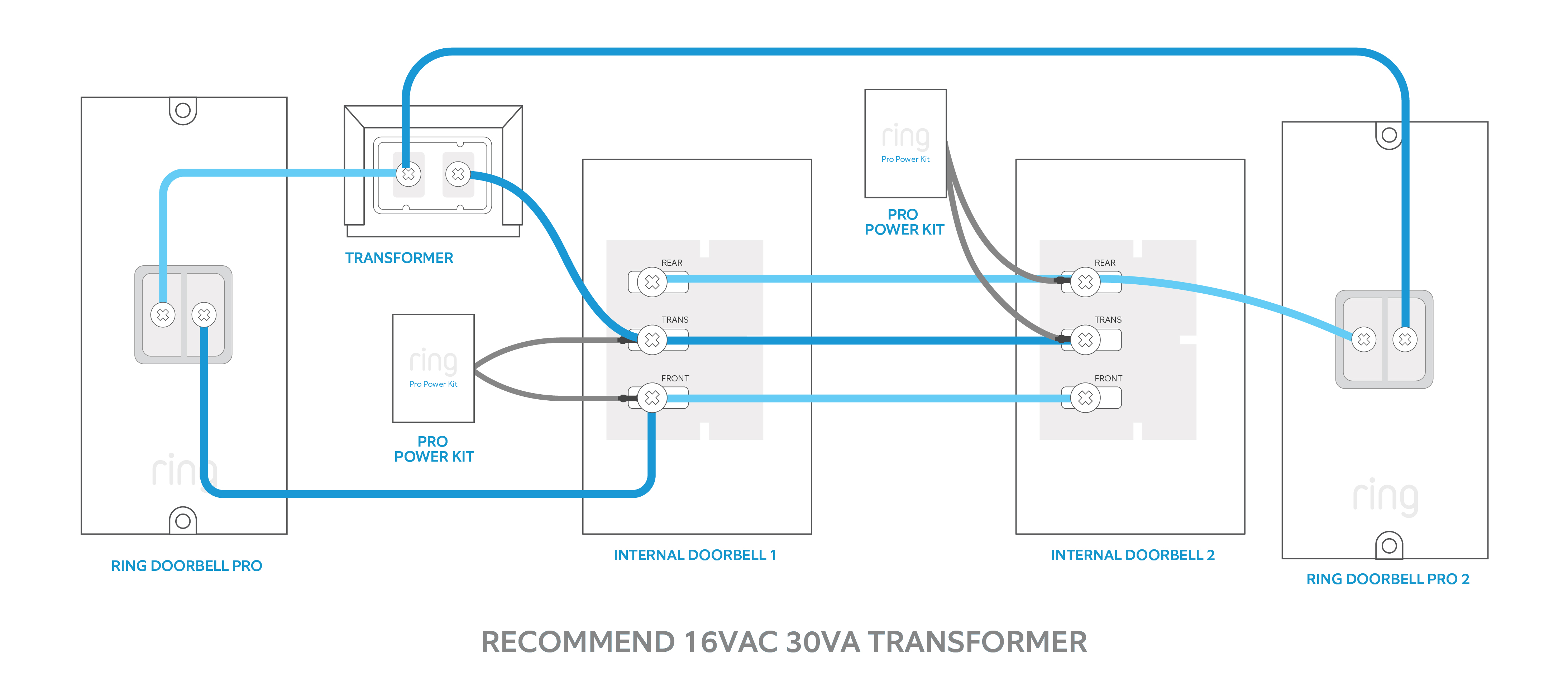
Connecting To Existing Doorbell Wiring
Connect the wires from your home to the terminals on the Ring doorbell. Polarity does not matter for this model, so either wire can go to either terminal. Tighten the screws to hold the wires firmly. Turn the power back on at the breaker. Test the doorbell to ensure it rings and powers up.
Setting Up The Chime Pro
Setting up the Chime Pro is a key step in enhancing your Ring Video Doorbell 2 experience. The Chime Pro not only extends Wi-Fi range but also provides audible alerts inside your home. Follow these simple steps to install and activate your Chime Pro quickly.
Choosing The Right Location
Pick a spot near your main Wi-Fi router for the Chime Pro. It should be close enough to get a strong Wi-Fi signal. Also, place it where you can hear the chime clearly. Avoid locations behind thick walls or metal objects that block signals.
Powering The Chime Pro
Plug the Chime Pro into a standard power outlet. Use the included power adapter to ensure proper voltage. Make sure the outlet is easily accessible for future adjustments. The device will light up when it is powered on.
Connecting To Wi-fi
Open the Ring app on your smartphone. Follow the prompts to add a new device and select Chime Pro. Connect the Chime Pro to your home Wi-Fi network. Ensure your phone stays close to the Chime during setup. The app will confirm once the connection is successful.

Credit: www.youtube.com
Configuring The Devices
Configuring your Ring Video Doorbell 2 and Chime Pro is a simple process that ensures both devices work together smoothly. Proper setup improves your doorbell’s sound and notification performance. Follow these steps carefully to enjoy clear alerts and reliable connections.
Pairing Doorbell With Chime Pro
Start by opening the Ring app on your smartphone. Select your Ring Video Doorbell 2 from the device list. Tap on “Set Up a Device” and choose “Chime Pro” from the options. The app will guide you through the pairing process. Press the button on your Chime Pro to connect it with your doorbell. Wait for the confirmation message before moving to the next step.
Adjusting Notification Settings
Within the Ring app, go to the device settings for your doorbell. Select “Alert Settings” to customize notifications. Choose the sounds and volume for your Chime Pro. You can also set schedules for when alerts are active. Adjust motion and ring alerts separately to suit your needs. Save changes to apply the new settings instantly.
Testing The Setup
Press the doorbell button to test the sound on your Chime Pro. Listen for clear and loud chimes inside your home. Use the Ring app to trigger a motion alert and check the notification. If the sound is weak, adjust the volume in the settings. Repeat tests until you are satisfied with the alert quality and timing.
Troubleshooting Common Issues
Installing the Ring Video Doorbell 2 Chime Pro can sometimes bring small issues. Troubleshooting these problems helps keep your doorbell working well. This guide covers common problems and quick fixes. Follow these tips to solve issues easily.
Wi-fi Connectivity Problems
Wi-Fi issues often cause the doorbell to stop working. Check if your Wi-Fi signal is strong near the doorbell. Move your router closer or use a Wi-Fi extender if the signal is weak. Restart your router to refresh the connection. Make sure you enter the correct Wi-Fi password during setup. Avoid using public or open networks for your doorbell.
Doorbell Not Ringing
The doorbell may not ring due to several reasons. First, check the chime settings in the Ring app. Make sure the volume is turned up and not muted. Confirm the doorbell is powered by checking its battery or wiring. Test the doorbell button to see if it clicks. Restart the doorbell by removing it and placing it back.
Chime Pro Not Responding
The Chime Pro might stop responding sometimes. Check if it is plugged in and powered on. Restart the Chime Pro by unplugging it for 10 seconds, then plug it back. Ensure the Chime Pro is within range of your Wi-Fi network. Update the Ring app and device firmware to the latest version. Reset the Chime Pro if none of these steps work.

Credit: www.youtube.com
Maintaining Your Ring Doorbell And Chime Pro
Maintaining your Ring Doorbell and Chime Pro ensures they work well for a long time. Proper care helps avoid common problems and keeps your devices reliable. Simple steps can improve their performance daily.
Regular Battery Checks
Check the battery level of your Ring Doorbell often. A low battery may stop the doorbell from working. Use the Ring app to see battery status. Charge the battery fully before it gets too low. This keeps your doorbell ready to respond anytime.
Firmware Updates
Firmware updates improve your Ring devices’ security and features. The Ring app sends notifications when updates are ready. Install updates promptly to keep your devices safe. Updated firmware fixes bugs and improves performance. This step is important for smooth operation.
Cleaning And Care Tips
Keep your Ring Doorbell and Chime Pro clean for the best results. Use a soft cloth to wipe the devices gently. Avoid using harsh chemicals or water directly. Check the camera lens for dust or smudges regularly. Clean lenses ensure clear video and better security.
Credit: www.vicentetorns.com
Frequently Asked Questions
How Do I Connect Ring Video Doorbell 2 To Chime Pro?
To connect, plug in Chime Pro near your router. Open the Ring app, select Devices, and follow setup prompts to link your Doorbell 2 with Chime Pro for enhanced Wi-Fi and alerts.
Can I Use Chime Pro With Multiple Ring Devices?
Yes, Chime Pro supports multiple Ring devices. You can connect several Doorbells or Cameras to one Chime Pro, improving Wi-Fi range and synchronized alerts throughout your home.
Where Should I Place The Chime Pro For Best Signal?
Place Chime Pro halfway between your router and Ring Doorbell 2. Avoid walls or metal objects that block signals. This placement ensures stronger Wi-Fi and reliable notifications.
Does Chime Pro Require A Separate Power Source?
Yes, Chime Pro plugs into a standard electrical outlet. It needs constant power to boost Wi-Fi signals and deliver instant alerts for your Ring devices.
Conclusion
Installing the Ring Video Doorbell 2 Chime Pro is simple and quick. Follow the steps carefully for best results. You can enjoy clear alerts and strong Wi-Fi signals at home. This setup helps you stay connected and safe. Take your time and check each step.
Soon, your doorbell will work perfectly with the Chime Pro. Enjoy the peace of mind it brings every day.