
Is your Clare Video Doorbell acting up or not responding as it should? You’re not alone, and the good news is that a simple reset can often fix these issues quickly.
Whether you want to restore your doorbell to its factory settings or troubleshoot a problem, knowing how to reset your Clare Video Doorbell is essential. In this guide, you’ll find clear, step-by-step instructions to get your device back on track—no technical jargon, just easy-to-follow tips.
Keep reading, and you’ll have your doorbell working perfectly again in no time.
Reasons To Reset Clare Video Doorbell
Resetting your Clare Video Doorbell can solve many common issues. It helps refresh the device and restore normal function. Knowing the main reasons to reset makes troubleshooting easier.
Sometimes, small problems stop the doorbell from working right. A reset can fix connection troubles or unresponsive buttons. It also helps when the app does not sync with the doorbell.
Resetting clears temporary errors stored in the device. This process often resolves glitches that slow down the doorbell. It is a quick step before seeking more complex solutions.
Connectivity Problems
Weak Wi-Fi signals cause the doorbell to lose connection. Resetting the device helps it reconnect to the network. This step often restores smooth video streaming and alerts.
Unresponsive Button Or Screen
The doorbell button or screen may stop working. A reset can reboot the hardware and fix this issue. It brings the device back to its normal state.
App Sync Issues
The Clare app sometimes fails to link with the doorbell. Resetting the doorbell can re-establish the connection. This allows the app to receive live video and notifications.
Software Glitches
Software bugs can cause errors or slow performance. Resetting clears these glitches and refreshes the system. This improves the doorbell’s overall responsiveness and reliability.
Preparing For A New User
Resetting erases all settings and personal data. This is important when giving the doorbell to someone else. It ensures privacy and a fresh start for the next user.
Credit: www.clarecontrols.com
Types Of Resets Available
Resetting your Clare Video Doorbell can fix many common issues. There are two main types of resets you can use. Each one serves a different purpose. Knowing the right reset helps keep your device working well.
Soft Reset
A soft reset restarts the doorbell without deleting settings. It clears minor bugs and refreshes the system. To do this, press and hold the reset button for about 10 seconds. Release when the light blinks. The device will reboot and reconnect to your network. This reset is quick and safe. It keeps your preferences and user data intact.
Hard Reset
A hard reset restores the doorbell to factory settings. It deletes all data, including Wi-Fi and user info. Use this if the device has serious problems or you want to set it up fresh. Hold the reset button for 20 seconds or more. Wait for the light to flash rapidly. The doorbell will erase all settings and restart. You will need to set it up again from scratch.
Preparing For The Reset
Preparing your Clare Video Doorbell for a reset is an important step. It helps avoid losing important settings and ensures a smooth process. Follow these simple tasks before starting the reset.
Backup Settings
Save your current doorbell settings first. This keeps your preferences safe. Use the Clare app to export or note down your configurations. This step saves time when you set up the doorbell again.
Check Battery Level
Make sure the doorbell has enough battery. A low battery can stop the reset process. Charge the doorbell fully or replace batteries if needed. A stable power level ensures the reset completes without issues.
Gather Necessary Tools
Collect tools you might need for the reset. This may include a small screwdriver or a pin. Having tools ready saves time and avoids interruptions. Check your doorbell model for any special tool requirements.
Step-by-step Soft Reset Process
Resetting your Clare Video Doorbell can fix small issues quickly. A soft reset refreshes the device without erasing your settings. This process is simple and safe. Follow these steps carefully to complete the soft reset.
Locate The Reset Button
Find the reset button on your Clare Video Doorbell. It is usually a small hole or button near the back or side. Use a thin tool like a paperclip to press it.
Press And Hold The Reset Button
Press the reset button gently with the tool. Hold it for about 10 seconds. You may see the doorbell lights blink or hear a sound.
Release The Button And Wait
Let go of the button after holding it. Wait for the doorbell to restart. This may take up to one minute.
Check The Doorbell Status
Look at the doorbell lights or app to confirm the reset. The device should reconnect to your Wi-Fi automatically. Test the doorbell to see if it works properly.
Step-by-step Hard Reset Process
Resetting the Clare Video Doorbell can fix many common issues. A hard reset restores the device to its original settings. This process clears all data and settings on the doorbell. Follow each step carefully to avoid problems. The hard reset is useful when the doorbell stops working or won’t connect.
Locate The Reset Button
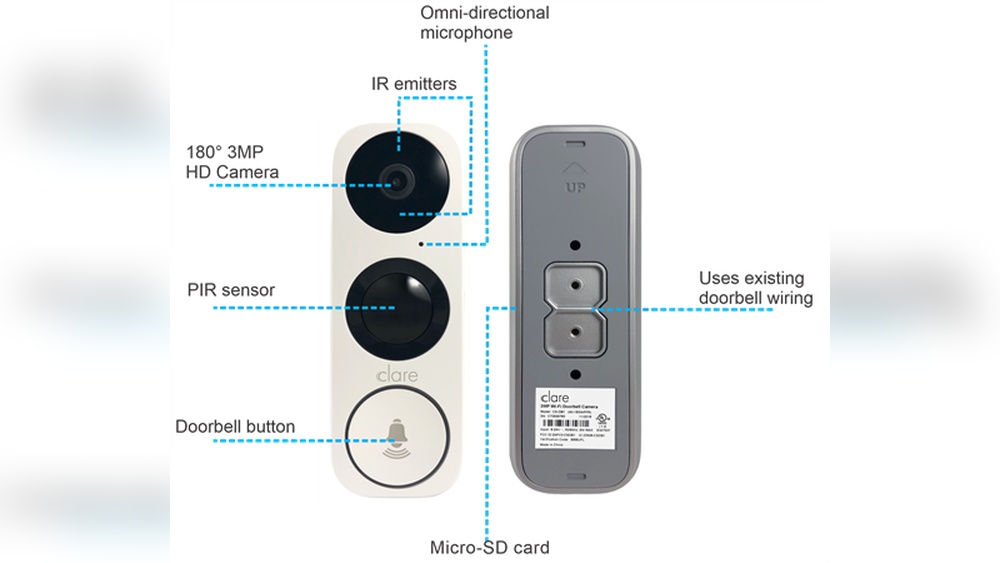
Find the small reset button on the back of the doorbell. Use a thin tool like a paperclip to press it. The button is tiny and may be hard to see.
Press And Hold The Reset Button
Press and hold the reset button for about 15 seconds. Keep holding until the LED light blinks. This shows the reset process has started.
Wait For The Doorbell To Reboot
Release the button and wait for the doorbell to reboot. The reboot can take up to one minute. The LED light will turn solid when done.
Reconnect The Doorbell
After the reset, reconnect the doorbell to your Wi-Fi network. Open the Clare app and follow the setup instructions. The device will act like new after this step.

Credit: homecontrolguru.bigcartel.com
Reconnecting After Reset
Reconnecting your Clare Video Doorbell after a reset is a simple process. It helps the device work well with your home network again. This section shows clear steps to reconnect and set up your doorbell quickly.
Pairing With App
Open the Clare Controls app on your phone. Make sure Bluetooth is on for easy detection. Tap the option to add a new device. Select the Clare Video Doorbell from the list. Follow the on-screen instructions to connect the doorbell to Wi-Fi. Wait for the app to confirm the connection. Your doorbell is now paired and ready to use.
Configuring Settings
Once paired, access the device settings in the app. Adjust motion sensitivity to suit your needs. Set up notifications to get alerts on your phone. Choose video quality based on your internet speed. Save all changes before exiting the settings menu. Your Clare Video Doorbell is now customized and fully operational.
Troubleshooting Common Issues
Troubleshooting common issues with your Clare Video Doorbell helps keep it working well. Many users face simple problems that can be fixed quickly. This saves time and avoids the need for a full reset or replacement.
Understanding common problems makes it easier to find solutions. Here are some frequent issues and how to handle them.
Reset Not Working
Sometimes, the reset button does not respond. Make sure you press and hold it for at least 10 seconds. Use a small tool to reach the button if needed. Check if the doorbell has power before trying to reset. If the reset still fails, try restarting your Wi-Fi router. This can help the device reconnect properly.
Connectivity Problems
Connectivity issues often cause the doorbell to stop working. Check your Wi-Fi signal strength near the doorbell. Weak signals can cause delays or disconnections. Move your router closer or use a Wi-Fi extender. Ensure your network supports 2.4 GHz, as many doorbells do not work with 5 GHz only. Restart the app and the doorbell to refresh the connection.
Battery Drain
Battery drain is a common complaint. Lower the video quality in the app to save power. Turn off motion alerts if you do not need them. Check for any stuck alerts or false triggers that keep the doorbell active. Keep the firmware updated to improve battery life. Replace the battery if it no longer holds charge well.
Tips To Maintain Doorbell Performance
Keeping your Clare Video Doorbell in good shape helps it work better and last longer. Simple care steps keep the video clear and the alerts fast. Regular checks prevent common problems and keep your home safe.
Clean The Camera Lens Regularly
Dirt and dust can blur the camera lens. Wipe it gently with a soft cloth. Avoid using harsh chemicals. Clean lens means clear video and better motion detection.
Check Your Wi-fi Signal Strength
Strong Wi-Fi helps the doorbell send video without delay. Place your router close or use a Wi-Fi extender. Test the signal near the doorbell often to ensure smooth connection.
Update Firmware Often
Updates fix bugs and add new features. Check the Clare app for notifications about updates. Install them quickly to keep your doorbell running smoothly.
Inspect The Power Source
Make sure the doorbell has steady power. For wired models, check connections. For battery-powered models, recharge or replace batteries regularly. Power issues can cause delays or no alerts.
Secure The Doorbell Properly
Loose mounting can affect video angle and motion detection. Tighten screws and brackets often. A stable doorbell captures better video and reduces false alerts.
/Clare%20Video%20Doorbell.png)
Credit: www.clarecontrols.com
Frequently Asked Questions
How Do I Reset My Clare Video Doorbell?
To reset your Clare Video Doorbell, press and hold the reset button for 10 seconds. Release when the LED flashes. This action restores factory settings and resolves many issues quickly.
When Should I Reset The Clare Video Doorbell?
Reset your Clare Video Doorbell if it’s unresponsive, disconnecting, or experiencing software glitches. Resetting clears errors and refreshes device settings for better performance.
Will Resetting Delete My Video Recordings?
No, resetting the Clare Video Doorbell does not delete cloud video recordings. Your footage remains safe in your cloud storage linked to your account.
How Long Does The Clare Video Doorbell Reset Take?
The reset process takes about 30 seconds. The doorbell will reboot and reconnect to your Wi-Fi network afterward.
Conclusion
Resetting your Clare Video Doorbell is simple and quick. Follow the steps carefully to avoid mistakes. A reset can fix many common problems. It helps your doorbell work like new again. Keep your device updated and check connections often. This ensures better performance and security at your home.
Regular resets can prevent future issues too. Now, enjoy clear video and reliable alerts every time.