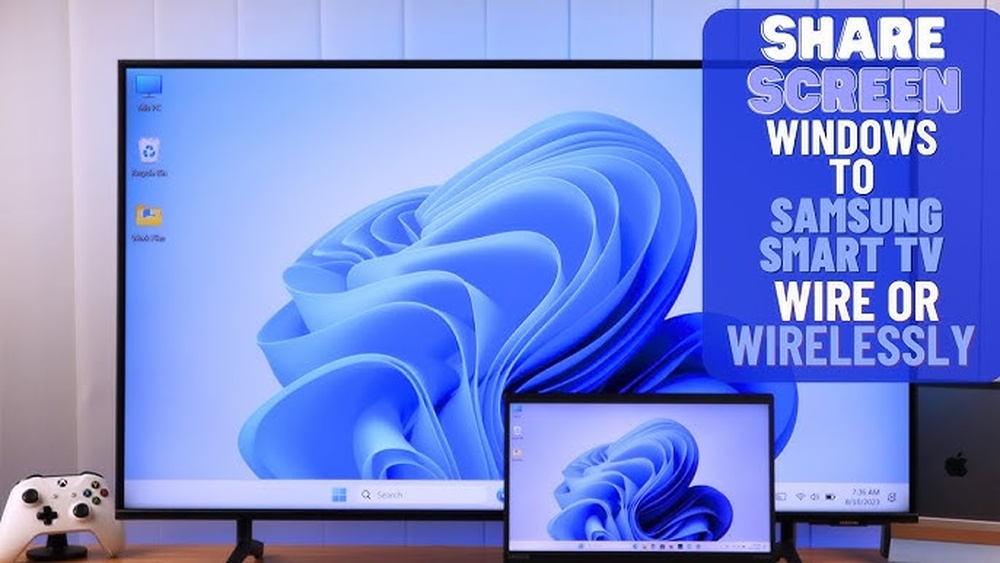

Have you ever wanted to share your favorite videos, photos, or presentations from your PC onto your Samsung Smart TV? Imagine watching your content on a bigger screen without the hassle of cables or complicated setups.
If you’ve been wondering, “How can I mirror my PC to my Samsung Smart TV? ” You’re in the right place. This guide will show you simple and effective ways to connect your devices quickly, so you can enjoy your media like never before.
Keep reading, and you’ll be streaming in no time!
Credit: www.samsung.com
Check Compatibility
Before mirroring your PC to your Samsung Smart TV, check compatibility. This step avoids connection problems and wasted time. Both your TV and PC must support mirroring features.
Supported Samsung Tv Models
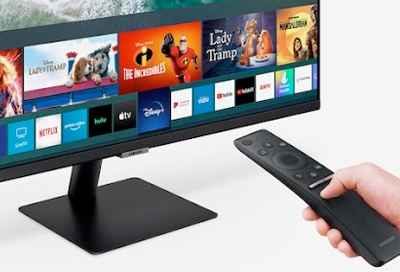
Most Samsung Smart TVs made after 2016 support screen mirroring. Look for models with “Smart Hub” or “Miracast” features. TVs with Tizen OS usually have built-in support. Check your TV’s user manual or settings menu. Some older models may need external devices to mirror.
Pc System Requirements
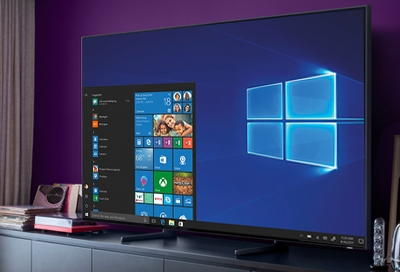
Your PC must also support wireless display technology. Windows 10 and Windows 11 have built-in Miracast support. Make sure your PC’s Wi-Fi adapter supports Miracast. Update your PC’s graphics and network drivers for better results. PCs without Miracast may require HDMI cables or third-party apps.
Credit: www.samsung.com
Prepare Your Devices
Preparing your devices is the first step to mirror your PC to your Samsung Smart TV. Both devices need to be ready for a smooth connection. This preparation helps avoid interruptions and makes the process faster.
Follow these simple steps to get your PC and TV ready. It ensures they communicate well with each other.
Connect To Same Wi-fi Network
Check that your PC and Samsung Smart TV use the same Wi-Fi network. This is important for them to find each other. Open Wi-Fi settings on both devices. Select the same network name. Avoid using guest or public networks. A stable connection helps keep the mirroring smooth and clear.
Update Software And Drivers
Update your PC’s software and drivers before mirroring. Outdated software can cause connection problems. On your PC, go to Settings and check for updates. Update your graphics and network drivers too. For the Samsung TV, check for system updates in the settings menu. Keep both devices updated for better performance and fewer errors.
Use Built-in Windows Features
Using built-in Windows features is a simple way to mirror your PC to your Samsung Smart TV. You do not need extra software or cables. These tools are ready to use on your Windows PC and your Samsung TV. This method works well for most users and offers a quick way to share your screen.
Enable Screen Mirroring On Samsung Tv
Start by turning on your Samsung Smart TV. Go to the settings menu. Find the “Screen Mirroring” or “Smart View” option. Turn it on to allow your TV to connect with other devices. Your TV will now be ready to receive the screen from your PC.
Cast Pc Screen Via Connect App
On your Windows PC, press the Windows key and type “Connect.” Open the Connect app. Your PC will search for nearby devices. Select your Samsung TV from the list. The screen will start mirroring to your TV. You can now see your PC display on the big screen.
Mirror Using Samsung Smart View App
Mirroring your PC to a Samsung Smart TV is easy with the Samsung Smart View app. This app lets you share your computer screen on the big TV without any wires. It works well for watching videos, showing photos, or giving presentations. The process is simple and quick.
Download And Install
First, download the Samsung Smart View app on your PC. Visit the official Samsung website or trusted app stores. Choose the version that fits your computer system. Click the download button and wait a few moments. After downloading, open the file to start installation. Follow the instructions on the screen to complete the setup.
Connect And Mirror
Make sure your PC and Samsung TV are on the same Wi-Fi network. Open the Samsung Smart View app on your PC. The app will search for available Samsung Smart TVs nearby. Select your TV from the list shown on the screen. Click the connect button to link your PC to the TV. Once connected, your PC screen will appear on the TV. You can now enjoy your content on a larger display.
Try Third-party Apps
Using third-party apps is a simple way to mirror your PC to your Samsung Smart TV. These apps offer extra features and often work better than built-in options. They can help connect your devices quickly and smoothly.
Many apps support different systems and offer easy steps. Some apps are free, while others may require a small fee. Choosing the right one depends on your needs and the devices you use.
Popular Apps For Screen Mirroring
Several apps are popular for screen mirroring. LetsView is free and works on multiple platforms. ApowerMirror supports both Windows and Mac, with extra control features. AirBeamTV is great for Samsung TVs and offers a simple setup. Mirroring360 allows wireless sharing without cables. These apps provide clear images and low delay.
Setup And Usage Tips
Start by installing the app on both your PC and Samsung TV. Make sure both devices connect to the same Wi-Fi network. Open the app on your PC and select your Samsung TV from the list. Follow on-screen instructions to start mirroring.
Keep your devices close to the router for a strong signal. Close other apps on your PC to avoid slow performance. Adjust the TV settings if the screen does not fit properly. Test the connection before showing videos or presentations.
Troubleshoot Common Issues
Mirroring your PC to a Samsung Smart TV should be simple. Sometimes, small issues can stop the process. Troubleshooting helps fix these problems fast. Here are some common problems and easy solutions.
Connection Problems
Check that both PC and TV are on the same Wi-Fi network. A different network can block mirroring. Restart your router and devices to refresh connections. Use the latest software on both devices. Outdated software can cause errors. Disable any VPN or firewall that might block the connection.
Audio Or Video Lag
Slow Wi-Fi often causes lag or delays. Move closer to the router for a stronger signal. Close apps that use the internet on your PC. This frees up bandwidth for mirroring. Lower the video quality on your PC if lag continues. Lag can also happen if your PC is busy with other tasks.
Display Quality Fixes
Check the screen resolution on your PC. Match it with your TV’s resolution for better quality. Adjust the display settings on your TV to “Screen Mirroring” mode. Clean your TV screen to avoid blurriness. Use a wired connection like HDMI if wireless quality is poor. This gives a clearer and more stable image.

Credit: www.youtube.com
Frequently Asked Questions
How Do I Mirror My Pc To A Samsung Smart Tv?
To mirror your PC, use the Windows “Connect” feature or Samsung’s Smart View app. Ensure both devices are on the same Wi-Fi network. Open Smart View on your PC, select your Samsung TV, and start mirroring for seamless display sharing.
Can I Mirror Wirelessly Without Hdmi Cables?
Yes, wireless mirroring is possible using Wi-Fi Direct or Miracast technology. Both your PC and Samsung TV must support these features. Connect both devices to the same network and use screen mirroring options to share your PC screen wirelessly.
What Apps Help Mirror Pc To Samsung Smart Tv?
Samsung Smart View and Windows Connect app are popular for screen mirroring. Third-party apps like AirBeamTV or LetsView also support mirroring. Choose an app compatible with your PC and Samsung TV model for smooth performance.
Why Is My Pc Not Connecting To My Samsung Tv?
Connection issues may stem from network mismatch, outdated software, or incompatible devices. Ensure both devices use the same Wi-Fi, update firmware, and enable screen mirroring on your Samsung TV. Restart devices to resolve temporary glitches.
Conclusion
Mirroring your PC to a Samsung Smart TV is simple and useful. You can enjoy videos, photos, and games on a big screen. Make sure your devices connect to the same Wi-Fi network. Use built-in features like Smart View or third-party apps for easy setup.
This helps share content without wires or extra hardware. Try it today and see how smooth the experience feels. Sharing your PC screen has never been this easy or fast. Give it a go and enjoy your favorite content in a new way.