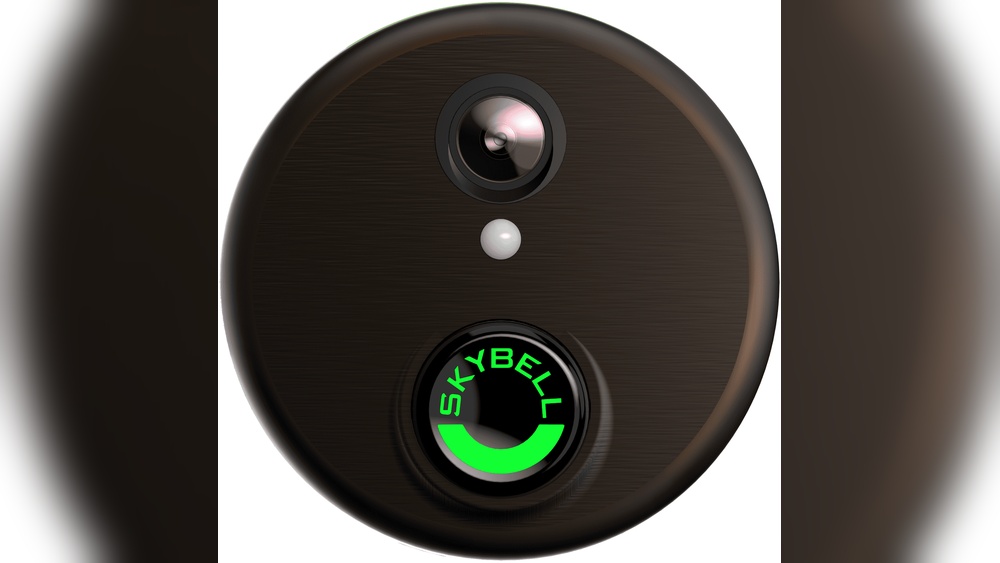

Looking to boost your home security with a smart video doorbell? Installing the Skybell Video Doorbell Dbcam-Br is easier than you might think.
In this guide, you’ll find simple, step-by-step instructions that will help you set up your device quickly and correctly. Imagine being able to see who’s at your door anytime, from anywhere—giving you peace of mind and control. Keep reading, and by the end, you’ll have your Skybell doorbell up and running, making your home safer and smarter.
Preparing For Installation
Preparing for the installation of the Skybell Video Doorbell Dbcam-Br sets the foundation for a smooth setup. Gathering the right tools and understanding your doorbell’s compatibility saves time. Safety is key to avoid accidents during the process. This section guides you through important steps before starting the installation.
Tools And Materials Needed
Collect all tools before you begin. You will need a screwdriver, drill, and level. Keep the mounting screws and anchors handy. Have a voltage tester to check electrical connections. A pencil helps mark drill points clearly. Prepare the Skybell doorbell and its mounting plate.
Checking Compatibility
Ensure your home’s wiring works with the Skybell doorbell. The device requires a low voltage system, usually between 16 and 24 volts. Confirm your doorbell chime supports video doorbells. Check your Wi-Fi signal strength near the door for smooth operation. Compatibility ensures the doorbell functions without issues.
Safety Precautions
Turn off the power at the circuit breaker before touching wires. Use a voltage tester to confirm no electricity flows. Avoid installing during wet weather to prevent hazards. Wear safety glasses to protect your eyes from dust. Follow all instructions carefully to stay safe throughout installation.

Credit: www.alarmclub.com
Removing Existing Doorbell
Removing your old doorbell is the first step to installing the Skybell Video Doorbell DBCAM-BR. This process helps prepare your door for the new device. It also ensures safety and proper connection for the new doorbell.
Turning Off Power
Start by turning off the power to your doorbell at the breaker box. This prevents electrical shocks during removal. Double-check by pressing the old doorbell button to see if it rings. If it does not ring, the power is off and safe to proceed.
Detaching Old Doorbell
Use a screwdriver to remove the screws holding the old doorbell in place. Gently pull the doorbell away from the wall. Be careful not to damage the wires behind the unit. Keep the screws for possible reuse with the new doorbell.
Inspecting Wiring
Look closely at the wires connected to the old doorbell. They should be in good condition without frays or breaks. Clean any dirt or corrosion from the wire ends. Proper wiring ensures your new Skybell doorbell works correctly. If wires look damaged, consider calling an electrician.
Mounting The Skybell Doorbell
Mounting the Skybell Video Doorbell Dbcam-Br is a key step for a clear view and smooth operation. Proper mounting ensures the doorbell captures video accurately and stays secure. Follow these simple steps to mount your Skybell doorbell correctly.
Positioning The Doorbell
Choose a spot near your front door, about 48 inches from the ground. This height captures faces clearly. Avoid direct sunlight or bright lights facing the doorbell. Ensure the camera has a clear view of visitors and the walkway.
Attaching The Mounting Plate
Use the provided screws and anchors for your wall type. Hold the mounting plate in place and mark the holes. Drill pilot holes if needed. Secure the plate tightly to prevent movement or wobbling.
Securing The Doorbell
Align the Skybell doorbell with the mounting plate. Press the doorbell firmly until it clicks into place. Use the security screw at the bottom to lock it. This prevents theft and keeps the doorbell stable.

Credit: vixencomposites.com
Connecting The Wiring
Connecting the wiring is a key step in installing the Skybell Video Doorbell Dbcam-Br. It ensures the doorbell gets power and sends video signals correctly. Doing this part carefully helps the device work well and last longer.
Identifying Wires
Look at the wires coming from your doorbell area. Usually, there are two main wires: power and ground. The power wire carries electricity to the doorbell. The ground wire is for safety and completes the circuit.
Use a voltage tester to check which wire has power. The power wire often has a small label or is a different color. Mark each wire clearly before connecting anything. This step prevents mistakes and keeps you safe.
Connecting Terminals
Find the terminals on the back of the Skybell doorbell. These are small metal screws or clips. Attach the power wire to the terminal marked “Power” or “+”. Connect the ground wire to the terminal marked “Ground” or “-”.
Make sure the wires are secure and tight. Loose connections can cause the doorbell to stop working. Use a screwdriver to tighten the screws gently but firmly. Avoid over-tightening to prevent damage.
Testing Connections
After connecting the wires, test the doorbell before finishing the installation. Turn on the power at the breaker or switch. Check if the doorbell lights up or makes a sound.
Press the doorbell button to see if the camera activates. Use the Skybell app to confirm video feed and alerts work properly. If something is wrong, turn off the power and check the wiring again.
Setting Up The Skybell App
Setting up the Skybell app is an important step in using your Skybell Video Doorbell Dbcam-Br. The app connects your doorbell to your phone. It lets you see and talk to visitors anytime. Follow these simple steps to get started quickly.
Downloading The App
First, download the Skybell app on your smartphone. Open the App Store for iPhone or Google Play for Android. Search for “Skybell” and tap the download button. The app is free and small in size. Wait for it to install completely before opening.
Creating An Account
Open the Skybell app after installation. You will see an option to create a new account. Tap on it and enter your email address. Choose a strong password that you can remember. Confirm your password and accept the terms. Tap “Sign Up” to finish creating your account. Check your email for a verification message and follow the link.
Pairing The Device
Now, it’s time to connect your Skybell doorbell to the app. Make sure your doorbell has power. The app will guide you through the pairing process. Tap “Add Device” and choose your doorbell model. Connect your phone to your home Wi-Fi network. Follow the on-screen instructions to sync the doorbell with the app. Once paired, test the live video and audio functions.
Configuring Doorbell Settings
Configuring your Skybell Video Doorbell Dbcam-Br is essential for a smooth user experience. Proper settings help you see clear video and get alerts on time. This section guides you through adjusting key features for better performance.
Adjusting Video Preferences
Start by opening the Skybell app on your phone. Go to the video settings menu. Choose the video quality that fits your internet speed. Higher quality shows clearer images but uses more data. Set brightness and contrast for clear day and night views. These tweaks improve your video feed and save bandwidth.
Setting Notifications
Notifications keep you informed about visitors and events. In the app, find the notifications section. Turn on alerts for doorbell rings and missed visitors. Customize sounds to recognize alerts easily. Set quiet hours to avoid disturbances at night. Timely notifications help you stay connected to your home.
Enabling Motion Detection
Motion detection alerts you about movement near your door. Enable this feature in the app’s motion settings. Adjust sensitivity to reduce false alarms from small animals or passing cars. Define activity zones to focus on important areas. This helps you get alerts only for real threats or visitors.
Troubleshooting Common Issues
Troubleshooting common issues helps keep your Skybell Video Doorbell Dbcam-Br working well. Problems like poor connection, bad video, or power troubles can stop the doorbell from working right. Fixing these issues fast makes sure you don’t miss any visitor or alert.
Connectivity Problems
Check your Wi-Fi signal strength near the doorbell. Weak signals cause delays or no video feed. Move your router closer or use a Wi-Fi extender. Restart your router and doorbell to refresh connections. Make sure your network password is correct in the app.
Video Quality Issues
Clean the doorbell camera lens gently with a soft cloth. Dirt or smudges blur the image. Adjust the camera angle for better view. Check your internet speed; slow speed lowers video quality. Update the doorbell’s app and firmware for best performance.
Power Supply Concerns
Ensure the doorbell’s wires connect tightly to your home’s power. Loose wires cause power cuts and resets. Check if your doorbell has enough voltage as per the manual. Use a multimeter for accurate measurement. Replace old or damaged wires to keep power steady.

Credit: www.bhphotovideo.com
Frequently Asked Questions
How Do I Install Skybell Video Doorbell Dbcam-br?
To install Skybell Dbcam-Br, turn off power first. Mount the doorbell on your doorframe. Connect wires to terminals. Restore power and complete setup via Skybell app. Follow step-by-step instructions for a smooth installation.
What Tools Are Needed For Skybell Doorbell Installation?
You need a screwdriver, drill, level, and wire stripper. These tools help mount and connect the doorbell properly. Having them ready ensures a quick and safe installation process.
Can Skybell Dbcam-br Work With Existing Doorbell Wiring?
Yes, Skybell Dbcam-Br supports most existing doorbell wiring. Ensure your transformer provides 16-24V AC power. Proper wiring helps the doorbell function without extra adapters or batteries.
How To Connect Skybell Doorbell To Wi-fi Network?
Open the Skybell app and follow Wi-Fi setup prompts. Connect your doorbell to a 2. 4 GHz Wi-Fi network. A stable connection ensures smooth video streaming and notifications.
Conclusion
Installing the Skybell Video Doorbell Dbcam-Br is simple and fast. Follow the steps carefully to avoid mistakes. Test the device to ensure it works well. Enjoy better home security and easy visitor monitoring. This small effort brings peace and safety to your home.
Keep your doorbell updated for best performance. Now, your front door is smarter and safer.