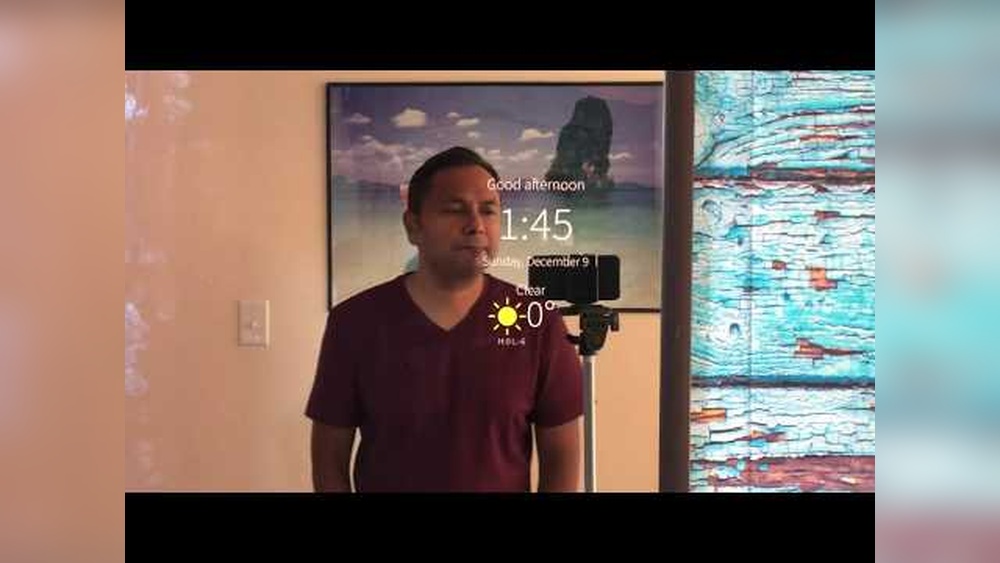

Imagine starting your day with a mirror that not only shows your reflection but also tells you the weather, plays your favorite music, and answers your questions—all with a simple voice command. What if you could build this smart mirror yourself, adding Alexa’s power right into your home?
In this guide, you’ll discover how to create a smart mirror that fits your style and makes your daily routine easier and more fun. Ready to transform your space and impress everyone with your tech skills? Keep reading, and you’ll learn exactly how to make your own smart mirror with Alexa step by step.
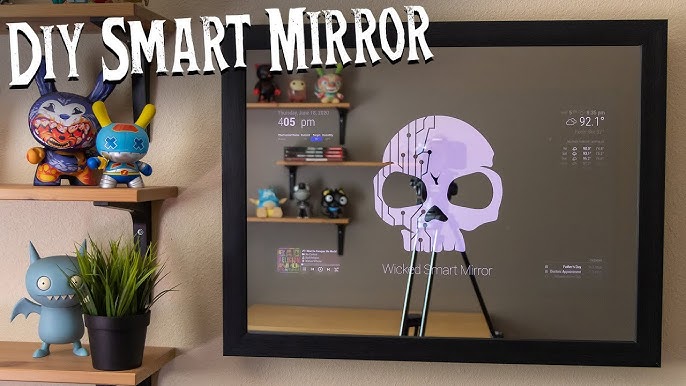
Credit: www.youtube.com
Materials Needed
Creating a smart mirror with Alexa requires specific materials. Gathering the right parts makes the build easier and smoother. This section lists the key items you need for your project. Separate the materials into three groups for clarity.
Smart Mirror Components
- Two-way mirror glass or acrylic sheet
- Monitor or tablet screen
- Raspberry Pi or similar mini-computer
- Power supply for the computer and screen
- Frame or enclosure to hold all parts
Alexa Integration Tools
- Amazon Echo device or Alexa-enabled speaker
- Alexa Voice Service (AVS) SDK installed on Raspberry Pi
- Microphone and speaker for voice commands
- Wi-Fi connection for smart features
Additional Supplies
- HDMI cables and adapters
- USB keyboard and mouse for setup
- Double-sided tape or mounting brackets
- Cable management tools like ties or clips
- Basic tools: screwdriver, scissors, and glue
Choosing The Right Mirror
Choosing the right mirror is key to building a smart mirror with Alexa. The mirror must work well with the screen and voice controls. It should look good in your space and fit your needs.
Types Of Mirrors
Two main types of mirrors work best for smart mirrors. The first is a two-way glass mirror. It lets light from the screen pass through while still reflecting your image. This type is common in smart mirror projects.
The second type is a one-way mirror film. You apply this film to a regular glass mirror. It creates a similar effect but can be cheaper and easier to find. Choose the type that fits your budget and setup.
Size And Frame Considerations
The mirror size depends on where you plan to place your smart mirror. A larger mirror shows more information but needs a bigger screen behind it. A smaller mirror fits tight spaces and saves power.
Frames add style and help hold the mirror and screen together. Pick a frame that fits your room’s look. Make sure it allows space for cables and any speakers or cameras you want to add.
Setting Up The Display
Setting up the display is a key step in building your smart mirror with Alexa. The screen shows all the useful information, like weather, time, and voice responses. Choosing the right screen and placing it correctly behind the mirror glass will make your smart mirror look clear and stylish.
Take time to pick a screen that fits your space and needs. Then, mount the display carefully to keep it hidden but visible through the mirror surface.
Selecting The Screen
Choose a screen size that fits your mirror frame. Common sizes range from 10 to 24 inches. A larger screen shows more data but needs more space.
Pick a screen with good brightness and resolution. This helps the display show clear text and images through the mirror glass. An IPS or LED screen works well.
Consider power needs and ports. A screen with HDMI or USB makes connecting your smart device easier.
Mounting The Display Behind The Mirror
Use a two-way mirror that lets the screen shine through. The mirror looks like glass but acts like a screen cover.
Secure the screen firmly behind the mirror. Use brackets or a frame to hold it steady. Avoid gaps to prevent light leaks.
Keep cables organized and hidden. Run wires through the frame or wall for a clean look.
Test the display before final assembly. Make sure the screen shows clearly through the mirror at different angles.
Installing The Raspberry Pi
Installing the Raspberry Pi is a key step in building your smart mirror with Alexa. The Raspberry Pi acts as the brain of the project. It runs the software that controls the display and Alexa voice commands.
This section explains how to prepare your Raspberry Pi and connect it to the display. Follow these simple steps to get started.
Preparing The Raspberry Pi
First, gather all necessary parts: Raspberry Pi board, power supply, microSD card, and keyboard.
Download the latest Raspberry Pi OS from the official website. Use a tool like Balena Etcher to flash the OS onto your microSD card.
Insert the microSD card into the Raspberry Pi. Connect your keyboard and mouse for setup.
Plug in the power supply to turn on the device. Follow the on-screen instructions to complete the initial setup.
Connecting To The Display
Choose a compatible monitor or touchscreen for your smart mirror.
Use an HDMI cable to connect the Raspberry Pi to the display.
Secure the connections to avoid loose cables. Power on the monitor and the Raspberry Pi.
Adjust the screen resolution through the Raspberry Pi settings for a clear view.
Configuring Smart Mirror Software
Configuring the software is a key step in building a smart mirror with Alexa. The software controls what the mirror shows and how it interacts with you. It also connects Alexa to the mirror’s display. This section explains how to pick the right software and customize it to fit your needs.
Choosing The Software Platform
Start by selecting a software platform that supports smart mirrors and Alexa. Popular options include MagicMirror² and HomeMirror. These platforms offer open-source code and many features. Check if the software works with your hardware and Alexa devices. Choose one with a strong user community for support and updates.
Look for software that is easy to install and update. A simple setup saves time and reduces frustration. Also, pick a platform that lets you add or remove modules easily. This way, you can change your mirror’s features as you want.
Installing And Customizing Modules
Modules are the building blocks of your smart mirror’s display. They show weather, news, calendar events, and Alexa responses. After installing the platform, add modules that fit your daily routine. Each module can be turned on or off and customized.
Customize modules by editing their settings files. Change colors, fonts, and sizes to match your style. Configure Alexa modules to respond to your voice commands. Test each module to ensure it works well with the others. Keep the interface clean and easy to read for the best experience.

Credit: mobidev.biz
Integrating Alexa Voice Control
Integrating Alexa voice control into your smart mirror adds hands-free convenience. Alexa can respond to your commands, play music, provide weather updates, and control smart home devices. This integration makes your smart mirror more interactive and useful throughout the day.
Getting Alexa to work with your mirror requires setting up the Alexa Software Development Kit (SDK) first. Then, you connect Alexa to the mirror hardware and software. Both steps are essential for smooth voice control.
Setting Up Alexa Sdk
Start by downloading the Alexa SDK from the Amazon developer website. The SDK provides tools needed for voice recognition and response. Follow the setup instructions carefully to install it on your mirror’s computer or microcontroller.
Register your device with Amazon to get the necessary security credentials. These credentials allow your mirror to communicate securely with Alexa services. After registration, test the SDK with sample commands to ensure it works properly.
Connecting Alexa To The Mirror
Connect the microphone and speaker to your mirror system. These components capture your voice and play Alexa’s replies. Make sure the microphone has good sensitivity for accurate voice detection.
Integrate the Alexa SDK into your mirror’s software. This step links voice commands to the mirror’s display and functions. Program the mirror to show responses, control apps, or update information based on Alexa’s replies.
Test Alexa by speaking commands near the mirror. Check if it answers and performs tasks correctly. Adjust microphone placement and software settings as needed for the best experience.
Power And Cable Management
Managing power and cables is key to building a smart mirror with Alexa. A clean setup looks better and works safer. Poor cable management can cause problems like tangles or electrical hazards. Organizing wires well keeps the mirror neat and easy to maintain.
Hiding Wires
Hiding wires improves the smart mirror’s appearance. Use cable channels or raceways to cover cables along the wall. These tools keep wires out of sight and protect them from damage. You can also run cables behind the mirror frame. Velcro straps help bundle cables tightly. Keeping cables tidy stops them from hanging loosely.
Ensuring Safe Power Supply
Use a reliable power source to keep the smart mirror safe. Choose a power adapter that matches the mirror’s voltage and current needs. Avoid using damaged or cheap cords. Place power outlets near the mirror to reduce cable length. Use surge protectors to guard against power spikes. Check all connections regularly to prevent loose plugs or shorts.
Final Assembly And Testing
Final assembly and testing are the last steps in making your smart mirror with Alexa. This stage ensures all parts fit well and work properly. Careful assembly keeps your mirror safe and functional. Testing helps find and fix any issues early. Follow these steps to complete your smart mirror project confidently.
Securing All Components
Start by placing the mirror glass in the frame. Make sure it fits tightly without gaps. Attach the monitor behind the mirror. Use screws or brackets to hold it firmly. Fix the Raspberry Pi or other computer in place. Secure the microphone and speaker inside the frame. Keep all wires neat and connected. Double-check that nothing moves or feels loose. Proper securing prevents damage and keeps your mirror stable.
Running Functionality Checks
Power on your smart mirror. Watch for the display to light up clearly. Test Alexa by saying the wake word. Check if it responds and performs tasks. Open the smart mirror software and check for errors. Test the internet connection for Alexa commands. Try voice commands like weather or news. Make sure the microphone hears you well. Confirm the speaker plays sound without issues. Fix any problems before final use.
Troubleshooting Tips
Troubleshooting your smart mirror with Alexa can help keep it working well. Some problems may happen during setup or daily use. Knowing simple fixes saves time and frustration. This section covers common issues and ways to improve performance.
Common Issues And Fixes
The smart mirror might not respond to Alexa commands. Check the internet connection first. A weak Wi-Fi signal can cause delays or no response.
Sometimes, the display may freeze or show wrong information. Restart the mirror by unplugging it for 10 seconds. Then plug it back in to reset the system.
If Alexa does not hear your voice clearly, check the microphone settings. Make sure the microphone is not muted or blocked. Speak clearly and close to the mirror.
Software updates are important. If features stop working, check for updates in the Alexa app or smart mirror software. Install updates to fix bugs and add improvements.
Optimizing Performance
Keep your smart mirror fast by closing unused apps or features. Running many apps at once can slow it down. Clear cache and temporary files regularly.
Place the mirror near your Wi-Fi router for a stronger signal. Avoid walls or metal objects that block signals. This helps Alexa hear you better too.
Use a good power source. Low power can cause the mirror to act slow or restart randomly. A stable power supply keeps it running smoothly.
Regular cleaning of the mirror screen and sensors improves touch and voice response. Use a soft cloth to avoid damage. Clean sensors carefully to keep Alexa accurate.
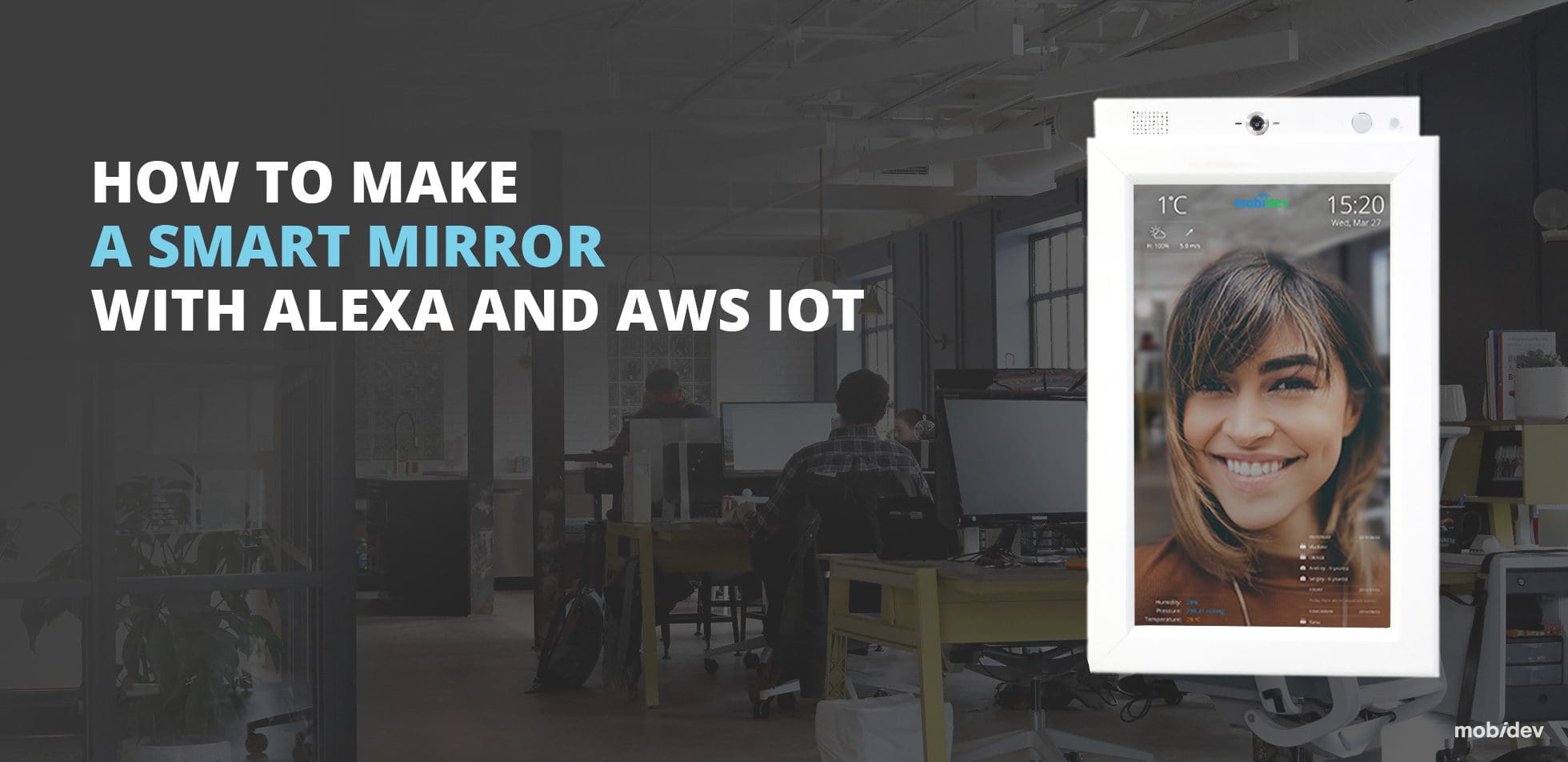
Credit: mobidev.biz
Enhancing Your Smart Mirror
Enhancing your smart mirror with Alexa makes it more useful and fun. A basic smart mirror shows time and weather. Adding new features can make it more personal and helpful every day.
Custom features let you control what the mirror does. You can add apps or change the display to match your style. This way, your mirror fits your needs better.
Adding Custom Features
Start by adding voice commands beyond Alexa’s basics. Teach your mirror to show news, traffic, or calendar events. Use simple coding tools to create new skills for Alexa. You can also add touch controls or gesture recognition. These features make the mirror easier to use and more fun. Custom widgets for weather or quotes add a personal touch.
Future Upgrades
Keep your smart mirror updated with new tech. Install better screens or cameras to improve display quality. Add sensors for temperature or humidity to increase usefulness. Software updates keep Alexa and apps working well. Plan for easy upgrades so your mirror stays current. This saves money and extends your mirror’s life.
Frequently Asked Questions
What Materials Are Needed To Build A Smart Mirror With Alexa?
You need a two-way mirror, monitor, Raspberry Pi, frame, and Alexa device. Additional items include power cables, HDMI, and sensors for full functionality.
How Do I Connect Alexa To My Smart Mirror?
Connect Alexa via Wi-Fi and enable the Alexa Voice Service on Raspberry Pi. Use compatible software to integrate Alexa commands with your mirror display.
Can I Customize The Smart Mirror’s Display Content?
Yes, you can customize widgets like weather, calendar, news, and time. Use open-source software to add or remove features based on your preference.
Is Coding Required To Make A Smart Mirror With Alexa?
Basic coding knowledge helps but isn’t mandatory. Many tutorials provide step-by-step guides with pre-built scripts and software for easier setup.
Conclusion
Building a smart mirror with Alexa brings tech to your daily routine. It blends style and function in your home. You control music, weather, and news with simple voice commands. The project is fun and helps you learn new skills.
Start small, add features as you grow more confident. Enjoy a mirror that’s smart and truly yours. This DIY project offers both creativity and convenience. Why not give it a try today?