
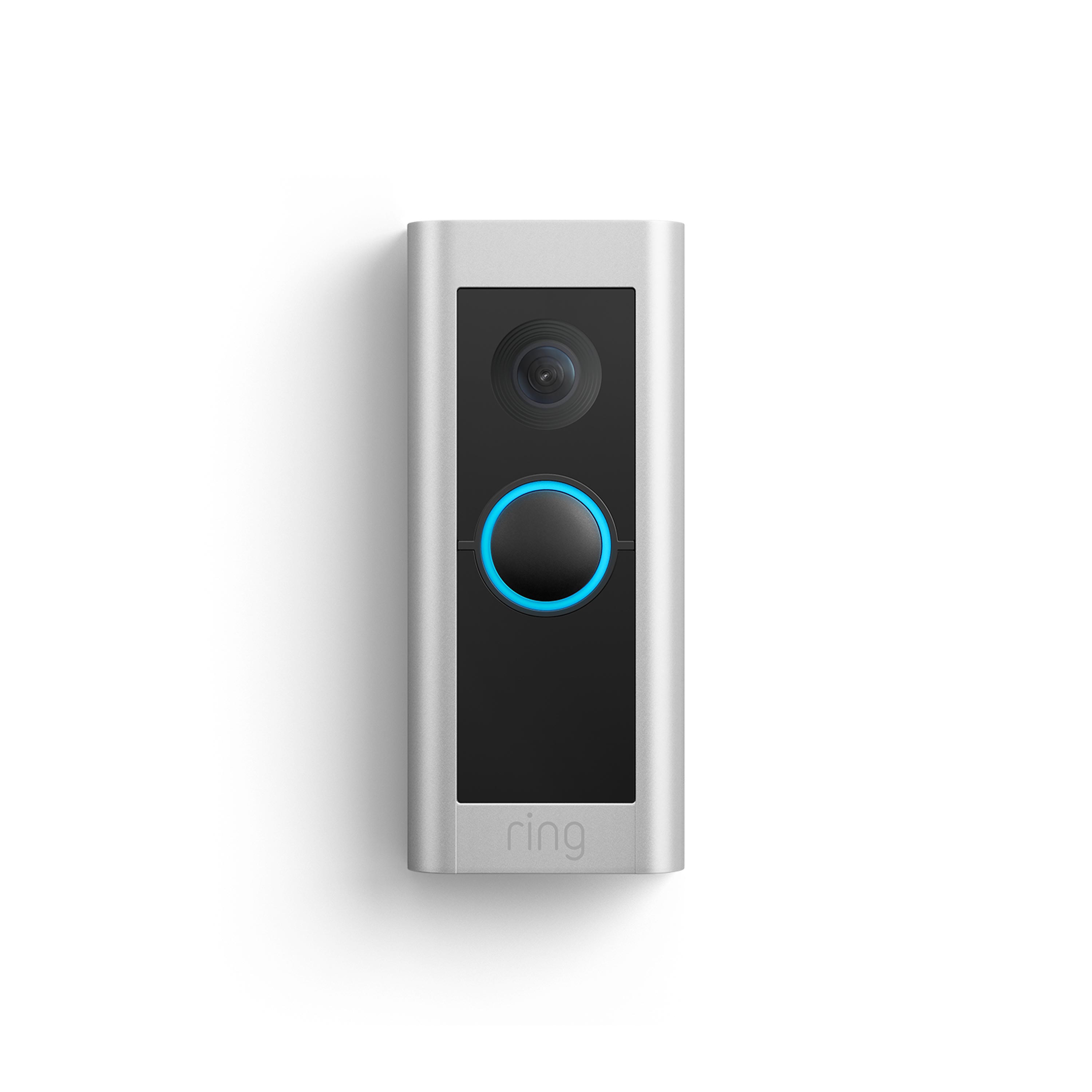
Are you having trouble with your Ring Video Doorbell Pro? Maybe it’s not responding, or you want to clear its settings and start fresh.
Knowing how to reset your device can save you time and frustration. You’ll discover simple, step-by-step instructions to reset your Ring Video Doorbell Pro quickly and safely. Keep reading to get your doorbell working perfectly again.
Reasons To Reset Your Ring Doorbell Pro
Resetting your Ring Video Doorbell Pro can solve many problems. It helps clear errors and refresh the device’s settings. Sometimes, a reset is the best way to fix issues quickly.
Here are common reasons why you might need to reset your Ring Doorbell Pro.
Fixing Connectivity Issues
Sometimes the doorbell loses connection to Wi-Fi. This causes delays or no alerts at all. Resetting the device can restore the connection. It refreshes the network settings and helps the doorbell reconnect smoothly.
Resolving Performance Problems
Your Ring Doorbell Pro might freeze or respond slowly. A reset clears temporary bugs and glitches. It resets the software, allowing the doorbell to work faster and better. This step often fixes many common performance issues.
Preparing For New Setup
Resetting is needed before setting up the doorbell again. It wipes old data and settings. This prepares the device for a fresh start on a new account or location. Resetting ensures no conflicts during the new setup process.
Credit: ring.com
Types Of Resets
Resetting your Ring Video Doorbell Pro can solve many problems. Different reset types serve different purposes. Knowing which reset to use saves time and effort. Below are the common reset types for your device.
Soft Reset
A soft reset restarts the device without deleting settings. It fixes minor glitches and connectivity issues. To perform a soft reset, press and hold the button on the back for 5 seconds. Release the button when the light flashes. The device will restart and reconnect to Wi-Fi automatically.
Hard Reset
A hard reset restores the device to factory settings. It deletes all data, including Wi-Fi and account info. Use this reset for major problems or before selling the device. To do a hard reset, press and hold the button on the back for 15 seconds. Release the button when the light flashes rapidly. The device will reset and need full setup again.
Tools Needed For Reset
Resetting your Ring Video Doorbell Pro requires a few simple tools. Having the right equipment helps make the process smooth and safe. It also prevents damage to your device.
Required Equipment
First, you need a small screwdriver, usually a Phillips head. This tool helps remove the faceplate or access screws. Next, have a paperclip or a pin ready. You will use it to press the reset button inside the doorbell. Finally, keep your smartphone nearby. You will need it to check the device after resetting.
Precautions Before Resetting
Turn off power to the doorbell from your home’s breaker box. This step avoids any electrical issues. Remove the doorbell carefully to not harm wires or the device. Avoid pressing buttons too hard inside the unit. Make sure your phone’s Ring app is updated. This helps to reconnect your device smoothly after reset.

Credit: www.techsolutions.support.com
Steps To Perform A Soft Reset
Performing a soft reset on your Ring Video Doorbell Pro can fix small issues. This process restarts the device without deleting your settings. It helps refresh the system for better performance. Follow these simple steps to complete a soft reset safely.
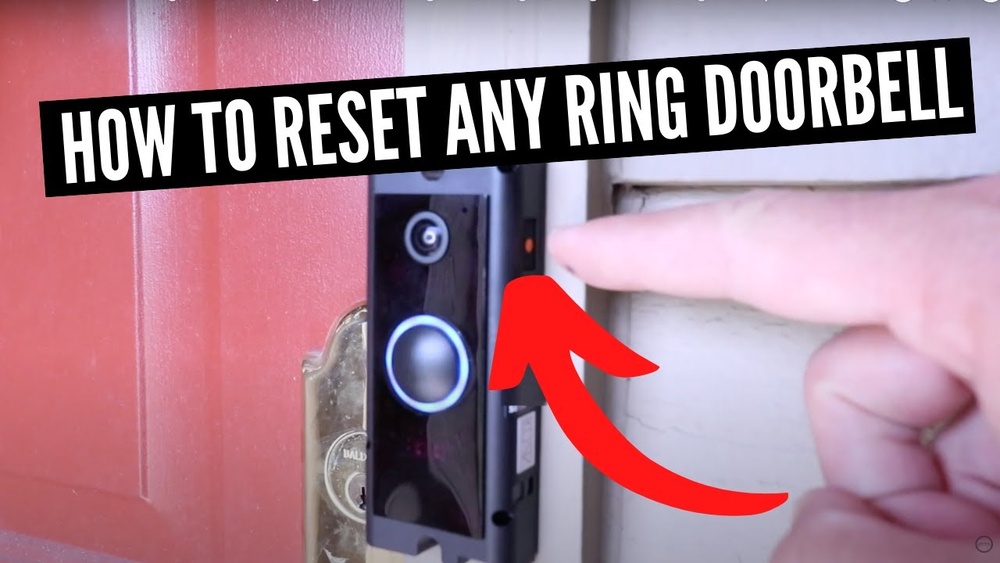
Locate The Reset Button
Find the reset button on the back of your Ring Video Doorbell Pro. It is a small, circular button near the top. You may need to remove the faceplate to see it clearly. Use your fingers or a small tool to press it gently.
Press And Hold Instructions
Press and hold the reset button for about 15 seconds. Keep holding until the light on the front flashes. This signals the device is rebooting. Release the button once the light changes.
Confirming The Reset
After releasing the button, wait for the device to restart. The light will flash green to show the reset is complete. Check your Ring app to ensure the doorbell is online. Your settings will stay intact after a soft reset.
Steps To Perform A Hard Reset
Resetting your Ring Video Doorbell Pro can fix many common issues. A hard reset clears the device’s settings and restores it to factory defaults. This process helps solve connection problems and software glitches. Follow these clear steps to perform a hard reset safely and correctly.
Powering Off The Device
Start by turning off your Ring Doorbell Pro. Remove the device from its mounting bracket. Disconnect the power source carefully. Wait for about 10 seconds before proceeding. This step ensures the device powers down completely.
Reset Button Procedure
Locate the reset button on your Ring Doorbell Pro. Press and hold the button for 15 seconds. Use a small tool like a paperclip if needed. Release the button once the light flashes. This signals the hard reset is in progress.
Reconnecting To The Network
After the reset, power the device on again. Open the Ring app on your smartphone. Follow the instructions to set up the device as new. Connect your Ring Doorbell Pro to your Wi-Fi network. Wait until the device shows online status.
After Reset Setup Tips
After resetting your Ring Video Doorbell Pro, setting it up again is crucial. This process ensures the device works perfectly and stays secure. Follow these simple tips to get your doorbell running smoothly once more.
Reinstalling The Ring App
Start by deleting the Ring app from your phone. Then, download it again from the app store. Reinstalling helps clear any bugs or glitches that might affect setup. Open the app and log in with your account details. This step prepares you for connecting your doorbell.
Connecting To Wi-fi
Next, link your Ring doorbell to your home Wi-Fi network. Make sure your phone is close to the doorbell. Select your Wi-Fi network in the app and enter the password carefully. A strong Wi-Fi connection is key for smooth video streaming and alerts.
Testing Functionality
Finally, test your doorbell to confirm it works properly. Press the doorbell button to check alerts on your phone. View live video feed and check audio quality. Test motion detection by moving in front of the doorbell. Fix any issues before relying on your device.
Troubleshooting Common Reset Issues
Resetting your Ring Video Doorbell Pro usually solves many issues. Sometimes, the reset does not work as expected. Troubleshooting common reset problems helps you fix these issues quickly. This section covers the most common problems and easy solutions.
Reset Button Not Responding
The reset button might not respond if pressed incorrectly. Use a small, pointed tool to press the button. Hold it down for at least 15 seconds. If the button still does not work, check if the device has power. A dead battery or no power supply stops the reset process.
Device Not Reconnecting
After a reset, your Ring Doorbell Pro may fail to reconnect to Wi-Fi. Make sure your Wi-Fi network is working. Place the device close to your router during setup. Enter the correct Wi-Fi password carefully. Restart your router if the device cannot find the network.
Persistent Performance Problems
Some problems continue even after resetting the device. Try restarting your Ring app. Update the app and your device firmware. Remove the doorbell from your Ring account and add it again. If issues remain, contact Ring support for help.

Credit: www.youtube.com
Frequently Asked Questions
How Do I Perform A Soft Reset On Ring Video Doorbell Pro?
To soft reset, press and hold the orange button for 15 seconds. Release it, and wait for the doorbell to reboot. This clears minor glitches without deleting your settings.
How Can I Factory Reset My Ring Video Doorbell Pro?
Press and hold the orange button for 20 seconds. Release and wait for the device to restart. This erases all settings and restores factory defaults.
Why Should I Reset My Ring Video Doorbell Pro?
Resetting fixes connectivity or software issues. It can also prepare your device for a new user setup. Always try soft reset before factory reset.
Will Resetting Delete My Ring Account Data?
No, resetting only affects the device settings. Your Ring account data stays intact on the cloud. You can reconnect the device anytime.
Conclusion
Resetting your Ring Video Doorbell Pro is simple and quick. Just follow the steps carefully to avoid any issues. This helps fix many common problems and improves your device’s performance. Keep your doorbell updated and connected for the best experience.
A reset can save time and hassle when things don’t work right. Stay calm and take your time while resetting. Your doorbell will be ready to use again in no time. Regular maintenance keeps your home safe and devices running smoothly.