
Imagine controlling all your smart devices with Google—without saying a single word. No more awkward voice commands or worrying about being heard in a noisy room.
Whether you want to dim your lights, adjust the thermostat, or pause your music, you can do it quietly and easily. You’ll discover simple, effective ways to manage your Google-connected devices using just taps and swipes. Ready to take control on your own terms?
Keep reading to unlock these handy tricks that make smart living even smarter.
Disable Voice Activation
Disabling voice activation on Google devices helps you control them without using your voice. This option suits quiet places or times when speaking out loud is not possible. It also improves privacy by stopping the device from listening all the time.
You can easily turn off voice activation features like “Hey Google” and Voice Match. Adjusting these settings will let you interact with Google Assistant through touch or text only.
Turn Off Hey Google
To disable “Hey Google,” open the Google Home app on your phone. Select your device from the list. Tap the settings icon, then choose “Voice Match.” Find the “Hey Google” toggle and switch it off. This stops the device from waking up when you say the phrase.
Disable Voice Match
Voice Match lets Google recognize your voice for personalized responses. To turn it off, go to Google Assistant settings. Tap “Voice Match” and disable it. This prevents the assistant from responding to your voice and stops personalized information from showing.
Manage Assistant Settings
Open Google Assistant settings to control how it works without voice. Scroll to “Assistant” and select “Preferred input.” Choose “Keyboard” or “Touch” to interact without speaking. This changes the default input method to text or taps.
Adjust other settings like notifications and linked accounts for better control. Managing these options helps you use Google devices smoothly without voice commands.
Use Google Home App Controls
The Google Home app offers a simple way to control your smart devices without speaking. You can manage lights, speakers, cameras, and more right from your phone. This method is perfect for quiet environments or when voice commands are not an option.
Using the app, you get full control over your connected devices. The interface is user-friendly and easy to navigate. All important functions are just a few taps away.
Control Devices Via App
Open the Google Home app to see all your connected devices. Tap any device to turn it on or off instantly. You can also schedule actions or create routines for automatic control. The app keeps everything organized and accessible.
Adjust Volume And Playback
Use the app to control music and media on your smart speakers. Adjust volume levels smoothly with a slider. Pause, play, or skip tracks without needing voice commands. This is handy during meetings or quiet moments.
Manage Device Settings
Access device settings through the app to customize functionality. Change brightness on smart bulbs or set temperature on thermostats. You can rename devices or update firmware for better performance. All settings are available in one place.
Enable Text-based Commands
Using Google to control your devices without voice is simple. Enabling text-based commands lets you type your requests. This option helps in quiet places or when speaking is not an option.
Typing commands keeps control easy and private. It works just like voice commands but through the keyboard. Here is how to set it up and why it helps.
Activate Keyboard Input
Open the Google app on your phone. Tap your profile icon in the top right corner. Go to Settings, then Search, Assistant & Voice. Select Google Assistant. Scroll to the General section. Find Preferred input and choose Keyboard input. This turns on the ability to type commands instead of speaking them.
Send Commands Without Speaking
After activating keyboard input, tap the keyboard icon on the Assistant screen. Type your command clearly, like “turn off living room lights.” Press send. Google processes your text just like spoken words. This lets you control smart devices quietly and accurately.
Benefits Of Text Interaction
Text commands offer privacy in public or shared spaces. They reduce errors from misheard words. You can use Google Assistant in noisy areas without repeating yourself. It also works well for people who prefer typing or have speech difficulties. Text input gives more control and flexibility.
Utilize Touch Controls
Using touch controls on your Google devices offers a simple way to manage them without speaking. This option suits quiet moments or busy environments. Touch controls are easy to learn and respond quickly. They give you direct control over many features of your device. Let’s explore how to use these touch features effectively.
Google Home Device Touch Features
Most Google Home devices come with touch-sensitive surfaces. These surfaces respond to taps, swipes, and presses. You can use these actions to adjust settings or interact with your device. The touch controls are designed to be intuitive. They help you operate your device without voice commands.
Mute And Unmute Microphones
One helpful touch control is the microphone mute button. You can tap it to turn the microphone off or on. When muted, the device stops listening to voice commands. A light usually shows if the microphone is off. This feature protects your privacy and stops accidental responses.
Control Playback With Touch
Touch controls also let you manage media playback. Tap the top to pause or play music or videos. Swipe left or right to skip tracks forward or backward. Press and hold to adjust the volume up or down. These gestures make it easy to control your media silently.
Automate With Sensors And Routines
Accessing quick settings shortcuts makes controlling your smart devices easy and fast. This feature lets you manage devices without using voice commands. You get instant control from your phone’s notification panel or lock screen. The process is simple and does not require opening apps every time. Here is how to set up and customize these shortcuts for better device management.
Add Device Controls Tile
Start by adding the Device Controls tile to your quick settings. Swipe down twice from the top of your screen to open quick settings fully. Tap the pencil icon or “Edit” button to enter the customization mode. Look for “Device Controls” or “Controls” in the list of available tiles. Drag it to your active quick settings area. After this, you can tap the tile anytime to see all connected smart devices.
Use Quick Settings For Smart Devices
Once the Device Controls tile is added, tap it to open your smart device list. You can switch devices on or off with a single tap. Adjust brightness, temperature, or volume without voice commands. The controls work for lights, thermostats, cameras, and more. This saves time and keeps your hands free from typing or speaking.
Customize Your Control Panel
Customize your control panel to show your favorite devices first. Open the Device Controls panel and tap the three-dot menu or “Edit” option. Reorder devices by dragging them up or down. Remove devices you don’t use often for a cleaner look. This makes your control panel simple and tailored to your needs.
Credit: www.hackster.io
Access Quick Settings Shortcuts
Controlling devices with Google without using voice commands is possible through various alternative input methods. These options give users freedom to interact quietly or when speaking is inconvenient. They also improve accessibility for people with speech difficulties. Explore different ways to manage your smart home and devices without saying a word.
Use Physical Buttons
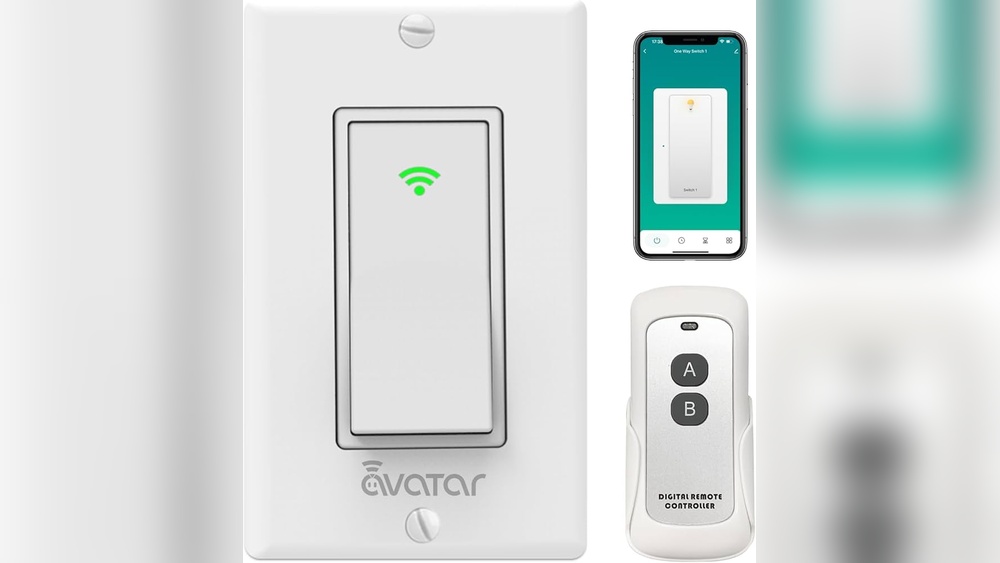
Many smart devices include physical buttons for direct control. You can press buttons on smart plugs, switches, or thermostats to turn them on or off. This method works well when voice control is not an option. Physical buttons offer simple and immediate device management.
Employ Wearable Device Controls
Wearable devices like smartwatches allow you to control Google-connected gadgets. Tap or swipe on your watch screen to adjust lights or play music. Some wearables have dedicated buttons to trigger commands silently. This method keeps your hands free and your voice off.
Integrate Third-party Apps
Third-party apps provide alternative interfaces to control Google devices. These apps often feature touch controls, sliders, and buttons for easy use. You can customize commands and schedules without speaking. Many apps work on smartphones, tablets, or computers for flexible control.
Explore Alternative Input Methods
Controlling devices with Google without using voice is convenient. Sometimes, the controls may not respond as expected. Troubleshooting non-voice controls helps fix these problems quickly. This section explains easy steps to solve common issues and check your setup.
Common Issues And Fixes
Smart devices may not respond due to connection problems. Restart your Wi-Fi router and smart devices. Ensure your phone or tablet has a stable internet connection. Clear cache and data of the Google Home app. Reboot the device used for control. Check if devices appear correctly in the Google Home app.
Update Google Home And Assistant
Outdated apps can cause control failures. Open your app store and check for updates. Update the Google Home app and Google Assistant. Keep your device’s operating system current. Updates improve compatibility and fix bugs. Regular updates ensure smooth non-voice control.
Check Device Compatibility
Not all smart devices support non-voice control methods. Verify if your device works with Google Home app controls. Visit the manufacturer’s website for compatibility details. Some devices need specific apps or firmware versions. Confirm your device supports app control commands without voice.

Credit: www.amazon.com
Credit: www.walmart.com
Frequently Asked Questions
How To Use Hey Google Without Speaking?
Use Google Assistant’s keyboard input by enabling “Preferred input” in settings. Control devices via the Google Home app without speaking.
How Do I Control My Smart Devices With Google?
Control smart devices using the Google Home app or Google Assistant. Tap devices to adjust settings like lights, thermostat, or cameras. Use Quick Settings on your phone for easy access without voice commands.
Can I Use Google Home Without Voice?
You cannot fully use Google Home without voice. Use the Google Home app or Assistant on your phone for text control instead.
Can I Use Hey Google Without Voice Match?
Yes, you can use “Hey Google” without Voice Match, but Google Assistant may ask for verification or limit personalized responses.
Conclusion
Controlling devices with Google without using voice is simple and effective. You can use your phone or tablet to manage smart devices silently. The Google Home app lets you tap commands instead of speaking. This method suits quiet spaces or people who prefer not to talk aloud.
Trying these options helps keep control easy and private. Explore these steps to make your smart home more convenient today.