
Imagine being able to control your Apple device completely with just your voice—no taps, no swipes, just simple spoken commands. Whether you want to scroll through a webpage, open an app, or even edit text, Apple’s Voice Control makes it possible.
If you’ve ever wished for a hands-free way to navigate your iPhone, iPad, or iPod touch, this powerful feature is designed just for you. You’ll discover how Voice Control can transform the way you use your device, making everyday tasks easier and more accessible.
Ready to unlock a new level of convenience? Let’s dive into everything you need to know about Apple Device Voice Control.
Voice Control Basics
Voice Control on Apple devices lets you operate your device using only your voice. It helps you control everything from opening apps to editing text. This feature is especially useful for people with mobility challenges or those who prefer hands-free use. Voice Control is built into iOS and iPadOS, making it easy to start using.
Enabling Voice Control
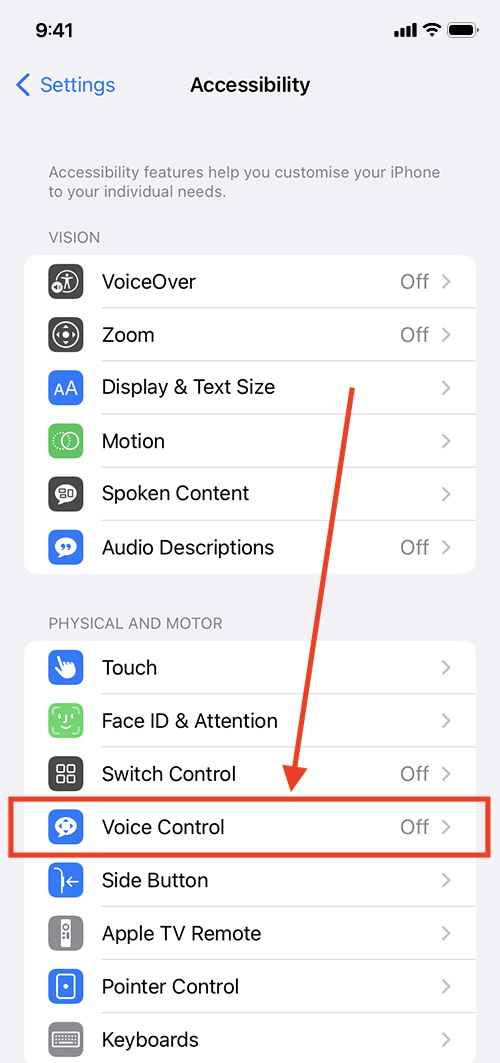
To enable Voice Control, open the Settings app on your device. Tap on Accessibility, then select Voice Control. Turn on the Voice Control toggle. Your device will download necessary files and start listening for commands. You can also ask Siri to “Turn on Voice Control” to activate it quickly. Once enabled, a blue microphone icon appears on the screen.
Core Voice Commands
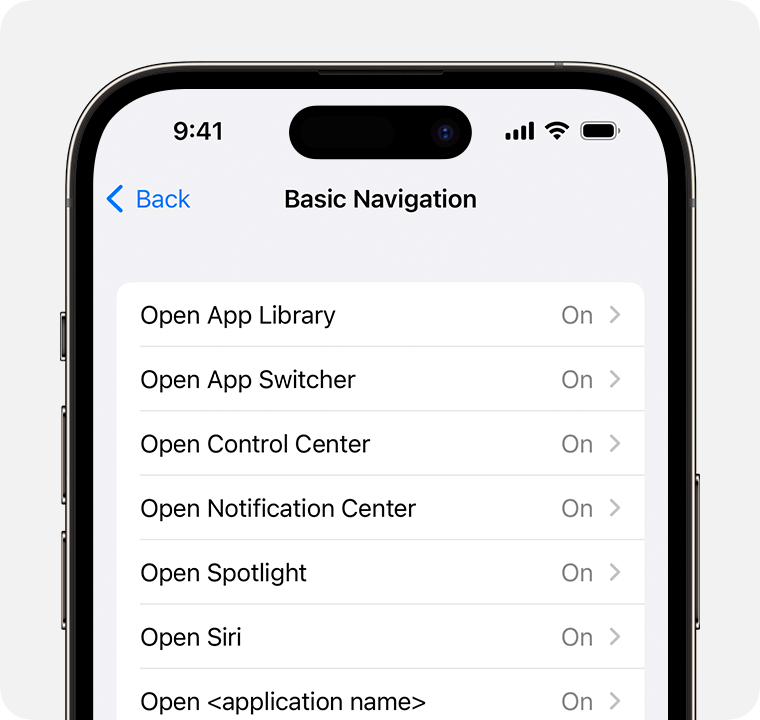
Voice Control supports many commands to navigate and interact with your device. Say “Go home” to return to the home screen. Use “Open [App Name]” to launch any app. Commands like “Scroll down” or “Scroll up” help you browse content. You can also dictate text by speaking naturally. To select items, say “Tap [button name]” or “Click [link name].” These commands make device use easier and faster.
Device Compatibility
Voice Control works on iPhone, iPad, and iPod touch with iOS 13 or later. Mac computers with macOS Catalina or newer also support this feature. It works offline after the initial setup, keeping your data private. Voice Control adapts to different devices, providing a consistent experience. Check your device’s software version to ensure compatibility before enabling Voice Control.
Credit: support.apple.com
Navigating With Voice
Voice Control on Apple devices lets you navigate your device using just your voice. It helps people who find touching the screen hard. This feature gives you more freedom and ease. You can move through menus, open apps, and use features without hands.
Using clear, simple commands makes navigation quick and smooth. The system listens carefully to your instructions. It responds right away to help you get things done fast.
Screen Navigation
Say commands like “Go home” to reach the main screen. Use “Swipe left” or “Swipe right” to move between pages. Commands such as “Scroll up” or “Scroll down” move through long lists or web pages. You can say “Tap” followed by a button name to select items. Voice Control understands many common screen actions.
Interacting With Apps
Open apps by saying their name, like “Open Mail” or “Open Safari.” Inside apps, say “Click” plus the button or link name. For example, say “Click Compose” to start a new email. You can also say “Zoom in” or “Zoom out” to adjust views. Voice Control lets you fill forms by saying text or numbers aloud.
Using Grid Overlays
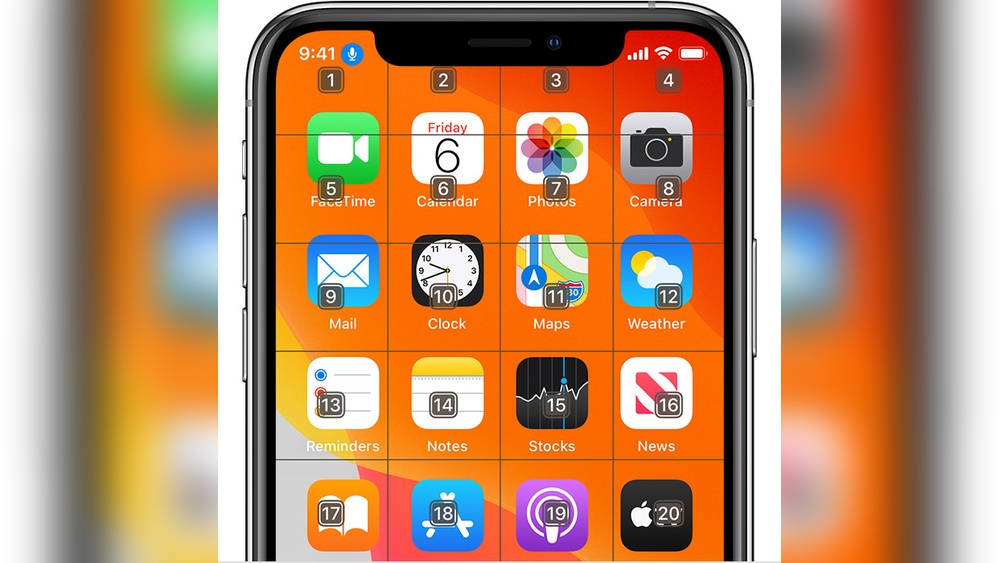
Grid overlays help you tap small areas easily. When activated, a numbered grid appears on the screen. Say the number of the grid box to zoom in or tap that spot. This method is useful for precise control. It works well on complex screens or small buttons.
Advanced Features
Apple Device Voice Control offers advanced features that enhance user experience. These features make controlling your device easier and more personalized. They provide flexibility and convenience for everyday tasks. Voice Control adapts to your needs with smart tools.
Custom Commands
Users can create their own voice commands. This feature lets you perform actions quickly. For example, you can open apps or send messages with a phrase. Custom commands save time and effort. They help users work hands-free more efficiently.
Name And Number Labels
Voice Control assigns labels to screen items. You can say the label name to select buttons or links. Number labels appear next to items on the screen. This makes navigation simple and fast. It reduces errors and improves accuracy while speaking commands.
Offline Functionality
Voice Control works without internet connection. This means you can control your device anytime, anywhere. Commands are processed on the device itself. Offline use ensures privacy and quick responses. It also helps in areas with poor network coverage.
Voice Control Vs Siri
Apple offers two voice features: Voice Control and Siri. Both help you use your device by speaking. They serve different purposes and work in unique ways. Understanding their differences helps you choose which fits your needs better.
Differences In Function
Voice Control lets you operate the entire device using voice commands. You can open apps, scroll, tap buttons, and dictate text. Siri acts as a smart assistant. It answers questions, sets reminders, and controls smart home devices. Voice Control focuses on device navigation. Siri handles tasks and information requests.
Connectivity Requirements
Voice Control works mostly offline. It processes commands directly on your device for privacy and speed. Siri needs an internet connection for most tasks. It sends your requests to Apple servers to understand and respond. Voice Control is reliable without Wi-Fi. Siri depends on network availability.
Best Use Cases
Use Voice Control if you want hands-free device operation. It helps users with physical disabilities or those who prefer voice navigation. Siri is best for quick information, setting timers, or controlling smart devices. It suits everyday helpers and quick answers. Each tool fits different user needs and situations.
Accessibility Benefits
Apple Device Voice Control offers significant accessibility benefits. It helps people with different abilities use their devices more easily. Voice Control changes how users interact with iPhones, iPads, and other Apple products. It creates a hands-free experience that improves independence. The feature supports clear, simple voice commands for a smooth user journey.
This section explores three key accessibility benefits of Voice Control. Each benefit shows how Apple focuses on inclusion and ease of use.
Helping Users With Disabilities
Voice Control helps users with physical or motor disabilities. It removes the need for touch-based interaction. Users can open apps, scroll, and tap using voice commands. This support makes devices more accessible and usable. Voice Control also reduces frustration for people with limited hand mobility. It empowers them to stay connected and active on their devices.
Hands-free Operation
Hands-free use is vital for many users. Voice Control lets users operate devices without touching the screen. This is useful for users with injuries or temporary impairments. It also benefits those multitasking or in situations where hands are busy. Commands like “go home” or “scroll down” provide seamless control. The device listens and responds instantly to spoken instructions.
Text Editing With Voice
Editing text by voice is a key feature of Voice Control. Users can dictate, select, and replace text easily. Commands such as “delete that” or “replace with hello” simplify corrections. This helps people who find typing or tapping difficult. It speeds up writing emails, messages, and notes. Text editing by voice reduces errors and enhances productivity.
Troubleshooting Tips
Voice Control on Apple devices helps users operate their phones hands-free. Sometimes, the feature might stop working or not understand commands. Troubleshooting these issues can restore smooth voice operation. The tips below guide you through common problems and fixes.
Voice Control Not Responding
Check if Voice Control is turned on in Settings under Accessibility. Make sure your device’s microphone is not blocked or dirty. Restart your device to clear temporary glitches. Ensure no other app is using the microphone. Disable and re-enable Voice Control if it remains silent.
Improving Recognition Accuracy
Speak clearly and at a normal pace for better results. Use simple phrases that Voice Control can easily understand. Reduce background noise by moving to a quiet place. Train Voice Control by repeating commands when prompted. Keep your device’s software updated for improved performance.
Resetting Voice Control
Go to Settings, then Accessibility, and select Voice Control. Choose “Customize Commands” and tap “Reset Commands” to restore defaults. Turn Voice Control off and on again to refresh the system. If problems persist, restart your device after resetting. This clears any corrupted settings affecting Voice Control.
Creative Uses
Apple Device Voice Control offers many creative ways to interact with your device. It helps users perform tasks without touching the screen. This feature is useful in different situations, making daily activities easier and more fun.
Taking Photos Hands-free
Voice Control lets you take photos without holding your device. Simply say commands like “Take a photo” or “Take a selfie.” This is perfect for group shots or when your hands are busy. You can also switch between front and rear cameras using voice commands. Capture moments quickly and easily, no need to touch your iPhone or iPad.
Unlocking Devices By Voice
Unlocking your Apple device using voice commands adds convenience. Say “Wake up” or “Turn on Voice Control” to activate your device. After setup, you can unlock with a passcode or Face ID using voice guidance. This feature helps users with limited mobility or when your hands are full. It keeps your device secure while offering hands-free access.
Managing Smart Home Devices
Voice Control works well with smart home devices connected to your Apple ecosystem. Control lights, thermostats, and locks by speaking simple commands. Say “Turn off the lights” or “Set thermostat to 72 degrees.” It saves time and effort, especially when you are busy or away from the device. Managing your smart home becomes smooth and stress-free with voice commands.
Credit: mcmw.abilitynet.org.uk
Future Of Voice Control
The future of Apple Device Voice Control promises smarter and more natural interactions. Voice commands will become faster and more accurate. Users will experience easier ways to control their devices without touching the screen.
Voice Control will grow beyond simple commands. It will adapt to user habits and environment. This will make the technology more helpful and personal in daily use.
Emerging Features
Apple is developing new voice control abilities. These include better understanding of context and complex instructions. The device may soon recognize voices to provide personalized responses. Enhanced offline processing will improve privacy and speed. Expect support for more languages and dialects to help global users.
Integration With Other Apple Services
Voice Control will work closely with Apple services like Siri, HomeKit, and Apple Music. Users can control smart home devices by voice more easily. Managing reminders, calendar events, and messages will be smoother. Apple’s ecosystem will offer unified voice experiences across devices. This integration helps save time and effort.
User Customization Trends
Customization options will expand for voice commands. Users can create their own voice shortcuts for frequent tasks. The system may learn user preferences to suggest commands. Accessibility improvements will allow better support for different needs. This makes Voice Control more flexible and user-friendly for everyone.

Credit: www.youtube.com
Frequently Asked Questions
How To Use Apple Voice Control?
To use Apple Voice Control, enable it in Settings > Accessibility > Voice Control. Say commands like “Go home,” “Scroll down,” or “Tap [item]. ” Use “Hey Siri, turn on Voice Control” to activate hands-free. Voice Control lets you fully navigate and operate your device by voice.
How Can I Control My Device With My Voice?
Control your device by enabling Voice Control in Settings > Accessibility. Speak commands like “Go home,” “Scroll down,” or “Click [text]” to navigate and interact hands-free. Use “Hey Siri, turn on Voice Control” to activate it quickly.
What’s The Difference Between Siri And Voice Control?
Voice Control lets users fully operate their device by voice, including navigation and editing. Siri acts as a virtual assistant, handling tasks like reminders and questions, often needing internet. Voice Control works offline and suits accessibility needs; Siri focuses on natural language tasks and broader assistance.
Does Apple Have Voice Control?
Yes, Apple offers Voice Control, an accessibility feature that lets users operate devices entirely by voice commands. It works offline after setup and supports navigation, tapping, scrolling, and custom commands on iPhone, iPad, and iPod touch.
Conclusion
Apple Device Voice Control offers simple, hands-free device use. It helps navigate screens, open apps, and control settings by voice. This feature suits users who prefer or need voice operation. It works offline and responds quickly to commands. Voice Control improves accessibility and convenience for daily tasks.
Try it to see how voice commands ease your device use.


