
Are you frustrated because your Ford SYNC voice controls aren’t working with your device? You’re not alone.
Many drivers face this exact problem and wonder why their voice commands just won’t respond. The good news is, this issue often has simple fixes that you can try yourself. You’ll discover easy steps to get your Ford SYNC voice controls back on track—whether it’s a Bluetooth hiccup, a software glitch, or an app conflict.
Keep reading, and you’ll soon be talking to your car again without any hassle.
Common Causes Of Voice Control Issues
Voice control issues with Ford SYNC can frustrate any driver. Understanding common causes helps fix the problem faster. Many voice command errors come from connection or software conflicts. This section breaks down key reasons why voice controls may not work with your device.
Bluetooth Connection Problems
Bluetooth is essential for SYNC voice commands. Poor or unstable connections often block voice control functions. If your phone is not paired correctly, voice commands will fail. Turning Bluetooth off and back on can restore the link. Removing and re-pairing your device often solves hidden connection errors.
Software Compatibility
SYNC voice control relies on compatible software versions. Outdated or mismatched software causes command errors. Keeping your SYNC system updated ensures smooth operation. Check Ford’s official site for the latest updates. Installing updates via USB can fix many voice control issues.
Apple Carplay And Android Auto Conflicts
Using Apple CarPlay or Android Auto disables SYNC’s built-in voice commands. These apps take control over voice functions during use. Voice control will not respond until you exit the app. Switching off CarPlay or Android Auto restores SYNC voice command access.

Credit: www.lutherauto.com
Quick Fixes To Try First
When Ford Sync voice controls show the message “Not Valid With This Device,” quick fixes can help restore function fast. These simple steps often solve common connection or software glitches. Try these fixes before moving to more complex solutions.
Restart Your Phone And Sync System
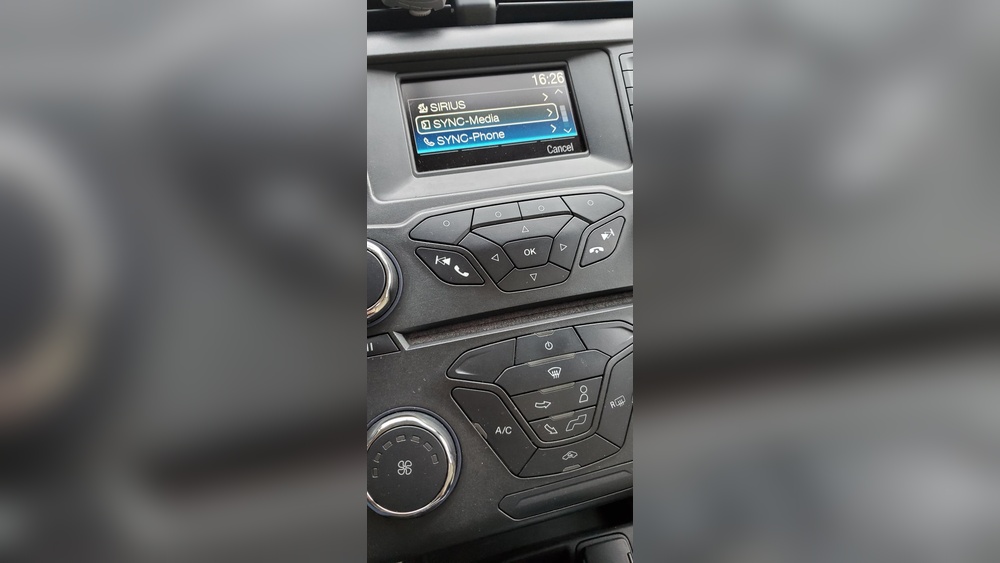
Turn your phone off and back on to refresh its connection. Restart the SYNC system by holding the power and right seek buttons together. Wait until the screen goes dark, then release. This “cold restart” can clear temporary errors.
Check Bluetooth Settings
Open Bluetooth settings on your phone and SYNC. Turn Bluetooth off and on again to reset the link. If problems continue, unpair your phone from SYNC. Then pair it again to establish a fresh connection.
Exit Carplay Or Android Auto Apps
Using Apple CarPlay or Android Auto disables SYNC voice commands. Close these apps on your phone to restore SYNC control. After exiting, test your voice commands to see if they work properly.
Performing A Master Reset
Performing a master reset on your Ford SYNC system can solve many voice control issues. It restores the system to its original factory settings. This process removes all paired devices and personal settings. After the reset, you will need to set up your preferences again. The reset often clears software glitches causing the “Voice Controls are Not Valid With This Device” error.
This step is useful when simple restarts or Bluetooth fixes do not work. It gives your SYNC system a fresh start. Follow the instructions carefully to avoid losing important data. After resetting, you will have to re-pair your devices for full functionality.
Steps To Reset Sync To Factory Settings
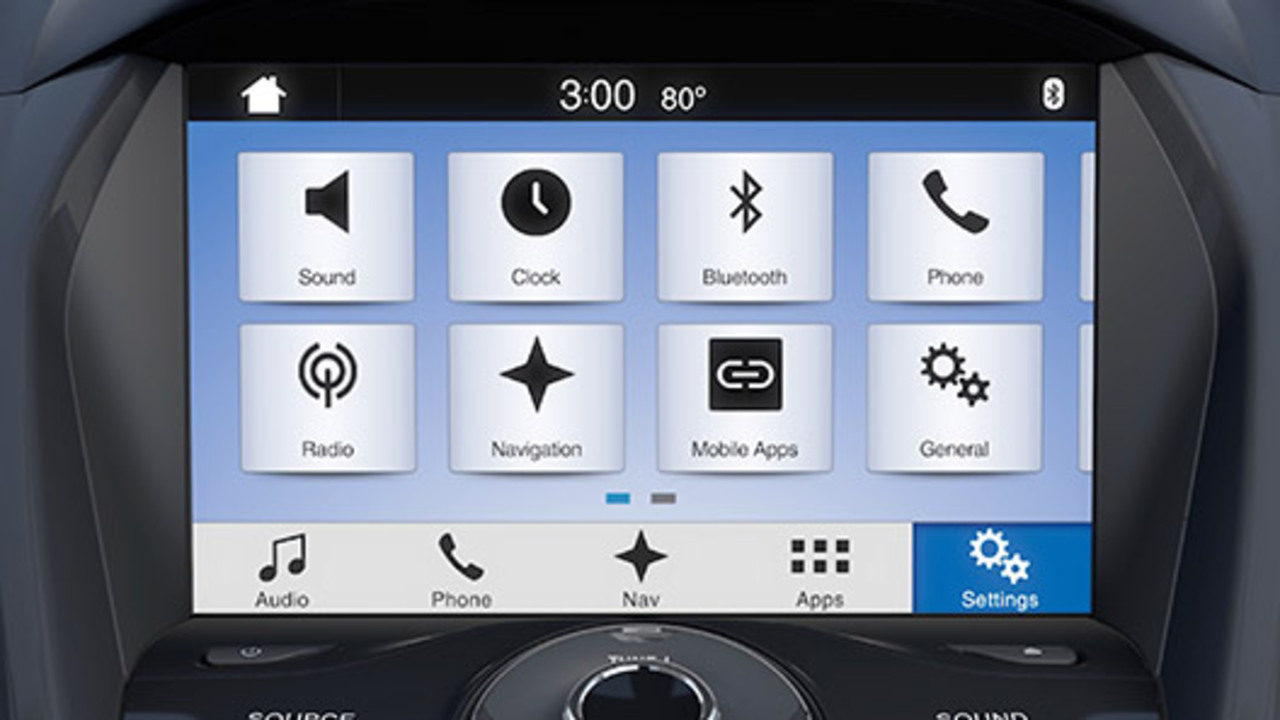
Turn on your vehicle and SYNC system. Access the SYNC main menu on the touchscreen. Tap Settings from the menu options. Scroll down and select System. Find and tap Master Reset. Confirm your choice to start the reset. The system will reboot and erase all data. Wait until the process finishes completely.
Re-pairing Devices After Reset
Open Bluetooth settings on your phone. Search for the SYNC system in available devices. Select SYNC to start pairing. Follow the on-screen prompts to complete the connection. Enter any required PIN or code shown on the SYNC screen. Test the voice commands to ensure they work. Repeat for any other devices you use with SYNC.
Credit: www.ford.com
Updating Sync Software
Keeping your Ford SYNC software updated helps maintain smooth voice control functions. Updates fix bugs and improve compatibility with devices. Regular updates reduce errors like “SYNC Voice Controls are Not Valid With This Device.”
Updating SYNC software is simple and can be done with a USB drive. Follow the steps carefully to ensure your system runs the latest version. This will enhance your driving experience and keep voice commands working properly.
Checking For Latest Software
Start by visiting the official Ford owner website. Enter your vehicle’s VIN to check for available updates. The site shows the latest SYNC software version for your model. Compare it with your current version on the SYNC screen. This step confirms if an update is needed.
Downloading And Installing Updates Via Usb
Use a USB drive formatted as FAT32 or exFAT. Download the update file from the Ford website to your USB. Insert the USB into your vehicle’s USB port. Follow on-screen instructions to start the installation. Keep the engine running during the process. Do not remove the USB until the update completes. Your SYNC system will restart once the update installs successfully.
Improving Voice Command Recognition
Improving the recognition of voice commands in Ford SYNC helps reduce errors. Clear and precise commands allow the system to understand requests better. This section explains how to phrase commands and handle special characters and capitalization for smoother interactions.
Correct Command Phrasing
Use simple and direct phrases with your Ford SYNC voice controls. Speak slowly and clearly to ensure the system catches every word. Avoid slang or unusual words that might confuse the system. For example, say “Call John Smith” instead of “Ring up John.”
Keep commands short. The system handles shorter requests better than long sentences. Break complex commands into smaller steps. For example, say “Navigate home” rather than “Take me home using the fastest route.”
Handling Special Characters And Capitalization
Ford SYNC voice controls do not recognize special characters like “@” or “.” Spell out names or words instead of using symbols. For example, say “Email John dot Smith at gmail dot com” instead of using symbols.
Capitalization does not affect voice commands. The system listens to sounds, not letter cases. Focus on pronunciation rather than worrying about uppercase or lowercase letters. Pronounce names and words carefully for better results.

Credit: www.reddit.com
Additional Troubleshooting Tips
Additional troubleshooting can help solve issues with Ford SYNC voice controls. These tips focus on simple steps that often restore voice command functions. Follow each carefully to improve your system’s response.
Performing A Key Cycle
Turn your vehicle off completely. Remove the key from the ignition. Wait at least 30 seconds to allow the system to reset fully. Insert the key and start the car again. This refreshes the SYNC system and can fix minor errors. It is an easy first step before deeper troubleshooting.
Ensuring Voice Prompt Activation
Check if voice prompts are enabled in your SYNC settings. Navigate to the voice control menu on the display screen. Make sure the voice prompt option is turned on. Without activation, the system won’t respond to voice commands. Speak clearly after activation to help SYNC recognize your requests.
Verifying Phone Compatibility
Confirm your phone works with Ford SYNC voice controls. Visit the Ford website for a list of compatible devices. Some older or less common phones may not support voice features. Update your phone’s software to the latest version. Compatibility issues can block voice commands from working properly.
Frequently Asked Questions
Why Is The Voice Control Not Working On My Ford Sync?
Voice control may fail if SYNC software is outdated, Bluetooth is disconnected, or CarPlay/Android Auto is active. Restart devices, check connections, exit apps, or perform a master reset to fix it. Ensure correct command phrasing for better recognition.
How Do I Fix Voice Control Not Working?
Restart your phone and SYNC system, check Bluetooth connection, perform a master reset, update SYNC software, and exit Apple CarPlay or Android Auto apps.
How Do I Activate Voice Commands On Ford Sync?
Press the voice button on the steering wheel. Wait for the tone and “Listening” prompt. Then speak your command clearly. Ensure your phone is connected via Bluetooth. Update SYNC software and exit Apple CarPlay or Android Auto to enable voice commands.
How To Reboot A Ford Audio System?
To reboot a Ford audio system, press and hold the power and right seek buttons until the screen turns off. Then release to restart the system. For a full reset, go to Settings > System > Master Reset to restore factory settings.
Conclusion
Ford Sync voice controls may not work with some devices. Try restarting your phone and the Sync system first. Check your Bluetooth connection and reconnect if needed. Performing a master reset can fix many issues. Keep your Sync software updated for best performance.
Remember, using Apple CarPlay or Android Auto disables Sync voice commands. Speak clearly and use correct command phrases. These simple steps often solve the problem quickly. Stay patient and follow each step carefully for success. Your Sync system will be ready to assist you again soon.