
Imagine controlling your smart home devices without saying a single word. No shouting “Hey Google” across the room or worrying about background noise messing up your commands.
What if you could manage your lights, thermostat, and more with just a few taps or simple gestures? If you’ve ever wanted to use Google Home but prefer not to speak out loud, this article is for you. You’ll discover easy, voice-free ways to take charge of your devices, making your smart home experience smoother and more private.
Ready to unlock new control options for your Google Home? Let’s dive in.

Credit: www.amazon.com
Non-voice Control Options
Google Home offers ways to control devices without speaking. These non-voice control options help users who prefer silent commands or have speech difficulties. Using other methods, you can manage smart home devices easily and quietly.
Non-voice controls provide flexibility and convenience. They keep your smart home accessible at all times. Explore these options to interact with Google Home without using your voice.
Google Home App Controls
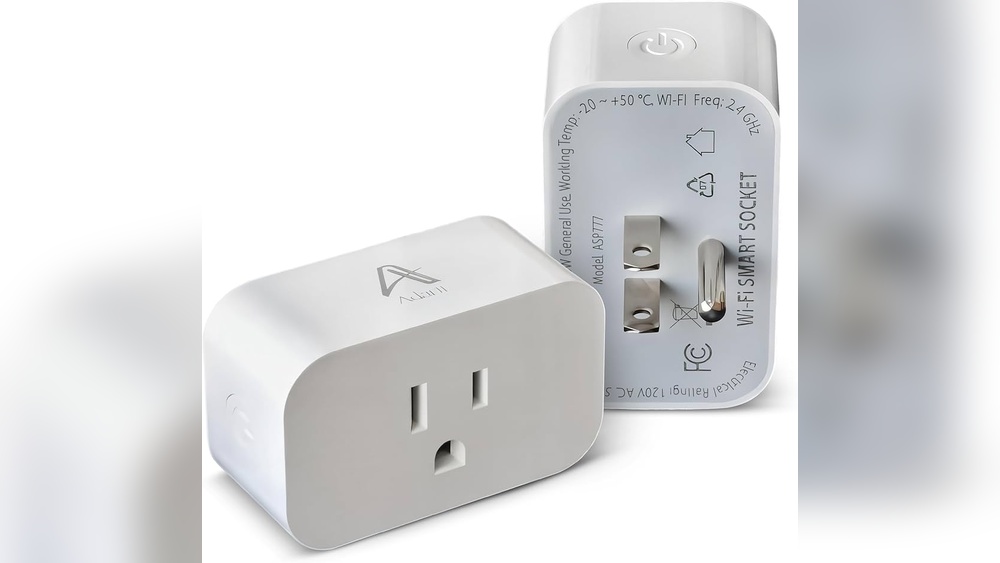
The Google Home app lets you control devices from your phone. You can turn lights on or off with a tap. Adjust thermostats and manage smart plugs easily. The app shows device status and allows scheduling. It works anywhere with internet access. No need to speak or use voice commands.
Touch Controls On Devices
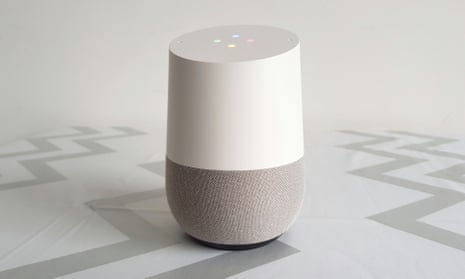
Many Google Home devices have touch controls. Tap or swipe to pause music or adjust volume. Some devices let you activate Google Assistant by touch. Use these controls for quick, silent commands. They provide an easy way to interact without voice.
Using Google Assistant Text Input
Google Assistant supports text input on some devices and apps. You can type your commands instead of speaking. This feature works well in noisy places or for privacy. Open the Assistant app and select keyboard input. Type your request and get a quick response. A helpful option for non-voice control.
Configuring Settings For Silent Use
Configuring your Google Home for silent use lets you control devices without speaking. It suits quiet environments and private moments. Adjusting settings properly ensures smooth operation without voice commands. Below are key steps to set up your device for silent control.
Disabling Voice Match
Voice Match helps Google recognize your voice. Turning it off stops voice activation. Open the Google Home app and select your device. Find Voice Match settings and disable them. This step prevents accidental voice triggers. It also improves privacy by limiting voice data use.
Adjusting Preferred Input Method
Changing the input method allows control without voice. In the Google Home app, go to Assistant settings. Choose ‘Preferred input’ and select ‘Keyboard’ or ‘Touch.’ This lets you type commands instead of speaking. You can control devices silently from your phone screen.
Muting Microphones
Muting the microphone stops the device from listening. Most Google Home devices have a mute button on the back or side. Press it to disable the mic and see a red light. This ensures your device stays quiet and only responds to typed commands. It is a simple way to avoid any voice activation.
Alternative Interfaces
Using Google Home without speaking is easier than many think. Alternative interfaces let users control devices quietly and efficiently. These options suit people who prefer text or manual controls over voice commands.
Several tools and settings can help manage smart devices silently. Each method offers convenience and accessibility for different needs. Explore how to use quick settings, text commands, and third-party apps to control your smart home without voice.
Device Controls In Quick Settings
Quick Settings on smartphones provide fast access to Google Home controls. Users can toggle lights, locks, and thermostats directly from the notification panel. This method saves time and avoids opening multiple apps. It works well for simple commands and daily adjustments.
Smartphone Assistant Text Commands
Google Assistant supports text input on many devices. Typing commands replaces speaking for those who want privacy or quiet. This feature helps in places where voice use is impossible or unwanted. Simply open the Assistant app and enter commands as text to control devices.
Third-party App Integrations
Many third-party apps connect with Google Home for added control options. These apps offer customized interfaces and automation without voice. Users can create schedules, triggers, and scenes to manage devices silently. This expands the ways to interact with smart homes beyond Google’s native tools.

Credit: home.google.com
Automation Without Voice
Automating your smart home without speaking is simple and effective. Google Home lets you control devices without voice commands. This option suits quiet spaces or people who prefer not to talk to their devices.
You can create automatic actions that run on their own. These actions trigger based on time, sensor input, or other conditions. Let’s explore how to set up these automations easily.
Setting Up Routines And Triggers
Routines combine multiple actions into one command. You do not need to say anything to start them. In the Google Home app, you create routines that run at set times. Or you choose triggers like sunrise or sunset. For example, set lights to turn on at 7 PM automatically. This method saves effort and keeps your home smart without speaking.
Using Sensors And Timers
Sensors detect motion, temperature, or light to trigger devices. Connect smart sensors to Google Home for hands-free control. A motion sensor can turn on lights when you enter a room. Timers also help by running tasks after a set time. For instance, turn off the fan after 30 minutes. These tools help make your home smarter without voice commands.
Ifttt And Webhook Solutions
IFTTT (If This Then That) links apps and devices easily. You can set rules that trigger Google Home devices without voice. For example, turn on your heater when the temperature drops. Webhooks send commands from other apps or services to Google Home. They extend automation beyond the app’s limits. Using IFTTT and webhooks gives more control to your smart home silently.
Controlling Specific Devices Silently
Controlling specific smart devices silently with Google Home offers privacy and convenience. You can manage your home without speaking aloud. This method suits quiet environments or when voice commands are not practical. Use the Google Home app or compatible devices to control each gadget discreetly.
Managing Lights And Switches
Adjusting lights and switches silently is simple through the Google Home app. Tap on the device icon to turn lights on or off. You can also dim or brighten lights without saying a word. This control helps maintain quiet in bedrooms or during meetings. Switches can be toggled just as easily for lamps or appliances.
Adjusting Thermostats
Thermostat settings change smoothly without voice commands. Open the Google Home app and select the thermostat device. Slide to increase or decrease the temperature as needed. This silent adjustment keeps your room comfortable without disturbing others. It also saves energy by fine-tuning the heat or cooling quietly.
Monitoring Cameras And Doorbells
Check your security cameras and doorbells silently via the app. View live feeds or recorded clips without using voice commands. This feature helps you stay aware of visitors and safety issues quietly. You can also receive alerts and respond to doorbell rings without making noise. All controls remain easy and discreet.
Troubleshooting And Tips
Controlling devices with Google Home without using voice commands offers great convenience. Still, users may face issues or want to improve their experience. This section covers key troubleshooting steps and useful tips. These help ensure smooth and secure device control without voice.
Ensuring Device Compatibility
Check if your smart devices support Google Home control without voice. Not all devices work with non-voice commands. Use the Google Home app to verify compatibility. Update the device firmware to the latest version. This keeps devices responsive and secure. Confirm the device is connected to the same Wi-Fi network as Google Home.
Improving Response Times
Slow responses can frustrate users controlling devices silently. Reduce Wi-Fi interference by placing your router and devices closer. Restart your router and Google Home device regularly. Limit the number of connected devices to avoid network congestion. Use the Google Home app to refresh device settings. These steps enhance overall performance and speed.
Maintaining Privacy And Security
Protect your smart home from unauthorized access. Use strong, unique passwords for your Google account and devices. Enable two-factor authentication on your Google account. Regularly review device permissions in the Google Home app. Turn off unused features or devices to reduce security risks. Keep your app and devices updated to fix vulnerabilities.
Credit: www.theguardian.com
Frequently Asked Questions
Can I Use Google Home Without Voice?
You cannot fully use Google Home without voice. Use the Google Home app or touch controls to manage devices silently. Disable Voice Match to stop voice recognition on devices.
How To Use Hey Google Without Speaking?
Open the Google Assistant app on your phone. Use the keyboard icon to type commands instead of speaking. This lets you control Hey Google silently.
Can Google Home Control Devices?
Yes, Google Home can control smart devices like lights, switches, outlets, and thermostats via voice or the Google Home app.
How Do I Turn Off Voice Activated Google Assistant?
Open the Google Home app, select your device, then disable “Hey Google” or Voice Match under Assistant settings.
Conclusion
Controlling devices without voice makes smart homes more flexible. Use the Google Home app to manage devices easily. Tap, swipe, or type commands instead of speaking. This helps in noisy places or for privacy reasons. Smart home control stays simple and quick this way.
Everyone can enjoy hands-free convenience without voice interaction. Try these methods to suit your lifestyle better. Smart living adapts to your needs, not the other way around.