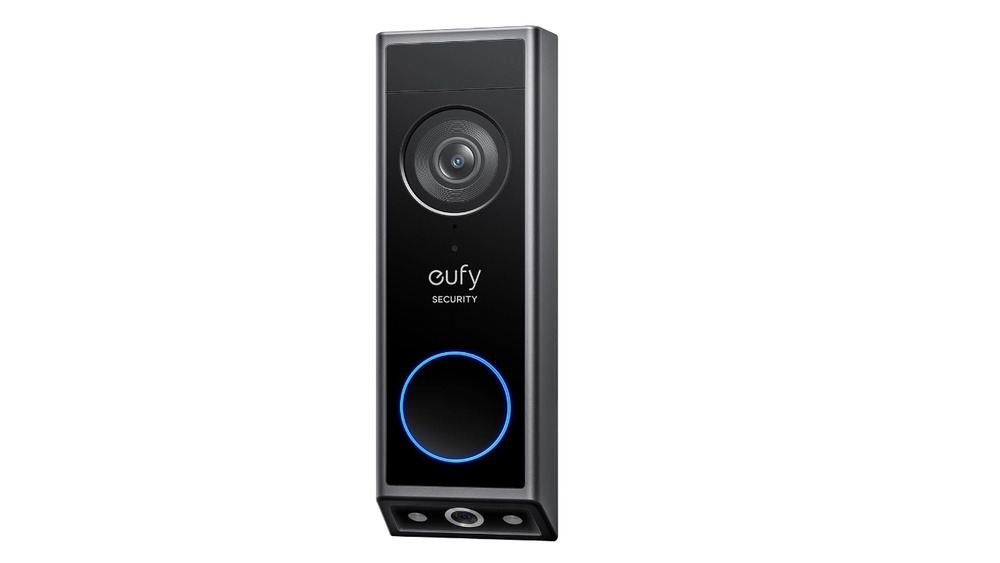

If you use a Eufy doorbell, you probably have a lot of videos saved. Over time, these videos can take up space and make it hard to find what you really need.
Knowing how to delete Eufy doorbell videos quickly and easily will save you time and keep your storage organized. You’ll learn simple steps to remove unwanted footage without any hassle. Keep reading to take control of your video library and free up space on your device.
Credit: www.pirouette-editions.fr
Accessing Eufy Security App
Accessing the Eufy Security app is the first step to manage your doorbell videos. The app is user-friendly and designed for easy navigation. You can view, download, or delete videos directly from your smartphone. This section explains how to open and use the app effectively for video management.
Downloading And Installing The Eufy Security App
Search for “Eufy Security” in your phone’s app store. Choose the official app by Eufy Technology. Tap the install button and wait for the app to download. Open the app after installation completes. This process takes just a few minutes.
Logging Into Your Eufy Account
Open the app and enter your email and password. Tap the login button to access your account. If you have not created an account, register by following the on-screen steps. Logging in connects the app to your doorbell and videos.
Navigating To Your Doorbell Video Recordings
Once logged in, select your doorbell device from the home screen. Tap on the “Videos” tab to view recorded clips. Videos are sorted by date and time for easy search. This view shows all saved videos from your doorbell camera.
Locating Doorbell Videos
Finding your Eufy doorbell videos is the first step to managing or deleting them. These videos save important moments captured by your doorbell camera. Knowing where to locate them helps keep your video storage organized and secure.
You can access your videos using the Eufy Security app on your smartphone. The app stores all recordings, making it easy to view or delete videos anytime. This section explains how to find those videos quickly.
Accessing The Eufy Security App
Open the Eufy Security app on your phone. Log in with your account details. This app controls your doorbell and stores video clips. Make sure your app is updated for the best experience.
Finding The Video Gallery
Inside the app, look for the “Gallery” tab. This section holds all recorded doorbell videos. Tap on it to see a list of recent recordings. Videos are usually sorted by date and time.
Using The Timeline Feature
The timeline shows video clips in order. Scroll through the timeline to find specific moments. This tool helps pinpoint exact times and events captured by the doorbell.
Checking Cloud Storage
If your videos are backed up to the cloud, access them through the app. Cloud storage keeps videos safe even if your device is lost. Ensure your subscription is active to view cloud videos.
Deleting Individual Videos
Deleting individual videos from your Eufy doorbell helps keep your storage tidy. It also protects your privacy by removing unwanted clips. The process is simple and quick.
Each video can be deleted directly from the Eufy app. This method saves time and lets you control which videos stay or go.
Open The Eufy Security App
Start by opening the Eufy Security app on your phone. Make sure you are logged into your account. This app shows all your recorded doorbell videos.
Select The Video To Delete
Tap on the video timeline or gallery. Scroll to find the specific video you want to delete. Select it by tapping once.
Use The Delete Option
Look for the trash bin icon or delete button. Tap on it to remove the selected video. The app may ask for confirmation before deleting.
Confirm Video Deletion
Confirm the deletion by tapping “Yes” or “Delete” on the prompt. This step prevents accidental removal of videos. The video will disappear from your list immediately.

Credit: community.eufy.com
Bulk Deletion Of Videos
Using a MicroSD card for video storage is a simple way to save your Eufy doorbell videos. This option keeps your videos local, so you do not rely on cloud storage. It offers easy access and control over your recordings.
With a MicroSD card, videos are stored directly on the card inside the doorbell. You can remove and manage the card anytime. This method gives you privacy and fast access to your files.
How To Insert A Microsd Card Into Your Eufy Doorbell
Locate the MicroSD slot on your Eufy doorbell. It is usually behind the doorbell cover or at the side. Gently insert the card until it clicks. Make sure the card is compatible and formatted properly.
Accessing Videos Stored On The Microsd Card
Remove the MicroSD card from the doorbell. Use a card reader to connect it to your computer. Open the folder to see your saved videos. You can watch, copy, or delete files directly from the card.
Deleting Videos From The Microsd Card
Open the MicroSD card folder on your computer. Select the videos you want to delete. Press the delete key or right-click and choose delete. Empty the recycle bin to free up space on the card.
Formatting The Microsd Card For A Fresh Start
Formatting erases all data on the card. Insert the card into your computer. Right-click the drive and select format. Choose FAT32 or exFAT format. Confirm the action to clean the card.
Managing Storage Settings
Deleting videos from your Eufy doorbell should be simple. Sometimes, problems stop the videos from deleting. This section helps fix those issues fast. Follow these steps to solve common video deletion problems.
Check Your Internet Connection
A weak or lost internet connection can block video deletion. Make sure your Wi-Fi is strong and steady. Restart your router if needed. A good connection helps the app work properly.
Update The Eufy Security App
Old app versions may cause errors. Open your app store and check for updates. Install the latest version to fix bugs. Updated apps run smoother and delete videos correctly.
Clear App Cache And Data
Cache or corrupted data can stop deletion. Go to your phone settings. Find the Eufy Security app and clear its cache. If the problem stays, clear app data but remember to log in again.
Restart Your Device
Sometimes, a simple restart fixes many issues. Turn off your phone or tablet. Wait a few seconds, then turn it back on. This can refresh the app and help delete videos.
Check Storage Space
Low storage can block video deletion. Check your phone and Eufy device storage. Free up space by removing unused files or apps. Enough storage helps videos delete smoothly.
Contact Eufy Support
If problems continue, contact Eufy support. Explain your issue clearly. They can guide you with specific solutions. Support teams help fix complex problems quickly.

Credit: www.walmart.com
Frequently Asked Questions
How Do I Delete Eufy Doorbell Videos Manually?
To delete Eufy doorbell videos manually, open the Eufy Security app. Go to the event list, select the video, and tap the trash icon to remove it.
Can I Auto-delete Eufy Doorbell Videos After Time?
Yes, the Eufy Security app lets you set auto-delete. Enable the feature in settings to delete videos after a set number of days.
Does Deleting Videos Free Up Eufy Doorbell Storage Space?
Yes, deleting videos clears space on your Eufy doorbell’s internal storage or cloud account, improving device performance and storage availability.
Are Deleted Eufy Doorbell Videos Recoverable?
Once deleted from the Eufy app or cloud, videos cannot be recovered. Always back up important videos before deleting.
Conclusion
Deleting Eufy doorbell videos helps keep your data safe. You control what stays and what goes. Follow simple steps to remove unwanted clips quickly. Regular cleanup saves space on your device. Keep your video history organized and easy to manage.
Trust the process, and don’t hesitate to delete old files. This keeps your system running smoothly every day. Take charge of your security with these easy tips.