Have you ever wanted to share your laptop or phone screen on a big Smart Board but didn’t know where to start? Screen mirroring makes it easy to display your presentations, videos, or apps in real time, right in front of your class or team.
Imagine the power of instantly sharing your ideas without tangled cables or complicated setups. In this guide, you’ll discover simple, step-by-step ways to connect your device to any Smart Board quickly and effortlessly. Keep reading, and you’ll be ready to impress everyone with seamless screen mirroring in no time.
Screen Mirroring Basics
Screen mirroring lets you share your device’s display on a larger screen. This feature works well with smart boards found in classrooms and meeting rooms. It helps present content clearly and interactively.
Understanding screen mirroring basics is key before connecting your device. It involves sending your screen’s image to another display wirelessly or with a cable. This process creates a seamless view for everyone in the room.
What Is Screen Mirroring
Screen mirroring is a way to show your device’s screen on a different display. It copies exactly what you see on your phone, tablet, or computer. The image appears on the smart board in real time. This allows easy sharing of videos, slides, or apps without extra steps.
Benefits For Presentations
Screen mirroring improves presentations by making content visible to all. It removes the need to pass around devices or print papers. Presenters can move freely and control the content from their device. It also supports interactive lessons and group discussions. This keeps the audience focused and engaged.
Preparing Your Devices
Preparing your devices is the first step to screen mirror to a smart board. This process ensures both devices work well together. It helps prevent connection problems and saves time. Follow simple steps to get ready before you start mirroring.
Check Smart Board Compatibility
Not all smart boards support screen mirroring. Check your smart board’s manual or website for this feature. Look for terms like “screen mirroring,” “casting,” or “wireless display.” Confirm if your smart board works with your phone, tablet, or laptop. Knowing this saves frustration later.
Connect To The Same Network
Both your device and the smart board must be on the same Wi-Fi network. This connection allows them to find each other easily. Use the settings on both devices to check the network name. Avoid public or guest networks as they may block mirroring. A stable network improves the mirroring experience.
Mirroring From Windows
Screen mirroring from a Windows device to a smart board is simple and efficient. It lets you share your screen wirelessly. This feature is useful for presentations, lessons, and meetings. Windows supports Miracast technology, which helps connect devices easily.
This section explains how to use built-in Miracast for mirroring. It also covers how to fix common connection problems. Follow these steps to make your screen show on the smart board quickly.
Using Built-in Miracast
First, check if your Windows PC supports Miracast. Press the Windows key + R, type “dxdiag,” and press Enter. Click “Save All Information” and open the saved file. Look for “Miracast” under Display. It should say “Available.”
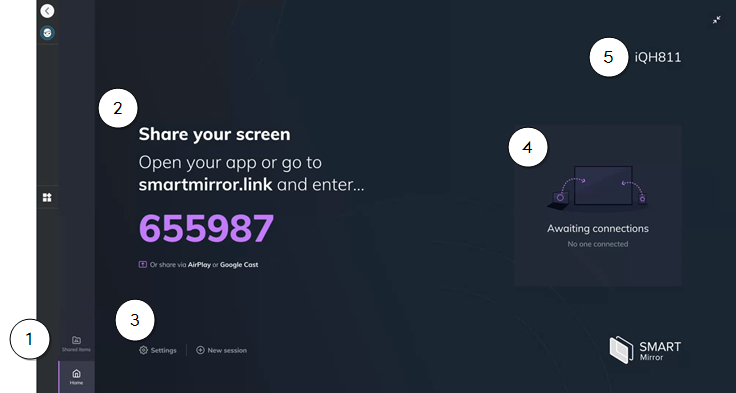
Next, turn on your smart board and enable screen mirroring. On Windows, open Action Center by clicking the icon in the bottom right. Click “Connect” and wait for your smart board to appear.
Select your smart board from the list. Your screen will start mirroring automatically. You can choose to duplicate or extend your display. Adjust settings as needed for the best view.
Troubleshooting Connection Issues
Connection problems happen often but are easy to fix. Ensure both devices are on the same Wi-Fi network. Check that your smart board supports Miracast.
Restart your PC and smart board. This can clear minor glitches. Update your Windows drivers and smart board firmware. Outdated software may cause problems.
Disable VPN or firewall temporarily. These can block the connection. If the smart board does not appear, try reconnecting from the Action Center.
Use the “Troubleshoot” tool in Windows if problems continue. It can detect and fix many issues automatically. Screen mirroring should work smoothly after these steps.
Credit: support.smarttech.com
Mirroring From Mac
Screen mirroring from a Mac to a smart board lets you share your screen wirelessly. It works well for presentations, lessons, and meetings. The process is simple and fast. You can show slides, videos, or apps directly on the big screen. Below are steps to mirror your Mac using AirPlay and adjust display settings for the best view.
Using Airplay For Smart Boards
AirPlay is built into Macs and works with many smart boards. First, make sure your Mac and smart board connect to the same Wi-Fi network. Next, click the AirPlay icon on your Mac’s menu bar. It looks like a rectangle with a triangle below. Select your smart board from the list of devices. Your Mac screen will appear on the smart board. To stop mirroring, click the AirPlay icon again and choose “Turn AirPlay Off.”
Adjusting Display Settings
After connecting, check your display settings for the best picture. Open “System Preferences” on your Mac and go to “Displays.” Use the “Arrangement” tab to decide if you want to mirror the screen or extend it. Mirroring shows the same content on both screens. Extending lets you use the smart board as a second display. Adjust resolution if the image looks blurry or too large. Make sure the text and images fit well on the smart board.
Mirroring From Mobile Devices
Mirroring from mobile devices lets you share your phone’s screen on a smart board. This feature helps in meetings, classrooms, and presentations. It makes sharing content easy and fast.
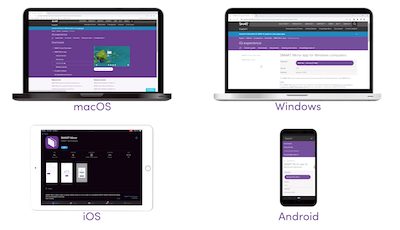
Both Android and iOS devices support screen mirroring. The steps vary depending on the device type. Here is how to mirror from each system.
Screen Mirroring On Android
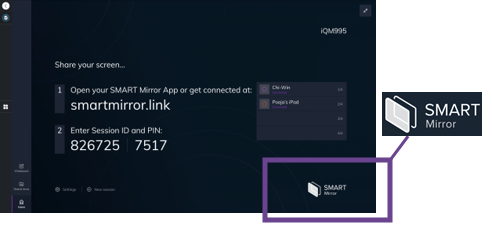
Turn on the smart board and ensure it connects to the same Wi-Fi as your Android phone. Open the phone’s Settings and find the “Cast” or “Screen Mirroring” option. Tap it to search for nearby devices.
Select the smart board from the list. The phone screen will appear on the board within seconds. To stop, open the Cast option and disconnect.
Screen Mirroring On Ios
Make sure the smart board and your iPhone connect to the same Wi-Fi network. Swipe down from the upper right corner of the iPhone to open Control Center. Tap “Screen Mirroring.”
Choose the smart board from the list that appears. Your iPhone screen will show on the smart board. To end, reopen Control Center and tap “Stop Mirroring.”
Credit: support.smarttech.com
Alternative Methods
Alternative methods to screen mirror to a smart board offer simple and practical solutions. These options work well when wireless mirroring is not available or faces connection issues.
Some methods use cables for a direct connection. Others rely on special apps to share your screen smoothly. Both approaches can help you display content clearly on a smart board.
Using Hdmi Cables
HDMI cables provide a reliable way to mirror your device to a smart board. They carry both video and audio signals without delay or interference.
To use HDMI, connect one end of the cable to your device and the other to the smart board’s HDMI port. Change the board’s input source to HDMI. Your device screen appears instantly on the smart board.
This method works well with laptops, tablets, and phones that support HDMI output. It does not need any internet or Wi-Fi connection. The setup is quick and stable, ideal for presentations and lessons.
Third-party Apps For Mirroring
Third-party apps offer a wireless screen mirroring option for many devices. These apps connect your device and the smart board through the same Wi-Fi network.
Popular apps include AirServer, Reflector, and ApowerMirror. Install the app on both the device and the smart board or its connected computer. Open the app and follow the steps to connect.
These apps support multiple platforms like Windows, Android, and iOS. They allow you to mirror your screen, stream videos, and share files easily. App-based mirroring gives flexibility without cables but depends on network quality.
Tips For Smooth Sharing
Sharing your screen on a smart board should be simple and clear. Smooth sharing makes your presentation better and keeps your audience focused. Small steps can improve how your content appears and feels during the session.
Follow these tips to avoid common problems like freezing or delays. Focus on your network and device settings. This ensures your screen mirrors quickly and clearly every time.
Optimizing Network Performance
Use a strong Wi-Fi connection near the smart board. A weak signal slows down sharing and causes interruptions. Turn off other devices that use the same network. This frees up bandwidth for better performance.
Check the router settings for any limits on speed. Update your router’s firmware to keep it running well. Use a wired connection if possible. Ethernet cables provide faster and more stable signals than Wi-Fi.
Avoiding Latency And Lag
Close apps and programs that use a lot of memory on your device. Running many tasks slows down screen mirroring. Restart your device before sharing to clear any slow processes.
Keep your device and smart board software updated. Updates fix bugs that cause lag. Lower the screen resolution if your connection is slow. This reduces the data needed to share your screen smoothly.
Credit: visionext.com.au
Frequently Asked Questions
What Devices Support Screen Mirroring To Smart Boards?
Most modern devices like smartphones, tablets, and laptops support screen mirroring. Ensure your device and Smart Board are on the same Wi-Fi network for seamless connection.
How To Connect Android Phones To A Smart Board?
Use the Cast or Screen Mirroring feature in your Android settings. Select the Smart Board from available devices to start mirroring your screen instantly.
Can I Mirror My Iphone To A Smart Board?
Yes, use AirPlay on your iPhone to connect. Ensure the Smart Board supports AirPlay or use a compatible app for mirroring.
What Apps Help In Screen Mirroring To Smart Boards?
Apps like Google Home, Miracast, and AirServer facilitate easy screen mirroring. Choose based on your device compatibility and Smart Board features.
Conclusion
Screen mirroring to a smart board is simple and useful. You can share your phone, tablet, or laptop screen in seconds. Make sure both devices connect to the same Wi-Fi. Follow the steps carefully to avoid common issues. Practice a few times to feel confident.
This skill helps in classrooms and meetings. Everyone can join and see the screen easily. Enjoy clearer and bigger displays for your content. Keep your devices updated for the best experience. Screen mirroring saves time and makes sharing smooth. Try it today and see the difference.