
Are you having trouble with your Frontpoint Video Doorbell’s network connection? Changing your network settings might sound tricky, but it doesn’t have to be.
In this guide, you’ll learn exactly how to update your network settings quickly and easily. By following simple steps, you’ll get your doorbell back online without any hassle. Keep reading to make sure your Frontpoint Video Doorbell stays connected and keeps your home secure.
Prepare Your Device
Start by ensuring your Frontpoint Video Doorbell is charged and connected to Wi-Fi. Have your phone ready with the Frontpoint app installed for quick access. This setup makes changing network settings simple and fast.
Check Doorbell Connectivity
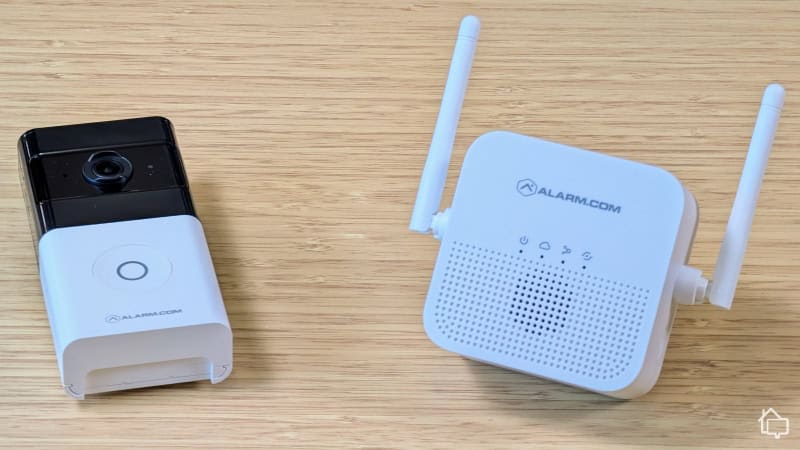
Start by making sure your Frontpoint Video Doorbell is powered on. Check the LED light on the device; it should be steady or blinking. A steady light means the doorbell is connected to your Wi-Fi. If it is blinking or off, the device may be offline.
Test the video feed through the Frontpoint app. If the video loads smoothly, the connection is good. A lag or no video indicates a weak or lost connection. Ensure your Wi-Fi signal reaches the doorbell location well.
Gather Required Information
Before changing network settings, collect all needed details. Write down your new Wi-Fi network name (SSID) and password. Double-check the password for accuracy.
Have your Frontpoint account login ready. You will need it to access the app and update settings. Keep your smartphone or tablet nearby for easy access. This preparation saves time and avoids errors.

Credit: www.esseg.eu
Access The Frontpoint App
Accessing the Frontpoint app is the first step to change your video doorbell’s network settings. The app connects your phone with the doorbell, letting you manage settings easily. Follow simple steps to get started quickly.
Download And Install The App
Find the Frontpoint app in the App Store or Google Play Store. Tap the download button to install it on your device. The app is free and takes only a few minutes to download. Make sure your phone has enough space and a stable internet connection.
Log In To Your Account
Open the app after installation. Enter your username and password to log in. Use the credentials you created when setting up your Frontpoint system. If you forgot your password, use the reset option to create a new one. Logging in gives you full control over your video doorbell settings.
Navigate To Network Settings
Navigating to the network settings on your Frontpoint Video Doorbell is the first step to change its Wi-Fi connection. This guide helps you find and open these settings easily. Follow simple steps to ensure your device stays connected without trouble.
Select Your Video Doorbell
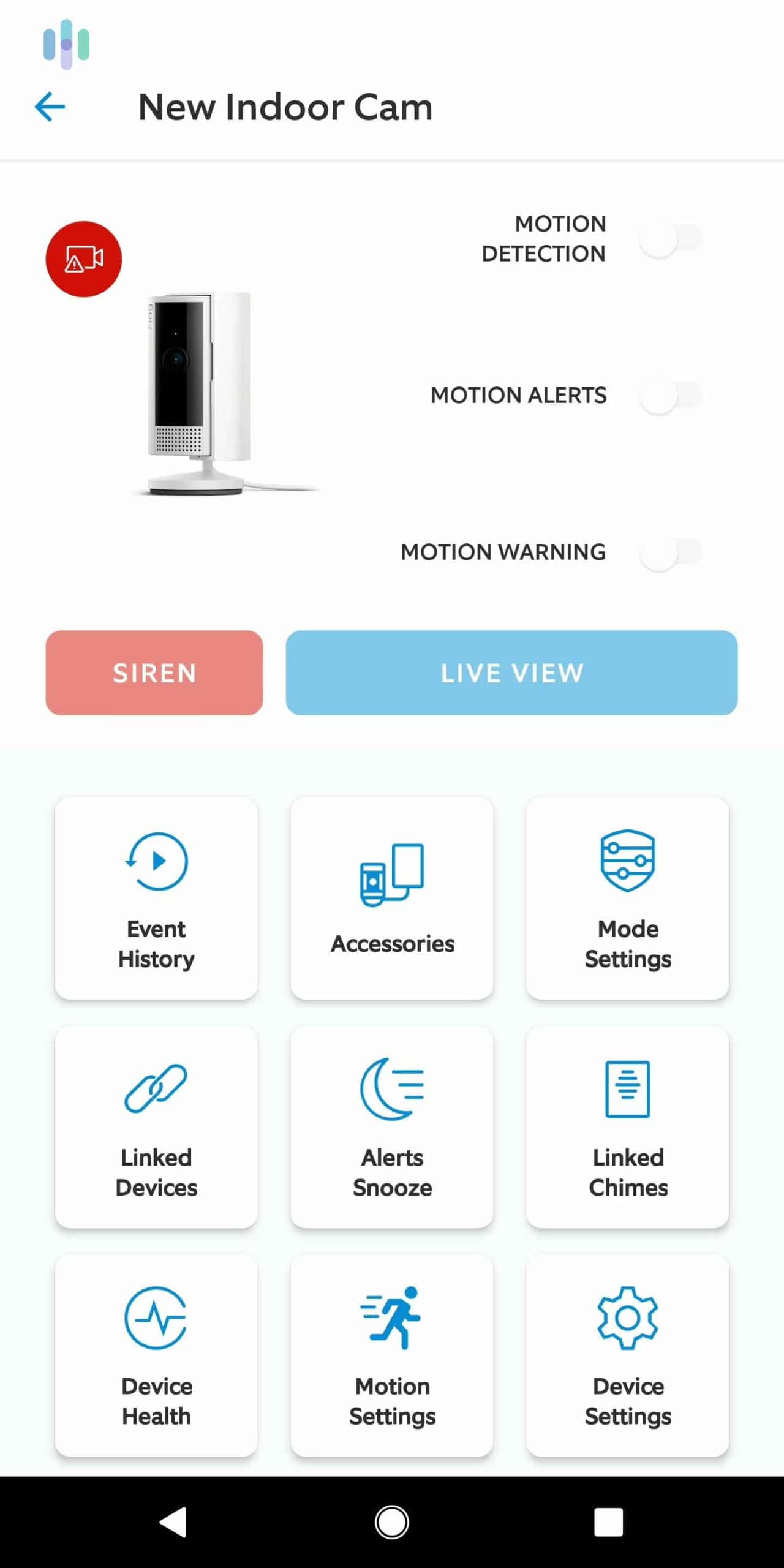
Open the Frontpoint app on your smartphone or tablet. Look for the list of devices linked to your account. Tap on your video doorbell from the list. This action takes you to the device’s main control screen. Here, you can manage all settings related to your doorbell.
Open Network Configuration
On the device screen, find the settings icon and tap it. Scroll down to find the “Network” or “Wi-Fi” option. Select this to open the network configuration page. This page shows your current network and available Wi-Fi options. Now you can update your network settings or switch to a new Wi-Fi connection.
Credit: www.safehome.org
Change Wi-fi Network
Changing the Wi-Fi network on your Frontpoint Video Doorbell is simple. This helps keep your device connected if you change internet providers or move to a new home. Follow these steps to switch your doorbell to a new Wi-Fi network quickly.
Disconnect Current Network
Start by opening the Frontpoint app on your phone. Go to the video doorbell settings. Find the current Wi-Fi network option and tap to disconnect. This stops the doorbell from using the old network. It prepares the device for a new connection.
Select New Wi-fi Network
After disconnecting, the app shows available Wi-Fi networks. Pick the new network you want to connect to. Make sure your phone is near the new Wi-Fi router. This makes the signal stronger and the connection easier.
Enter Network Password
Next, type the password for the new Wi-Fi network carefully. Check for any typing mistakes before continuing. The doorbell needs this password to connect securely. Once entered, the device will link to the new network automatically.
Confirm And Test Connection
After changing the network settings on your Frontpoint Video Doorbell, confirming and testing the connection is crucial. This step ensures your doorbell works smoothly with the new network. It avoids any interruptions in video streaming or notifications. Follow the simple steps to save settings and verify connectivity.
Save New Settings
Once you enter the new network details, save the changes immediately. Look for the “Save” or “Apply” button in the app. Press it to store the new settings. This action sends the updated network info to your doorbell. Without saving, the doorbell keeps using the old connection.
Verify Doorbell Connectivity
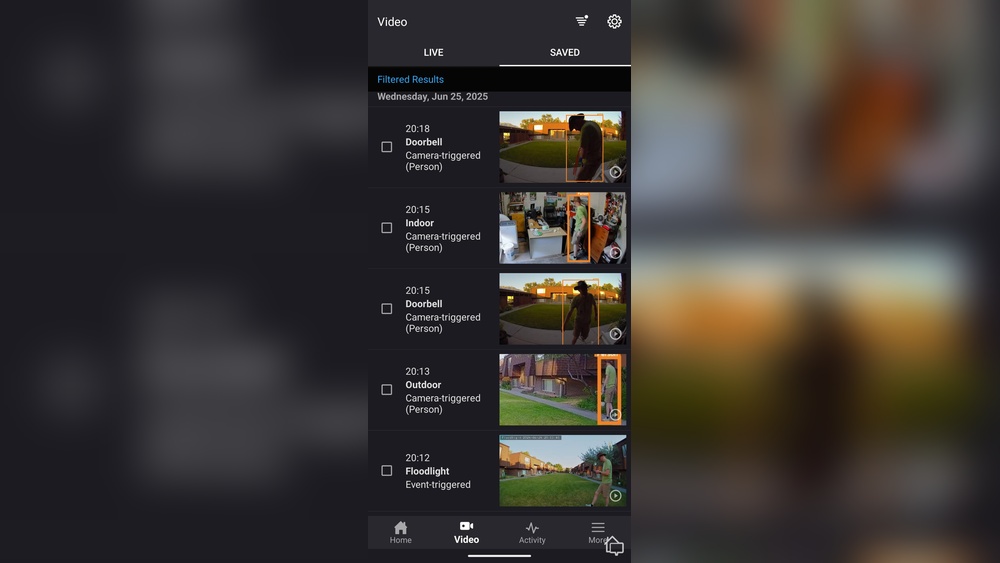
After saving, check if the doorbell connects to the network. Open the Frontpoint app and see the device status. A “Connected” or “Online” message means success. Test the video feed and live alerts. If the feed loads quickly and alerts come through, the connection is strong. If not, retry the steps or restart the doorbell.
Credit: www.security.org
Troubleshooting Tips
Troubleshooting network settings on your Frontpoint Video Doorbell can solve many common problems. Simple steps often fix connection issues fast. Follow these tips to get your doorbell back online and working smoothly.
Resetting The Doorbell
Resetting the doorbell clears old network data. Press and hold the reset button for 10 seconds. Wait for the device to restart. This action restores default settings and helps fix connection errors. After resetting, reconnect to your Wi-Fi network.
Common Network Issues
Weak Wi-Fi signals cause most problems. Move your router closer to the doorbell if possible. Check for network interference from other devices. Ensure your Wi-Fi password is correct. Restart your router to refresh the connection. Confirm your network uses 2.4 GHz frequency, as the doorbell may not support 5 GHz.
Contacting Frontpoint Support
Contact Frontpoint support if issues persist. They guide you through advanced troubleshooting. Have your doorbell model and account info ready. Support can help identify hardware or software problems. Use their official website or phone number for assistance.
Frequently Asked Questions
How Do I Access Network Settings On Frontpoint Video Doorbell?
To access network settings, open the Frontpoint app. Select your Video Doorbell device, then tap on “Settings. ” Choose “Network” to view and change Wi-Fi details easily.
Can I Switch Wi-fi Networks Without Reinstalling The Doorbell?
Yes, you can switch Wi-Fi networks without reinstalling. Simply update the network settings through the app under the device’s “Network” section.
What Should I Do If The Doorbell Won’t Connect To Wi-fi?
First, check your Wi-Fi password and signal strength. Restart your router and doorbell. Re-enter network details in the app if needed.
How To Reset Network Settings On Frontpoint Video Doorbell?
To reset network settings, open the app, go to device “Settings,” and select “Reset Network. ” This clears old Wi-Fi data for fresh setup.
Conclusion
Changing network settings on your Frontpoint Video Doorbell is simple and quick. Just follow the steps carefully to keep your device connected. Regularly checking your network ensures smooth video streaming. Stay patient and take your time while adjusting settings. Your doorbell will work better with a strong Wi-Fi signal.
Keep this guide handy for future reference. Enjoy the peace of mind that comes with a reliable video doorbell.