
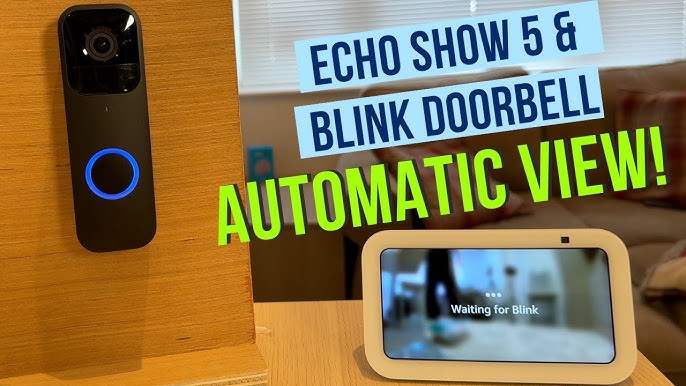
Want to see who’s at your door in real-time? Getting live video on your Blink Doorbell is easier than you think.
Imagine the peace of mind you’ll feel when you can check your front porch anytime, right from your phone. In this guide, you’ll learn simple steps to set up and access live video instantly. Keep reading, and you’ll never miss a visitor or package again.
Credit: www.youtube.com
Setting Up Your Blink Doorbell
Setting up your Blink Doorbell is simple and quick. This process lets you get live video and secure your home fast. Follow clear steps to start using your doorbell without trouble.
Unboxing And Initial Checks
Open the box carefully. Check for all parts: doorbell, mounting screws, and batteries. Make sure nothing is missing or damaged. Read the quick start guide for basic info. Confirm the battery is charged or insert new ones.
Installing The Blink App
Download the Blink app from the App Store or Google Play. Open the app and create a new account or log in. Follow the app instructions to add a new device. This app helps you see live video and receive alerts.
Connecting To Wi-fi
Choose a strong Wi-Fi network for your doorbell. Enter the password carefully in the app. The doorbell needs good signal for live video and alerts. Wait for the app to confirm connection. This step links your doorbell to your phone.
Activating Live Video Streaming
Activating live video streaming on your Blink Doorbell allows you to see real-time footage of your doorstep. This feature helps you monitor visitors instantly. It ensures you never miss a moment outside your home.
Setting up live video is easy and quick. You can start streaming directly from the Blink app. This section guides you through accessing live view, adjusting settings, and fixing connection issues.
Accessing The Live View Feature
Open the Blink app on your smartphone. Select your Blink Doorbell from the device list. Tap the “Live View” button to start streaming video. The camera will connect and show you a live feed.
Make sure your doorbell has sufficient battery. Also, confirm your Wi-Fi connection is strong for smooth streaming.
Adjusting Live Video Settings
Within the app, find the settings icon near the live view screen. Adjust video quality to suit your internet speed. Lower quality helps if your connection is slow.
Enable or disable audio based on your preference. Set notifications to alert you during live streaming. These options improve your overall experience.
Troubleshooting Connection Issues
Check your Wi-Fi signal strength near the doorbell. Weak signals cause buffering or disconnects. Restart your router and Blink Doorbell if streaming fails.
Update the Blink app to the latest version. Ensure your doorbell’s firmware is current for best performance. If problems persist, reset the device and try again.
Enhancing Your Live Video Experience
Enhancing your live video experience with the Blink Doorbell makes your home security smarter. Clear video, quick alerts, and easy communication help you stay connected. Small settings changes can improve how you watch and respond to visitors. Let’s explore ways to make your live video sharper and more useful.
Optimizing Video Quality
Good video quality lets you see details clearly. Check your Wi-Fi signal strength near the doorbell. Strong Wi-Fi helps the camera send smooth live video. Avoid obstacles like walls or metal objects that block the signal. Adjust the camera angle to cover the main entry area fully. Bright outdoor lighting improves the video during the day. At night, ensure the infrared lights on the doorbell are not blocked. Keep the camera lens clean for a clear picture.
Using Two-way Audio
Two-way audio lets you talk to visitors from anywhere. Use the Blink app on your phone to hear and speak. This feature helps you greet guests or warn unwanted visitors. Speak clearly and close to your phone’s microphone. The doorbell’s speaker broadcasts your voice outside. This way, you stay connected without opening the door. Test the audio volume in different environments for best results.
Setting Motion Alerts
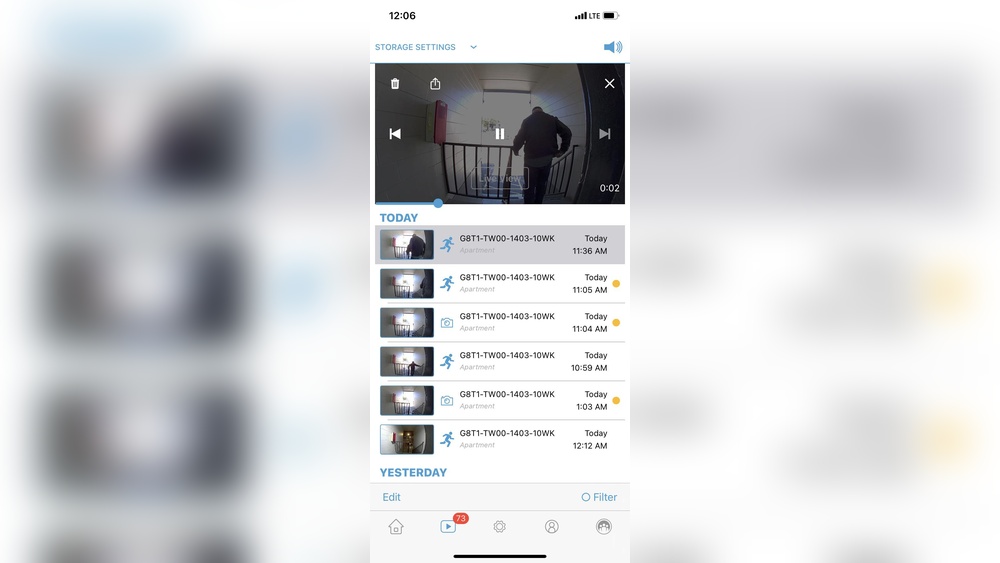
Motion alerts notify you when someone is near your door. Open the Blink app and set the motion detection zones. Focus on areas where people usually approach. Adjust the sensitivity to avoid false alarms from cars or animals. Choose alert times to avoid constant notifications at night. These alerts let you react quickly to visitors or intruders. Always keep your app updated for the latest alert features.

Credit: www.reddit.com
Tips For Maintaining Reliable Streaming
Maintaining reliable streaming on your Blink Doorbell is key to clear live video. Strong, steady video helps you see visitors and stay safe. Simple steps keep your video smooth and quick. These tips make sure your Blink Doorbell works well every time you check the feed.
Ensuring Strong Wi-fi Signal
Wi-Fi strength affects video quality a lot. Place your router close to the doorbell. Remove walls or objects that block the signal. Use Wi-Fi extenders if your signal is weak. Check your internet speed to ensure it meets Blink’s needs. A strong signal means fewer delays and better video.
Regular Firmware Updates
Firmware updates fix bugs and add new features. Keep your Blink Doorbell’s software up to date. Check the app regularly for update alerts. Updated firmware improves streaming and security. Small updates prevent bigger problems later.
Battery Management
Low battery can cause poor video streaming. Replace or recharge batteries as recommended. Monitor battery levels in the Blink app. Use high-quality batteries for longer life. Proper battery care keeps your doorbell ready to stream anytime.

Credit: www.youtube.com
Frequently Asked Questions
How Do I Enable Live View On Blink Doorbell?
To enable live view, open the Blink app, select your doorbell, and tap the live view icon. Ensure your device is connected to Wi-Fi and has a strong signal for smooth streaming.
What Are The Requirements For Live Video On Blink Doorbell?
You need a Blink subscription plan, a stable Wi-Fi connection, and the Blink app installed on your smartphone to access live video features.
Can I Watch Blink Doorbell Live Video Remotely?
Yes, you can watch live video from anywhere using the Blink app on your smartphone, as long as your doorbell and phone have internet access.
Why Is Live Video Not Showing On My Blink Doorbell?
Check your Wi-Fi connection, ensure the doorbell has battery power, and confirm you have an active Blink subscription to access live video.
Conclusion
Getting live video on your Blink Doorbell is simple and quick. Just follow the steps carefully and connect your device to the app. This lets you see who is at your door anytime. Remember to keep your app updated for the best experience.
Enjoy peace of mind with real-time video right on your phone. Stay safe and stay connected with ease.