
Are you having trouble with your Ring Video Doorbell or want to start fresh? Sometimes, a simple reset is all you need to fix glitches or prepare your device for a new setup.
But how exactly do you factory reset your Ring Video Doorbell without making mistakes? In this guide, you’ll learn clear, step-by-step instructions to reset your device quickly and safely. Keep reading to regain full control and enjoy your doorbell’s features like new.
Why Reset Your Ring Doorbell
Resetting your Ring Video Doorbell can fix many problems. It restores the device to its original settings. This step clears out errors and glitches. You can start fresh without losing your device.
Sometimes, your Ring doorbell may stop working as expected. A factory reset helps solve these issues. It also prepares the device for a new user. Knowing why to reset helps you decide the best time to do it.
Common Issues Solved By Reset
Many common problems resolve after a reset. Connectivity issues often disappear. The doorbell might stop responding or not ring. A reset usually fixes these troubles.
Problems with motion detection may also clear up. The device might miss alerts or send false alarms. Resetting recalibrates the sensors for better accuracy.
Software glitches causing slow performance or crashes vanish. The device runs smoother after a reset. It removes bugs that cause lag or freezing.
When To Consider A Factory Reset
Try a reset when basic fixes do not work. Restarting or reconnecting sometimes fails to solve issues. A reset is the next best step.
Reset before giving the device to someone else. This deletes your personal data and settings. It protects your privacy and prepares the doorbell for new use.
Use reset after a firmware update causes problems. Updates can sometimes create new bugs. Resetting can restore normal function.
Credit: www.esseg.eu
Preparation Before Reset
Before you reset your Ring Video Doorbell, prepare carefully. Resetting removes all settings and data. You want to keep your important details safe. Also, a fully charged battery helps the reset finish smoothly.
Backup Important Settings
Save your current settings before reset. Note down Wi-Fi details and alert preferences. Check the Ring app for any saved device info. This makes setup easier after the reset. Without backup, you might lose custom settings.
Charge Your Doorbell Battery
Ensure the battery is fully charged. A low battery can stop the reset process. Plug the doorbell into power and charge it for at least an hour. Confirm the battery level in the Ring app before starting. A good charge keeps the reset safe and complete.
Reset Methods For Different Models
Resetting a Ring Video Doorbell can solve many issues. Different models need different reset methods. Knowing the correct way helps avoid damage. This guide covers reset steps for battery-powered, wired, and app-based resets.
Resetting Battery-powered Models
Battery-powered Ring doorbells have a physical reset button. Press and hold this button for 15 seconds. The light will flash, showing the reset started. Wait for the device to reboot. The reset clears settings and removes Wi-Fi data. After reset, you must set up the doorbell again.
Resetting Wired Models
Wired Ring doorbells also have a reset button. Locate it near the doorbell’s faceplate. Press and hold the button for 20 seconds. The light will blink to confirm the reset. Release the button and wait for the reboot. This resets the device to factory defaults. You need to reconnect it to your network.
Using The Ring App For Reset
The Ring app offers a soft reset option. Open the app and select your doorbell. Tap Device Settings, then click on General Settings. Choose Remove Device to reset the doorbell remotely. This method clears your account connection. Use this reset if you cannot access the doorbell physically.
Step-by-step Reset Process
Resetting your Ring Video Doorbell can fix many common issues. The process is simple and fast. Follow these clear steps to factory reset your device safely. Each step is important to ensure the reset works well.
Locate The Reset Button
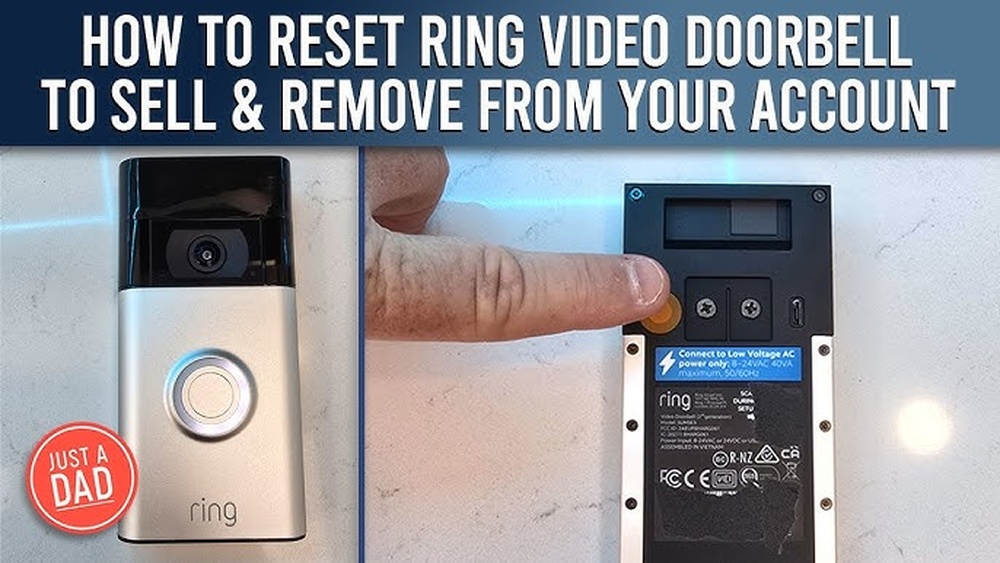
First, find the reset button on your Ring Video Doorbell. This button is usually small and round. It is often near the battery or on the back of the device. Check your model’s manual if you cannot spot it easily.
Performing The Reset
Press and hold the reset button for about 15 seconds. Use a paperclip or a small tool if needed. Keep holding until the light on the doorbell flashes. This means the reset process has started.
Confirming The Reset
After releasing the button, wait for the device to restart. The light will change color or blink differently. This shows the reset is complete. Your Ring Video Doorbell is now back to factory settings.
After The Reset
After you factory reset your Ring Video Doorbell, it returns to its original state. All your previous settings are erased. The device acts like it is brand new. You need to set it up again to use it properly.
Reconnecting To Wi-fi
The first step is to reconnect your doorbell to Wi-Fi. Open the Ring app on your phone. Follow the prompts to add a new device. Select your doorbell model and connect to your home Wi-Fi network. Make sure your phone is near the doorbell during setup. A strong Wi-Fi signal helps avoid connection problems.
Reconfiguring Settings
After Wi-Fi connection, adjust your doorbell settings. Set your preferred motion zones to reduce false alerts. Choose notification types for your phone. Customize privacy settings to control video sharing. Check the firmware version and update if needed. These steps improve your doorbell’s performance and security.
Testing Your Doorbell
Test your doorbell to ensure it works correctly. Press the doorbell button and listen for the chime. Check the live video feed on the Ring app. Walk in front of the doorbell to trigger motion alerts. Confirm notifications arrive promptly on your phone. Testing helps spot any setup issues early.

Credit: kdfoundation.org
Troubleshooting Reset Issues
Resetting your Ring Video Doorbell should be simple. Sometimes, problems may stop the reset from working properly. Troubleshooting these issues helps get your device back to normal fast. This section covers common problems and easy fixes to try before asking for help.
Reset Not Working
Press the reset button firmly for at least 15 seconds. Make sure the doorbell has power during reset. If it still does not reset, remove the battery and wait 30 seconds. Reinsert the battery and try resetting again. Check if the button or device is damaged. A faulty button can stop the reset.
Doorbell Not Reconnecting
After reset, the doorbell may not reconnect to Wi-Fi. Confirm your Wi-Fi network is active and working. Move the doorbell closer to the router to improve signal. Restart your router before reconnecting. Use the Ring app to follow the setup steps carefully. Avoid networks with weak signals or restrictions.
Contacting Support
If problems continue, contact Ring support for help. Have your device information ready, like model and purchase date. Explain what steps you took to fix the issue. Support can guide you through advanced troubleshooting or replacement options. Use official Ring channels to avoid scams.

Credit: www.youtube.com
Frequently Asked Questions
How Do I Factory Reset My Ring Video Doorbell?
Press and hold the reset button for 15 seconds. Release when the light flashes. This restores default settings and clears all data.
Will Factory Reset Delete My Ring Video Doorbell Videos?
No, videos stored on the cloud remain safe. Factory reset only clears local device settings, not cloud data.
How Long Does A Ring Video Doorbell Reset Take?
The reset process takes about 30 seconds. After resetting, the device restarts and is ready for setup.
Can I Reset Ring Doorbell Without The App?
No, the app is required to complete setup after reset. Physical reset only clears device settings.
Conclusion
Resetting your Ring Video Doorbell is simple and quick. Just follow the steps carefully to avoid mistakes. This process helps fix many common problems. It also clears old settings for a fresh start. After the reset, reconnect your device to the app.
Enjoy better performance and smoother operation. Keep your doorbell updated and secure. Regular resets can improve its reliability. Try it whenever your doorbell acts up. Now, you know how to reset your Ring Video Doorbell easily.