
Have you ever missed an important moment caught on your Ring Doorbell video? Maybe you wanted to share a delivery alert or a visitor’s visit with a family member or friend quickly.
Knowing how to forward video from your Ring Doorbell can save you time and keep everyone in the loop. In this guide, you’ll discover simple steps to send your Ring Doorbell videos effortlessly. Keep reading, and you’ll never miss a chance to share what matters most.

Credit: www.amazon.com
Setup Requirements
Setting up your Ring Doorbell to forward video requires a few key components. These setup requirements ensure smooth video forwarding without interruptions. Knowing what devices and tools you need helps in quick and easy setup.
Compatible Devices
Ring Doorbell works best with smartphones and tablets. Both Android and iOS devices support the Ring app. Computers can access video via web browsers too. Ensure your device is updated to the latest software for better performance.
App Installation
Download the official Ring app from Google Play or Apple Store. The app lets you view and forward video clips easily. Install it and log in with your Ring account. This app is essential for managing your doorbell’s video features.
Internet Connection
A strong Wi-Fi connection is crucial for video forwarding. Slow or unstable internet can cause delays or failed uploads. Use a Wi-Fi network with good speed and coverage at your doorbell’s location. This ensures clear video and quick forwarding.
Accessing Your Ring Doorbell
Accessing your Ring Doorbell video is the first step to forwarding important clips. The process is simple and quick. It starts with using the Ring app on your smartphone. This app connects directly to your doorbell and stores all recorded videos. You can easily find and share any video from here.
Opening The Ring App
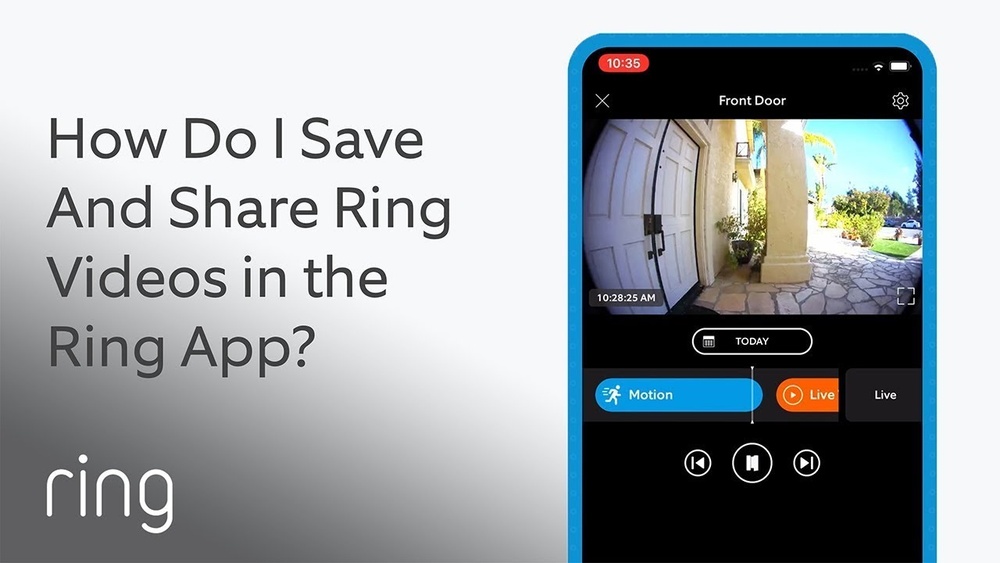
First, open the Ring app on your phone. If you don’t have it, download it from your app store. Log in using your email and password. The app home screen shows your Ring devices. Tap on your Ring Doorbell to view its options.
Navigating To Video History
After selecting your doorbell, find the “History” tab. This section holds all recorded videos. Scroll through to find the video you want. Tap the video to open and watch it. From here, you can forward the video to others.
Forwarding Videos
Forwarding videos from your Ring Doorbell lets you share important moments easily. You can send clips to family, friends, or even the authorities. This helps keep everyone informed and safe. The process is simple and quick, requiring only a few steps on your phone or computer.
Selecting The Video Clip
Open the Ring app and go to your event history. Choose the video you want to share. Make sure the clip is clear and shows the key action. Short clips work best to keep attention focused. Trim the video if needed to highlight the important part.
Using The Share Feature
Tap the share icon found on the video screen. This opens several sharing options. You can send the video via email, text message, or social media. The Ring app creates a secure link to the video. Recipients can watch without logging into Ring.
Choosing Forwarding Options
Select the method that suits your needs. Email is great for official reports or longer messages. Text messages work well for quick alerts. Social media sharing helps reach a wider group fast. Always check privacy settings before sharing publicly.
Sending Via Email And Messaging
Sending videos from your Ring Doorbell through email and messaging is simple and fast. You can share important clips with family, friends, or neighbors in just a few steps. This method helps you keep others informed about activity at your door.
Videos sent via email or messages are easy to view on any device. This makes sharing quick and convenient, especially during an emergency or delivery alert. Let’s explore how to forward videos using these common tools.
Forwarding Through Email
Open the Ring app and find the video you want to share. Tap on the video to open it fully. Look for the share icon and select the email option. Enter the recipient’s email address and add a short message if needed. Press send, and the video will be delivered directly to their inbox.
Email sharing works well for sending longer videos or when you want to keep a record of the message. It also allows recipients to watch the video on their computers or phones easily.
Sharing Via Text Messages
Use the Ring app to locate the video clip. Tap the share button and choose the text message option. Pick a contact or type a phone number to send the video. Add a brief note and send it. The video link will appear in the text message for quick viewing.
Text messages are great for fast sharing with neighbors or family nearby. The recipient can open the video link right away, even without the Ring app installed.
Social Media Sharing Tips
Sharing your Ring videos on social media requires caution. Only post clips that do not reveal private or sensitive information. Use privacy settings to control who can see the video.
Download the video from the Ring app first. Upload it directly to your chosen platform. Add a clear description to explain the video’s context. This keeps your post helpful and easy to understand.
Managing Privacy And Permissions
Managing privacy and permissions is key when forwarding videos from your Ring Doorbell. It helps protect your personal data and controls who can see your videos. Understanding how to set access limits and handle video security keeps your information safe.
Setting Access Controls
Access controls let you decide who can view your Ring videos. You can give permission to family or trusted friends only. Use the Ring app to add or remove users quickly. Make sure to review permissions often to keep control tight. Limit access to prevent unwanted viewers from seeing your footage.
Handling Shared Video Security
Shared videos need strong protection to avoid misuse. Always share videos through secure links or trusted apps. Avoid posting videos on public platforms to keep privacy intact. Check if the video link expires after some time. Regularly update your Ring account password for extra security. Stay alert to any unusual activity in your shared videos.
Credit: www.amazon.com
Troubleshooting Common Issues
Troubleshooting common issues can help you forward videos from your Ring Doorbell smoothly. Some problems may block the video from loading or sharing properly. Simple fixes often resolve these issues fast. Below are tips to solve frequent problems.
Video Not Loading
Videos may not load due to slow internet or app glitches. Check your Wi-Fi connection first. Restart your router and Ring Doorbell. Close and reopen the Ring app. Clear the app cache to improve loading speed. Ensure your device has enough storage space for videos.
Sharing Failures
Sharing videos may fail because of incorrect settings. Confirm that you have permission to share the video. Check if the email or phone number is correct. Make sure your Ring app has access to contacts and storage. Try sharing the video through a different method, such as a link or download.
App Update Problems
Outdated apps can cause forwarding issues. Check the app store for updates regularly. Install the latest Ring app version. Restart your phone after updating. If problems persist, uninstall and reinstall the app. This refresh often fixes bugs and improves performance.
Tips For Efficient Video Forwarding
Forwarding videos from your Ring Doorbell can be simple and fast. Using smart methods helps you share important moments with friends or family quickly. These tips focus on saving time and making video sharing smooth.
Using Shortcuts
Create shortcuts on your phone for quick video sharing. Most smartphones allow custom shortcuts to send videos to contacts. This saves steps and speeds up forwarding. Set up shortcuts for frequent contacts or apps.
Access your Ring app and select the video to share. Tap the share icon and choose your shortcut. This method avoids repeating the same steps every time you forward a video. Shortcuts keep the process easy and fast.
Saving Videos For Quick Access
Save important Ring videos to your phone’s gallery. This keeps videos handy for later sharing without opening the app. Use the download option in the Ring app to save clips.
Organize saved videos in folders by date or event. Clear labels help find videos faster. Once saved, share videos via text, email, or social media apps directly from your gallery.

Credit: www.ebay.com
Frequently Asked Questions
How Do I Forward Video From My Ring Doorbell?
You can forward Ring Doorbell videos by sharing recorded clips. Open the Ring app, select the video, tap the share icon, and choose your preferred sharing method like email or messaging apps.
Can I Forward Live Video From Ring Doorbell?
No, Ring Doorbell does not support forwarding live video. You can only share recorded videos stored in the app’s event history or your device.
Is Forwarding Ring Doorbell Video Safe And Secure?
Yes, forwarding Ring videos is secure. Videos are encrypted and shared only through trusted apps or contacts you select, ensuring your privacy and data protection.
What Formats Are Ring Doorbell Videos Saved In?
Ring Doorbell videos are saved in MP4 format. This format is widely compatible with most devices and easy to forward via email or social media.
Conclusion
Forwarding videos from your Ring Doorbell keeps you connected and secure. Sharing clips with family or neighbors is quick and easy. Just follow the steps carefully to avoid mistakes. Regularly check your app settings to ensure smooth forwarding. This helps you stay informed about any visitors or deliveries.
Keep your videos safe and accessible anytime you need them. Simple actions can improve your home safety without extra effort. Try forwarding a video today and see how helpful it is. Stay alert, stay safe.