
Want to see your phone’s screen on a bigger display? Whether it’s for sharing videos, playing games, or giving presentations, mirroring your smartphone with an HDMI cable is one of the easiest and fastest ways to do it.
Imagine watching your favorite content on a big TV or monitor without any lag or complicated apps. In this guide, you’ll learn exactly how to connect your phone to any HDMI-compatible device, step by step. Keep reading, and you’ll be able to enjoy your phone’s screen on the big screen in no time!
Choosing The Right Hdmi Cable
Choosing the right HDMI cable is important for mirroring your smartphone. The right cable ensures clear video and sound. It also avoids connection problems. Picking the right cable depends on your phone and how you want to use it.
Types Of Hdmi Cables
There are several types of HDMI cables. Standard HDMI cables work for most uses. High-Speed HDMI cables support higher resolutions and faster speeds. Premium High-Speed cables offer better shielding and support 4K. Choose a cable that matches your screen resolution and needs.
Compatibility With Smartphones
Not all smartphones connect directly with HDMI cables. Many phones need an adapter or special cable. Check if your phone supports MHL or Slimport standards. Some newer phones use USB-C to HDMI adapters. Confirm your phone model before buying a cable or adapter.
Cable Length Considerations
Choose a cable length that fits your setup. Too short cables limit your movement. Too long cables can cause signal loss. For most uses, cables between 3 to 6 feet work well. Use active HDMI cables for longer distances to keep signal quality.

Credit: www.amazon.com
Preparing Your Smartphone
Preparing your smartphone is the first step to mirror your screen using an HDMI cable. You need to check the ports, enable some hidden options, and adjust your display settings. These actions help your phone connect smoothly to external displays. Follow these simple steps to get ready.
Checking Device Ports
Look at the bottom or side of your phone. Find the charging port type. Most phones have USB-C or Micro USB ports. Some may support HDMI output through these ports. Check your phone’s manual or online specs to confirm. This helps you choose the right cable or adapter.
Enabling Developer Options
Go to your phone’s Settings menu. Find “About phone” and tap it. Tap “Build number” seven times quickly. You will see a message saying Developer Options are enabled. Go back to Settings and open Developer Options. Enable options like USB debugging if needed for mirroring.
Adjusting Display Settings
Open Settings and find Display or Screen settings. Adjust brightness and screen timeout for better viewing. Some phones allow you to change screen resolution or refresh rate. Set these to match the external display for clear output. This makes your mirrored screen look good on TV or monitor.
Connecting The Hdmi Cable
Connecting the HDMI cable is a key step in mirroring your smartphone’s screen. It links your device to the TV or monitor for clear display and sound. Each phone and TV setup might need a slightly different connection method. Understanding these differences helps create a smooth mirroring experience.
Using Adapters For Different Devices
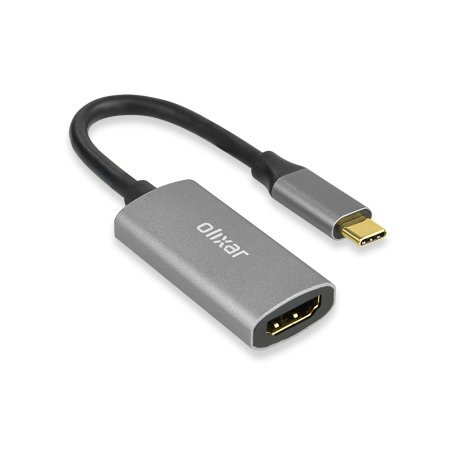
Not all smartphones have the same HDMI port. Some use USB-C, others use Micro USB or Lightning ports. An adapter changes your phone’s port into a standard HDMI plug. Choose an adapter made for your phone model. This ensures the best connection and picture quality.
Step-by-step Connection Process
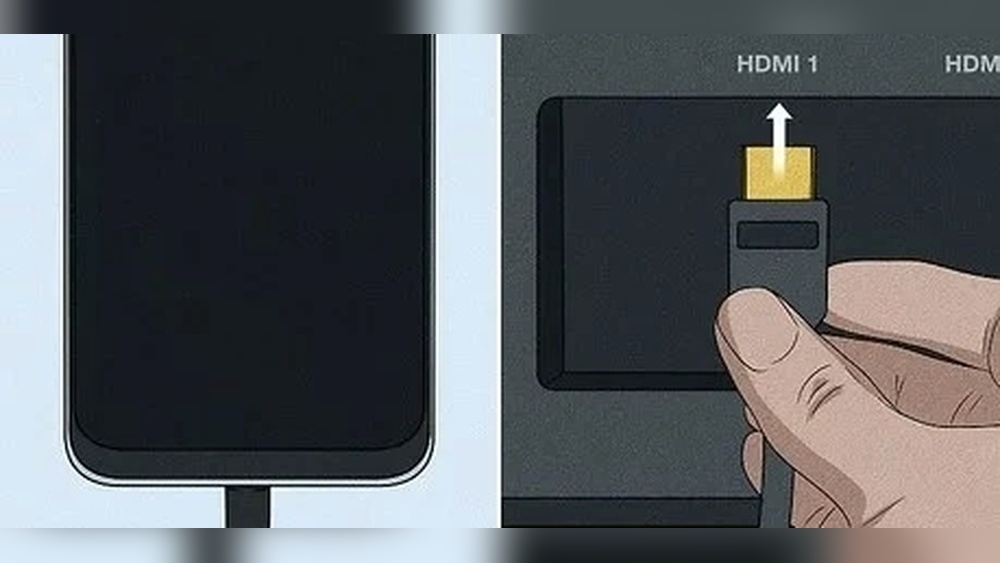
Start by turning off both your smartphone and TV. Connect the HDMI cable to your TV’s HDMI port. Attach the other end to the adapter. Plug the adapter into your phone. Turn on the TV and select the right HDMI input. Power on your phone and wait for the screen to appear on the TV.
Troubleshooting Connection Issues
No picture or sound? Check if the HDMI cable is fully plugged in. Try a different HDMI port on your TV. Test the adapter with another phone if possible. Restart both devices to refresh the connection. Use a high-quality cable to avoid signal loss.
Configuring The Display
After connecting your smartphone to a TV or monitor with an HDMI cable, the next step is configuring the display. This process ensures the image shows correctly and looks good on the bigger screen. Proper display settings improve your viewing experience and reduce any problems like blurry images or black bars.
Selecting Hdmi Input On Tv Or Monitor
Turn on your TV or monitor. Use the remote control or buttons on the device to find the input or source menu. Choose the HDMI port where your smartphone is connected. The screen should show your phone’s display right away. If it does not, check the cable or try another HDMI port.
Adjusting Screen Resolution
Smartphones and TVs support different screen resolutions. Set your phone’s resolution to match the TV or monitor for a clear picture. Go to your phone’s display settings. Look for resolution or screen size options. Pick a resolution that fits your TV’s native display for the best results.
Optimizing For Performance
Some phones and TVs allow you to adjust performance settings. Lower the resolution if the image lags or freezes. Turn off any screen zoom or scaling features on your phone. Close other apps to free memory. These steps help the phone send smooth video to the bigger screen.
Common Problems And Fixes
Mirroring your smartphone with an HDMI cable is simple, but problems can happen. These issues can stop the connection or reduce the quality of what you see on the big screen. Understanding common problems and how to fix them saves time and frustration. Below are common issues users face and clear solutions.
No Signal Detected
No signal means the TV or monitor does not see your phone. Check if the HDMI cable is fully plugged into both devices. Try a different HDMI port on the TV. Restart your phone and TV to refresh the connection. Make sure your phone supports HDMI output; some require an adapter. Test the cable with another device to rule out a broken wire.
Audio Issues
No sound or low volume can happen during mirroring. Verify the TV volume is not muted or too low. Check your phone’s volume settings and increase them. Some phones need audio output set to HDMI in settings. Try a different HDMI cable if the sound problem continues. Restart devices to fix temporary glitches affecting audio.
Screen Flickering
Screen flickering can distract and strain your eyes. Loose HDMI connections cause flickering; unplug and reconnect the cable firmly. Use a high-quality HDMI cable rated for your devices. Lower the resolution in your phone’s display settings to reduce flicker. Avoid using long or damaged cables that may cause signal loss. Restart devices to clear display errors.
Credit: www.cablecreation.com
Alternative Methods For Screen Mirroring
Screen mirroring can be done in many ways besides using an HDMI cable. These alternative methods offer flexibility and convenience. Choose the one that fits your device and needs best.
Using Wireless Casting
Wireless casting lets you mirror your phone without any cables. It uses Wi-Fi to send the screen to a TV or monitor. Many smart TVs and streaming devices support this feature. Simply open the casting option on your phone and select the device. The screen appears instantly, making it easy to share videos or presentations.
Third-party Apps
Third-party apps provide another way to mirror your screen. Apps like ApowerMirror or LetsView connect your phone to a computer or TV. They work over Wi-Fi or USB. These apps offer extra features like screen recording or control from the PC. Installation is quick, and most apps are free or low cost.
Using Usb-c To Hdmi
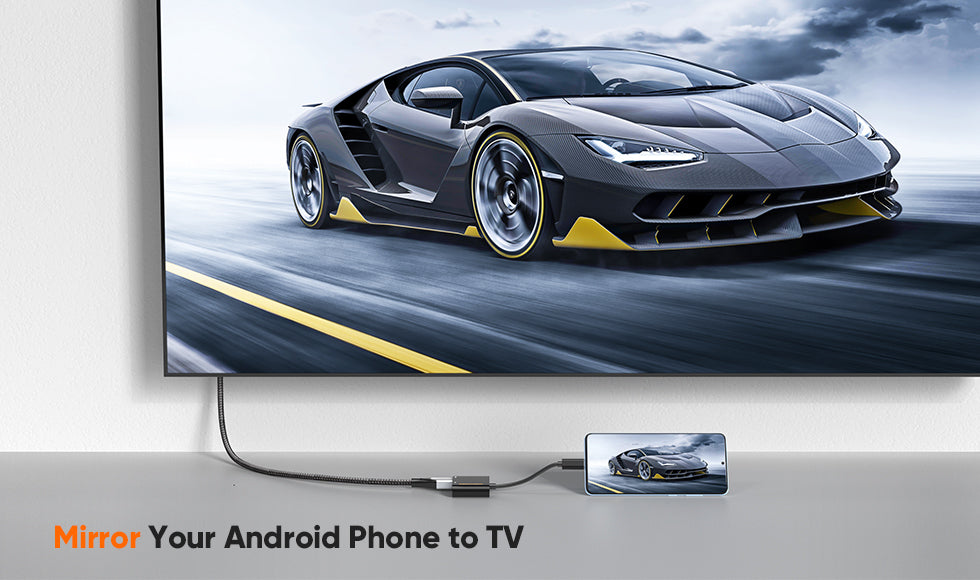
Some smartphones support USB-C to HDMI adapters. This method requires a cable that connects the phone’s USB-C port to an HDMI input on a TV or monitor. It gives a direct and stable connection. This option works well for phones without a dedicated HDMI port. Just plug in the adapter and select the HDMI source on your display.
Credit: www.mobilefun.co.uk
Frequently Asked Questions
How Do I Mirror My Smartphone Using An Hdmi Cable?
To mirror your smartphone, connect it to your TV via an HDMI cable and an adapter. Enable screen mirroring on your phone. Your phone’s display will appear on the TV instantly.
Which Hdmi Cable Works Best For Smartphone Mirroring?
Use a high-speed HDMI cable with an appropriate adapter. Ensure compatibility with your smartphone’s charging port, like USB-C or Lightning. This ensures smooth, high-quality video and audio transmission.
Can All Smartphones Mirror With An Hdmi Cable?
Most modern smartphones support HDMI mirroring using the right adapter. Check your phone’s specifications for HDMI output or MHL support before purchasing cables and adapters.
Do I Need An Adapter For Smartphone To Hdmi Connection?
Yes, an adapter is usually required. It converts your phone’s port (USB-C or Lightning) to HDMI. Without it, you cannot connect the phone directly to the HDMI cable.
Conclusion
Mirroring your smartphone with an HDMI cable is simple and fast. Just connect the cable to your phone and TV. Your screen will appear on the big display. No need for Wi-Fi or extra apps. This method works well for videos, games, and presentations.
Try it next time you want a bigger view. Enjoy sharing your phone’s content easily and clearly.