Want to see your computer screen on your Samsung Smart TV without any hassle? Whether you’re sharing a presentation, watching movies, or browsing photos, mirroring your computer to your Samsung Smart TV can make everything bigger and better.
But if you’re not sure how to do it, don’t worry—you’re in the right place. You’ll find simple, step-by-step instructions to get your devices connected quickly. Keep reading, and you’ll be casting your favorite content in no time!
Credit: www.samsung.com
Prepare Your Devices
Preparing your devices is the first step to mirror your computer to a Samsung Smart TV. Proper preparation ensures a smooth connection and better screen sharing experience. Take time to get your devices ready before starting the mirroring process.
Check Compatibility
Make sure your computer and Samsung Smart TV support screen mirroring. Most newer models do. Older devices may not have this feature. Check the user manuals or the manufacturer’s website for compatibility details. Using compatible devices avoids connection issues.
Connect To Same Network
Your computer and Samsung Smart TV must connect to the same Wi-Fi network. This allows them to communicate easily. Verify both devices are on the same network name (SSID). Wired connections on the computer can also work if the TV is on Wi-Fi. Consistent network connection prevents interruptions.
Update Software
Keep the software on both devices up to date. Updates often fix bugs and improve connectivity features. Check for the latest system updates on your computer and Samsung Smart TV. Updated software helps the mirroring work smoothly and securely.
Credit: www.samsung.com
Enable Screen Mirroring On Samsung Tv
Enabling screen mirroring on your Samsung TV lets you share your computer’s display wirelessly. This feature helps you watch videos, show presentations, or browse photos on a bigger screen. The process is simple and only takes a few steps to activate.
Access Screen Mirroring Menu
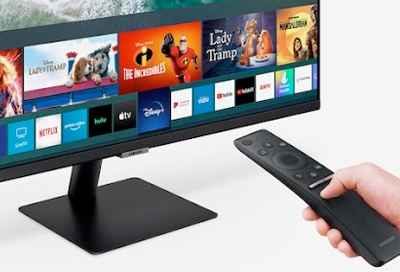
First, turn on your Samsung TV. Use the remote control to press the Home button. Navigate to the Settings menu. Scroll down and select the “General” option. Find and open the “External Device Manager.” Here, you will see “Device Connection Manager.” Choose “Device Connection Manager” to continue. Finally, select “Access Notification” to allow screen mirroring requests.
Activate Mirroring Mode
Return to the Home screen on your TV. Look for the “Screen Mirroring” option. Select it to open the mirroring mode. The TV will start searching for devices nearby. Your TV is now ready to connect with your computer. Keep this screen open while you connect from your computer.
Mirror From Windows Pc
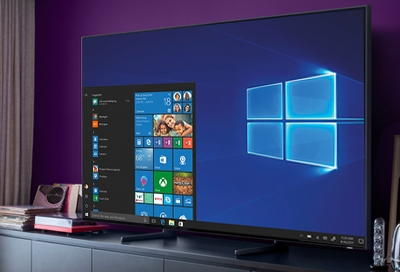
Mirroring your Windows PC to a Samsung Smart TV can improve your viewing experience. It lets you share videos, photos, and presentations on a larger screen. The process is simple and uses built-in Windows tools. No need for extra software or cables.
Follow the steps below to connect your Windows PC to your Samsung Smart TV easily.
Use Built-in Miracast Feature
Windows supports Miracast, which allows wireless display sharing. First, make sure your PC and Samsung TV are on the same Wi-Fi network. On your PC, open the Settings app and go to Devices.
Select “Bluetooth & other devices” and click “Add Bluetooth or other device”. Choose “Wireless display or dock” from the list. Your Samsung TV should appear. Select it to start connecting.
Once connected, your PC screen will show on the TV. You can now enjoy your content on the big screen without any wires.
Troubleshoot Connection Issues
Sometimes, the connection may fail or lag. Restart your PC and Samsung TV first. Check if both devices are updated with the latest software.
Ensure your Wi-Fi network is stable and fast. Move the PC closer to the router if the signal is weak. Disable any VPN or firewall that might block the connection.
If the TV does not appear on your PC, try resetting your TV’s network settings. Also, update your PC’s wireless drivers from the Device Manager.
These steps usually fix common problems. Try reconnecting after each step to see if the issue is resolved.
Mirror From Mac Computer
Mirroring your Mac computer to a Samsung Smart TV lets you share your screen easily. You can watch videos, show photos, or work on a bigger display. The process uses built-in features on Mac and Samsung TVs for smooth connection.
Use Airplay With Samsung Tv
AirPlay is a simple way to mirror your Mac to a Samsung Smart TV. First, make sure your Mac and TV are on the same Wi-Fi network. On your Mac, click the AirPlay icon in the menu bar. Choose your Samsung TV from the list of devices. Your Mac screen will appear on the TV almost instantly. You can stop mirroring by clicking the AirPlay icon again and selecting “Turn Off AirPlay.”
Adjust Display Settings
After connecting, adjust your display settings for the best view. Open System Preferences on your Mac and select Displays. Choose the Arrangement tab to set the screen layout. You can mirror your display or use the TV as a second screen. Change the resolution if the picture looks blurry or too large. Adjust brightness and color settings to match your TV’s display. These tweaks improve your viewing experience while mirroring.
Alternative Mirroring Methods
Mirroring your computer to a Samsung Smart TV does not always require wireless methods. Alternative ways exist that can connect your devices easily. These options often provide stable connections and simple setups. Explore these choices to find the best fit for your needs.
Use Hdmi Cable
Using an HDMI cable is a direct way to mirror your computer screen. Connect one end of the cable to your computer’s HDMI port. Plug the other end into your Samsung TV’s HDMI input. Select the matching HDMI source on the TV. Your computer screen will show up instantly on the TV.
This method offers a clear picture and fast response. It also avoids network issues or delays. Make sure your computer and TV support HDMI connections. HDMI is a great choice for streaming videos or presentations.
Third-party Apps For Mirroring
Several third-party apps help mirror your computer to Samsung Smart TVs. Apps like AirBeam, LetsView, or ApowerMirror work well. Download and install the app on your computer. Follow the app instructions to connect to your Samsung TV.
These apps often use Wi-Fi to connect devices. They allow screen sharing without cables. Some apps support full HD resolution and audio sharing. Check app reviews and features before choosing one. Third-party apps provide flexible options for different devices.
Optimize Mirroring Experience
Optimizing your mirroring experience enhances both picture and sound quality. It also reduces lag and connection issues. Small adjustments can make a big difference. This section explains practical steps to improve your Samsung Smart TV mirroring.
Improve Connection Stability
Use a strong Wi-Fi signal for better connection. Place your computer and TV near the router. Avoid obstacles like walls or metal objects. Try using a wired Ethernet connection for the TV if possible. Restart your router to clear network issues. Close other apps or devices using the same network. This reduces interference and improves streaming quality.
Adjust Audio And Video Settings
Set your TV’s picture mode to “Standard” or “Movie” for natural colors. Adjust brightness and contrast to suit your room’s lighting. On your computer, check the display resolution matches the TV’s native resolution. Lower resolution if the image lags or looks blurry. For sound, select the TV as the default audio device. Adjust volume levels on both devices for clear sound. Disable audio enhancements to avoid delays or echoes.

Credit: www.youtube.com
Frequently Asked Questions
How Can I Mirror My Computer To A Samsung Smart Tv?
To mirror your computer, use built-in features like Windows’ “Project” or macOS “AirPlay. ” Connect both devices to the same Wi-Fi. On your TV, enable screen mirroring mode. Select your Samsung TV from the computer’s available devices to start mirroring.
What Are The Best Connection Methods For Mirroring?
Wi-Fi is the most common and convenient method. You can also use an HDMI cable for a direct, stable connection. Wireless options include Miracast, AirPlay, or Samsung Smart View app, depending on your device compatibility and Samsung TV model.
Why Is My Samsung Tv Not Showing My Computer Screen?
Check that both devices are on the same Wi-Fi network. Ensure screen mirroring is enabled on your TV. Restart both devices if necessary. Update your computer and TV software to the latest versions for better compatibility and stability.
Can I Mirror A Windows Pc To Samsung Smart Tv Wirelessly?
Yes, Windows PCs support wireless mirroring using Miracast technology. Use the “Project” feature in Windows and select your Samsung TV. Both devices must support Miracast and be connected to the same network for wireless mirroring.
Conclusion
Mirroring your computer to a Samsung Smart TV is simple and quick. Just follow the steps carefully, and you will see your screen on the big TV. This helps share videos, photos, and work projects easily. No extra tools are needed if your devices support screen mirroring.
Enjoy a larger view and better experience while streaming or presenting. Keep your devices connected to the same Wi-Fi for smooth performance. Now, sit back and enjoy your favorite content on the big screen.