
Have you ever missed an important moment caught on your Google Doorbell? Maybe a delivery, a visitor, or something unexpected happened right outside your door.
Knowing how to save your Google Doorbell video can give you peace of mind and control over your home’s security. In this guide, you’ll discover simple and effective steps to keep those videos safe and easy to access whenever you need them.
Keep reading to make sure you never lose a crucial recording again!

Credit: www.arloren.com
Google Doorbell Video Storage Options
Google doorbells record video to keep your home safe. Saving these videos is important. You can choose different ways to store these recordings. Each option has its own benefits and limits. Understanding these storage options helps you pick the right one for your needs.
Cloud Storage Benefits
Cloud storage saves videos online. This means videos are safe even if the doorbell is damaged. You can watch videos from any device with internet. Cloud storage often offers automatic backups. This keeps your videos organized and easy to find. It usually requires a subscription plan. The cost depends on how much storage you need.
Local Storage Choices
Local storage saves videos on your device or memory card. It does not need internet to work. You control where videos are stored. This option can save money since no monthly fees apply. But if the device is stolen or broken, videos may be lost. Local storage needs manual management to keep space free. It suits users who want simple and direct access to videos.
Setting Up Google Nest Aware Subscription
Setting up a Google Nest Aware subscription helps you save and access your Google Doorbell videos easily. It offers extra features for video storage and alerts. Without this subscription, video history is limited or unavailable.
Let’s explore the subscription plans and how to activate video history for your doorbell.
Subscription Plans And Pricing
Google Nest Aware offers different plans based on your needs. The basic plan stores video history for 30 days. A higher plan stores videos for 60 days and includes extra features.
Prices vary by country but start at a low monthly fee. You can pay monthly or yearly. Choosing the right plan depends on how much video history you want to keep.
Activating Video History
After subscribing, activate video history in the Google Home app. Open the app and select your Google Doorbell device. Find the Nest Aware settings and turn on video history.
This step saves your doorbell videos to the cloud. You can watch or download videos anytime. Without activation, the doorbell only shows live video without saving it.
Downloading Videos From The App
Downloading videos from the Google Doorbell app is simple and quick. It helps you keep important footage safe. You can watch these videos anytime on your device without internet.
The app stores all recorded clips in one place. Finding and saving them takes only a few taps.
Locating Recorded Clips
Open the Google Doorbell app on your phone. Tap on the history or events tab. Here, you see all videos recorded by your doorbell. Scroll through the list to find the video you want. The videos are sorted by date and time. This makes it easy to find recent clips.
Saving Videos To Device
After selecting a video, look for the download icon or save option. Tap it to start downloading the video. The video saves directly to your phone’s gallery or downloads folder. You can watch it offline anytime. Make sure your phone has enough storage space. You can also share the video from your device if needed.
Using Google Home To Access Footage
Accessing your Google Doorbell video through Google Home is simple and quick. The Google Home app lets you view, save, and manage your doorbell footage right on your phone or tablet. It offers a user-friendly way to keep track of your home’s security without needing extra devices.
This section explains how to use Google Home to find and save your doorbell videos. You can watch live feeds and recorded clips easily. Also, the app helps you share and export videos for later use or sharing with others.
Navigating The Interface
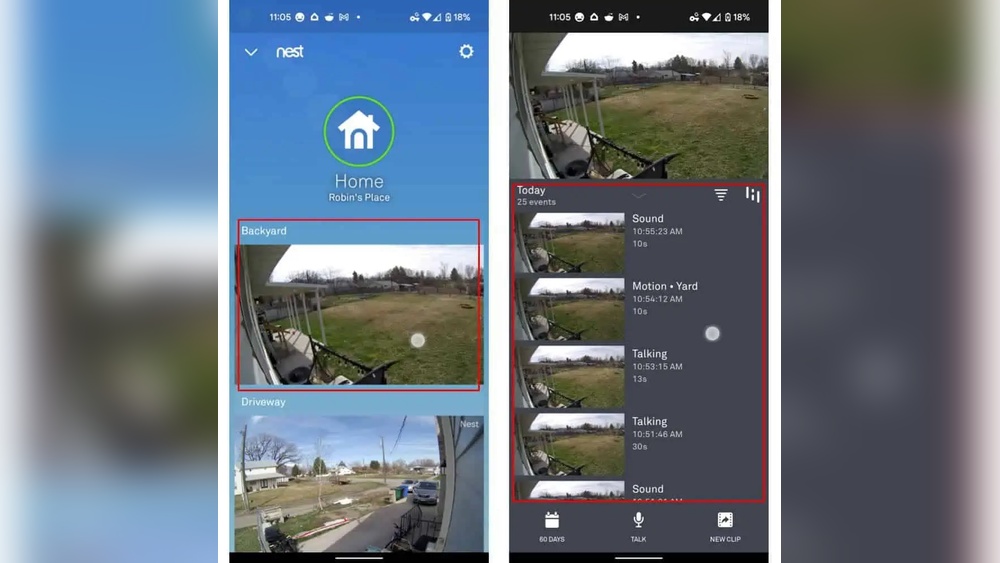
Open the Google Home app and select your doorbell device. The main screen shows the live video feed from your doorbell camera. Below the live view, you see recorded clips organized by date and time.
Use the timeline to scroll through footage quickly. Tap on any clip to watch it in full screen. You can pause, rewind, or fast forward while watching. The interface is clean and simple, making it easy to find important moments.
Sharing And Exporting Videos
To save a video, tap the share icon next to the clip. You can send it via email or messaging apps. The app creates a link that recipients can open without extra accounts.
Exporting videos to your device is also possible. Tap the download button to save the clip directly to your phone or tablet. This helps keep a local copy for backup or offline viewing.
Sharing and exporting options make it easy to keep your footage safe and accessible. Use these features to manage your doorbell videos efficiently.
Saving Videos Locally With Sd Cards
Saving videos locally with SD cards gives you direct control over your Google Doorbell footage. It keeps videos stored safely on a physical device. This method avoids cloud storage limits and subscription fees.
Local storage lets you access footage anytime. You do not depend on internet speed or connectivity. It also helps keep your videos private and secure.
Compatible Devices And Setup
Not all Google Doorbells support SD card storage. Check if your model allows local saving. Devices like Nest Hello do not have built-in SD slots. Some third-party devices offer SD card options for doorbell cameras.
For compatible devices, insert the SD card into the slot carefully. Format the card using the device settings for proper use. The device will start saving videos automatically to the card.
Keep the SD card clean and avoid removing it while recording. A high-speed SD card with enough capacity works best. Choose cards with at least 32GB for longer recording time.
Transferring Footage
To view or save videos on your computer, remove the SD card safely. Use an SD card reader to connect it to your PC or laptop. Copy the video files to your desired folder for backup.
You can also transfer footage to external drives or other storage devices. Organize videos by date or event for easy access later. Regularly check the SD card to avoid running out of space.
Deleting old files frees up space for new recordings. Keep a backup of important videos on your computer or cloud. Local saving with SD cards is simple and effective for video security.
Automating Video Backups
Automating video backups for your Google Doorbell saves time and effort. It keeps your footage safe without manual work. Automation means videos get saved instantly after recording. This helps protect important moments from being lost or deleted.
Using Third-party Apps
Third-party apps help save Google Doorbell videos automatically. These apps connect to your doorbell and transfer videos to your devices. They often support multiple cloud services or local storage options. Some apps allow you to set backup schedules and customize storage limits. Using these apps reduces the risk of losing footage due to device errors. Choose apps with good reviews and regular updates for security and reliability.
Cloud Backup Services
Cloud backup services store your videos on remote servers. They offer automatic uploads from your Google Doorbell. Cloud storage keeps videos safe even if your device is damaged or stolen. Many services provide encryption to protect your privacy. You can access your saved videos anytime from any device. Plans vary by storage size and price, so select one that fits your needs. Cloud backups simplify video management and provide peace of mind.
Troubleshooting Video Saving Issues
Saving videos from your Google Doorbell can sometimes be tricky. Problems with video saving can cause frustration. Understanding common issues helps fix them fast. This section guides you through simple steps to solve video saving problems.
Common Problems And Fixes
Videos may not save due to poor internet connection. Check your Wi-Fi signal near the doorbell. Weak signals cause video upload failures. Restart your router to improve connectivity.
Storage limits can stop videos from saving. Google Doorbell uses cloud storage that may fill up. Clear old videos or upgrade your plan to free space.
App glitches can block video saving. Close and reopen the Google Home app. Update the app to the latest version for better performance.
Permissions settings may restrict video saving. Allow the app to access storage on your phone. Check app permissions in your device settings.
Contacting Support
If problems persist, contact Google support for help. Explain your issue clearly and mention steps already tried. Support can guide you through advanced troubleshooting.
Use the Google Home app to reach support quickly. They may suggest resetting the doorbell or account checks. Keep your device details handy for faster assistance.

Credit: www.doorbellmount.com
Credit: kdfoundation.org
Frequently Asked Questions
How Do I Save Google Doorbell Videos Locally?
You can save Google Doorbell videos locally by downloading them via the Google Home app. Open the video, tap the download icon, and the footage will save to your phone’s gallery for offline access.
Can I Store Google Doorbell Videos On Cloud Storage?
Yes, Google Doorbell videos are automatically stored on Google’s cloud with a Nest Aware subscription. This allows easy access and secure backup of videos from anywhere.
How Long Does Google Store Doorbell Videos?
Google stores Doorbell videos for 30 days with a Nest Aware subscription. After that, videos are deleted unless saved manually by the user.
Is It Possible To Share Google Doorbell Videos?
Yes, you can share Google Doorbell videos by downloading and sending the file or sharing directly via the Google Home app’s sharing options.
Conclusion
Saving your Google Doorbell video keeps your home safer. You can watch past events anytime. Use the Google Home app to save videos easily. Regularly check your storage to avoid losing clips. Share important videos with family or police if needed.
Simple steps protect your property and give peace of mind. Start saving your videos today to stay secure and informed.