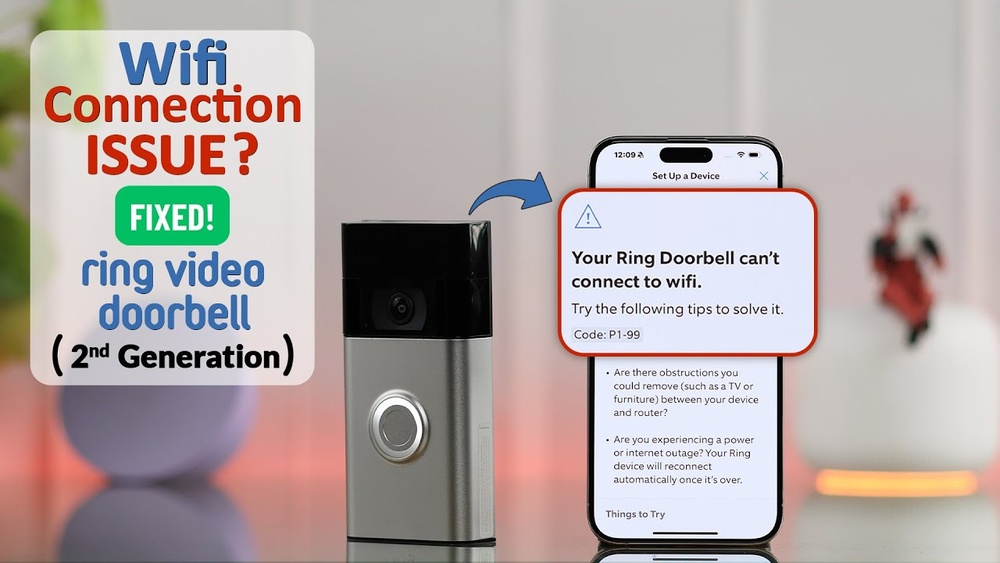

Are you ready to make your home smarter and safer? Connecting your Ring Video Doorbell to WiFi is the key step that lets you see who’s at your door from anywhere.
But if you’re unsure how to get it done quickly and without hassle, you’re in the right place. This guide will walk you through simple, clear steps that anyone can follow. By the end, you’ll have your Ring Doorbell online and ready to protect your home.
Keep reading to unlock the full potential of your smart doorbell!
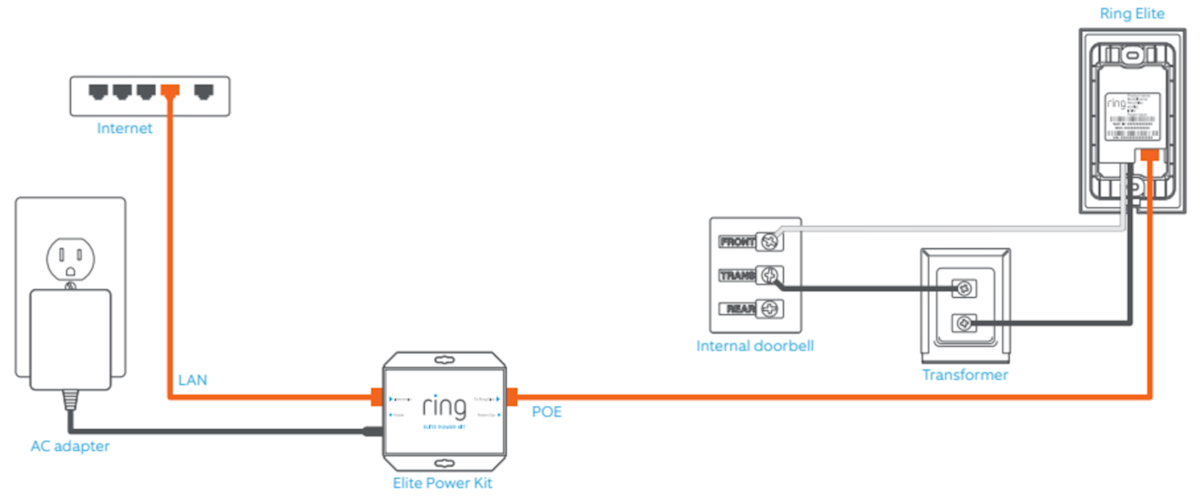
Credit: ring.com
Prepare Your Ring Doorbell
Getting your Ring Video Doorbell ready is the first step to connect it to WiFi. This stage ensures the device has power and the right app is on your phone. It also means setting up your Ring account. These steps help make the setup smooth and quick.
Charge Or Install Batteries
Check if your Ring Doorbell has batteries inside. Some models use rechargeable batteries, others use hardwired power. Remove the front cover to find the battery compartment. Charge the battery fully before setup. A full charge avoids interruptions during installation. If your model uses hardwiring, confirm power is off before starting.
Download The Ring App
Get the Ring app on your smartphone or tablet. The app works on Android and iOS devices. Use Google Play Store or Apple App Store to download. The app lets you control your doorbell and connect it to WiFi. Open the app to start the setup process.
Create Or Log In To Your Account
Open the Ring app and create a new account if you don’t have one. Use a valid email address and strong password. If you already have an account, just log in. Your account stores your device settings and video history. It keeps your doorbell secure and connected.
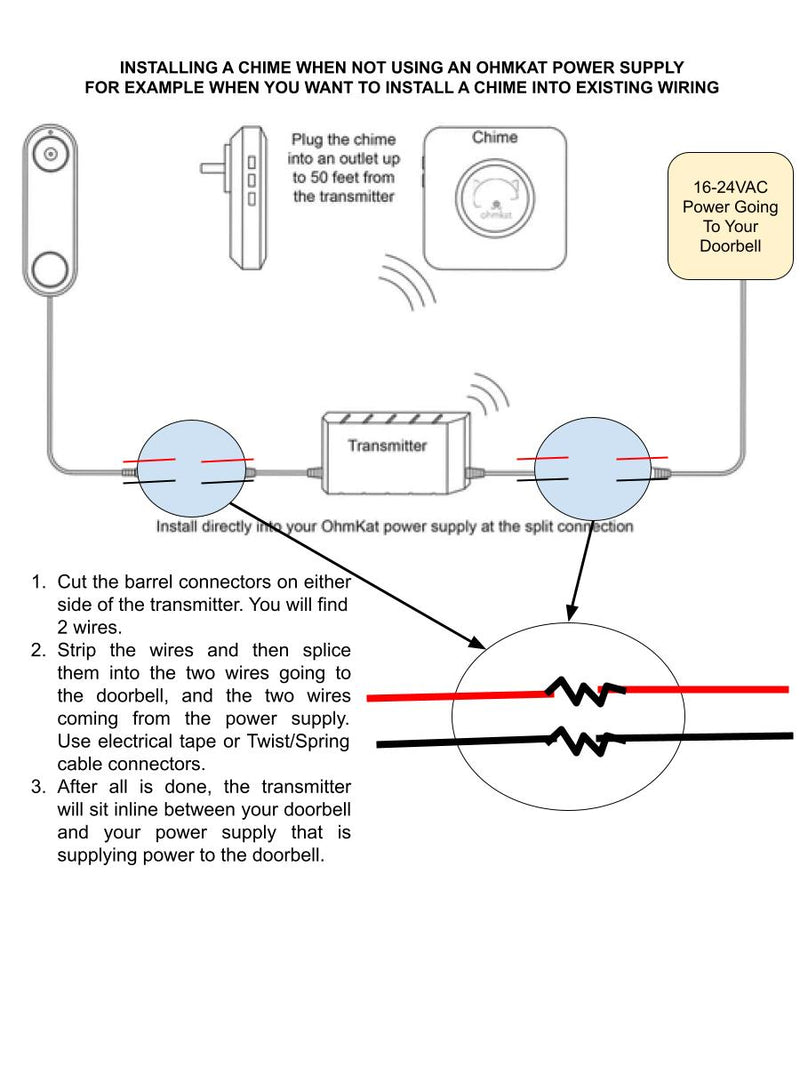
Credit: totalplumbingfl.com
Check Wifi Requirements
Before connecting your Ring Video Doorbell to WiFi, check the WiFi requirements. This step ensures a smooth setup and reliable operation. Poor WiFi settings cause connection issues and reduce video quality.
Knowing what your WiFi network needs helps avoid common problems. Focus on network compatibility, signal strength, and password readiness. These basics make your installation faster and easier.
Verify Network Compatibility
Ring Video Doorbells work with 2.4 GHz WiFi networks. Some models also support 5 GHz. Check your router’s settings to confirm the correct band. Use a compatible network to prevent connection failures.
Older routers might not support required speeds or security. Update your router firmware if needed. Using a network that matches Ring’s specs improves performance.
Ensure Strong Signal Strength
A strong WiFi signal is vital for clear video and fast alerts. Test signal strength near your doorbell’s location. Use your phone or a WiFi analyzer app to check it.
Weak signals cause delays and disconnects. Move your router closer or add a WiFi extender for better coverage. Good signal strength keeps your doorbell reliable.
Know Your Wifi Password
Have your WiFi password ready before setup. Entering it correctly is crucial for connection. Use the exact password, including capital letters and symbols.
Wrong passwords stop the doorbell from joining your network. Double-check your password on another device if unsure. Being prepared speeds up the setup process.
Set Up Wifi Connection
Setting up the WiFi connection is the key step to start using your Ring Video Doorbell. This process links your doorbell to your home internet. It allows you to receive alerts and view live video from anywhere.
Follow these simple steps to connect your doorbell to WiFi. The setup is quick and easy. Ready to get started?
Put Doorbell In Setup Mode
First, put your Ring Video Doorbell into setup mode. Press and hold the orange button on the back for about 15 seconds. The light will start flashing, showing it is ready to connect. This mode allows your phone to find the doorbell’s network.
Connect To Ring’s Setup Network
Next, open the WiFi settings on your phone or tablet. Look for a network named “Ring-” followed by some numbers. Select this network to connect. Your device will now communicate directly with the doorbell.
Select Your Home Wifi Network
After connecting to the Ring network, the app will show a list of nearby WiFi networks. Choose your home WiFi from the list. This step links your doorbell to your internet connection at home.
Enter Wifi Password
Finally, type in your WiFi password carefully. Double-check the password for any mistakes. Tap “Connect” to finish. Your Ring Video Doorbell will now join your home WiFi network and start working.
Credit: www.yalinha.com.br
Troubleshoot Connection Issues
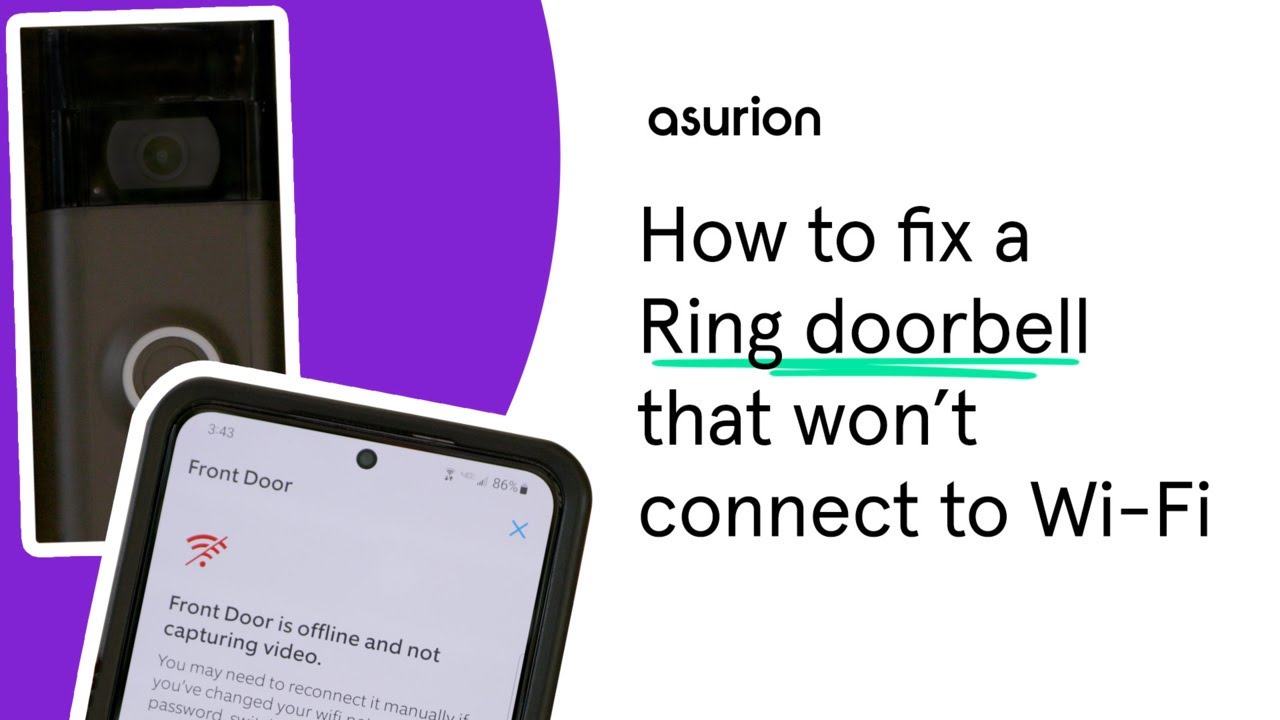
Connection problems with your Ring Video Doorbell can be frustrating. These issues often stop your doorbell from working properly. Simple steps can fix most problems quickly. Follow these tips to troubleshoot your doorbell’s WiFi connection.
Restart Doorbell And Router
Power cycle your devices to refresh the connection. First, remove the doorbell from its mount and press the reset button. Wait 10 seconds, then release it. Next, unplug your router from power. Wait 30 seconds before plugging it back in. Restarting both devices can clear temporary glitches.
Move Closer To Router
Weak WiFi signals cause connection drops. Try moving the doorbell closer to your router. A stronger signal improves performance. Avoid thick walls or metal objects between the doorbell and router. Test the connection again after relocating the device.
Update Ring App And Firmware
Outdated software may block proper connection. Open the Ring app on your phone. Check for any available updates and install them. Also, ensure your doorbell’s firmware is current. Updated software often fixes bugs and improves stability.
Reset Doorbell To Factory Settings
Resetting erases all settings but can solve persistent issues. Press and hold the reset button on the back of the doorbell for 15 seconds. Release the button and wait for the device to reboot. Set up your doorbell again from scratch to restore the connection.
Optimize Doorbell Performance
Optimizing your Ring Video Doorbell’s performance ensures smooth operation and clear video. Good performance means faster alerts and better video quality. Small steps can make a big difference in how well your doorbell works with WiFi.
Position For Best Signal
Place your doorbell where the WiFi signal is strongest. Avoid thick walls or metal objects nearby. Higher spots often get better signals than lower ones. Test your WiFi strength with a phone before installation. A strong signal reduces delays and video buffering.
Regularly Check Battery Level
Keep an eye on your doorbell’s battery status. Low battery can slow down the device or cause connection drops. Charge the battery fully before reinstalling the doorbell. Check battery levels in the Ring app often to avoid surprises.
Keep Firmware Updated
Update your doorbell’s firmware to improve features and fix bugs. Firmware updates enhance security and connectivity. The Ring app notifies you when updates are available. Install updates promptly to keep your doorbell running well.
Frequently Asked Questions
How Do I Connect My Ring Video Doorbell To Wifi?
To connect your Ring Doorbell, open the Ring app and select “Set Up a Device. ” Follow the prompts to connect to your WiFi. Ensure your phone is near the doorbell and your network is 2. 4 GHz for best results.
What Wifi Frequency Is Best For Ring Doorbell?
Ring Doorbells work best with 2. 4 GHz WiFi networks. This frequency offers better range and stability. Although some models support 5 GHz, 2. 4 GHz is generally more reliable for doorbell connectivity.
Why Is My Ring Doorbell Not Connecting To Wifi?
Check your WiFi password and signal strength. Ensure your router supports 2. 4 GHz networks. Restart your router and Ring device. If issues persist, try resetting your Ring Doorbell and repeat the setup process.
Can I Connect Ring Doorbell To A Hidden Wifi Network?
Yes, you can connect your Ring Doorbell to a hidden WiFi network. Manually enter your network’s SSID and password during setup in the Ring app. Make sure the network is 2. 4 GHz for optimal connection.
Conclusion
Connecting your Ring Video Doorbell to WiFi is simple and quick. Follow each step carefully to avoid common issues. A strong WiFi signal helps the doorbell work better. Check your internet speed if the connection feels slow. Keep your Ring app updated for smooth setup.
Once connected, enjoy easy access to your front door. Stay safe with real-time alerts on your phone. Small effort brings big convenience. Now, your home feels smarter and more secure.