
Have you ever wanted to check who’s at your door in real-time, no matter where you are? With your Blink Doorbell, you can do just that—see live video right from your phone or tablet.
But if you’re not sure how to access this feature, don’t worry. In this guide, you’ll discover simple, step-by-step instructions to start viewing live video instantly. Imagine the peace of mind you’ll get knowing exactly what’s happening outside your door at any moment.
Keep reading, and you’ll learn how to make the most of your Blink Doorbell’s live video feature with ease.

Credit: www.reddit.com
Blink Doorbell Features
Blink Doorbell offers smart features to keep your home safe and connected. It helps you see who is at the door in real time. The device sends alerts and lets you talk to visitors through your phone.
These features work together to give you control and peace of mind. Here are the key Blink Doorbell features to know.
Live Video Streaming
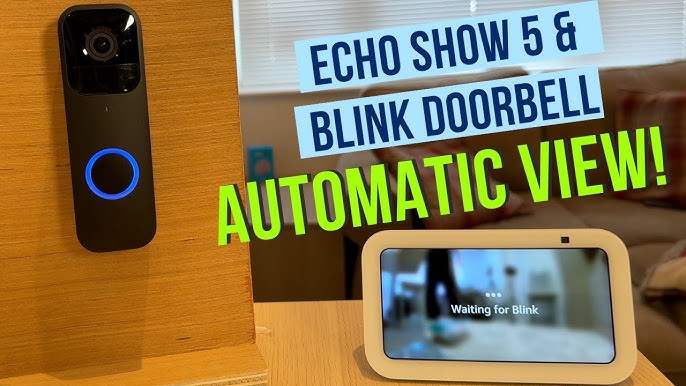
Blink Doorbell streams video live to your smartphone. You can watch visitors or delivery people anytime. The video is clear, day or night. This helps you see details at your doorstep easily.
Two-way Audio
The doorbell includes two-way audio. You hear visitors and speak to them through the app. No need to open the door or walk outside. This feature makes communication quick and safe.
Motion Detection Alerts
Blink Doorbell detects motion near your door. It sends instant alerts to your phone. You know right away if someone is there. This feature helps catch visitors or unusual activity fast.
Setting Up Blink Doorbell
Setting up the Blink Doorbell is simple and fast. You can start seeing live video in just a few steps. This guide helps you install the doorbell, connect it to Wi-Fi, and sync it with the Blink app. Follow these steps carefully to enjoy clear video and real-time alerts.
Installing The Doorbell
Choose a spot near your front door for the Blink Doorbell. Make sure the location has a good view of your porch. Use the included screws and tools to mount the doorbell securely. Avoid places exposed to heavy rain or direct sunlight. After mounting, check if the doorbell is steady and facing the right direction.
Connecting To Wi-fi
Turn on the doorbell and open the Blink app on your phone. The app will prompt you to connect the doorbell to Wi-Fi. Select your home Wi-Fi network and enter the password carefully. A strong Wi-Fi signal ensures smooth video streaming. Stay close to the router during this process to avoid connection issues.
Syncing With The Blink App
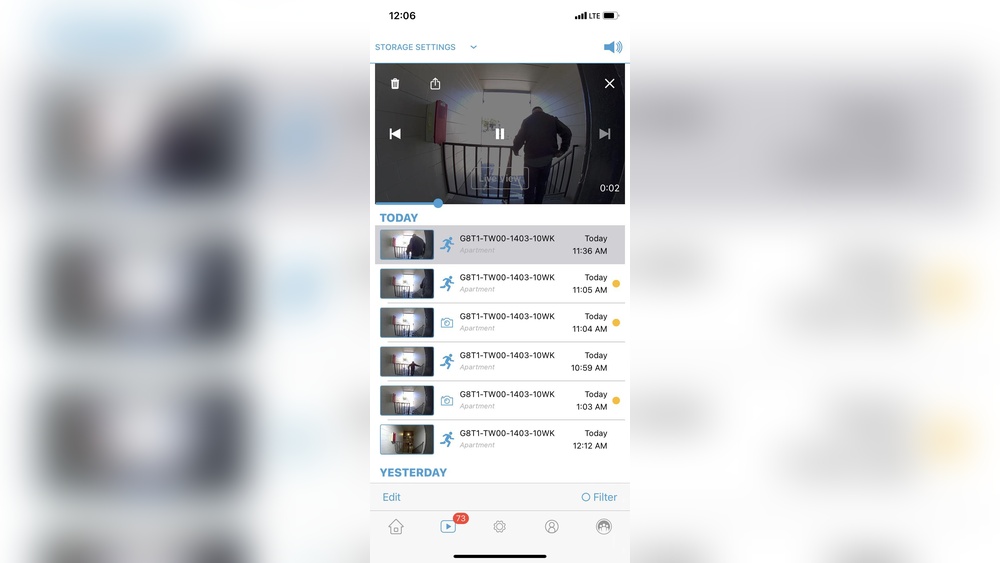
The Blink app helps you control and view your doorbell live video. Create an account or log in if you already have one. Follow the app’s instructions to add your new doorbell device. Syncing takes only a few seconds. Once synced, you can watch live video, receive alerts, and manage settings easily.
Accessing Live Video
Accessing live video on your Blink Doorbell helps you see visitors in real time. This feature keeps your home safe and lets you respond quickly. The process is simple and fast.
Follow these steps to view the live feed anytime you want.
Opening The Blink App
First, open the Blink app on your smartphone or tablet. The app is available for both iOS and Android devices. Make sure you are logged in to your Blink account. If not, enter your username and password to sign in.
Navigating To The Doorbell Camera
After opening the app, look for the list of devices on the main screen. Find your Blink Doorbell camera in this list. Tap on the doorbell name or icon to access its settings and video feed.
Starting The Live View
On the doorbell’s page, you will see a “Live View” button. Tap this button to start streaming live video from your doorbell. The video will load within seconds, showing you what the doorbell camera sees.
You can now watch visitors or check the area outside your door in real time.

Credit: www.youtube.com
Optimizing Video Quality
Optimizing video quality on your Blink Doorbell makes your security clearer and more reliable. Good video quality helps you see visitors and events with sharp details. Several simple steps improve the video feed and reduce delays or blurriness.
Focus on settings, Wi-Fi strength, and lighting to get the best results. These factors affect how well your live video performs.
Adjusting Video Settings
Open the Blink app to find video settings. Choose the resolution that fits your needs. Higher resolution means clearer images but uses more data. Lower resolution saves bandwidth but may look blurry. Adjust brightness and contrast to improve visibility. Experiment with settings until the video looks right on your phone.
Ensuring Strong Wi-fi Signal
Wi-Fi strength is key for smooth video streaming. Place your router near the doorbell if possible. Avoid walls and metal objects that block signals. Use a Wi-Fi analyzer app to check signal strength. A signal above 60% usually works well. Consider a Wi-Fi extender for weak spots. A steady connection reduces video lag and buffering.
Using Night Vision
Blink Doorbells have night vision to see in the dark. Night vision turns on automatically when light is low. Clean the doorbell lens to avoid blurry images. Keep the area around the doorbell free from bright lights that cause glare. Night vision helps catch clear video even at night. Check the video feed to ensure night vision works correctly.
Troubleshooting Live Video Issues
Watching live video on your Blink Doorbell should be easy and smooth. Sometimes, problems can stop the video from showing correctly. These issues can be caused by connectivity, app errors, or video delays. Fixing these problems helps you see who is at your door without trouble.
Common Connectivity Problems
Check your Wi-Fi signal strength near the doorbell. A weak signal can stop the live video from loading. Move your router closer or use a Wi-Fi extender to boost the signal. Restart your router and the Blink Doorbell to refresh the connection. Make sure your internet is working well by testing other devices.
Fixing App Crashes
Close the Blink app completely and open it again. Update the app to the latest version in your app store. Clear the app cache in your device settings to remove old data. Restart your phone to fix temporary software glitches. Reinstall the app if crashes continue to happen.
Resolving Video Lag
Video lag can occur with slow internet or device overload. Reduce the number of devices using your Wi-Fi at the same time. Close other apps running in the background on your phone. Lower the video quality in the Blink app settings to reduce lag. Keep your doorbell and app updated to ensure smooth video.
Credit: www.youtube.com
Enhancing Home Security
Enhancing home security is the main reason many choose the Blink Doorbell. It offers real-time video to watch your doorstep anytime. This feature helps you see who is outside without opening the door. You can protect your home more effectively by using several settings and options.
Setting Motion Zones
Motion zones help you focus on important areas near your door. You can select specific spots where motion triggers alerts. This reduces false alarms from passing cars or trees. Setting motion zones makes your doorbell smarter and more precise.
Enabling Alerts And Notifications
Alerts notify you instantly when someone is at your door. Blink Doorbell sends notifications straight to your phone. You can react quickly to visitors or unexpected activity. Turning on alerts keeps you connected and aware all day.
Integrating With Other Devices
Connecting the Blink Doorbell with other smart devices improves security. You can link it to smart lights or security cameras. This creates a stronger safety network around your home. Integration makes managing home security simpler and more effective.
Frequently Asked Questions
How Do I View Live Video On Blink Doorbell?
Open the Blink app, select your doorbell camera, and tap the live view icon. This starts streaming real-time video instantly.
Can I See Live Video Remotely On Blink Doorbell?
Yes, you can watch live video from anywhere using the Blink app on your smartphone or tablet.
What Are The Requirements For Live Video On Blink Doorbell?
You need a stable Wi-Fi connection, the Blink app, and a registered Blink account to access live video.
Does Blink Doorbell Support Live Video Notifications?
Yes, Blink sends alerts when motion is detected, allowing you to view live video immediately from the app.
Conclusion
Watching live video on your Blink Doorbell is simple and fast. Just open the app, tap your doorbell, and see who is outside. This helps you stay safe and aware anytime. Remember to keep your app updated for the best experience.
With a few easy steps, you can always check your home’s front door from anywhere. Stay connected and secure with your Blink Doorbell’s live video feature.