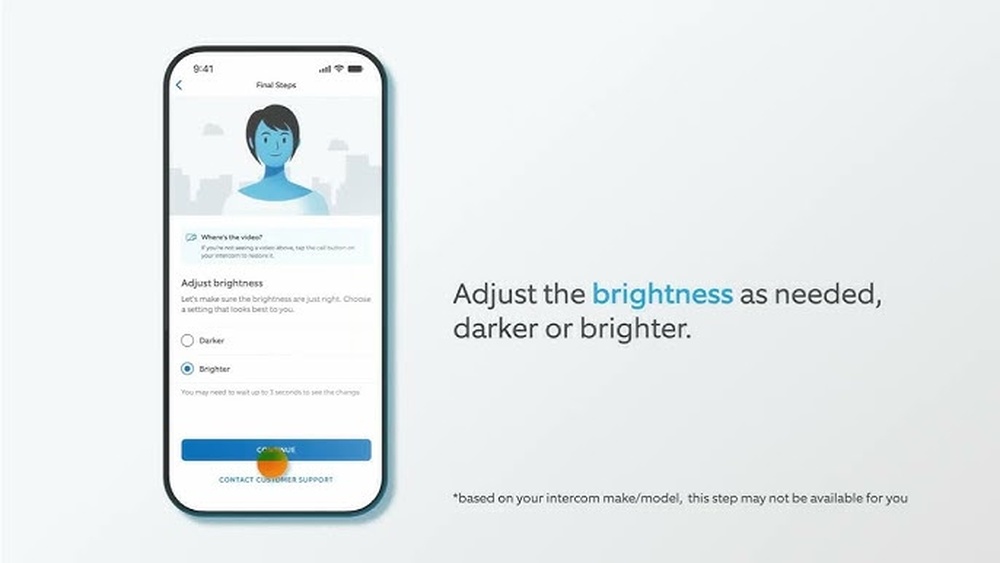

Is your Ring Doorbell video looking too dark or too bright? Adjusting the brightness can make a huge difference in seeing every detail clearly.
Whether you want to catch a visitor’s face or spot a package on your porch, getting the right brightness is key. In this guide, you’ll learn simple steps to fine-tune your Ring Doorbell video brightness quickly and easily. Keep reading to make sure you never miss a moment at your doorstep.
Accessing Ring Doorbell Settings
Adjusting the brightness on your Ring Doorbell video starts with accessing the settings. This step is crucial to improve video clarity. The settings allow you to control various features, including brightness. Follow simple steps to reach these options quickly.
Open The Ring App
Begin by opening the Ring app on your smartphone. The app controls all Ring devices. Make sure you are logged in to your account. The home screen displays your Ring devices. Tap on the Ring Doorbell you want to adjust.
Navigate To Device Settings
After selecting your Ring Doorbell, find the device settings. Look for a gear icon or menu labeled “Device Settings.” Tap this to open the settings page. Here, you can find options for video brightness and other controls. Adjust the brightness slider to your liking.
Credit: ring.com
Locating Brightness Controls
Adjusting the brightness on your Ring Doorbell video helps you see clearer images. Brightness controls let you change how light or dark the video looks. Knowing where these controls are is the first step.
The Ring app holds all the video settings. These settings include options to adjust brightness, contrast, and other video features. Finding these settings is easy once you know where to look.
Find Video Settings
Open the Ring app on your phone or tablet. Tap the device you want to adjust. Next, look for the “Device Settings” button. Inside this menu, find the “Video Settings” option. This section controls how your video looks.
Adjusting Brightness Option
In the “Video Settings” menu, locate the brightness slider. Slide it left to make the video darker. Slide it right to make the video brighter. Adjust slowly to find the best view. Changes save automatically, so no extra steps are needed.
Step-by-step Brightness Adjustment
Adjusting the brightness on your Ring Doorbell video improves the image quality. Clearer videos help you see visitors and details better. Follow these simple steps to set the brightness just right for your needs.
Using The Slider
Open the Ring app on your phone or tablet. Select your Ring Doorbell device from the list. Find the video settings option and tap on it. Look for the brightness slider, usually under video or camera settings. Drag the slider left to lower brightness or right to increase it. Move it slowly to see how the video preview changes. Stop when the video looks clear and balanced.
Testing The New Brightness
After adjusting, test your new brightness setting. Use the live view feature in the Ring app to see the video feed. Check the video in different lighting conditions, like day and night. Make sure the image is bright enough but not too bright. If needed, return to the slider and adjust again. Testing helps you find the perfect brightness for your doorbell camera.
Optimizing Brightness For Different Lighting
Optimizing brightness on your Ring Doorbell video improves visibility and security. Different lighting conditions need different brightness levels. Adjusting settings ensures clear video both day and night. This guide helps you find the right brightness for every time of day.
Daytime Settings
Bright daylight can cause glare and shadows. Lower the brightness to avoid washed-out images. Aim for a balanced view with clear details. Adjust the brightness slider slowly while watching the live feed. Stop when colors look natural and faces are visible.
Keep the brightness moderate to prevent overexposure. Check the video at different times during the day. This helps maintain good image quality as sunlight changes.
Nighttime Settings
Night videos need higher brightness for better clarity. Increase brightness to brighten dark areas without creating noise. Use infrared night vision mode for clearer images in total darkness. Adjust brightness gradually to avoid grainy or blurry video.
Test the video at night after adjustments. Make sure motion detection still works well in low light. Proper brightness helps catch every detail for safety.
Troubleshooting Brightness Issues
Troubleshooting brightness issues on your Ring Doorbell video can be simple. Sometimes, the brightness setting does not update as expected. This problem can affect video quality and your ability to see clearly.
Understanding what to do helps you fix these issues quickly. Follow the steps below to troubleshoot and restore good video brightness.
When Brightness Doesn’t Change
Check your Ring app first. Make sure you save changes after adjusting brightness. If the brightness stays the same, try restarting the app.
Restart your phone or tablet as well. Sometimes, the app needs a fresh start to work properly. Also, check your internet connection. A weak signal can cause settings not to update.
Update the Ring app to the latest version. Older versions may have bugs affecting brightness control. If the problem continues, try adjusting brightness at different times of day. Lighting conditions may affect how changes appear.
Resetting Video Settings
Resetting video settings can fix persistent brightness problems. Open the Ring app and go to device settings. Find the video settings section.
Look for the option to reset video settings to default. This action clears any incorrect configurations. After resetting, adjust brightness again to your preference.
Restart your Ring Doorbell by removing and reinserting its battery or unplugging it briefly. This can help the device apply new settings. Test the video brightness after the reset to see if it improved.

Credit: www.ebay.com
Additional Video Enhancements
Additional video enhancements improve your Ring Doorbell’s video quality. These settings help you see clearer images. They work well with brightness adjustments. Explore how to adjust contrast and enable night vision.
Adjusting Contrast
Contrast changes the difference between dark and light areas. Increasing contrast makes objects stand out more. Lower contrast creates a softer look. Adjusting contrast helps you see details better in different lights. You can find this setting in the video options. Slide the bar to change the contrast level. Choose what looks best for your environment.
Enabling Night Vision
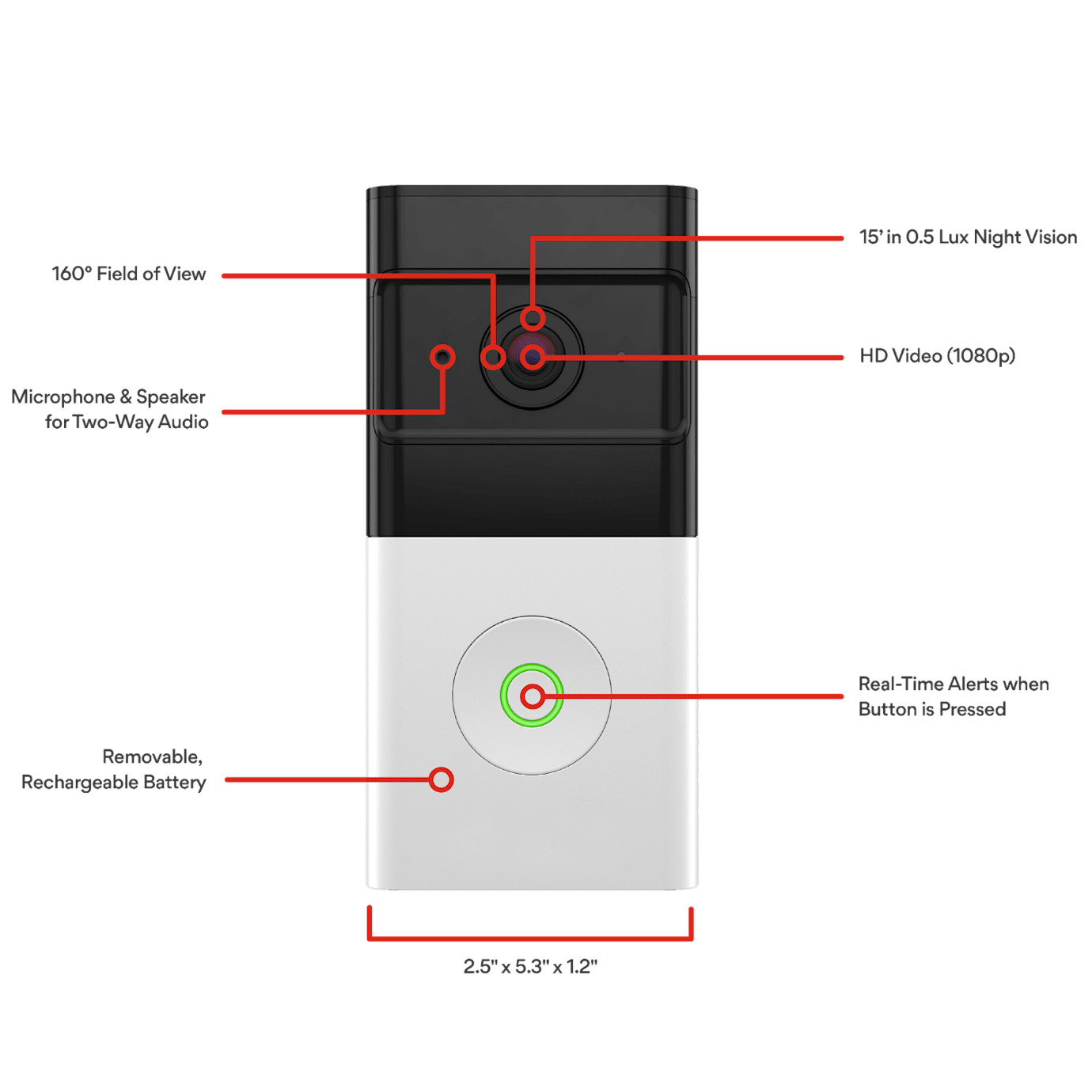
Night vision lets you see in the dark. It uses infrared light to show clear images at night. This feature turns on automatically in low light. You can also enable it manually. Night vision keeps your home safe after sunset. Make sure it is active for the best night video. Check your Ring app settings to confirm this feature is on.
Credit: mwg.aaa.com
Frequently Asked Questions
How Do I Change Brightness On Ring Doorbell Video?
Open the Ring app, select your doorbell, then go to Device Settings. Adjust the brightness slider under Video Settings for optimal clarity.
Can I Improve Night Brightness On My Ring Doorbell?
Yes, enable Night Vision in the Ring app under Device Settings. This enhances video brightness in low-light conditions automatically.
Does Adjusting Brightness Affect Video Quality On Ring Doorbell?
Adjusting brightness optimizes visibility but won’t change the video resolution. Proper brightness ensures clearer images without compromising quality.
Where Is Brightness Control In The Ring App?
Brightness controls are found in the Ring app under Device Settings > Video Settings. Slide to adjust brightness to your preference.
Conclusion
Adjusting the brightness on your Ring Doorbell video helps you see clearly day and night. Brightness settings can improve video quality and security. You can easily change these settings through the Ring app. A clearer video means better identification of visitors and events.
Keep your camera brightness balanced to avoid glare or darkness. Regularly check and adjust settings as needed for the best view. Small changes make a big difference in your home’s safety. Try adjusting brightness today to enhance your video experience.