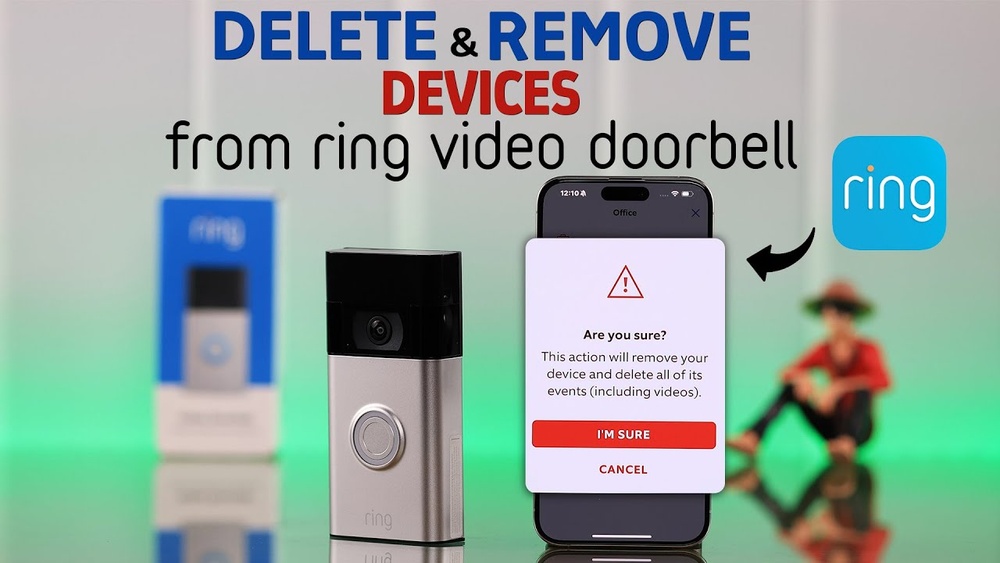

Are you wondering how to delete a video on your Ring Doorbell? Maybe you want to clear up space or remove footage you no longer need.
Whatever your reason, managing your videos should be simple and quick. In this guide, you’ll learn exactly how to delete videos from your Ring Doorbell step-by-step. By the end, you’ll have full control over your recordings and keep your device organized without any hassle.
Keep reading to make your Ring Doorbell work better for you!

Credit: adelaideepic.org
Accessing Your Ring App
Accessing your Ring app is the first step to managing your video recordings. The app connects your phone to your Ring Doorbell. It allows you to view, save, or delete videos easily. Understanding how to open and navigate the app saves time and effort.
Follow simple steps to get started with your Ring app. You can find videos stored on your device and control them directly.
Logging In
Open the Ring app on your smartphone or tablet. Enter your registered email address and password. Tap the “Log In” button to access your account. Make sure your internet connection is stable. Without login details, you cannot reach your videos or settings.
Navigating To Device
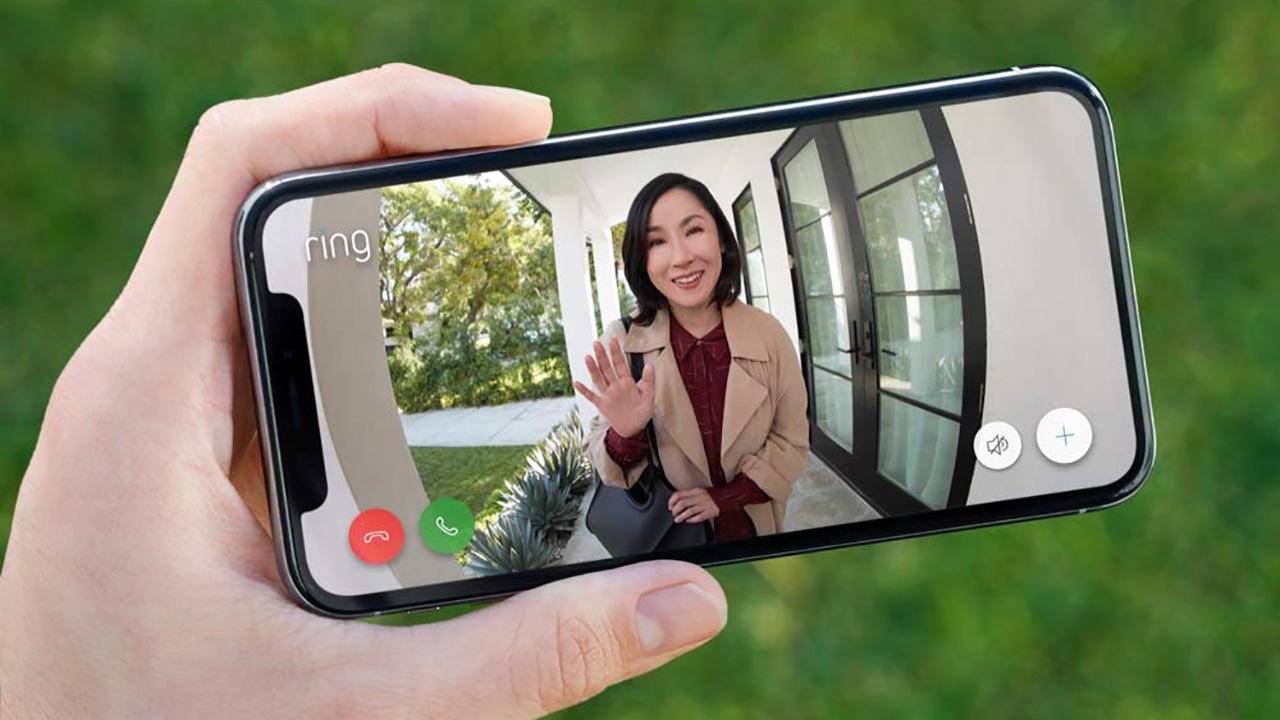
Once logged in, look for your Ring Doorbell device on the home screen. Tap on the device name to open its dashboard. Find the “History” or “Event History” section. This area holds all your recorded videos. From here, you can view and delete unwanted footage.
Credit: recoverit.wondershare.com
Locating Stored Videos
Finding your saved videos on the Ring Doorbell is the first step to managing or deleting them. The Ring app stores all recorded events in a clear timeline. This timeline helps you see when each video was captured. Knowing how to access this area makes video management easier. You can quickly find the clip you want to review or remove.
Viewing Event History
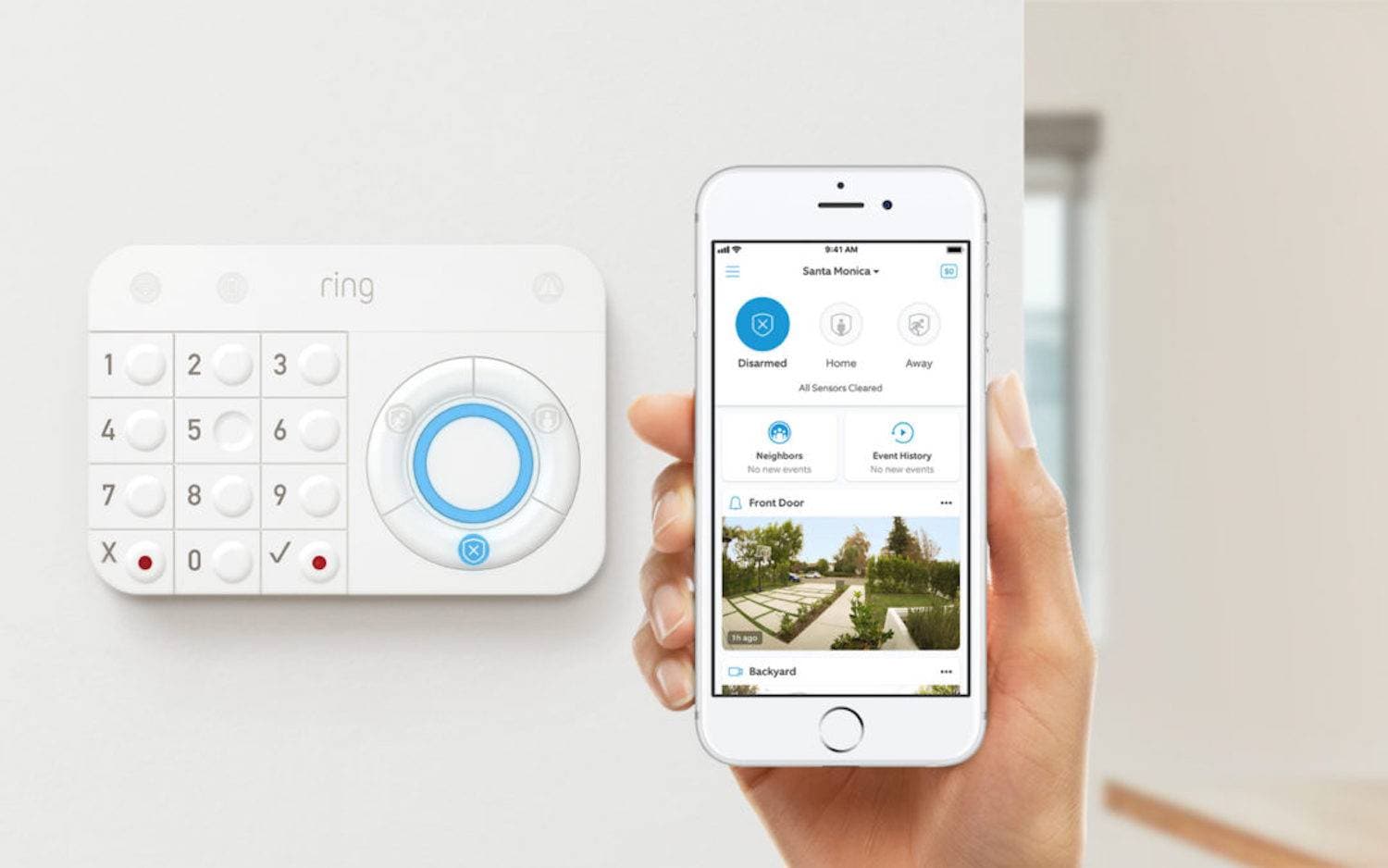
Open the Ring app on your phone or tablet. Tap the “History” tab at the bottom of the screen. Here, you see a list of all recorded events. Each entry shows the date and time of the video. Scroll through to find the video you want. This view helps you track activity around your door.
Selecting Specific Video
Tap on any event in the history list to open the video. The video will start playing automatically. Use the play and pause buttons to control playback. Check the video closely to decide if you want to keep it. You can delete unwanted clips right from this screen. This step gives you control over your saved videos.
Deleting Videos
Deleting videos on your Ring Doorbell helps free up space and keeps your video history tidy. Removing unwanted clips is quick and easy through the Ring app. This section explains the simple steps to delete your videos safely and securely.
Using Delete Option
Open the Ring app on your phone or tablet. Tap the “History” tab to see your recorded videos. Find the video you want to delete and tap on it. Look for the trash can icon or “Delete” button. Tap the delete option to remove the video from your account. This action helps clear space and organize your footage.
Confirming Deletion
After tapping delete, a confirmation message appears. It asks if you really want to delete the video. Confirm the deletion by selecting “Yes” or “Delete.” This step prevents accidental removal of important videos. Once confirmed, the video is permanently deleted and cannot be recovered.
Managing Storage Settings
Managing storage settings on your Ring Doorbell helps keep your video files organized. It controls how long videos stay saved and when they get removed. Proper settings prevent your device from running out of space.
Adjusting these settings ensures your videos are stored for the right amount of time. You can also set your device to delete old videos automatically. This saves you from manual cleanup.
Adjusting Video Storage Duration
Ring allows you to change how long videos stay in storage. You can set the duration from a few days to a month. This controls the time videos remain accessible before deletion.
To adjust the storage duration, open the Ring app. Go to the Device Settings and find the Video Settings section. Here, select the desired storage duration. Choose a period that fits your needs and storage limits.
Enabling Automatic Deletion
Automatic deletion removes older videos without your input. This feature frees up space by deleting videos after the set duration. It helps maintain enough room for new recordings.
To enable it, open the Ring app and go to the Video Settings. Turn on the automatic deletion option. Your Ring Doorbell will then delete videos automatically based on your storage duration setting.
Troubleshooting Video Deletion
Deleting videos on your Ring Doorbell should be simple. Sometimes, issues arise that stop video deletion. Troubleshooting helps find and fix these problems fast. Understanding common issues and solutions saves time and frustration.
Common Issues
Video deletion may fail due to poor internet connection. Slow or unstable Wi-Fi causes sync problems. Sometimes, the app does not refresh properly. This makes deleted videos still appear. Storage limits on Ring Protect plan can block deletion. Permissions or account issues may also stop video removal.
Resolving Errors
Check your internet connection first. Restart your router and phone to refresh the network. Log out and back into the Ring app. This refreshes your account data. Clear the app cache if videos still do not delete. Confirm your Ring Protect subscription is active. Without it, video deletion might be restricted. Update your Ring app to the latest version. Old versions can have bugs affecting deletion. Finally, reboot your Ring Doorbell by removing power and reattaching it. This resets the device and may fix errors.
Credit: recoverit.wondershare.com
Alternative Methods
Deleting videos from your Ring Doorbell can be done in different ways. Besides the mobile app, there are other easy methods. These alternatives might suit you better depending on your device or preference.
Deleting Via Web Browser
You can delete Ring videos using a web browser. Visit the Ring website and log into your account. Navigate to the “History” or “Event” section. Find the video you want to remove. Click the delete option next to the video. Confirm your choice to delete the video permanently. This method works well on computers and laptops. It offers a bigger screen to manage your videos easily.
Using Third-party Apps
Some third-party apps connect with your Ring device. These apps may help manage and delete your videos. Choose a trusted app with good reviews. Install it on your smartphone or tablet. Link it to your Ring account securely. Follow the app’s instructions to find and delete videos. This option is useful if you want extra features. Always check the app’s privacy policy before use.
Frequently Asked Questions
How Do I Delete Videos From My Ring Doorbell App?
Open the Ring app, go to the Event History, select the video, and tap the delete icon. Confirm to remove the video permanently from your device and cloud storage.
Can I Recover Deleted Videos On Ring Doorbell?
No, once a video is deleted from the Ring app, it cannot be recovered. Ensure you want to delete before confirming, as removal is permanent.
Does Deleting Videos Free Up Ring Doorbell Storage Space?
Yes, deleting videos from your Ring account helps free up cloud storage space. This allows new recordings to be saved without hitting storage limits.
Is It Possible To Delete Multiple Ring Doorbell Videos At Once?
Currently, the Ring app does not support bulk deleting videos. You must delete each video individually from the Event History section.
Conclusion
Deleting videos on your Ring Doorbell is simple and quick. You can clear space and keep your app organized. Just follow the steps carefully to avoid mistakes. Regularly removing old videos helps your device run smoothly. Stay in control of your security footage with ease.
Now, managing your Ring videos feels less confusing. Keep your home monitoring efficient and clutter-free.