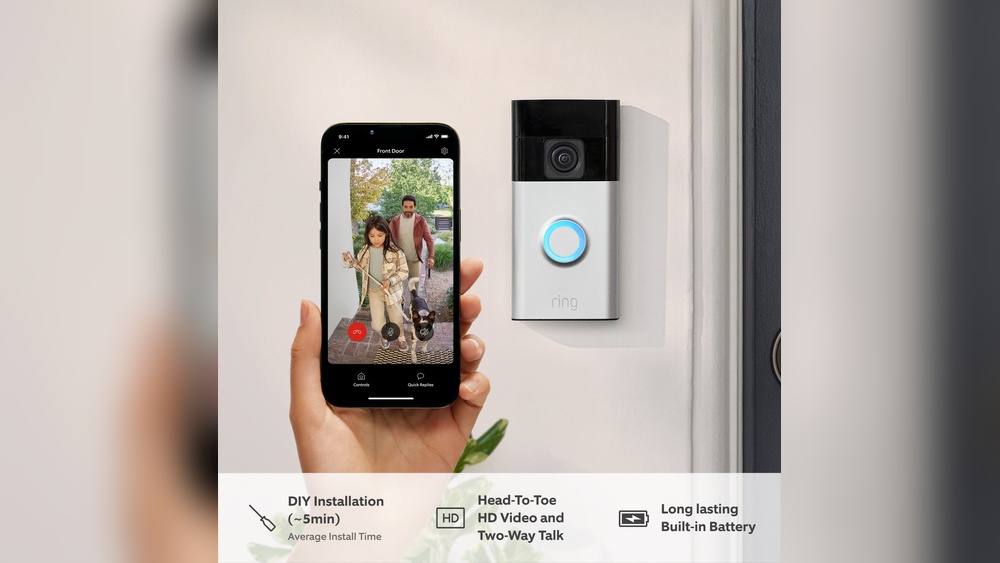

Imagine this: your Ring Video Doorbell alerts both your phone and your partner’s phone at the same time. No more missed visitors or delayed responses.
Setting up your Ring Video Doorbell for two smartphones is easier than you think, and it can make your home security smarter and more convenient. In this guide, you’ll learn exactly how to connect your doorbell to two devices, so both you and your loved ones stay instantly informed.
Keep reading—your home security just got a serious upgrade.

Credit: www.amazon.nl
Set Up Your Ring Doorbell
Setting up your Ring Video Doorbell is the first step to secure your home. This process lets you control the doorbell from two smartphones easily. Follow these simple steps to get started quickly. Each phone will have full access to alerts and live video.
Install The Ring App
Download the Ring app from the App Store or Google Play. The app is free and works on most smartphones. Open the app after download to begin setup. The app allows you to manage settings and view your doorbell’s feed anytime.
Create A Ring Account
Open the Ring app and tap “Create Account.” Enter your email, create a password, and add your phone number. This account connects your doorbell to your devices. Keep your login details safe for easy access later.
Connect Doorbell To Wi-fi
Power on your Ring Video Doorbell. Follow the app instructions to connect it to your home Wi-Fi. Strong Wi-Fi is important for smooth video streaming. Test the connection by viewing live video on the app.
Credit: www.walmart.com
Add A Second Smartphone
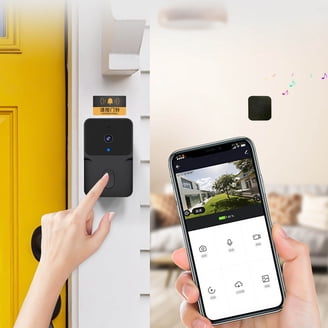
Adding a second smartphone to your Ring Video Doorbell allows multiple users to receive alerts and view live video. This feature helps family members or roommates stay connected to your home’s front door. Each person can access the doorbell from their own device without sharing passwords or accounts.
Follow these steps to set up your Ring Video Doorbell on a second smartphone. The process is simple and quick, ensuring everyone can get notifications and view footage instantly.
Download The Ring App On Second Device
Start by downloading the Ring app on the second smartphone. The app is free and available in both the Apple App Store and Google Play Store. Open the store, search for “Ring,” and tap the download button. Wait for the app to install before moving to the next step.
Log Into Your Existing Account
After installing the app, open it and choose the login option. Enter the email and password linked to your Ring account. This lets the second smartphone access the same devices and settings. Make sure to use the exact login details used on the first phone.
Once logged in, the app will sync with your Ring Video Doorbell. The second user can now receive notifications and view live video feed. This setup keeps your home secure and connected across multiple devices.
Manage Shared Users
Managing shared users on your Ring Video Doorbell helps keep control and security tight. It lets you decide who sees the video feed and gets notifications. Sharing access makes it easy for family or roommates to answer the door.
Proper management avoids confusion and privacy issues. You can add users, change their permissions, or remove them anytime. This flexibility ensures everyone uses the device safely and responsibly.
Invite Users Through The App
Open the Ring app on your phone. Tap the menu icon, then select “Devices.” Choose your Ring Video Doorbell. Scroll to find “Shared Users” and tap it. Select “Add User” and enter the email of the person. They will get an invitation to join your device. Once accepted, they can use the app to see live video and alerts.
Set Permissions For Shared Access
After inviting users, control their access levels in the app. You can allow full access or limit features. For example, some users only see live video but don’t get notifications. This step helps keep your home secure. Adjust permissions anytime as needed. Removing access is simple if someone no longer needs it.
Test Notifications And Access
Testing notifications and access is key after setting up your Ring Video Doorbell on two smartphones. This step ensures both phones get alerts and can view the camera feed. It helps confirm that the device works well for all users.
Verify Alert Delivery
Start by pressing the doorbell button. Both smartphones should receive an alert quickly. Check the notification sound and message on each phone. If one phone does not get the alert, check its app settings. Make sure notifications are allowed and the phone has internet access.
Try sending a test alert from the Ring app. This confirms alerts work without pressing the doorbell. Both phones should show the notification at the same time. If alerts are slow or missing, restart the app or the phone. This usually fixes common issues.
Check Live View Functionality
Open the Ring app on each smartphone. Tap the Live View button to see the camera feed. The video should stream smoothly without lag or errors. Test this feature indoors and outdoors for best results.
Both users should access the live feed without problems. If one user cannot see the video, check the app permissions. Make sure the camera has permission to use data or Wi-Fi on that phone. This step confirms both users have full access to the doorbell’s features.
Troubleshoot Common Issues
Troubleshooting common issues with your Ring Video Doorbell is key to smooth use on two smartphones. Problems may arise with connection or notifications. Fixing these quickly ensures both users get alerts and access without delay. This section helps solve typical hurdles in simple steps.
Fix Connection Problems
Check your Wi-Fi signal near the doorbell. A weak signal causes delays or no connection. Restart your router and doorbell. This refreshes the network and often solves issues.
Make sure both smartphones are connected to the internet. Without internet, the app cannot sync properly. Update the Ring app to the latest version. Older versions may fail to connect.
Remove and re-add the second smartphone in the Ring app. This step resets permissions and connection settings. Confirm both phones use the same Ring account for shared access.
Resolve Notification Errors
Open the Ring app settings on both phones. Enable notifications for the doorbell. Disable “Do Not Disturb” mode on each phone. It can block alerts silently.
Check app permissions on the phones. The Ring app needs permission to send push notifications. Clear the app cache to fix any corrupted data.
Sign out and back into the Ring app. This action can refresh notification settings. Test by ringing the doorbell and watching for alerts on both devices.

Credit: www.amazon.sa
Frequently Asked Questions
How Do I Add A Second Smartphone To Ring Doorbell?
Open the Ring app on the first phone. Tap “Shared Users. ” Enter the second phone’s email to invite. The second user accepts the invitation to access the doorbell.
Can Two Smartphones Receive Ring Doorbell Notifications?
Yes, both smartphones will get notifications simultaneously. Ensure both devices have the Ring app installed. Notifications alert when the doorbell detects motion or rings.
Does Sharing Ring Doorbell Affect Video Access?
No, shared users can view live and recorded videos. Each user has independent access through their Ring app. Video privacy remains secure with authorized users only.
Is It Possible To Control Ring Settings On Two Phones?
Yes, both phones can control settings. Changes sync across devices via the Ring account. This allows flexible management from either smartphone.
Conclusion
Setting up your Ring Video Doorbell on two smartphones keeps everyone connected. Both users get instant alerts and can see visitors anytime. This simple step helps share home security easily with family or roommates. Just follow the steps carefully, and enjoy better peace of mind.
Stay safe and never miss a visitor again.