You’ve just heard the chime from your Nest Hello Video Doorbell. Now what?
Knowing exactly how to answer your doorbell isn’t just about convenience—it’s about keeping your home safe and staying connected with visitors, even when you’re not home. In this guide, you’ll learn simple steps to respond quickly and confidently every time your Nest Hello rings.
Whether it’s a delivery, a friend dropping by, or something unexpected, you’ll feel in control. Keep reading to unlock the full potential of your video doorbell and make every interaction easy and secure.
Setup Your Nest Hello
Setting up your Nest Hello video doorbell is the first step to improve home security. The setup process is simple and clear. Follow each step carefully to get your doorbell working fast. This guide helps you install, connect, and start using your Nest Hello quickly.
With the right setup, you can answer your door from anywhere. Let’s begin with installing the doorbell on your wall.
Install The Doorbell
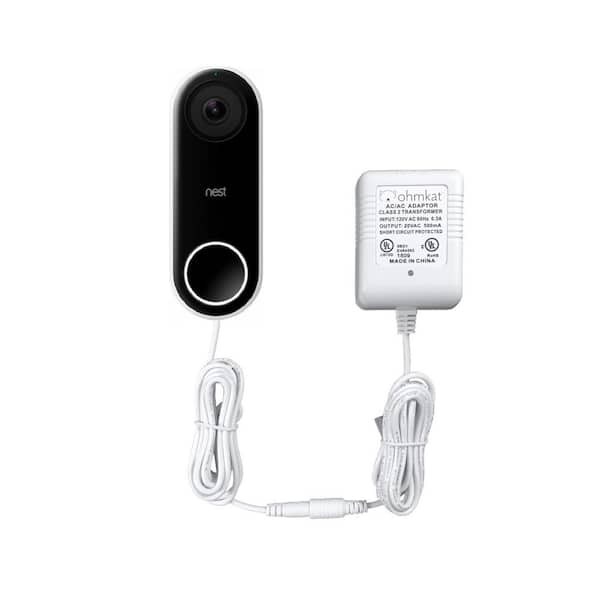
Turn off power to your current doorbell at the breaker. Remove your old doorbell carefully. Mount the Nest Hello base plate using the screws provided. Connect the wires to the Nest Hello terminals. Use the built-in level to ensure the doorbell sits straight. Secure the doorbell to the base plate by snapping it in place. Turn the power back on and check for a light on the device.
Connect To Wi-fi
Download the Google Home app on your phone. Open the app and tap “Add Device.” Select “Set up new devices” and choose your home. Follow the prompts to connect Nest Hello to your Wi-Fi network. Enter your Wi-Fi password carefully. Wait for the doorbell to connect and update. A stable Wi-Fi connection is necessary for video streaming and alerts.
Create A Google Account
You need a Google Account to use Nest Hello features. If you don’t have one, visit accounts.google.com to create it. Use a valid email and set a strong password. Sign in to the Google Home app with this account. This allows you to access live video and notifications. You can also share access with family members easily.
Download The Nest App
Downloading the Nest app is the first step to answer your Nest Hello Video Doorbell. The app connects your doorbell to your smartphone. This way, you get alerts and video right on your device. It makes answering the door easy and quick. Follow the simple steps below to get started.
Find The App On Your Device
Open the app store on your smartphone or tablet. For Apple devices, use the App Store. For Android devices, open Google Play Store. Type “Nest” in the search bar. Look for the official Nest app by Google. Tap the download or install button. Wait a few moments for the app to install. Open the app once it finishes downloading.
Sign In And Link Your Device
Open the Nest app on your device. Enter your Google account details to sign in. If you don’t have an account, create one in the app. After signing in, tap the plus (+) icon to add a device. Choose “Nest Hello Video Doorbell” from the list. Follow the on-screen instructions to link your doorbell. The app will connect to your doorbell via Wi-Fi. Once linked, you can see live video and answer visitors easily.
Receive A Doorbell Alert
Receiving a doorbell alert from your Nest Hello Video Doorbell lets you know who is at your door. It helps you stay aware and respond quickly. To get alerts, you must set up your device correctly. This section explains how to enable and customize notifications for the best experience.
Enable Notifications
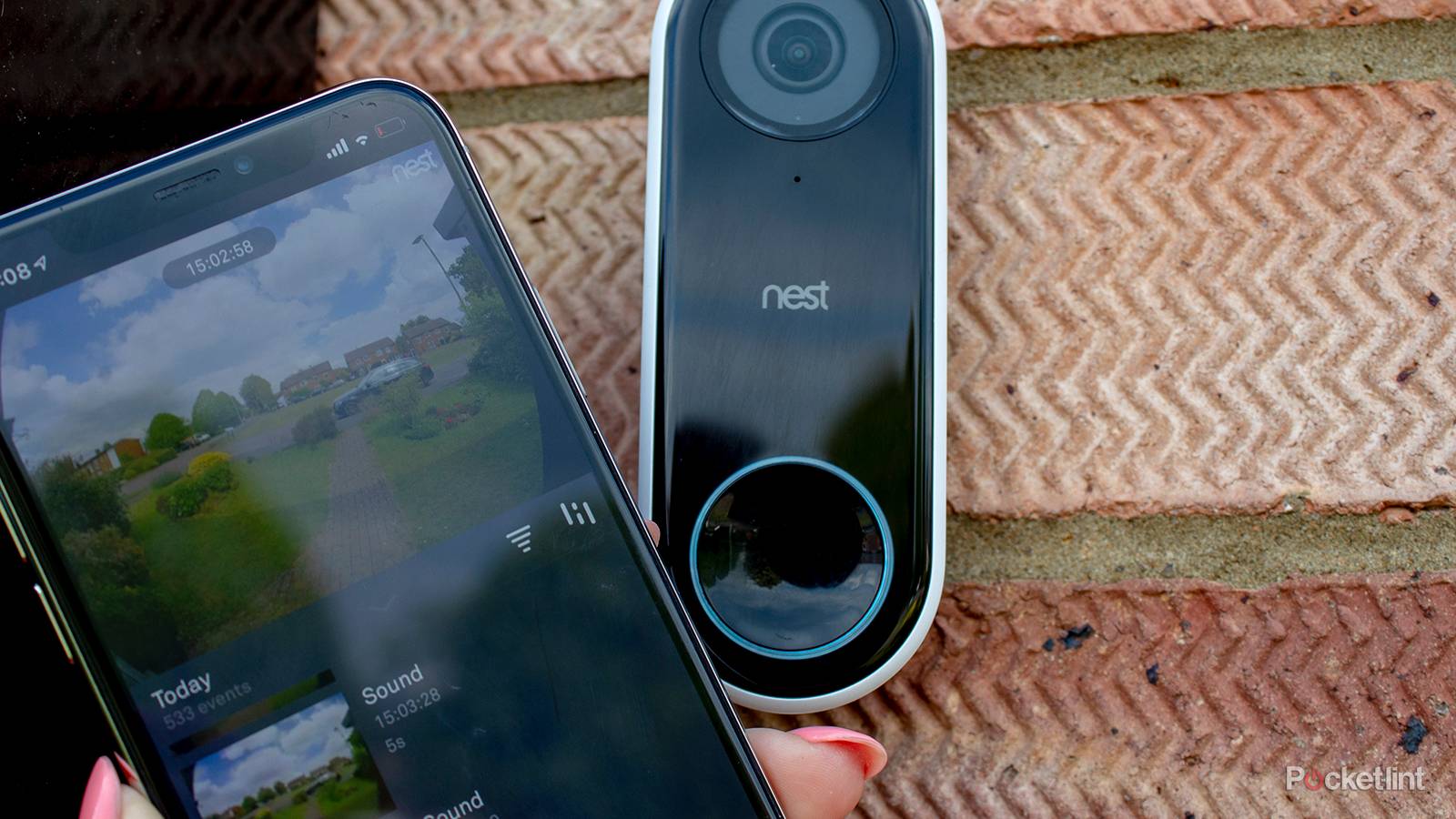
First, open the Google Home app on your phone. Select your Nest Hello device from the list. Tap on “Notifications” to access alert settings. Turn on the notifications toggle to receive alerts on your phone. Make sure your phone’s notification settings allow alerts from the app. This step ensures you do not miss any visitors at your door.
Customize Alert Settings
You can choose which alerts you want to get. Options include motion detection and doorbell rings. Adjust the sensitivity to reduce false alerts. Select quiet times if you do not want alerts at night. You can also choose notification sounds and vibration. Tailoring these settings helps you stay informed without distractions.
Credit: www.pocket-lint.com
Answering The Doorbell
Answering your Nest Hello video doorbell is easy and quick. It gives you a live view of who is at your door. You can respond directly using devices you already have. No need to rush to the door. Stay safe and in control.
Using Your Smartphone
Open the Google Home or Nest app when your doorbell rings. You will see the visitor on your screen. Tap the microphone icon to speak to them. Listen through your phone’s speaker. You can also record messages if you want. This lets you answer from anywhere, even outside your home.
Using Google Assistant Devices
Use smart speakers like Google Nest Hub or Google Home. Say, “Hey Google, talk to the front door.” You will hear the visitor and can talk back. The device acts like an intercom. This hands-free option works well if you are busy. It keeps communication simple and safe.
Communicating Through The Doorbell
Communicating through the Nest Hello Video Doorbell is easy and clear. The doorbell lets you talk directly with visitors at your door. This feature keeps you safe and informed without opening the door. You can answer your doorbell from anywhere using your phone or device. Understanding how to use these communication features helps you stay connected and secure.
Two-way Audio Features
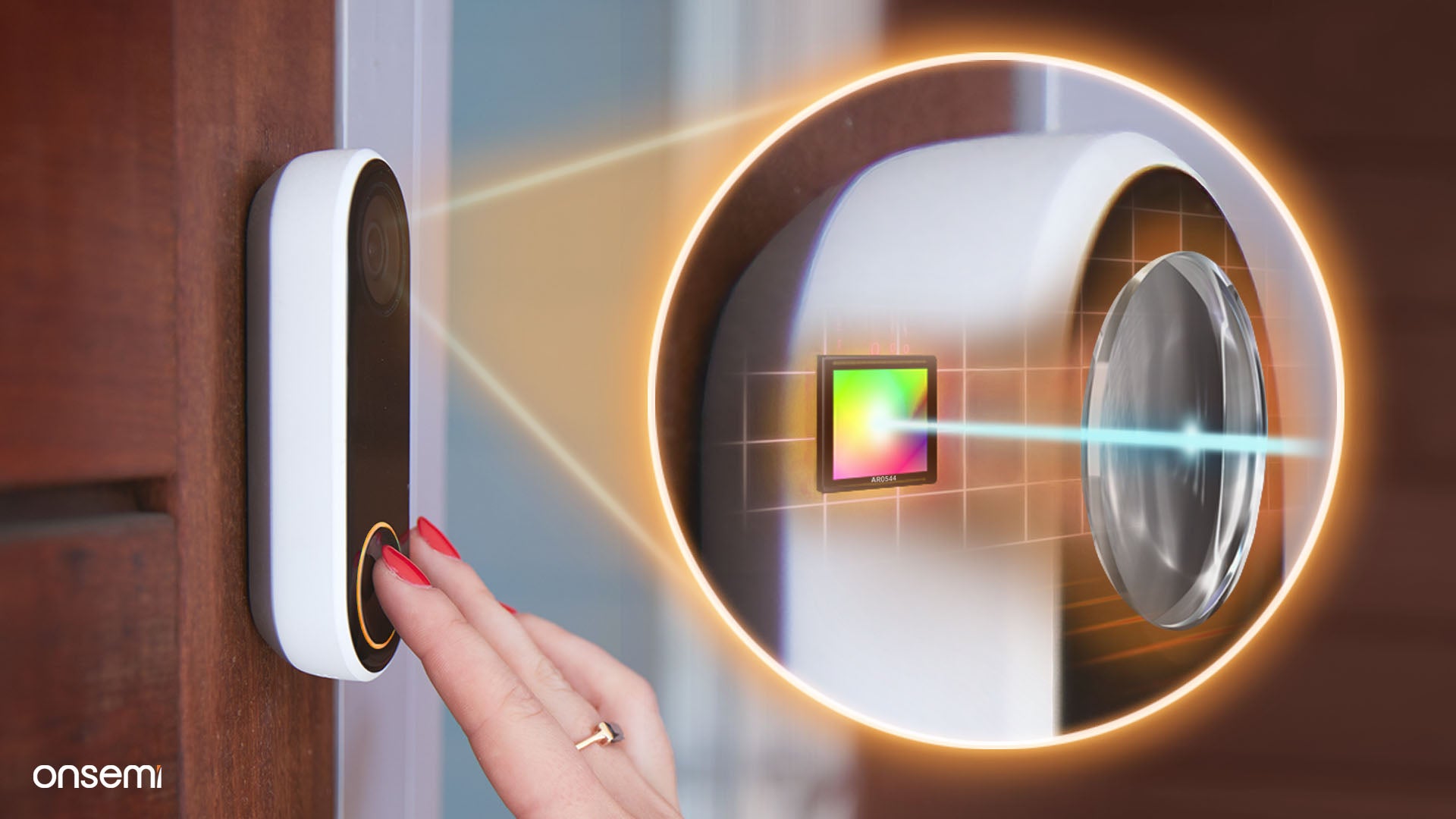
The Nest Hello doorbell has built-in two-way audio. This lets you hear visitors and speak to them clearly. Your voice comes through the doorbell speaker right outside your door. You can tell delivery people where to leave packages. You can also ask unknown visitors to identify themselves. The sound quality is good even in noisy environments.
Adjusting Volume And Settings
Adjusting volume is simple through the Nest app. You can raise or lower the speaker and microphone volume. This helps you hear visitors better and be heard clearly. The app also lets you mute the microphone if needed. Customize settings for different times of the day. This control improves your communication experience with ease.
Credit: www.onsemi.com
Troubleshooting Common Issues
Troubleshooting common issues with your Nest Hello Video Doorbell helps keep it working smoothly. Problems can happen with any smart device. Fixing them quickly improves your experience and security. Below are common problems and simple ways to solve them.
Connectivity Problems
Check your Wi-Fi signal strength near the doorbell. Weak signals cause delays or disconnections. Restart your router and the doorbell to refresh the connection. Make sure your Wi-Fi password is correct in the app. Keep the firmware updated for best performance. Avoid placing the doorbell too far from the router.
Audio Or Video Quality
Clean the doorbell camera lens gently to remove dirt or smudges. Poor lighting can affect video quality; add outdoor lights if needed. Adjust the volume settings in the app to improve audio clarity. Restart the device to fix temporary glitches. Check your internet speed; slow speeds reduce video quality.
App Notification Failures
Verify that notifications are enabled in your phone’s settings and the Nest app. Clear the app cache to remove any stuck data. Ensure your phone has a stable internet connection for timely alerts. Log out and back into the app to reset notifications. Update the app regularly to avoid bugs.
Tips For Better Security
Keeping your Nest Hello Video Doorbell secure helps protect your home and privacy. Small actions can make a big difference. Follow these tips to improve your device’s security and get the best use from it.
Regular Firmware Updates
Firmware updates fix bugs and improve security features. Always install the latest updates from Nest. These updates protect your doorbell from new threats. Check for updates often to keep your device safe.
Privacy Settings
Adjust privacy settings to control who sees your video feeds. Limit access to trusted family members only. Turn off sharing options if you do not need them. This reduces the risk of unwanted viewers.
Using Activity Zones
Set activity zones to focus on important areas. This reduces false alerts from cars or animals. Customize zones around your door and walkway. It helps you get alerts only for real visitors.
Credit: www.homedepot.com
Frequently Asked Questions
How Do I Answer A Nest Hello Video Doorbell?
To answer, tap the notification on your phone or Nest app. You can see and speak to visitors instantly through two-way audio.
Can I Answer Nest Hello From Multiple Devices?
Yes, multiple devices linked to your Nest account can answer calls. This allows family members to respond from their phones or tablets.
What If I Miss A Nest Hello Call?
Missed calls are saved in the Nest app’s event history. You can view video clips and respond through messages if needed.
Is Answering Nest Hello Secure And Private?
Yes, Nest Hello uses encrypted video and audio. Only authorized users with account access can answer and view visitors.
Conclusion
Answering your Nest Hello video doorbell is quick and easy. Just open the app on your phone when someone rings. Speak clearly and watch the visitor through the video. You can decide to let them in or ask questions first.
This helps keep your home safe and connected. Practice a few times to feel confident using it. Stay alert and enjoy the convenience this device brings. Simple steps make your daily life smoother and more secure.