
Want to share your phone’s screen on a bigger display quickly and easily? Whether it’s for watching videos, showing photos, or giving a presentation, screen mirroring can make your experience much better.
With Smart View, you can do this seamlessly without any complicated setup. You’ll learn exactly how to use Smart View to mirror your screen step-by-step. By the end, you’ll be able to enjoy your content on a larger screen anytime you want.
Keep reading to unlock the simple trick that makes your devices work better together!
What Is Smart View
Smart View is a tool that helps you share your phone’s screen with a bigger display. It lets you see your phone’s content on a TV or monitor. This makes watching videos, playing games, or showing photos easier and more fun.
Smart View works with many Samsung devices and smart TVs. It uses wireless technology to connect your phone to the screen. You do not need any cables or extra hardware.
How Does Smart View Work?
Smart View uses Wi-Fi to link your phone and TV. Both devices must be on the same network. Once connected, your phone sends the screen content to the TV. This allows real-time viewing on a larger display.
Which Devices Support Smart View?
Many Samsung smartphones and tablets include Smart View. Most Samsung smart TVs also support it. Some other brands might work if they use similar wireless standards.
Benefits Of Using Smart View
Smart View makes sharing easy and quick. No cables to connect or settings to change. It lets you enjoy videos, photos, and apps on a big screen. Also, it helps in meetings or presentations for clear viewing.

Credit: www.wikihow.com
Devices Compatible With Smart View
Smart View lets you share your phone or tablet screen on bigger displays. It works with many devices. Knowing which devices support Smart View helps you connect easily.
Smart View mainly works with Samsung devices, but some others support it too. It uses Wi-Fi to mirror your screen without cables.
Samsung Smartphones And Tablets
Most Samsung Galaxy phones and tablets support Smart View. These include Galaxy S, Note, A, and Tab series. You can mirror photos, videos, apps, and more.
Samsung Smart Tvs
Samsung Smart TVs from 2016 and newer have Smart View built-in. The TVs connect to your phone over Wi-Fi. This allows easy screen sharing and media streaming.
Windows Pcs With Samsung Software
Some Windows computers can use Smart View with Samsung’s PC software. This lets you mirror your phone screen to your computer monitor. A handy feature for work or play.
Other Smart Tvs Supporting Miracast
Smart View also works with TVs that support Miracast technology. Brands like LG, Sony, and Vizio may allow screen mirroring. Check your TV’s manual to confirm support.
Preparing Your Devices
Preparing your devices is the first step to screen mirror using Smart View. This process ensures a smooth connection between your phone and TV or monitor. Proper preparation avoids delays and technical issues.
Connecting To The Same Wi-fi
Both your phone and TV must connect to the same Wi-Fi network. This connection allows the devices to communicate. Check your Wi-Fi settings on each device. Select the same network name and enter the password if needed.
Enabling Smart View On Your Phone
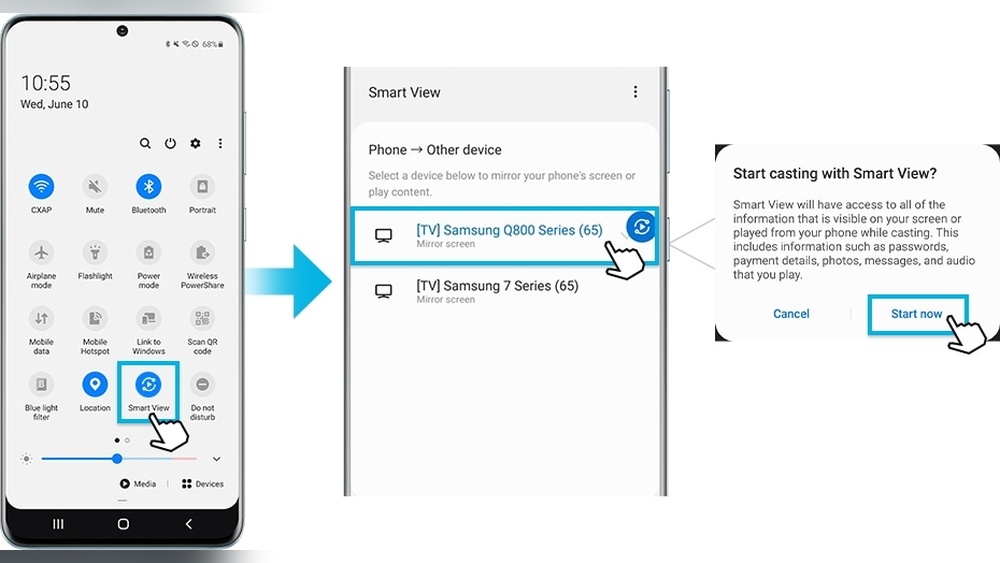
Smart View is a built-in feature on many phones. Swipe down from the top of your screen to open the quick settings menu. Look for the Smart View icon and tap it. Your phone will start searching for nearby devices.
Setting Up Your Tv Or Monitor
Turn on your TV or monitor. Open the screen mirroring or Smart View option on your device. This option may be in the input or network settings. Make sure your TV or monitor is ready to receive the connection.
Step-by-step Screen Mirroring
Screen mirroring lets you show your phone’s screen on a bigger display. It is great for sharing photos, videos, or presentations. Smart View is an easy tool to do this. Follow these simple steps to start screen mirroring with Smart View quickly.
Launching Smart View
First, unlock your phone and swipe down from the top of the screen. This opens the quick settings menu. Look for the Smart View icon, which looks like a screen with waves. Tap the icon to launch Smart View. If you do not see it, swipe left to find more options.
Selecting Your Display Device
Smart View will search for nearby devices to connect. Make sure your TV or display is turned on and connected to the same Wi-Fi network as your phone. Your device name will appear in the list. Tap the name of your TV or display to select it for mirroring.
Starting The Mirroring Process
After selecting your device, a connection request may appear on your TV. Accept it using your TV remote. Your phone screen will now be shown on the TV. To stop mirroring, open Smart View again and tap “Disconnect.” This ends the screen sharing instantly.
Troubleshooting Common Issues
Screen mirroring with Smart View is easy but can face some common issues. These problems might stop your device from connecting or cause poor video quality. Understanding these issues helps fix them fast and enjoy a smooth experience. Here are the main problems and how to solve them.
Connection Problems
Connection issues are the most frequent problem with Smart View. Devices may not find each other or fail to connect. Check if both devices use the same Wi-Fi network. Restart your phone and TV to refresh connections. Turn off Bluetooth if it causes interference. Keep devices close to each other to avoid weak signals. Update the Smart View app and your devices to the latest version.
Lag And Latency Fixes
Lag makes the screen mirror slow or choppy. Reduce lag by closing other apps on your phone. Avoid heavy Wi-Fi use by other devices nearby. Use a 5 GHz Wi-Fi network for faster speeds. Lower the video quality in Smart View settings to reduce load. Restart your router to clear network issues. Keep your phone’s battery charged to maintain performance.
Audio And Video Sync Issues
Audio and video out of sync can ruin your viewing. Restart both devices to fix sync problems. Check volume settings on both phone and TV. Use the same app on both devices for better sync. Try switching to a different Wi-Fi band if delays continue. Make sure your TV firmware is up to date. Use wired connections if wireless sync is poor.

Credit: www.samsung.com
Tips For Better Streaming Experience
Streaming your screen through Smart View can be smooth and clear. Small changes can improve your experience a lot. These tips help you watch videos or share your phone screen without problems.
Optimizing Wi-fi Performance
Strong Wi-Fi is key for good streaming. Place your router near your device. Avoid walls and metal objects between them. Use a 5 GHz network if available. It is faster and less crowded. Close other apps using the internet on your phone. This frees up bandwidth for Smart View.
Adjusting Screen Resolution
High resolution can slow down streaming. Lower the resolution in your phone’s display settings. This reduces the data sent and improves speed. Pick a balance between quality and smoothness. Test different resolutions to find what works best for you.
Using A Stable Power Source
Streaming uses battery power quickly. Connect your phone to a charger while using Smart View. This prevents interruptions caused by low battery. Make sure your charger is reliable and delivers enough power. A stable power source keeps your streaming session steady.
Alternatives To Smart View
Smart View is a popular way to mirror your screen. Still, other options exist for screen mirroring. These alternatives work with different devices and needs. Choose one based on what fits your setup best.
Using Chromecast
Chromecast is a small device that plugs into your TV. It lets you stream content from your phone or computer. To mirror your screen, connect Chromecast to Wi-Fi and your device.
Open the Google Home app to find the cast option. Tap “Cast screen” to start mirroring. Chromecast supports Android and iOS devices. It works well for videos, photos, and apps.
Miracast And Other Options
Miracast is a wireless technology built into many devices. It creates a direct link between your phone and TV. No internet is needed for Miracast to work.
To use Miracast, enable screen mirroring on your TV. On your device, select “Cast” or “Screen Mirroring” and choose your TV. Miracast works best on Windows and Android devices.
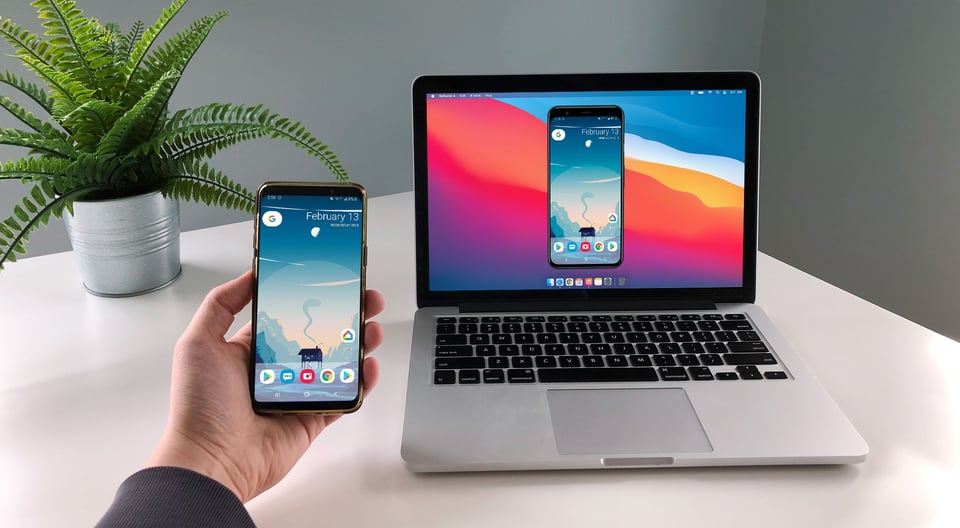
Other options include third-party apps like AirServer or Reflector. These apps turn your computer or TV into a receiver. They support various devices and offer extra features for mirroring.
Credit: blog.airsquirrels.com
Frequently Asked Questions
What Devices Support Smart View Screen Mirroring?
Smart View supports most Samsung smartphones, tablets, and smart TVs. Ensure your TV and phone are on the same Wi-Fi network. Non-Samsung devices may have limited compatibility with Smart View features.
How To Connect Smart View To My Tv?
Open Smart View on your Samsung phone, select your TV from the device list, and tap Connect. Your TV will prompt you to allow the connection. Accept it, and screen mirroring will begin instantly.
Can I Mirror Videos Using Smart View?
Yes, Smart View allows you to mirror videos from your phone to the TV. It supports streaming videos, photos, and apps with minimal lag and good quality on compatible devices.
Does Smart View Work Without Wi-fi?
No, Smart View requires both your phone and TV to be connected to the same Wi-Fi network. Without Wi-Fi, screen mirroring through Smart View is not possible.
Conclusion
Screen mirroring with Smart View makes sharing simple and fast. Connect your device and enjoy your favorite content on a bigger screen. This method saves time and avoids complicated steps. Keep your devices close and on the same network for best results.
Try Smart View to enhance your viewing experience today. It’s easy, useful, and works well for many devices. Give it a go and see how smooth screen mirroring can be.