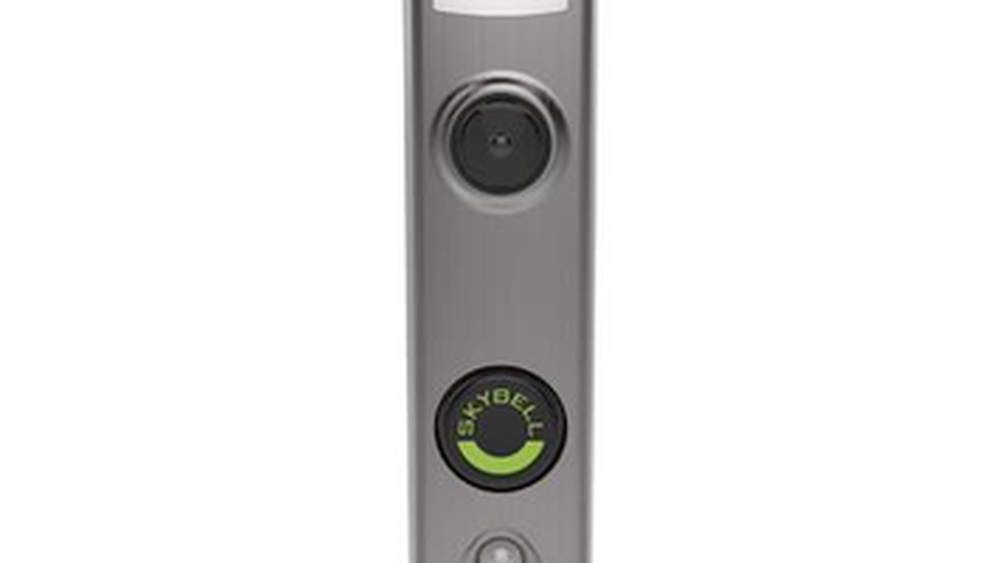

Is your Skybell Video Doorbell acting up or not responding as it should? You’re not alone, and the good news is, resetting your device can often fix common issues quickly.
Whether you’re facing connectivity problems, missed alerts, or just want to start fresh, knowing how to reset your Skybell Video Doorbell is essential. In this guide, you’ll learn simple, step-by-step instructions to get your doorbell back to perfect working order—no tech expertise needed.
Keep reading to discover how easy it is to regain control and enjoy the full benefits of your smart doorbell again.
Skybell Video Doorbell Basics
The Skybell Video Doorbell is a smart device that helps you see and talk to visitors at your door. It connects to your Wi-Fi and sends alerts to your phone. This makes home security easy and convenient. Understanding the basics helps you use it better and fix issues quickly.
Knowing its main features and common problems helps prepare you for reset steps. Let’s explore what makes the Skybell useful and what might go wrong.
Key Features
Skybell has a built-in camera with wide-angle view. It records video in high definition. You can watch live or recorded video on your phone. It includes two-way audio to talk with visitors. Night vision helps see clearly in the dark. The device sends motion alerts instantly. It works with many smart home systems. Installation is simple with existing doorbell wiring.
Common Issues
Some users face connection problems with Wi-Fi. The video might freeze or show poor quality. Sometimes alerts do not reach the phone. The doorbell button could stop working. Audio may cut out or sound low. Power supply issues cause the device to shut down. These problems often need a reset to fix.
When To Reset Your Skybell
Knowing when to reset your Skybell video doorbell can save time and fix many common issues. Resetting helps clear glitches and refreshes the device’s settings. It often restores smooth operation without complex fixes.
Resetting is not needed all the time. Use it only if the doorbell shows clear signs of trouble. This step can improve your device’s performance and keep it reliable for daily use.
Troubleshooting Tips
Start by checking your Wi-Fi connection. Weak signals cause many problems. Restart your router and see if the doorbell works better.
Check the Skybell app for error messages. Make sure the app is updated to the latest version. Update your phone’s operating system too.
Clean the camera lens and sensor gently. Dust or dirt can block the view or motion detection. Avoid harsh cleaners that could damage the device.
Signs You Need A Reset
The video feed freezes or won’t load at all. The doorbell does not ring or send alerts. Motion detection stops working or sends false alerts.
The device does not connect to Wi-Fi after several tries. The app shows the doorbell as offline, though power is on. The doorbell’s light blinks in unusual patterns.
These signs suggest a reset might fix your Skybell’s issues. A reset clears temporary errors and restores the original settings.
Preparing For The Reset
Preparing for the reset of your Skybell video doorbell is an important step. It helps avoid problems during the process. Taking time to prepare ensures the reset goes smoothly. You can save your settings and have the right tools ready. This makes the reset faster and easier.
Gathering Tools
Start by collecting the tools needed for the reset. Most of the time, you need a small screwdriver. This helps remove the doorbell from its mount. Also, have your phone or tablet ready. You will use it to reconnect the doorbell after the reset. Keep the device charged. A stable Wi-Fi connection is important too. Check your internet before starting the reset.
Backing Up Settings
Backing up your settings protects your information. Open the Skybell app on your phone. Look for options to save or export settings. Write down important details like Wi-Fi name and password. Note any custom settings you made in the app. This saves time when setting up the doorbell again. Without a backup, you may lose these settings forever.

Credit: www.youtube.com
Reset Methods
Resetting your Skybell Video Doorbell can solve many common issues. It helps clear errors and refreshes the device. There are two main reset methods to try: soft reset and hard reset. Each method has its steps and effects. Knowing these can save time and keep your doorbell working well.
Soft Reset Steps
The soft reset is the first step to fix minor problems. It does not erase your settings or data. Follow these steps:
- Press the button on the Skybell for about 15 seconds.
- Release the button when the LED light flashes yellow.
- Wait for the device to restart. This takes about one minute.
- Check if the doorbell is working properly.
The soft reset refreshes the system without deleting your preferences.
Hard Reset Procedure
The hard reset restores the doorbell to factory settings. Use this if the soft reset does not fix the problem. Remember, this deletes all your settings. Follow these steps carefully:
- Press and hold the button on your Skybell for 30 seconds.
- Keep holding until the LED flashes red and yellow alternately.
- Release the button. The device will reboot.
- Wait a few minutes for the reset to complete.
- Set up your Skybell again using the app.
The hard reset clears all data and solves serious issues.
Reconnecting After Reset
After resetting your Skybell Video Doorbell, reconnecting it is key. This step ensures your device works smoothly with your home network. Follow these simple steps to get your doorbell back online and working well.
Wi-fi Setup
Start by turning on your phone’s Wi-Fi. Look for the Skybell network in your list of available connections. Select it to connect. This step links your phone directly to the doorbell.
Next, open the Skybell app. The app will guide you through connecting the doorbell to your home Wi-Fi. Enter your Wi-Fi password carefully. This connection allows your doorbell to send video and alerts.
App Configuration
After the Wi-Fi setup, the app asks for some permissions. Allow notifications and camera access. These permissions let you receive alerts and view live video.
Set up your preferences in the app. Choose alert tones and motion settings. This customization makes the doorbell suit your needs. Finally, test the doorbell to check if it works correctly.
Troubleshooting Post-reset
Resetting your Skybell Video Doorbell can fix many issues. After reset, some problems might still appear. Troubleshooting helps identify and solve these issues quickly. This section guides you through common problems and advanced fixes to restore your doorbell’s performance.
Common Problems
Sometimes, the doorbell does not connect to Wi-Fi after reset. Check your internet signal strength near the doorbell. Weak signals can cause connection failure. Another issue is the video feed not showing on your phone. This may happen if the app needs an update. Also, make sure your phone has proper permissions to use the camera and microphone.
Advanced Fixes
Try restarting your Wi-Fi router to refresh the connection. Clear the app cache to remove temporary files that may cause errors. Check the doorbell’s firmware version in the app. Update it if a newer version exists. If problems continue, reset the doorbell again and follow the setup steps carefully. Contact customer support only if none of these steps work.
Tips For Maintaining Skybell
Keeping your Skybell Video Doorbell in good shape helps it work well for a long time. Regular care can stop many common problems. It also improves the video quality and battery life. Simple steps can make a big difference in your Skybell’s performance.
Focus on updates and battery care. These two tips help your device stay reliable and safe. They also keep your doorbell ready to alert you anytime.
Regular Updates
Check for updates often. Updates fix bugs and add new features. They also improve security to keep your home safe. Turn on automatic updates in the app for easy management. Do not skip updates, as they keep your doorbell running smoothly.
Battery Care
Charge the battery before it gets too low. Avoid letting the battery drain completely. Use the original charger to protect battery health. Keep the doorbell clean to avoid dirt blocking the solar panel if your model has one. Replace the battery if it no longer holds a good charge.

Credit: www.youtube.com

Credit: kaz-metiz.com
Frequently Asked Questions
How Do I Reset My Skybell Video Doorbell?
To reset your Skybell, press and hold the reset button for 15 seconds. The LED will flash red, indicating a reset. Release the button, and the device will reboot and restore factory settings.
What Happens After Resetting Skybell Video Doorbell?
After resetting, your Skybell erases all settings and disconnects from Wi-Fi. You must set it up again through the Skybell app to resume normal function.
Can I Reset Skybell Without The App?
Yes, you can reset Skybell manually by pressing the reset button on the device. However, you need the app to configure the device after reset.
Why Should I Reset My Skybell Video Doorbell?
Resetting fixes connectivity issues, unresponsive behavior, or setup problems. It restores factory defaults, helping resolve software glitches or network errors quickly.
Conclusion
Resetting your Skybell video doorbell is simple and quick. Just follow the steps carefully, and you will fix most common issues. This helps keep your doorbell working well and secure. Regular resets can improve performance and solve connection problems. Remember to check your Wi-Fi and power before resetting.
Stay calm and take your time with each step. Your Skybell will be back to normal in no time. Keep this guide handy for future reference. Easy fixes like this save time and avoid frustration.