
Setting up your Zmodo video doorbell might seem tricky at first, but you’re closer to securing your home than you think. Imagine knowing who’s at your door without even getting up—sounds great, right?
This guide will walk you through every simple step to connect your Zmodo video doorbell quickly and easily. By the end, you’ll have a smart, reliable way to keep your home safe and stay connected with visitors anytime, anywhere. Ready to make your front door smarter?
Let’s get started.
Zmodo Doorbell Features
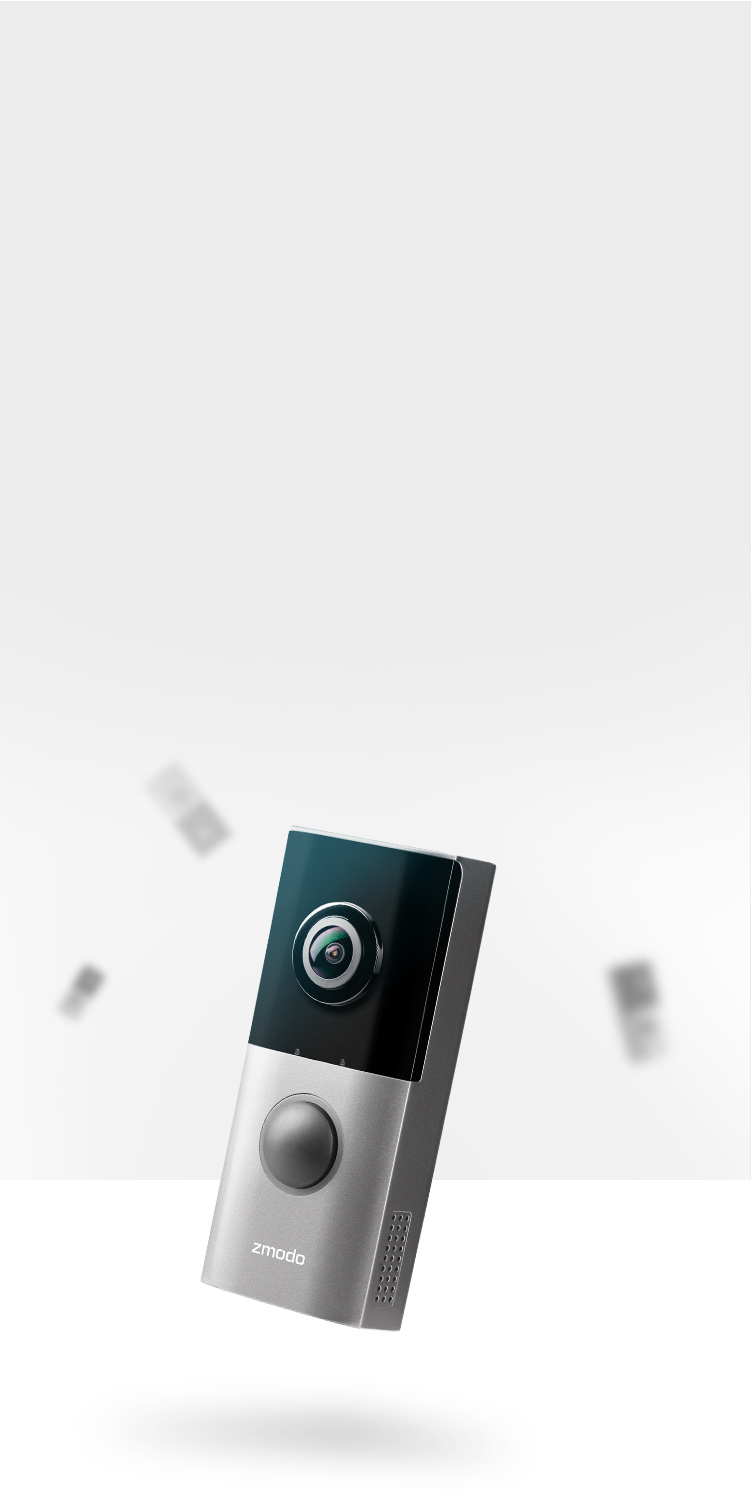
The Zmodo video doorbell offers features that improve home security and convenience. It lets you see who is at your door clearly and hear what they say. The device works day and night. It alerts you if it senses motion. You can talk to visitors without opening the door. These features help you stay safe and connected.
Video Quality And Night Vision
The Zmodo doorbell gives clear video during the day. It records in high definition to show details. The night vision turns on when it gets dark. It uses infrared light to see in low light. You can watch visitors even at night.
Motion Detection
The doorbell detects movement near your door. It sends alerts to your phone right away. This helps you know if someone is close. The sensor can tell the difference between people and other objects. You get notified only when it matters.
Two-way Audio
This feature lets you speak with visitors through the doorbell. You hear them and they hear you. Talk to delivery workers or guests without opening the door. It adds a layer of safety and ease to your home.
Credit: www.zmodo.com
What You Need Before Setup
Before setting up your Zmodo Video Doorbell, gather all needed items. Preparation makes the installation smooth and quick. Knowing the requirements saves time and avoids frustration. This section covers tools, Wi-Fi, and power options.
Required Tools And Accessories
Start with basic tools like a screwdriver and drill. You may need screws and anchors for mounting. The package usually includes mounting brackets and screws. Check if you have a smartphone to run the app. A stable phone helps during the setup process.
Wi-fi Requirements
Your doorbell must connect to a 2.4 GHz Wi-Fi network. This frequency supports better range and compatibility. The network should be stable with a strong signal near your door. Avoid networks with weak or spotty coverage. Enter the Wi-Fi password correctly for smooth connection.
Charging Or Wiring Options
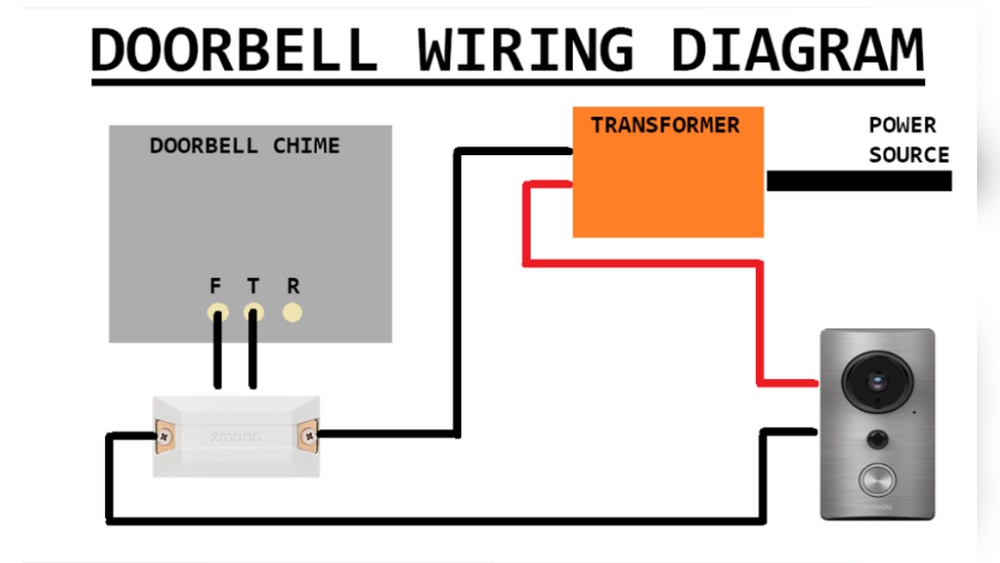
Choose between battery power or wired connection. Battery models need full charging before installation. Wired models connect to your existing doorbell wires. Verify your home wiring matches the doorbell’s voltage needs. Proper power ensures continuous operation without interruptions.
Step-by-step Installation
Installing your Zmodo Video Doorbell is simple with clear steps to follow. This guide walks you through each part of the setup. You will have your doorbell ready to use in no time.
Mounting The Doorbell
Choose a spot near your door at eye level. Use the included screws and anchors to fix the mounting plate. Make sure it is secure and straight. Attach the doorbell unit to the plate by clicking it in place. Check that it fits tightly and does not wobble.
Connecting To Power
Turn off power at your circuit breaker for safety. Connect the doorbell wires to your home’s doorbell wiring. Use the wire connectors to secure the connections. Restore power and check for a light on the doorbell. This shows the doorbell is receiving power and ready to connect.
Downloading The Zmodo App
Go to the App Store or Google Play on your phone. Search for the “Zmodo” app and download it. Open the app and create an account or log in. Follow the app instructions to add your doorbell device. Connect the doorbell to your Wi-Fi through the app. Test the doorbell by pressing the button and viewing the live video.

Credit: www.amazon.com
Pairing The Doorbell With The App
Pairing your Zmodo video doorbell with the app is the first step to start using the device effectively. This process connects your doorbell to your smartphone, allowing you to see visitors and receive alerts. The setup is simple and can be done in a few easy steps.
Start by creating an account in the Zmodo app. This account lets you access your doorbell’s features and settings. The app guides you through the process smoothly.
Creating An Account
Download the Zmodo app from the App Store or Google Play. Open the app and tap on “Sign Up.” Enter your email address and create a password. Verify your email by clicking the link sent to your inbox. Once verified, log in to your new account.
Adding A New Device
Inside the app, tap the “Add Device” button. Choose “Video Doorbell” from the list of devices. The app will ask you to scan the QR code on your doorbell. Hold your phone close to the doorbell to scan it correctly. This links the doorbell to your app account.
Connecting To Wi-fi
Select your home Wi-Fi network from the available list. Enter your Wi-Fi password carefully. The doorbell will connect to your network and sync with the app. Wait a moment for confirmation that the connection is successful.
Configuring Settings For Optimal Use
Configuring your Zmodo video doorbell settings helps ensure it works the best for your needs. Proper setup improves security and saves battery life. It also makes sure you receive important alerts without unnecessary interruptions. Focus on key settings like motion sensitivity, notifications, and video preferences for a smooth experience.
Adjusting Motion Sensitivity
Set the motion sensitivity to detect the right amount of movement. Too high sensitivity causes many false alerts. Too low sensitivity might miss important activity. Open the Zmodo app, go to the motion settings, and slide the bar to your preferred level. Test the setting by walking near the doorbell. Adjust until it triggers only on real motion.
Setting Up Notifications
Notifications keep you informed about visitors or suspicious activity. Choose which alerts to receive, such as motion detection or doorbell rings. Go to the notification settings in the app and enable alerts for your phone. Turn on sound or vibration for better awareness. Set quiet hours to avoid disturbances at night or during meetings.
Customizing Video Preferences
Video settings affect how your doorbell records and streams footage. Select video quality to balance clarity and data use. High quality gives clear images but uses more battery and bandwidth. Choose video length for recordings based on your needs. Enable night vision for clear video in dark conditions. Adjust these settings to fit your home environment.
Troubleshooting Common Issues
Troubleshooting your Zmodo video doorbell can fix common problems fast. Many issues occur during setup or daily use. Knowing how to solve these helps keep your doorbell working well.
Connection Problems
Check your Wi-Fi signal strength near the doorbell. Weak signals cause disconnects. Restart your router and doorbell to refresh the connection. Ensure your Wi-Fi is 2.4 GHz, as Zmodo often does not support 5 GHz networks. Move the doorbell closer to the router if needed. Avoid walls or large objects blocking the signal.
App Sync Errors
Update the Zmodo app to the latest version. Old versions may not sync properly. Log out and log back into your account. Clear the app cache in your phone settings to remove temporary data. Confirm your phone’s Bluetooth and Wi-Fi are enabled. Restart your phone if the app still shows errors.
Power And Battery Concerns
Check the battery level in the app regularly. Low power causes poor performance or no alerts. Charge or replace the battery as recommended by the manufacturer. If using wired power, confirm the doorbell is properly connected to the circuit. Loose wires can cut power and stop the device.
Maintenance Tips
Keeping your Zmodo Video Doorbell in top shape ensures clear video and long-lasting performance. Regular maintenance helps avoid common issues. Simple steps can keep your device working smoothly and safely.
Cleaning The Camera Lens
Clean the camera lens gently with a soft cloth. Avoid harsh chemicals or abrasive materials. Dirt and smudges can blur the video. Wipe the lens regularly to keep the view clear and sharp.
Firmware Updates
Check for firmware updates often. Updates improve security and fix bugs. Use the Zmodo app to download and install updates. Keeping the software current ensures better performance and new features.
Battery Care
Charge the battery fully before first use. Avoid letting the battery drain completely. Remove the doorbell to charge it in a cool, dry place. Proper battery care extends device life and reduces downtime.

Credit: www.amazon.com
Frequently Asked Questions
How Do I Set Up My Zmodo Video Doorbell?
To set up your Zmodo video doorbell, download the Zmodo app, create an account, and follow the in-app setup instructions. Connect the device to Wi-Fi, mount the doorbell, and complete the configuration for live video and notifications.
What Wi-fi Requirements Does Zmodo Doorbell Need?
Zmodo video doorbells require a 2. 4 GHz Wi-Fi network with a stable signal. Ensure your router supports this frequency and has at least 1 Mbps upload speed for smooth video streaming and alerts.
Can I Connect Zmodo Doorbell To Multiple Devices?
Yes, you can connect your Zmodo doorbell to multiple smartphones or tablets. Simply log in to the same Zmodo account on each device to receive notifications and access live video.
How Do I Troubleshoot Zmodo Doorbell Connection Issues?
Check your Wi-Fi signal strength and password accuracy. Restart the doorbell and router, then retry the connection via the app. Update the app and doorbell firmware for improved stability.
Conclusion
Connecting your Zmodo video doorbell is simple and quick. Follow each step carefully to avoid mistakes. Check your Wi-Fi signal for a smooth setup. Test the doorbell after installation to ensure it works well. Enjoy the extra security and convenience it brings to your home.
Stay alert and feel safer every day. Keep the user manual handy for future reference. Small effort, big peace of mind. Ready to protect your home?