
Is your computer cluttered with files scattered everywhere, making it hard to find what you need? Or maybe your storage is almost full, and you’re worried about losing important documents and memories.
You’re not alone, and the good news is there are smart, simple storage solutions you can set up right at home. Whether you want to organize your digital life, back up your data securely, or expand your storage without breaking the bank, this guide will show you how to take control of your computer storage.
Keep reading to discover easy, effective ways to organize and protect your files so you can work, create, and relax without the stress of storage chaos.
:strip_icc()/Officestorage-6GfLgOv4ag99sUg9PuL9xQ-698f3cd479e94d4797a3f755b2a2a369.jpeg)
Credit: www.bhg.com
Choosing Storage Devices
Choosing the right storage device is key for your home computer setup. Storage holds your files, photos, videos, and programs. It affects how fast you can access data and how much space you have. Different devices serve different needs and budgets. Understanding options helps you pick what fits best.
Consider speed, capacity, and price. Also, think about portability and data sharing needs. This guide covers main types of storage devices for home use.
Hard Drives Vs Ssds
Hard drives (HDDs) use spinning disks to store data. They offer large storage at lower prices. HDDs work well for storing many files and backups. Solid State Drives (SSDs) have no moving parts. SSDs are faster, quieter, and use less power. They improve computer speed and boot times. SSDs cost more per gigabyte but deliver better performance. For everyday use, SSDs boost speed. HDDs provide more space for less money.
Network Attached Storage
Network Attached Storage (NAS) connects to your home network. NAS lets multiple devices share files easily. It is great for family or small office use. NAS often includes backup and media streaming features. You can add several hard drives to increase space. NAS devices keep data safe with redundancy options. They work well for storing photos, videos, and documents in one place. Access your files from any device on your network.
Portable Storage Options
Portable drives plug into USB ports for quick access. They are easy to carry and use on different computers. Portable HDDs offer high capacity at low cost. Portable SSDs provide faster speeds and better durability. These drives are good for backups and transferring files. Flash drives and memory cards are smaller portable options. They work well for quick file sharing and light storage needs. Choose based on size, speed, and convenience.
Organizing Digital Files
Organizing digital files creates a clear and easy way to find documents. It saves time and reduces stress. A good system keeps your computer tidy and helps protect important files.
Simple habits and clear rules make digital file management easier. Following a plan prevents clutter and lost data.
Folder Structures
Create folders that match your needs. Start with broad categories like Work, Personal, and Photos. Inside, add subfolders for specific topics or dates. This setup helps you locate files fast.
Use no more than three or four levels deep. Too many layers make files hard to find. Keep it simple and logical.
Naming Conventions
Name files clearly and consistently. Use dates in the format YYYY-MM-DD to sort files by time. Include keywords that describe the content.
Avoid spaces and special characters. Use dashes or underscores instead. This method helps search tools and keeps file names neat.
Regular Maintenance
Set a weekly or monthly time to clean up files. Delete duplicates and old documents you no longer need. Move files to proper folders if misplaced.
Backing up important data regularly prevents loss. Use cloud storage or external drives for safety. Maintenance keeps your digital space organized and efficient.
Maximizing Physical Space
Maximizing physical space in your home computer setup creates a cleaner, more efficient work area. Small changes can make your workspace feel larger and more organized.
Organizing your desk, managing cables, and using vertical storage help keep clutter away. These solutions improve comfort and productivity.
Desk Organization
Start by clearing unnecessary items from your desk. Use trays or small containers to hold pens, notes, and accessories. Keep only essential items within reach. This reduces distractions and frees up space for your computer and work materials.
Cable Management
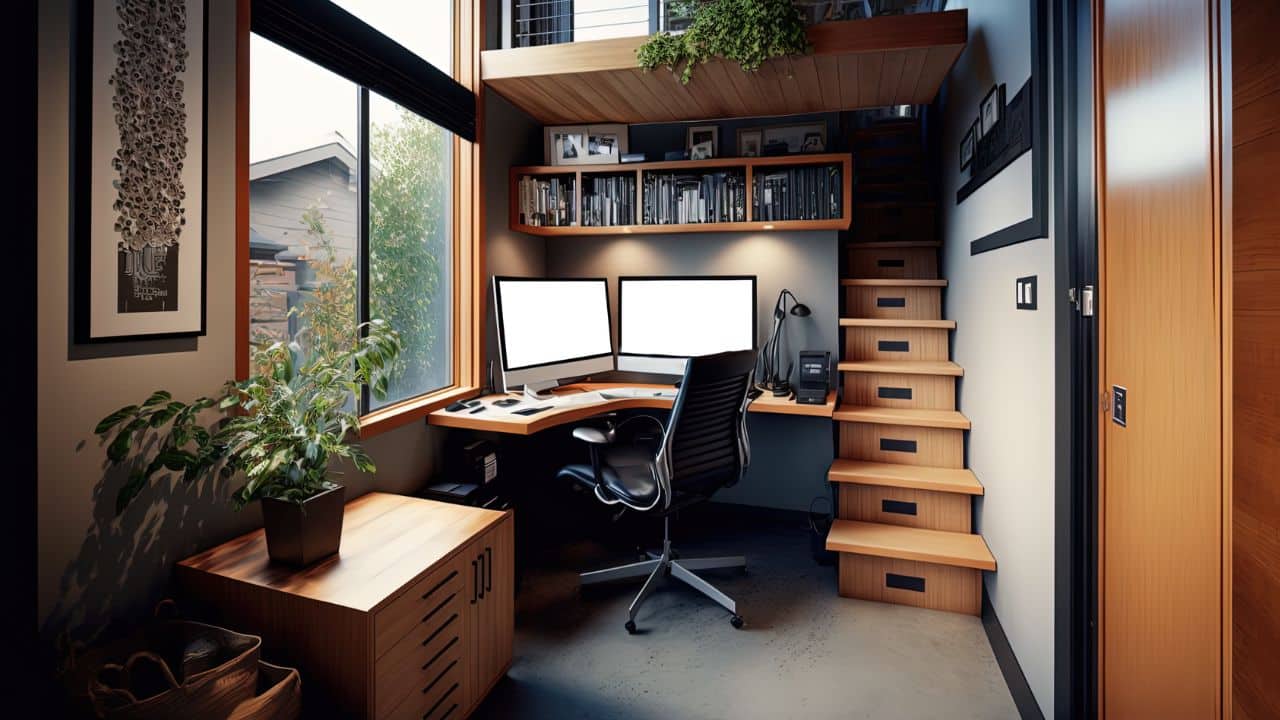
Tangled cables create mess and waste desk space. Use cable clips or ties to bundle wires neatly. Attach cables under the desk or along walls. Label cables to find them quickly without pulling or unplugging others.
Using Vertical Storage
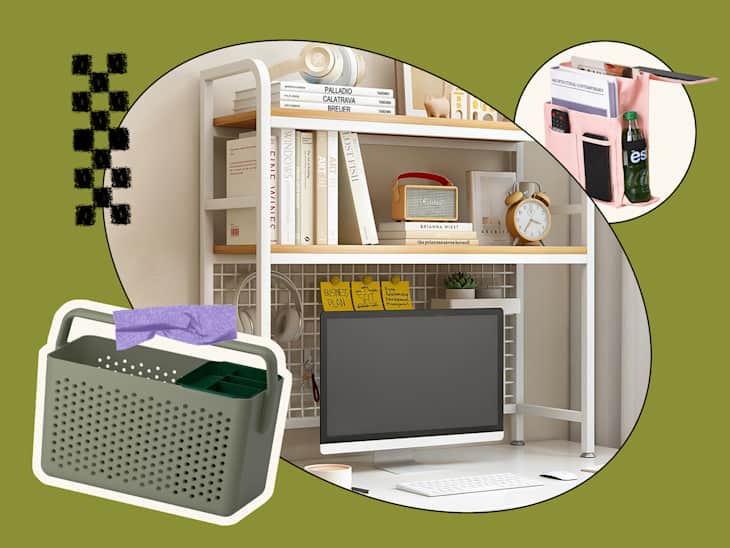
Vertical space often goes unused. Install shelves above your desk to store books, gadgets, or storage boxes. Use wall-mounted racks or pegboards for tools and supplies. This clears your desk and keeps items visible and accessible.
Backup Strategies
Backup strategies protect your important data from loss. They keep your files safe from accidents, theft, or damage. Choosing the right backup plan helps you restore data quickly and easily. Many options exist, from simple local backups to cloud services and hybrid methods. Each has its own benefits and suits different needs.
Local Backups
Local backups save your data on external drives or NAS devices at home. These backups are fast and do not need internet access. You control where the data is stored. Regularly updating your local backup keeps files current. Local backups work well for large files and quick restores.
Cloud Storage
Cloud storage saves your data on online servers. It offers easy access from any device with internet. Cloud backups protect data even if your home devices fail. Many providers offer automatic backups and encryption. Cloud storage frees up space on your computer and adds an extra safety layer.
Hybrid Solutions
Hybrid solutions combine local backups and cloud storage. They give you the speed of local backups with the safety of cloud copies. Hybrid backups protect against hardware failure and local disasters. You can restore data quickly from local storage or securely from the cloud. This approach balances convenience, security, and reliability.
Tech Tools For Efficiency
Tech tools boost productivity in home computer storage setups. They help organize data, save time, and improve work quality. Choosing the right tools makes a big difference. This section highlights key software and solutions for efficiency.
File Management Software
File management software keeps your digital files neat and easy to find. It helps sort, rename, and back up files automatically. Programs like Windows File Explorer or third-party apps simplify these tasks. These tools reduce clutter and prevent data loss. They save precious time by organizing files logically.
Automation Tools
Automation tools handle repetitive computer tasks without manual input. They can schedule backups, run scripts, or sync files between folders. Examples include IFTTT and Zapier. These tools free you from routine chores, letting you focus on important work. Automation reduces errors and speeds up workflows.
Remote Access Solutions
Remote access solutions let you reach your computer from anywhere. Tools like TeamViewer or Remote Desktop allow safe connections over the internet. This access helps manage files and programs without being at home. It supports flexible work and quick problem solving. Remote access keeps your data available whenever needed.
Credit: www.reliant.co.uk
Cost-effective Storage Tips
Finding smart and affordable ways to store your computer data at home saves money and space. Cost-effective storage tips help you manage files without overspending. Simple strategies and tools can keep your data safe and accessible.
Budget-friendly Devices
Start with affordable storage devices like external hard drives. These drives offer large space for a low price. USB flash drives also provide quick and easy storage for small files. Look for sales or discounts online to get the best deals. Keep in mind, cheaper devices may have slower speeds or less durability.
Diy Storage Ideas
Use what you have at home to create storage solutions. Old computer cases can hold extra drives securely. Label cables and drives to avoid confusion later. Organize files on your computer with clear folders and names. This reduces the need for extra physical storage and keeps things tidy.
When To Invest In Premium Storage
Choose premium storage when you need reliability and speed. Solid-state drives (SSDs) are faster but cost more. Network-attached storage (NAS) devices work well for sharing files with family. Invest in premium storage if you handle large projects or important data. This choice protects your files and improves performance.
Credit: www.dormtherapy.com
Frequently Asked Questions
Is A Nas Worth It For Home Use?
A NAS is worth it for home use if you want centralized, secure storage with easy access and backup for multiple devices. It saves money on cloud fees and offers privacy.
What Is The Most Efficient Way To Store Files On Your Computer?
The most efficient way to store files is by organizing them into clearly labeled folders by type or project. Maintain this system consistently. Use external drives or NAS for backups to protect data and improve access speed.
How Much Does A Nas System Cost?
A NAS system typically costs between $100 and $600, depending on storage capacity and features. Higher-end models with advanced functions may cost more.
Is There A Cheaper Option Than Ssds For Storage?
Yes, traditional HDDs offer a cheaper storage option than SSDs. They provide larger capacity at lower costs but slower speeds.
Conclusion
Choosing smart at-home storage solutions keeps your computer organized and efficient. Simple storage options save space and protect important files. Use external drives or network-attached storage for easy access. Keep cables tidy to avoid clutter and damage. Regularly back up data to prevent loss.
These steps help maintain a clean and productive workspace. Storage does not have to be complicated or costly. Small changes make a big difference in your daily computer use. Stay organized and enjoy smoother computer performance every day.