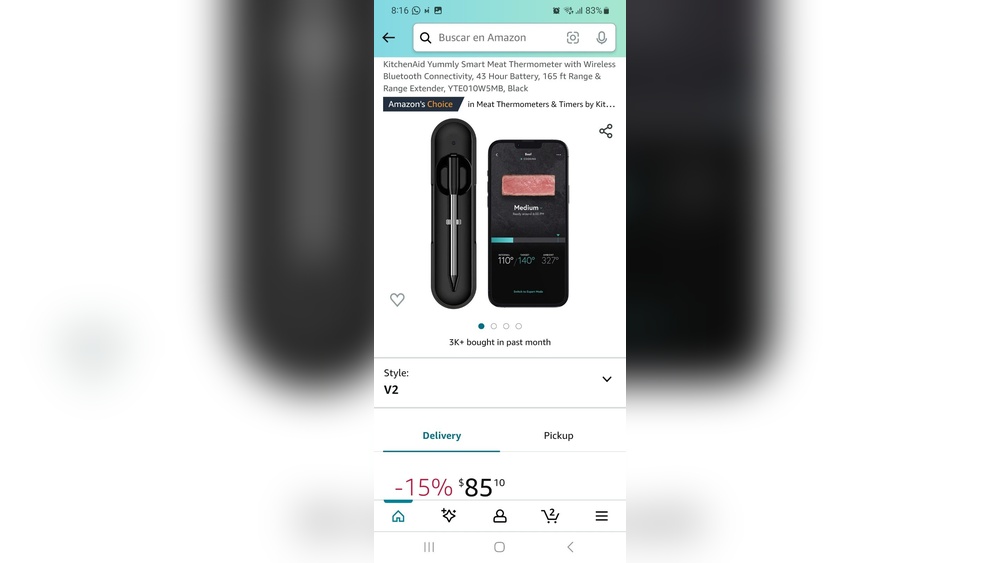

If you love cooking but hate the guesswork, the KitchenAid Yummly Smart Thermometer is here to change the game for you. Imagine being able to monitor your meat’s temperature right from your phone, getting alerts exactly when your food reaches the perfect doneness.
No more cutting into your roast or worrying about undercooked chicken. This smart thermometer takes the stress out of cooking, giving you confidence and control every time you step into the kitchen. Keep reading to discover how this handy gadget can make your cooking simpler, smarter, and more delicious.
Features
The KitchenAid Yummly Smart Thermometer offers a range of features that simplify cooking. It helps you cook meat, fish, and poultry perfectly. The device connects easily to your smartphone for a smooth cooking experience. Here are some key features that make this thermometer stand out.
Wireless Connectivity
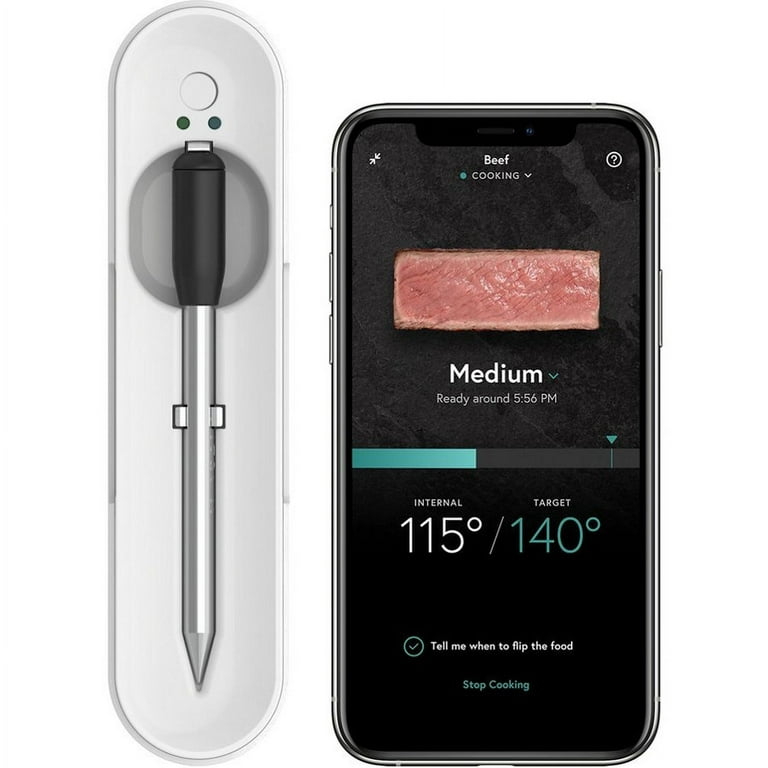
The thermometer uses Bluetooth to connect with your phone or tablet. This wireless link lets you monitor cooking from a distance. No need to stay by the grill or oven all the time. You get updates directly on your device.
Preset Cooking Programs
Choose from preset programs for different types of food. These programs include meat, fish, and poultry options. They guide you to the right temperature for each food type. This removes guesswork and helps avoid overcooking or undercooking.
Real-time Temperature Monitoring
The thermometer shows the temperature inside your food in real time. You can see if it is cooking properly at any moment. This feature helps you cook food safely and to your liking. It also prevents food from drying out.
Timers And Alerts
Set timers to track cooking time easily. The thermometer sends alerts when your food reaches the desired temperature. This lets you focus on other tasks without missing cooking signals. You get confidence that your meal will be just right.

Credit: gbrionline.org
Setup
Setting up the Kitchenaid Yummly Smart Thermometer is quick and simple. It requires just a few steps to get it ready for precise cooking. The process includes installing batteries, activating the app, and pairing the thermometer via Bluetooth. Each step ensures smooth operation and accurate temperature monitoring.
Battery Installation
Open the battery compartment on the thermometer dock. Insert two AA batteries with correct polarity. Close the compartment securely to avoid any loose connection. This powers the thermometer and prepares it for use.
App Activation
Download the free Yummly app on your smartphone or tablet. Open a browser and visit www.yummly.com/activate. Follow the on-screen instructions to register your device. Activation links the thermometer to your Yummly account for full functionality.
Bluetooth Pairing
Turn on Bluetooth on your mobile device. Open the Yummly app and search for the thermometer. Select the device from the list to pair it. Once connected, the app can track your cooking in real time.
Usage Tips
The Kitchenaid Yummly Smart Thermometer makes cooking easier and more precise. Using it properly ensures the best results. Follow these usage tips to get the most from your smart thermometer.
Probe Placement
Insert the probe into the thickest part of the meat. Avoid touching bones or fat, as they affect temperature readings. Secure the probe firmly so it stays in place during cooking. Proper placement gives accurate temperature data for perfect cooking.
Selecting Food And Doneness
Use the Yummly app to choose the type of food you are cooking. Then select your preferred doneness level, like rare, medium, or well done. The app adjusts cooking targets based on these settings. This helps avoid undercooked or overcooked meals.
Cooking Guidance
The thermometer connects to your phone via Bluetooth. It sends real-time temperature updates and alerts. Follow app instructions for timing and heat adjustments. This guidance helps you cook confidently without constant checking.
Resting Time
After cooking, let meat rest before slicing. The thermometer app will notify you when to start resting. Resting keeps juices inside the meat, improving taste and texture. Trust the resting time for better meal quality.
Credit: www.walmart.com
Maintenance
Proper maintenance of the KitchenAid Yummly Smart Thermometer keeps it working well. Regular care helps the device last longer and ensures accurate readings every time. Cleanliness and safe handling are key to getting the best use from your smart thermometer.
Cleaning The Probe
Clean the probe after each use to remove food residue. Use warm water and mild soap for gentle cleaning. Avoid harsh chemicals or abrasive materials that may damage the probe. Dry the probe fully before storing to prevent rust or corrosion.
Safe Removal
Remove the probe carefully from the food after cooking. Pull it out straight to avoid bending or breaking. Handle the probe by the insulated part to protect your hands from heat. Wait a moment for the probe to cool before cleaning or storing.
Storage Advice
Store the thermometer and probe in a dry place to avoid moisture damage. Keep it in its original case or a protective container. Avoid placing heavy objects on the probe to prevent bending. Remove batteries if you do not plan to use the thermometer for a long time.
Comparison
The Kitchenaid Yummly Smart Thermometer offers a smart way to cook meat perfectly. Comparing it with other smart thermometers helps understand its value. This section covers similar thermometers, price differences, and unique advantages.
Similar Thermometers
Several smart thermometers share features with the Kitchenaid Yummly model. Devices like the ThermoPro Smart Bluetooth Thermometer and CHEF iQ Sense offer wireless temperature tracking. Most include preset cooking programs for different meats and alert systems. These products use Bluetooth to connect with smartphones for remote monitoring. The main difference lies in app design and ease of use.
Price Differences
Prices for smart thermometers vary widely. The Kitchenaid Yummly Smart Thermometer ranges from $25 to $100 depending on the seller. Some models are available at lower prices on marketplaces like eBay. Others, like CHEF iQ, cost closer to $80 or more. Price often reflects app features, build quality, and brand reputation. Buyers should consider long-term value and support when choosing.
Unique Advantages
The Kitchenaid Yummly Smart Thermometer stands out for its simple app interface. It provides preset cooking guides for meat, poultry, and fish. The device sends timely alerts to avoid overcooking. It connects easily via Bluetooth and tracks cooking progress remotely. The dock design helps keep the probe steady and close to the grill or oven. These features make cooking easier for beginners and busy cooks.
Troubleshooting
Troubleshooting the KitchenAid Yummly Smart Thermometer helps you solve common problems fast. This guide covers connection issues, app notifications, and battery problems. Follow these tips to keep your cooking on track and enjoy accurate temperature readings every time.
Connection Issues
Check that Bluetooth is enabled on your phone or tablet. Keep the thermometer dock close to your device to avoid signal loss. Restart the app and the thermometer if the connection fails. Remove any obstacles like walls or appliances between devices. Update the Yummly app to the latest version for better compatibility. If problems persist, try unpairing and pairing the thermometer again.
App Notifications
Ensure notifications are allowed for the Yummly app in your device settings. Open the app and verify notification preferences are turned on. Restart your phone to refresh notification settings. Make sure the app runs in the background to receive alerts. If alerts still do not come through, reinstall the app and reconnect the thermometer. Check for any system updates that may affect app performance.
Battery Problems
Use fresh AA batteries for the thermometer dock to avoid power issues. Replace batteries as soon as the low battery alert appears. Remove batteries if the thermometer will not be used for a long time. Clean the battery contacts to ensure a good connection. If the thermometer still does not power on, test with a different set of batteries. Avoid mixing old and new batteries to prevent damage.
User Experiences
The KitchenAid Yummly Smart Thermometer has attracted many users who share their cooking experiences online. These users describe how the device fits into their kitchens and daily routines. Some find it easy and helpful, while others mention challenges. Examining these user experiences helps potential buyers decide if the thermometer suits their needs.
Reviews And Ratings
Many users praise the thermometer for its accurate temperature readings. They like the wireless connection to the Yummly app, which allows monitoring from a distance. The preset cooking programs for different meats receive positive feedback. Users rate the product mostly four or five stars on popular retail sites. The simplicity of use attracts both beginners and experienced cooks.
Common Complaints
Some users report connectivity issues between the thermometer and the app. Bluetooth sometimes disconnects or fails to sync properly. A few mention the probe’s durability as a concern after months of use. Others find the app’s interface a bit confusing at first. Battery life in the dock is another point raised by some customers.
Success Stories
Several users share stories of perfectly cooked meals thanks to the thermometer. They highlight how the alerts helped avoid overcooked or undercooked food. Families enjoy better barbecue sessions and safer poultry cooking. Some even credit the device for boosting their confidence in the kitchen. These success stories show the thermometer’s practical benefits in real homes.
Alternatives
The KitchenAid Yummly Smart Thermometer offers smart cooking features. Some users may want other options for different needs or budgets. There are several alternatives available for smart cooking and temperature monitoring. These alternatives range from other smart thermometers to apps and manual tools.
Each choice provides unique benefits. Some focus on connectivity and automation, while others emphasize simplicity and affordability. Exploring these options helps find the best fit for your kitchen.
Other Smart Thermometers
Several smart thermometers compete with the Yummly model. Devices like the ThermoPro and Chef iQ offer Bluetooth connectivity and app control. They come with preset cooking modes for various meats and dishes. These tools provide real-time temperature updates on your phone. Some models include multiple probes for monitoring several items at once. Prices vary, allowing choices for different budgets.
Meal Planning Apps
Meal planning apps can complement or replace smart thermometers. Apps like Paprika or Mealime help organize recipes and shopping lists. Some apps offer cooking timers and temperature guides. They do not measure temperature directly but support cooking accuracy. These apps work well for users who prefer manual thermometers or traditional cooking methods. They can improve meal planning without extra hardware costs.
Manual Thermometer Options
Manual thermometers remain popular for their reliability and ease of use. Instant-read digital thermometers provide quick temperature checks. They require no connectivity or batteries. Analog dial thermometers are budget-friendly and simple. These tools need careful monitoring during cooking. They suit cooks who want straightforward tools without smart features. Manual options ensure accuracy for those who prefer hands-on control.

Credit: www.kitchenaid.com
Frequently Asked Questions
Why Is Yummly Closing Down?
Yummly is closing down due to strategic business decisions and shifting company priorities. This allows focus on other core products and services.
Can You No Longer Use Yummly Thermometer?
You can still use the Yummly thermometer by activating it via Bluetooth with the Yummly app. Insert batteries, connect the probe, and monitor cooking remotely. The app guides doneness and provides alerts. Ensure proper cleaning and follow app instructions for the best results.
How Do I Use My Yummly Smart Thermometer?
Insert two AA batteries into the dock. Activate the thermometer via Bluetooth using the Yummly app. Insert the probe into the thickest part of food, avoiding bones. Select food type and doneness in the app. Follow app alerts for cooking and resting times.
Clean the probe with a damp cloth.
Does Kitchenaid Own Yummly?
Yes, KitchenAid owns Yummly. KitchenAid acquired Yummly to enhance smart kitchen technology and cooking experiences.
Conclusion
The Kitchenaid Yummly Smart Thermometer makes cooking easier and more precise. It helps you track temperature from your phone. You get alerts when your food reaches the right doneness. The preset programs remove guesswork for meats and poultry. This tool fits well in any kitchen, especially for busy cooks.
Using it can boost your confidence while cooking. Enjoy perfectly cooked meals without constant checking. A smart choice for home cooks wanting better results.