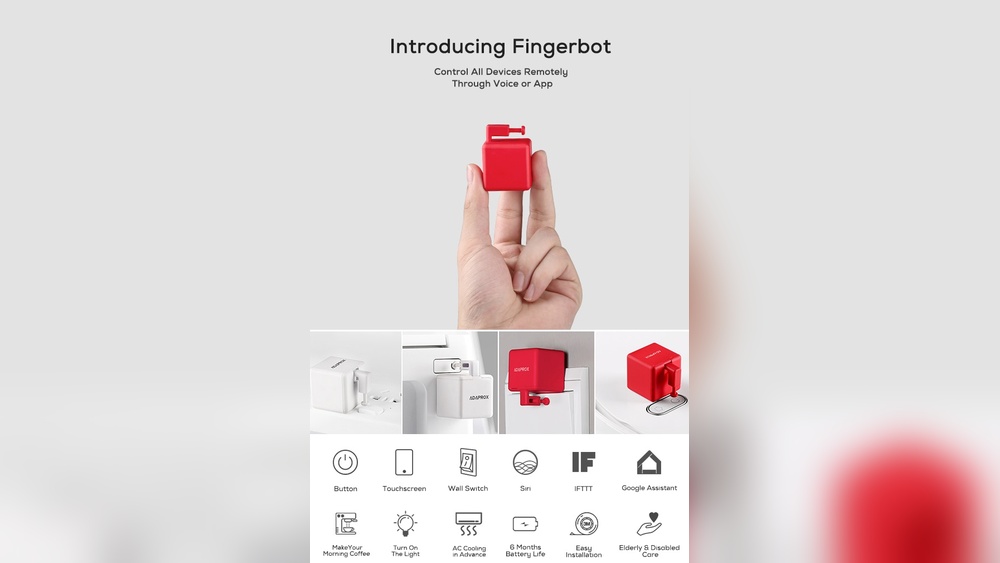

Imagine turning every button, switch, or toggle in your home into a smart device without replacing a single appliance. With Fingerbot, you can control all your devices remotely—either through a simple app or by using your voice with assistants like Alexa, Google Home, or Siri.
Whether you want to switch on your coffee maker from bed or turn off lights across the house without moving, Fingerbot makes it effortless. Curious how this tiny gadget can revolutionize your daily routine and bring true convenience to your fingertips?
Keep reading to discover how Fingerbot puts full control of your devices right in your hands.
Fingerbot Features
Fingerbot offers smart features that let you control devices easily. It works with many types of buttons and switches. You can use your voice or an app to manage it from anywhere. This section explains the main features that make Fingerbot useful and simple to use.
Button And Switch Compatibility
Fingerbot fits most buttons and switches except touchscreens. It works with toggle switches, push buttons, and rocker switches. The device includes sticky pads to attach firmly to surfaces. It updates old devices without wiring or changes. This makes many devices smart quickly and easily.
Voice Assistant Integration
Control Fingerbot with popular voice assistants. It supports Amazon Alexa, Google Assistant, and Siri. You can turn devices on or off using simple voice commands. This hands-free control adds convenience and saves time. It also works with the Fingerbot app for remote access.
Battery Options And Life
Fingerbot offers two battery choices to suit your needs. One option uses replaceable batteries that last over a year. The other is a rechargeable battery for easy power without removal. Both options ensure long-lasting use and reliable performance. This keeps your smart control active without frequent charging.

Credit: www.kickstarter.com
Setting Up Fingerbot
Setting up Fingerbot is a simple process that lets you control devices remotely. You can manage switches and buttons with ease. The setup includes installation, applying add-on stickers, and configuring the app. Each step ensures smooth operation and quick control.
Installation Process
Start by placing Fingerbot near the device you want to control. Clean the surface to ensure strong adhesion. Attach the Fingerbot securely so its arm can press the button or switch. Avoid loose placement for accurate pressing. Power on the device by inserting batteries or charging it. Confirm the Fingerbot’s arm moves freely without obstruction.
Using Add-on Stickers
Add-on stickers improve Fingerbot’s grip on various surfaces. Choose the sticker that fits your device’s button or switch. Peel off the backing and stick it on the Fingerbot’s arm or base. This helps the Fingerbot push buttons without slipping. Use stickers for round, flat, or uneven surfaces. These small additions make control more reliable.
App Configuration
Download the Fingerbot app from your device’s app store. Open the app and follow the instructions to connect via Bluetooth. Name your Fingerbot device for easy recognition. Set up control commands for each button or switch. You can also link the app to voice assistants like Alexa or Google. Test commands to ensure Fingerbot responds correctly. Adjust settings for timing and pressure as needed.
Remote Control Options
Fingerbot offers several remote control options to manage your devices easily. These options make it simple to operate switches and buttons from anywhere. Control happens through an app, voice commands, or automation settings. Each method enhances convenience and fits different daily routines.
App-based Control
The Fingerbot app provides direct control over your devices. It connects via Bluetooth or Wi-Fi for remote access. Users can turn switches on or off with a simple tap. The app works globally as long as the internet is available. It also shows device status and battery levels. This control method suits those who prefer manual, on-the-go management.
Voice Command Usage
Voice commands add hands-free convenience. Fingerbot supports popular assistants like Amazon Alexa, Google Assistant, and Siri. Say simple phrases to activate or deactivate devices. This option is perfect for multitasking or accessibility needs. Voice control lets you manage devices without using your phone or touching switches. It integrates well into smart home systems for seamless control.
Timer And Automation Settings
Automation increases efficiency by scheduling device actions. Fingerbot’s timer lets you set specific on/off times daily. This ensures devices run only when needed, saving energy. Automation can trigger actions based on other smart devices or conditions. For example, turn on lights at sunset or start a coffee maker in the morning. These settings reduce manual work and improve home comfort.

Credit: www.kickstarter.com
Applications And Use Cases
Fingerbot offers versatile solutions for controlling devices remotely. It works with many traditional switches and buttons. The device fits well in various settings. Its ease of use improves daily tasks. Here are some common applications and use cases of Fingerbot.
Smart Home Retrofit
Fingerbot transforms old appliances into smart devices. It attaches easily to existing switches or buttons. No rewiring or complex installation is needed. Users can control lights, fans, and coffee machines from an app. Voice commands via Alexa or Google Home also work. This retrofit makes homes smarter without replacing devices.
Office And Workspace Automation
Automate office gadgets with Fingerbot to save time. It presses buttons on printers, coffee makers, or projectors. Workers can activate devices remotely or with voice. This reduces physical contact with shared equipment. It helps maintain hygiene and convenience in busy spaces. Fingerbot fits well in any office environment.
Accessibility Enhancements
Fingerbot improves daily life for people with mobility challenges. It presses hard-to-reach or small buttons easily. Remote control allows independence without assistance. Voice control adds another layer of ease. It supports a wide range of devices like switches and appliances. Accessibility gains through Fingerbot promote comfort and safety.
Comparing Fingerbot Models
Choosing the right Fingerbot model depends on your needs. Each version offers unique features to control devices remotely. Comparing models helps you find the best fit for your smart home setup. This section breaks down the main differences among Fingerbot models.
Standard Vs. Fingerbot Plus
The Standard Fingerbot pushes buttons and switches with precision. It works well for most traditional devices. Fingerbot Plus adds new features for better control. It includes touch buttons to activate the robot arm manually. Plus, it offers improved performance for complex tasks.
Touch Button Features
Only Fingerbot Plus has touch buttons on the device. These buttons let you turn the arm on or off by touch. This means you can control devices directly without the app. It adds convenience for quick manual operation. The Standard model lacks this feature and relies solely on app control.
Battery Differences
Battery life varies between models. The Standard Fingerbot uses replaceable batteries lasting several months. Fingerbot Plus offers two battery options: replaceable or rechargeable. Rechargeable batteries save time and effort by charging without removal. Both models provide long-lasting power for regular use.
Troubleshooting And Maintenance
Troubleshooting and maintenance keep your Fingerbot working smoothly. Regular care helps avoid interruptions in remote control. This section guides you through common problems and simple fixes. It also covers battery care and firmware updates. These steps ensure your device stays reliable for daily use.
Common Issues
Fingerbot may face connection problems sometimes. Check if Bluetooth or Wi-Fi is active on your phone. Poor signal strength can cause delays or failures. The robot arm might get stuck due to dirt or misalignment. Clean the arm gently and reposition it if needed. The app may freeze or crash occasionally. Restart the app or your phone to fix this. Reset Fingerbot by pressing the reset button if issues persist.
Battery Replacement Tips
Use the right type of battery for your Fingerbot model. Avoid mixing old and new batteries in the device. Replace batteries before they run out to prevent sudden shutdowns. Remove the battery cover carefully to avoid damage. Insert batteries with correct polarity to ensure proper function. Rechargeable battery models should be charged regularly to extend battery life. Dispose of used batteries safely following local rules.
Firmware Updates
Firmware updates improve device performance and add new features. Check for updates in the Fingerbot app under settings. Keep your Fingerbot connected to a stable internet source during updates. Do not turn off the device or app while updating firmware. Updates usually take a few minutes to complete. After updating, restart the Fingerbot to apply changes. Regular updates keep your Fingerbot secure and efficient.
User Experiences
User experiences reveal how Fingerbot changes daily device control. Many users appreciate the ease of controlling old appliances without rewiring. The ability to use voice commands or the app adds great convenience. This section shares honest feedback from customers and the community. Real stories show Fingerbot’s impact on smart living.
Customer Reviews
Customers often highlight Fingerbot’s simple setup. Many say the device fits well on different switches. Users report smooth connection with Amazon Alexa and Google Assistant. Battery life gets good ratings, lasting months without replacement. Some mention occasional delays but find them minor. Overall, customers value the remote control feature highly.
Real-life Examples
In homes, Fingerbot controls lamps, fans, and coffee machines remotely. One user controls a wall switch in another room from their phone. Another user sets a schedule to turn on lights before arriving home. Offices benefit by automating meeting room devices. Fingerbot helps people with mobility issues operate devices easily. These examples show practical uses in daily life.
Community Feedback
The Fingerbot community shares tips and ideas online. Many suggest using add-on stickers for better grip. Some recommend pairing Fingerbot with smart hubs for wider control. Users appreciate the product updates improving performance. The community offers advice on fixing small problems fast. Sharing experiences helps new users get the most from Fingerbot.

Credit: www.geeky-gadgets.com
Frequently Asked Questions
Can Fingerbots Control Any Switch?
Fingerbots control most physical switches and buttons, excluding touchscreens. They attach easily and retrofit traditional appliances for remote use.
What Apps Control Fingerbots?
You can control Fingerbots using the Adaprox app. They also support voice commands via Amazon Alexa, Google Home, and Siri.
What Is Fingerbot Plus?
Fingerbot Plus is a smart button pusher that turns traditional switches into remote-controlled smart buttons. It features touch control and app or voice operation.
How Long Does A Fingerbot Battery Last?
A Fingerbot battery lasts over one year with regular use. Rechargeable options allow easy power without removal.
Conclusion
Fingerbot lets you control many devices with ease and convenience. Use your voice or app to manage switches anytime. It works well with most traditional buttons and switches. No need to replace old devices or do wiring. The battery lasts long, reducing frequent changes or charges.
Fingerbot helps simplify daily tasks and saves time. Smart control is now simple and accessible for everyone. Try Fingerbot to bring your home technology up to date.