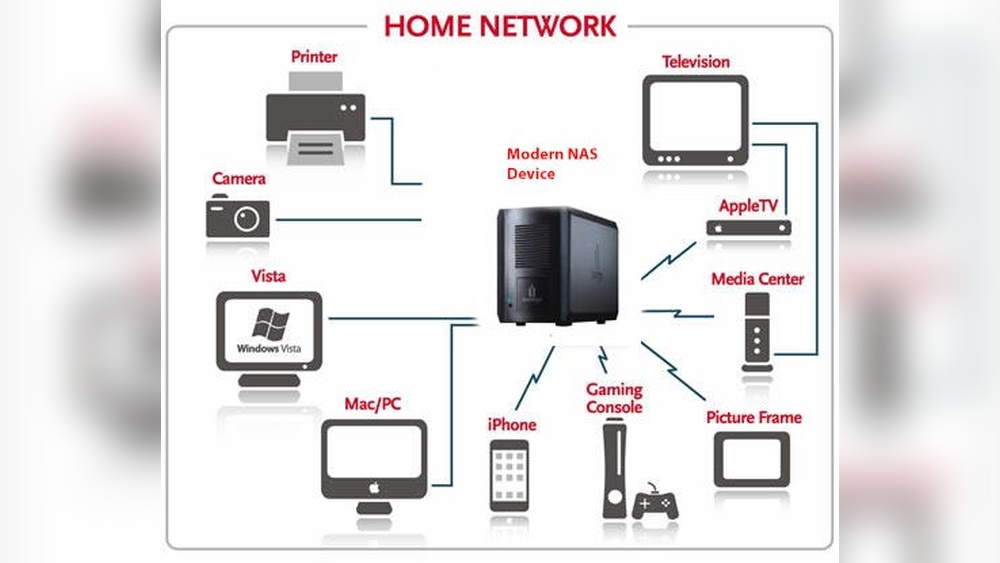

Imagine having all your photos, videos, work files, and favorite music stored in one place—easy to access anytime, from any device in your home. That’s exactly what a home network storage solution can do for you.
Whether you’re tired of juggling USB drives or worried about losing precious memories, setting up a centralized storage system gives you control, convenience, and peace of mind. Ready to discover how you can simplify your digital life and keep your data safe?
Keep reading to find the best options tailored for your home and budget.

Credit: www.amazon.com
Types Of Home Storage
Home network storage offers different ways to save and access your files. Choosing the right type depends on your needs and setup. Each storage type has unique features and benefits. Understanding these options helps you pick the best fit for your home.
Direct Attached Storage
Direct Attached Storage (DAS) connects directly to your computer. It uses USB, Thunderbolt, or eSATA cables. This setup is simple and fast for one user. It works well for extra storage or backups. However, sharing files with other devices is limited.
Network Attached Storage
Network Attached Storage (NAS) connects to your home network. Multiple devices access files over Wi-Fi or Ethernet. NAS often includes its own operating system. It supports media streaming, backups, and file sharing. This option suits families and small offices needing shared storage.
Cloud Storage Options
Cloud storage saves files on internet servers. You access your data from any device with internet. It offers automatic backups and easy sharing. Popular providers include Google Drive, Dropbox, and OneDrive. Cloud storage depends on internet speed and subscription plans.
Choosing The Right Storage
Choosing the right storage for your home network is crucial. It affects how well your data is saved and accessed. You want a storage solution that fits your needs without wasting space or money. Consider several factors before making a decision. This helps ensure smooth performance and enough capacity for your files.
Capacity Needs
Start by estimating how much data you need to store. Think about photos, videos, documents, and backups. Choose storage that offers extra space for future growth. Avoid buying too little capacity, which can fill up quickly. Overestimating slightly keeps your network storage flexible and reliable.
Performance Requirements
Performance matters for speed and ease of access. If you stream videos or play games, fast storage is key. Look for solutions with good read and write speeds. Solid-state drives (SSDs) offer better performance but cost more. Hard disk drives (HDDs) are cheaper and provide ample space but are slower. Balance speed with your daily use to find the best fit.
Budget Considerations
Set a clear budget before shopping. Storage costs vary widely based on type and size. Prioritize features that matter most within your price range. Cheaper options may lack speed or durability. Higher-priced solutions often include better security and faster access. Choose wisely to get the best value without overspending.
Setting Up A Nas
Setting up a Network Attached Storage (NAS) device is a smart choice for home network storage. A NAS provides centralized storage accessible by multiple devices. It helps keep files safe and easy to share. The setup process is straightforward and can be done by anyone.
Understanding hardware needs and following clear steps simplifies the installation. Basic configuration ensures the NAS runs efficiently. This guide walks through hardware selection, installation steps, and initial setup.
Hardware Selection
Choose a NAS based on storage size and speed needs. Consider the number of hard drive bays. More bays allow for more drives and storage space. Pick drives designed for NAS use; they last longer and perform better. Check for a good processor and enough memory. These parts help the NAS run smoothly with many users. Also, think about connectivity options like Ethernet ports and USB.
Installation Steps
Start by placing the NAS in a cool, dry area near your router. Insert the hard drives into the bays carefully. Connect the NAS to your router using an Ethernet cable. Plug in the power adapter and turn the device on. Use a computer or smartphone to find the NAS on your network. Most NAS devices come with setup software or a web interface. Follow the prompts to install the system and updates.
Basic Configuration
Set up user accounts to control access to files. Create shared folders for easy file organization. Enable automatic backups to protect data from loss. Configure network settings like IP address for easy access. Turn on security features such as firewalls and encryption. Regularly update the NAS firmware to keep it safe. These steps help maintain a secure and efficient storage system.

Credit: www.amazon.com
Speed Optimization
Speed optimization is essential for a smooth home network storage experience. It reduces wait times and improves data access. Faster speeds mean better streaming, quicker backups, and efficient file sharing. Small changes in setup can lead to big improvements in performance.
Network Setup Tips
Use a wired connection instead of Wi-Fi for faster speeds. Ethernet cables offer stable and consistent data transfer. Position your router centrally to reduce signal loss. Avoid interference from other electronics by keeping devices apart. Upgrade to a router that supports gigabit speeds for best results.
Drive Performance
Choose drives with high RPM for faster data access. Hard drives with 7200 RPM perform better than 5400 RPM models. Consider NAS-specific drives designed for continuous operation. Regularly check drive health to avoid slowdowns. RAID setups can improve speed and data safety together.
Caching And Ssds
Caching stores frequently used data for quick retrieval. Use SSDs as cache drives to boost read and write speeds. SSDs reduce latency and improve overall system responsiveness. Even a small SSD cache can make a big difference. This setup balances speed and storage cost efficiently.
Securing Your Data
Protecting your home network storage is essential. Your data includes personal files, photos, and important documents. Securing this data prevents unauthorized access and data loss. Use multiple layers of protection for stronger security. This section covers key methods to secure your data effectively.
User Access Controls
Control who can access your storage. Create separate user accounts for family members. Assign different permission levels based on needs. Limit access to sensitive files only to trusted users. Use strong, unique passwords for each user. Regularly update and review user permissions. Disable accounts that are no longer needed.
Encryption Methods
Encryption scrambles data so only authorized users can read it. Enable encryption on your storage device to protect files. Use strong encryption standards like AES-256 for better safety. Encrypt data during transfer and while stored. Consider using software tools that offer end-to-end encryption. Always keep encryption keys secure and private.
Backup Strategies
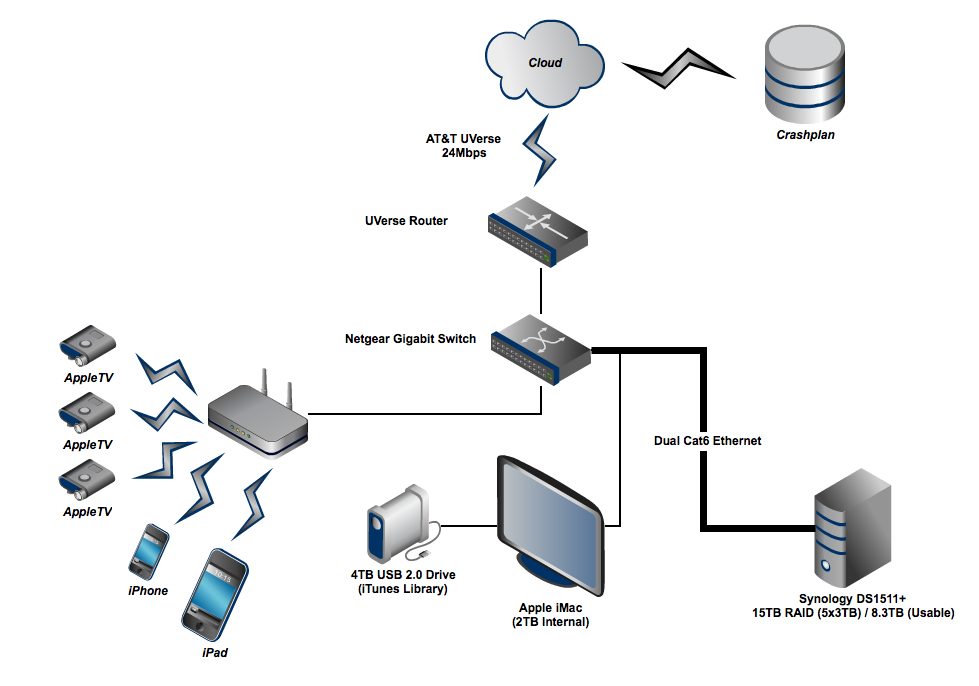
Backups prevent data loss from hardware failure or attacks. Keep multiple copies of your important files in different locations. Use automated backup solutions to save time and avoid errors. Store backups on external drives or cloud services. Test your backups regularly to ensure they work properly. Update your backup plan as your data grows.
Credit: adamnash.blog
Remote Access Solutions
Remote access is a key feature for home network storage. It lets you reach your files from anywhere. This flexibility makes managing and sharing data easy. Secure and simple methods help keep your information safe. Below are some popular remote access solutions to consider.
Vpn Setup
A VPN creates a private connection to your home network. It encrypts data, protecting it from outsiders. Setting up a VPN allows secure access to your storage. You can use a router with built-in VPN or software on your device. This method ensures your data stays private even on public Wi-Fi.
Cloud Sync Features
Cloud sync keeps files updated across devices automatically. Changes made at home reflect on your mobile or laptop instantly. Many storage devices support syncing with popular cloud services. This option adds an extra layer of backup and convenience. It also lets you access files without direct connection to your network.
Mobile Access
Mobile apps offer easy ways to reach your storage remotely. You can view, upload, and share files using your smartphone or tablet. These apps often have user-friendly interfaces for quick navigation. Mobile access helps you stay connected to your data anywhere. Notifications keep you informed about storage activity in real-time.
Popular Nas Brands
Home network storage solutions often rely on NAS devices. NAS stands for Network Attached Storage. These devices allow easy sharing and backup of files across all home devices. Choosing a reliable NAS brand matters for performance and features. Several brands stand out for quality and user-friendliness. Here are some popular NAS brands for home use.
Synology
Synology offers easy-to-use NAS devices. Their products come with intuitive software. Synology NAS supports multimedia streaming and file sharing. It suits beginners and advanced users alike. Many Synology models include apps for backup and security. Users appreciate the smooth interface and reliable updates.
Qnap
QNAP provides powerful NAS solutions with many features. Their devices target tech-savvy users and small businesses. QNAP NAS units often have expandable storage options. They include advanced tools for virtualization and multimedia. QNAP supports a wide range of apps and plugins. The hardware is robust and built for speed.
Western Digital
Western Digital focuses on affordable and simple NAS devices. Their My Cloud series is popular in home settings. WD NAS units offer easy setup and remote access. These devices support automatic backup and file syncing. Western Digital is known for reliable hard drives inside their NAS. Ideal for users who want hassle-free storage.
Troubleshooting Tips
Troubleshooting is key to keeping your home network storage working well. Small problems can stop your access to files. Quick fixes save time and prevent data loss. Below are simple tips to solve common storage issues. Follow easy steps to maintain smooth operation.
Common Issues
Connection drops often cause frustration. Check cables and router status first. Slow speeds may mean network congestion or outdated hardware. Sometimes, the storage device is full or nearly full. Files not showing can result from permission errors. Restart the device to clear temporary glitches.
Maintenance Practices
Keep your storage device clean and dust-free. Place it in a cool, ventilated area. Regularly check for disk errors using built-in tools. Backup important files to avoid data loss. Remove unused files to free up space. Schedule scans for malware and viruses often.
Firmware Updates
Firmware updates improve device performance and security. Check the manufacturer’s website for the latest version. Follow update instructions carefully to avoid errors. Updates can fix bugs that cause crashes or slowdowns. Set reminders to update firmware regularly for best results.
Frequently Asked Questions
Are Nas Drives Worth It For Home Use?
NAS drives offer centralized, secure storage and easy file sharing at home. They suit users with large data needs and multiple devices. NAS enhances backup, media streaming, and remote access, making it worth the investment for tech-savvy households seeking efficient home network storage solutions.
What Is The Main Disadvantage Of Nas?
The main disadvantage of NAS is slower data transfer speeds compared to direct-attached storage. Network issues can also affect performance.
How Much Should A Nas Cost?
A NAS typically costs between $150 and $1,500, depending on storage capacity, features, and brand quality.
What Is The Best Cloud Storage For Home Use?
The best cloud storage for home use combines ease, affordability, and ample space. Popular options include Google Drive, Dropbox, and OneDrive. These offer seamless syncing, strong security, and user-friendly apps, making them ideal for everyday file backup and sharing.
Conclusion
Choosing the right home network storage improves your digital life. It keeps files safe and easy to access. You can share photos, videos, and documents with family. Storage solutions fit different budgets and tech skills. Start small and expand as your needs grow.
Enjoy faster backups and smoother streaming at home. A good system saves time and reduces stress. Think about space, speed, and security before buying. Your home network storage makes life simpler and more organized.