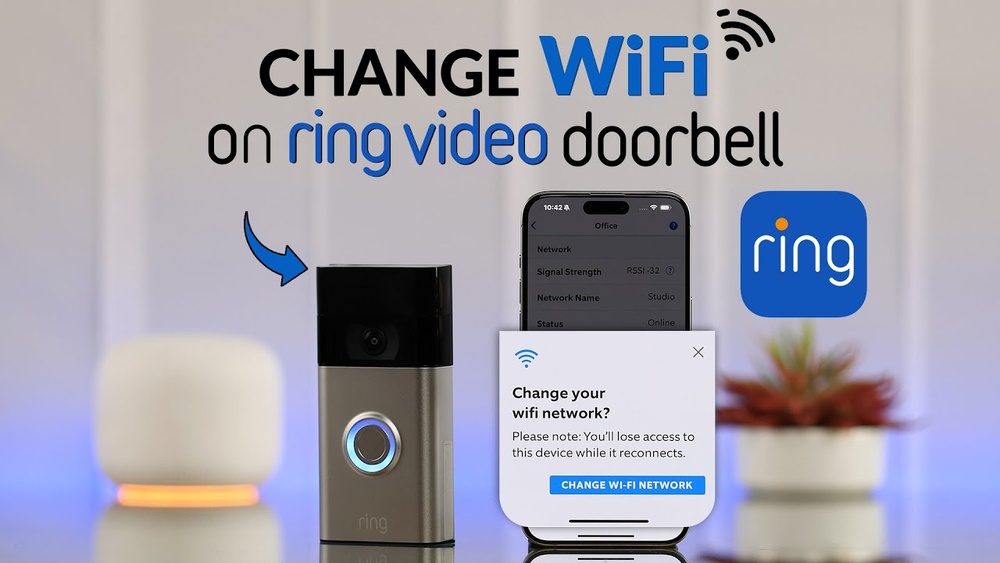

Changing the WiFi network on your Ring Video Doorbell might seem tricky, but it doesn’t have to be. If you’ve moved to a new home, upgraded your router, or just need to switch networks, you want your doorbell working smoothly without any hassle.
In this guide, you’ll discover simple, step-by-step instructions that anyone can follow. Keep reading, and by the end, you’ll have your Ring Video Doorbell connected to the right WiFi in no time—making sure you never miss a visitor or package again.
Ring Doorbell Wifi Basics
The Ring Video Doorbell uses a WiFi connection to stay online. This lets it send video and alerts to your phone. Understanding the basics of how it connects helps you manage your device better. Changing the WiFi network may be needed sometimes. Knowing why and how it connects is useful before making changes.
How Ring Doorbell Connects To Wifi
The Ring Doorbell connects to your home WiFi network. It uses this connection to send live video and notifications. The device supports 2.4 GHz and some models support 5 GHz bands. It needs a strong and stable signal for smooth operation. The doorbell connects through the Ring app on your phone. The app guides you through setup and connection steps. Once connected, the doorbell streams video and sends alerts instantly.
Reasons To Change Your Wifi Network
Changing your WiFi network for the Ring Doorbell is common. Moving to a new home often means a new network name and password. Upgrading your router or internet service may require a new connection. Sometimes, WiFi signals weaken due to distance or interference. Changing networks helps improve video quality and alerts. Resetting the connection can also fix connection issues. Keeping your Ring Doorbell connected to a reliable network ensures it works well.
Preparing To Change Your Wifi
Preparing to change your Ring Video Doorbell’s WiFi network helps ensure a smooth switch. Taking a few steps before the update can save time and avoid frustration. This preparation makes the process simple and quick.
Check Current Wifi Settings
Start by checking the current WiFi settings on your Ring device. Note the network name and password used. Confirm your doorbell is connected and working properly. This information helps when setting up the new network.
Ensure New Network Compatibility
Verify the new WiFi network supports your Ring doorbell. The device works best with 2.4 GHz or 5 GHz bands. Check the network’s signal strength near your doorbell. A strong connection ensures reliable performance.
Update Ring App
Make sure the Ring app on your phone is up to date. The latest version has improved features and bug fixes. Open your app store and install any available updates. This step helps avoid connection issues during the network change.
Step-by-step Wifi Change Process
Changing the WiFi network on your Ring Video Doorbell is simple. Follow these clear steps to keep your device connected. This guide helps you switch networks without any hassle. Each step is easy to follow and ensures your doorbell stays online.
Open Ring App And Access Device Settings
Open the Ring app on your smartphone or tablet. Log in if needed. Find your Ring Video Doorbell on the device list. Tap on the doorbell to access its settings. This opens the control panel for your device.
Remove Existing Wifi Network
In the device settings, look for the WiFi section. Select the current WiFi network connected to your doorbell. Choose the option to remove or forget this network. This clears the old network from your device.
Put Ring Doorbell In Setup Mode
Press and hold the setup button on your Ring Doorbell. Hold until the light starts flashing. This means the doorbell is in setup mode. Setup mode allows your device to find new WiFi networks.
Connect To New Wifi Network
Go back to the Ring app. Follow the steps to connect your doorbell to WiFi. Select your new WiFi network from the list. Enter the password carefully to avoid errors. Confirm the connection to start syncing.
Test Connectivity
Wait for the Ring app to confirm the connection. Test the doorbell by pressing the button. Check if you receive notifications on your phone. If all works well, your doorbell is connected to the new network.

Credit: kdfoundation.org
Troubleshooting Wifi Connection Issues
Wifi connection problems with your Ring Video Doorbell can cause delays or stop alerts. Fixing these issues helps keep your home secure and connected. Troubleshooting is simple with clear steps. Follow this guide to solve common wifi problems and get your doorbell working fast.
Common Problems And Fixes
Weak wifi signal is a major cause of connection issues. Try moving your router closer to the doorbell. Walls and furniture can block the signal. Restart your router to refresh the network. Check if other devices connect to wifi without trouble. If your wifi password changed, update it in the Ring app. Avoid interference from other electronics like microwaves or cordless phones.
Resetting The Ring Doorbell
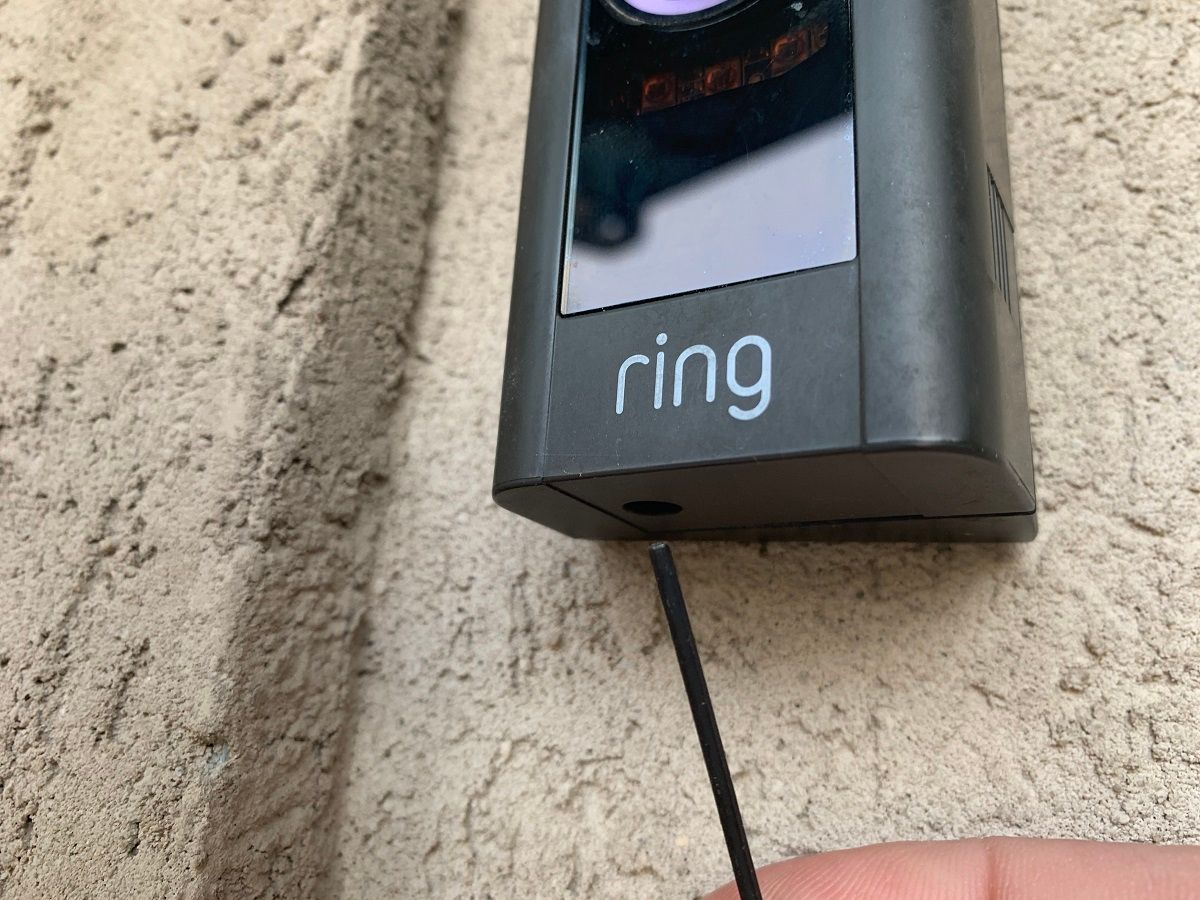
Resetting the doorbell can clear bugs and help it reconnect. Find the reset button on the back of the device. Hold the button down for 15 seconds. The light will flash to show it is resetting. After reset, open the Ring app and follow steps to set up wifi again. This process often fixes stubborn connection problems quickly.
Contacting Ring Support
When problems persist, Ring Support can assist. They offer expert help for technical issues. Have your device details and app version ready. Use the Ring app or website to reach support. They can guide you through advanced fixes. Support can also check for hardware problems with your doorbell.
Tips For Stronger Wifi Signal
Strong WiFi helps your Ring Video Doorbell work smoothly. A weak signal causes delays or connection problems. Improving WiFi signal strength is simple. Small changes can make a big difference. Here are some easy tips to boost your WiFi signal for better doorbell performance.
Optimal Router Placement
Place your router in a central spot in your home. Avoid corners or basements. Keep the router high, like on a shelf or table. This helps the signal reach your Ring Doorbell better. Walls and furniture block signals. Make sure nothing heavy stands between the router and the doorbell.
Using Wifi Extenders
Wifi extenders boost your signal in weak spots. Plug an extender halfway between your router and doorbell. This repeats the signal and covers more area. Extenders are easy to set up. They help if your doorbell is far from the router.
Minimizing Interference
Other devices can interfere with WiFi signals. Keep routers away from microwaves, cordless phones, and Bluetooth devices. Metal objects and thick walls also weaken signals. Reduce the number of connected devices on your network. This frees up bandwidth and improves signal quality.

Credit: www.youtube.com
Credit: www.spec-school.org
Frequently Asked Questions
How To Connect Ring Doorbell To A New Wifi?
Open the Ring app and select your device. Go to Device Settings, then to WiFi Settings. Choose your new network and enter the password. Your Ring Doorbell will reconnect to the new WiFi automatically.
Can I Change Wifi Without Resetting Ring Doorbell?
Yes, you can change WiFi without a full reset. Use the Ring app’s Device Health section to update your WiFi. This avoids losing your settings or history.
What If Ring Doorbell Won’t Connect To New Wifi?
Ensure your new WiFi is 2. 4GHz or 5GHz compatible. Restart your router and doorbell. Verify password accuracy and strong signal strength near the device.
Does Changing Wifi Affect Ring Doorbell Videos?
No, changing your WiFi network does not delete recorded videos. Your event history stays safe on the cloud, accessible once the device reconnects.
Conclusion
Changing your Ring Video Doorbell WiFi network is simple and quick. Follow the steps carefully to avoid connection issues. A strong WiFi signal helps your doorbell work well. Keep your device updated for better performance. Regularly check your WiFi settings to stay connected.
Now, your Ring doorbell will keep your home safe. Easy to do, and worth the effort. Stay connected and enjoy peace of mind every day.