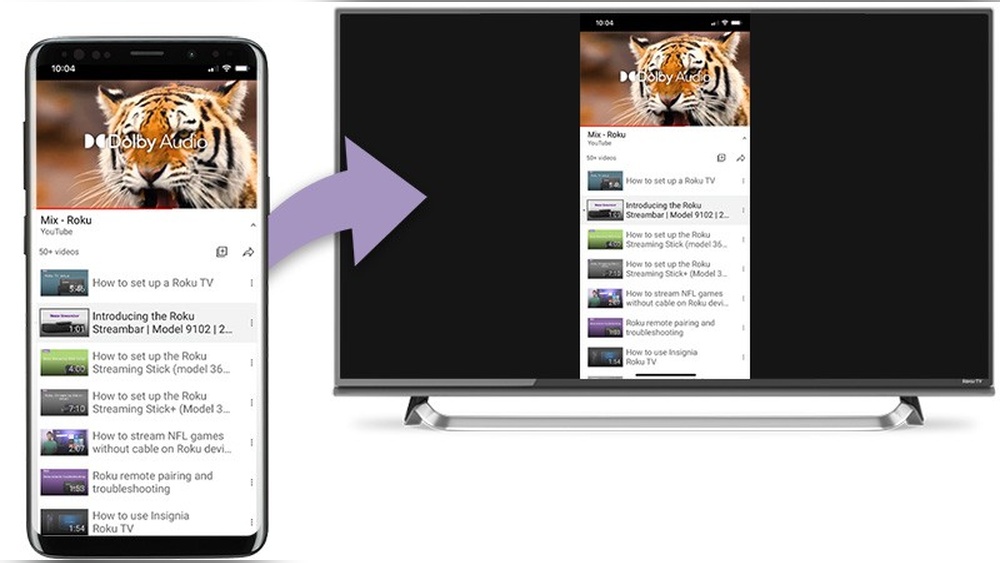

Have you ever wanted to share a video, photo, or app from your smartphone right on your big TV screen? Mirroring your smartphone with Roku makes this easy and fun.
Imagine showing your favorite moments or streaming apps directly without any complicated setup. In this guide, you’ll learn simple steps to connect your phone to Roku quickly. Keep reading, and you’ll be watching your phone’s content on your TV in no time!

Credit: www.youtube.com
Requirements For Mirroring
Mirroring your smartphone to a Roku device allows you to display your phone’s screen on a bigger screen. This feature is useful for sharing videos, photos, or apps with friends and family. To ensure smooth mirroring, certain requirements must be met. These include compatible devices and a stable network connection.
Compatible Smartphones
Not all smartphones support screen mirroring with Roku. Most Android phones running version 4.2 or higher work well. Some Samsung, LG, and Sony models have built-in mirroring features. For iPhones, screen mirroring works best with iOS 11 or later. You must use the AirPlay feature for mirroring on Roku.
Roku Device Compatibility
Roku devices must support screen mirroring for this feature to work. Most Roku models from 2014 and later include this option. Roku Streaming Stick, Roku Ultra, and Roku Express support mirroring. Check your Roku settings to ensure screen mirroring is enabled. Without this, your phone cannot connect.
Network Connection Needs
Both your smartphone and Roku must connect to the same Wi-Fi network. A strong and stable Wi-Fi connection is important. Weak signals can cause lag or disconnections. Avoid using mobile data or different networks. This helps keep the mirroring smooth and reliable.

Credit: www.youtube.com
Preparing Your Roku
Preparing your Roku is the first step to mirror your smartphone screen. It ensures smooth and clear casting. Without proper setup, the connection may fail or lag.
Follow simple steps to ready your Roku device. Check settings and update software. These actions improve compatibility and performance.
Enable Screen Mirroring
Start by turning on screen mirroring on your Roku. Go to the Home screen using your remote. Navigate to Settings > System > Screen mirroring.
Choose “Screen mirroring mode” and select “Prompt” or “Always allow.” The prompt option asks you before connecting. Always allow lets devices connect freely.
This setting makes your Roku visible to your smartphone. It allows your phone to send its screen to the Roku device.
Update Roku Software
Next, update your Roku’s software. Up-to-date software supports the latest mirroring features. It also fixes bugs and improves security.
Go to Settings > System > System update. Select “Check now” to see if updates are available. If yes, install the update and wait for the process to finish.
Restart your Roku after updating. This makes sure all changes apply correctly.
Setting Up Your Smartphone
Setting up your smartphone to mirror its screen on Roku is simple. Start by preparing your phone. Make sure it is connected to the same Wi-Fi network as your Roku device. This connection allows the devices to communicate without issues.
Next, enable the screen mirroring feature on your smartphone. The method varies depending on whether you use an Android or an iPhone. Follow the steps below for your device type to start sharing your screen effortlessly.
Enable Screen Mirroring On Android
Open the Settings app on your Android phone. Look for “Connected devices” or “Bluetooth & device connection.” Tap on “Cast” or “Screen mirroring.”
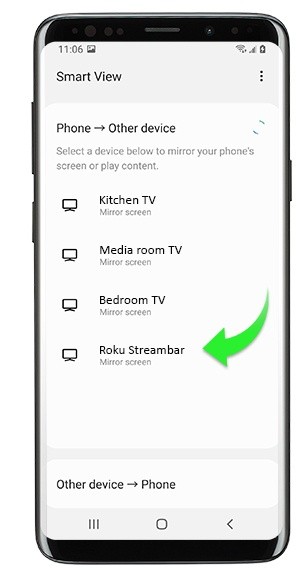
Make sure your Roku device appears on the list. Tap it to connect. Your phone screen will show on the TV shortly.
Some Android phones have “Smart View” or “Wireless display” under quick settings. Swipe down from the top of the screen to find these options. Tap it, then select your Roku device to start mirroring.
Use Airplay On Iphone
Swipe down from the top-right corner of your iPhone to open Control Center. Tap on “Screen Mirroring.”
Choose your Roku device from the list. Your iPhone screen will appear on the Roku-connected TV.
Make sure your Roku supports AirPlay and it is enabled. Go to Roku settings, then “Apple AirPlay and HomeKit” to turn it on if needed.
Connecting Smartphone To Roku
Connecting your smartphone to Roku allows you to share videos, photos, and apps on a big screen. The process is simple and fast. It works for both Android and iPhone users. Your devices must be on the same Wi-Fi network for the best experience.
Start by making sure your Roku device is ready to receive content. Then, use your smartphone to find and connect to Roku. This link lets you mirror your screen or stream media easily.
Pairing Devices
Turn on your Roku and go to its home screen. Open the settings menu, then select “System.” Choose “Screen mirroring” and enable it. Your Roku is now discoverable.
On your smartphone, open the settings and find “Screen Mirroring” or “Cast.” Select your Roku device from the list. A prompt may appear on your TV. Confirm the connection to pair the devices.
Troubleshooting Connection Issues
Check if both devices are on the same Wi-Fi network. Different networks stop the connection. Restart your Roku and smartphone if pairing fails. This often fixes common bugs.
Update your Roku software and smartphone apps regularly. Outdated versions cause problems. Disable VPNs or firewalls that block communication. Move closer to your Wi-Fi router for a stronger signal.
Try disconnecting other devices that use Wi-Fi heavily. Too many devices can slow or block streaming. Follow these steps for a smooth connection every time.
Streaming Tips And Tricks
Streaming content from your smartphone to a Roku device can be simple and fun. Small adjustments help improve your viewing experience. These tips make sure your video looks great and sound is clear. Follow easy steps to enjoy seamless streaming.
Optimizing Video Quality
Choose the highest video quality available on your smartphone app. Check your Wi-Fi connection for strong and stable signals. Weak Wi-Fi causes buffering and low video resolution. Close other apps on your phone to save bandwidth. Set your Roku to the best display settings in the menu. This ensures sharp and smooth video playback on your TV.
Managing Audio Settings
Make sure your TV or sound system volume is balanced. Adjust audio settings on both your smartphone and Roku device. Turn off any extra sound effects that might cause echo or delay. Use headphones for private listening or to avoid disturbing others. Keep audio and video synced by avoiding wireless interference near your devices.
Credit: support.roku.com
Alternative Streaming Methods
There are other ways to stream your smartphone content to Roku. These alternative methods work well if you want quick and easy options. They help you enjoy videos, photos, and music on a bigger screen without complex setup.
These methods do not require full screen mirroring but still let you share your favorite media. They are simple and support many phone models. Let’s explore two popular options below.
Using Roku Mobile App
The Roku mobile app lets you control your Roku device from your phone. It also offers a “Play on Roku” feature. This feature allows you to stream photos, videos, and music saved on your smartphone to the TV.
Open the Roku app and connect it to your Roku device. Then tap “Play on Roku” to browse your media files. Select what you want to watch or listen to, and it plays on the TV. This method is easy and does not need extra apps.
Casting Via Third-party Apps
Third-party apps help you cast content from your phone to Roku. Apps like AllCast, LocalCast, or Plex work well for this purpose. They support many file formats and streaming options.
Install a casting app on your phone and connect it to the same Wi-Fi as your Roku. Open the app and choose the media you want to cast. The app sends the content to your Roku, which plays it on your TV.
This option is useful for streaming files not supported by the Roku app. It also works with both Android and iOS devices.
Frequently Asked Questions
How Do I Mirror My Smartphone To Roku?
To mirror your smartphone to Roku, enable screen mirroring on both devices. Connect them to the same Wi-Fi network. Use the screen mirroring feature on your phone and select your Roku device. This allows you to stream your phone’s content directly to the Roku TV.
Which Smartphones Support Roku Screen Mirroring?
Most Android phones running Android 4. 2 or higher support Roku mirroring. IPhones with iOS 12 or later support mirroring via AirPlay. Always ensure your Roku device supports screen mirroring or AirPlay for compatibility.
Is Wi-fi Required For Mirroring Smartphone To Roku?
Yes, both your smartphone and Roku must be connected to the same Wi-Fi network. This connection enables smooth and uninterrupted screen mirroring and media streaming between devices.
Can I Mirror Iphone To Roku Without Apps?
Yes, you can mirror iPhone to Roku using AirPlay, built into iOS devices. Ensure your Roku supports AirPlay and both devices are on the same Wi-Fi network. No additional apps are needed for this connection.
Conclusion
Mirroring your smartphone with Roku is simple and useful. It lets you watch videos and share photos on a big screen. Just follow the steps carefully and check your settings. Both devices must connect to the same Wi-Fi network. This way, you can enjoy your favorite content easily.
Try it out and see how it works for you. Sharing media has never been this easy and fun. Keep your devices updated for the best experience. Enjoy your mirrored screen anytime you want.