Setting up your Video Doorbell Pro was easy, but now you want to delete that setup. Maybe you’re switching devices, troubleshooting, or just starting fresh.
Whatever your reason, knowing how to properly delete the setup is key to avoiding future headaches. In this guide, you’ll discover simple steps to clear your Video Doorbell Pro setup quickly and safely. Keep reading, and you’ll have your device ready for whatever comes next—without any hassle.
Credit: ring.com
Prepare Your Video Doorbell
Preparing your Video Doorbell Pro is the first step to delete its setup safely. This step ensures a smooth process and prevents any damage or data loss. Follow the simple tasks below to get your doorbell ready.
Gather Necessary Tools
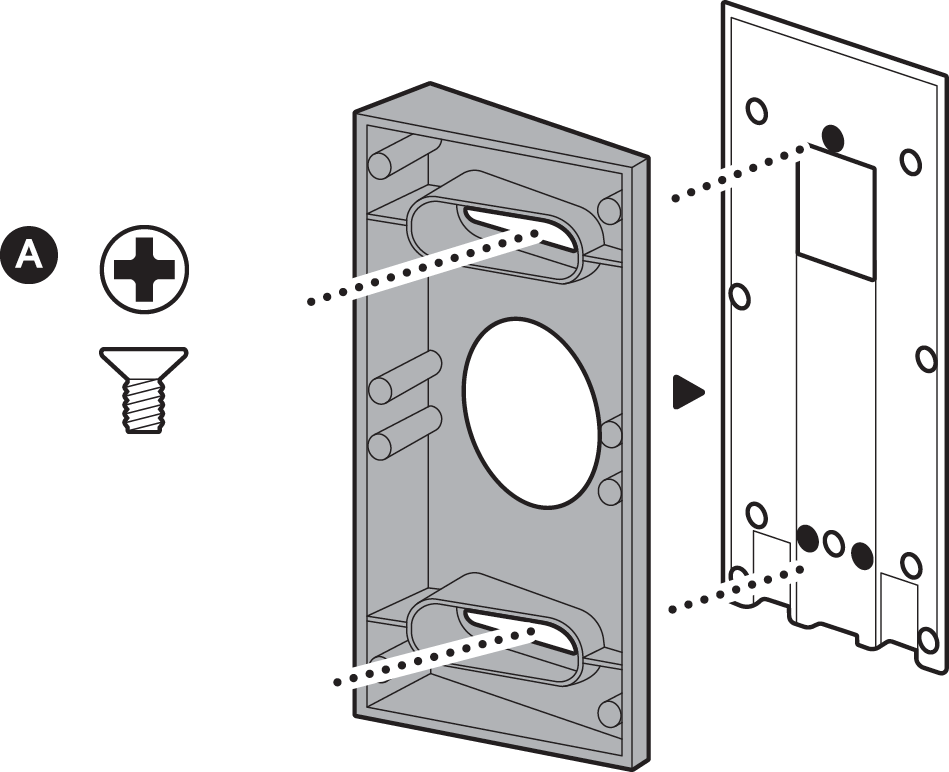
Collect all tools before starting. Usually, you need a small screwdriver and a ladder. A flashlight helps if the area is dark. Having these tools ready saves time and makes the job easier.
Ensure Doorbell Is Powered
Check that your Video Doorbell Pro is powered on. It should have a steady light or sound. If it runs on batteries, make sure they have enough charge. For wired models, confirm the power supply is active. This step prevents errors during the setup deletion.

Credit: stonedesignbysantos.com
Access The Doorbell Settings
To delete the setup on your Video Doorbell Pro, start by accessing the doorbell settings. This step is essential to manage your device properly. You will find options to reset or remove the device from your account here.
Accessing the settings is simple with the companion app. It allows you to control and customize your doorbell from your smartphone. Follow the steps below to open the app and find the device settings.
Open The Companion App
First, unlock your phone and open the companion app linked to your doorbell. The app is usually the one you used to set up the doorbell. Make sure your phone is connected to the internet for smooth operation.
Locate the app icon on your home screen or app drawer. Tap it to launch the app. Sign in with your account details if required. The app dashboard will show all your connected devices.
Navigate To Device Settings
In the app dashboard, find your Video Doorbell Pro. Tap on the device name or image to open its control panel. Look for a gear icon or a menu labeled “Settings.”
Tap the settings option to enter the device settings menu. Here, you can see all the options related to your doorbell. Scroll through to find the setup deletion or reset options.
Remove The Setup Configuration
Removing the setup configuration from your Video Doorbell Pro clears old settings. This step is important before pairing the device with a new account or network. It helps avoid conflicts and ensures smooth operation.
Follow simple steps to remove the setup data safely. This process resets the doorbell’s connection settings without affecting its hardware.
Locate Setup Options
Start by opening the Video Doorbell Pro app on your phone. Go to the device settings section. Look for the setup or configuration menu. This area holds all the settings related to your doorbell’s setup.
Check under network or device management tabs. The exact location may vary by app version. Find the option that lets you manage current setups or connections.
Delete Existing Setup
Once you find the setup options, select the existing setup profile. Confirm that this is the one to remove. Tap the delete or remove button. The app will ask you to confirm your choice.
Confirm deletion to erase the setup configuration. This action removes all saved network and account data. Afterward, your Video Doorbell Pro will be ready for a fresh setup.
Reset The Doorbell Hardware
Resetting the doorbell hardware is an important step to delete the setup on your Video Doorbell Pro. It clears all saved settings and prepares the device for a fresh start. This process helps fix issues and remove any old configurations.
The reset process involves a factory reset followed by waiting for the doorbell to restart. Each step is simple but must be done carefully to avoid problems.
Perform A Factory Reset
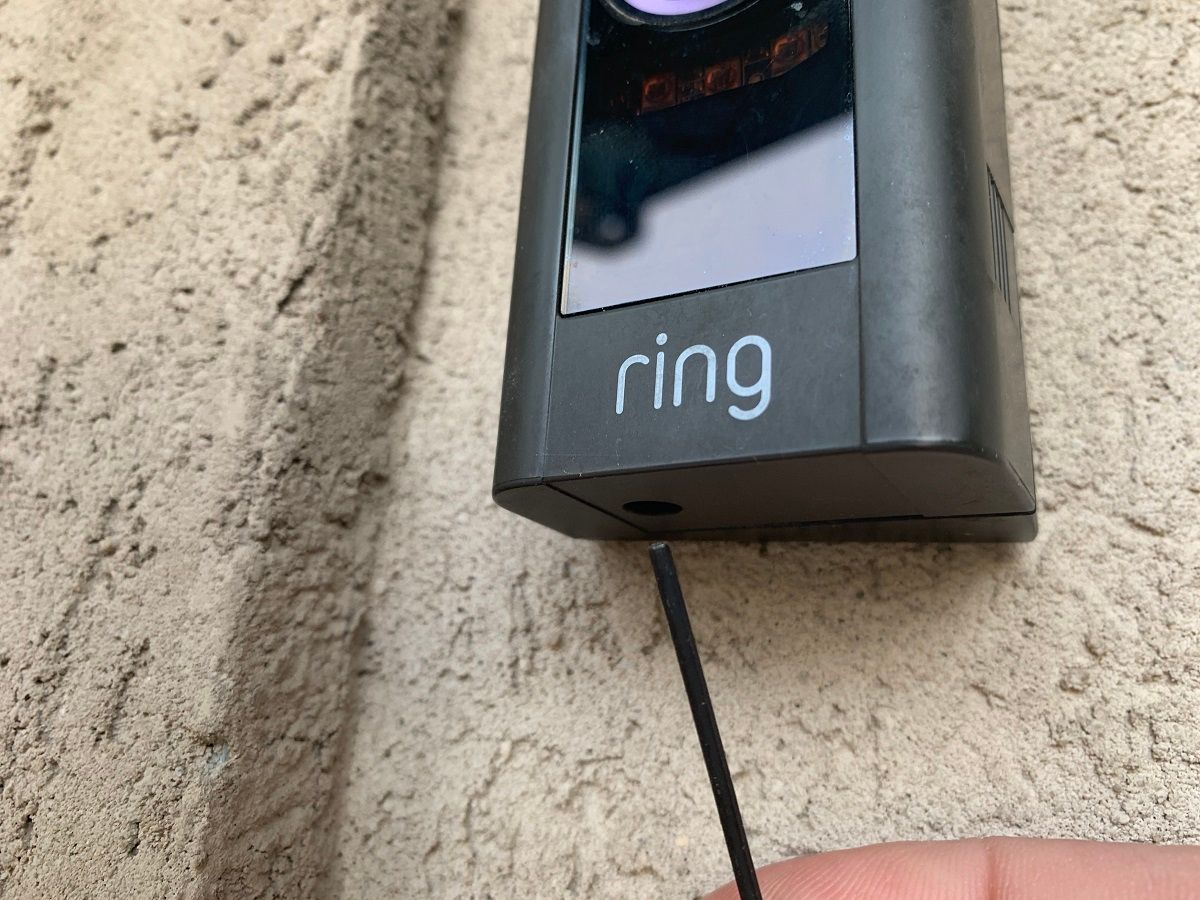
Locate the reset button on your Video Doorbell Pro. It is usually a small hole near the camera or on the back. Use a paperclip or a pin to press and hold the button for about 15 seconds. Release the button when the light on the doorbell blinks or changes color. This action erases all your settings and deletes the current setup.
Wait For Reboot Completion
After releasing the reset button, the doorbell will begin to restart. This process can take up to two minutes. Wait patiently until the light stops blinking and remains steady. The steady light means the doorbell is fully rebooted and ready to be set up again.
Reconfigure Or Disconnect
Reconfiguring or disconnecting your Video Doorbell Pro is important when you want to reset or move the device. This step helps clear old settings and prepares the doorbell for a new connection. It also ensures your account stays secure and free from unused devices. Follow these simple steps to manage your doorbell setup smoothly.
Start New Setup Process
Begin by resetting your Video Doorbell Pro. Press and hold the setup button for about 15 seconds. The light on the doorbell will blink, showing it is ready for setup.
Open the doorbell app on your phone. Choose the option to add a new device. Follow the on-screen instructions to connect the doorbell to your Wi-Fi network.
Make sure your phone is near the doorbell during setup. This helps the connection process go faster. Enter your Wi-Fi password carefully to avoid errors.
Confirm Removal From Account
After resetting, remove the doorbell from your account. Open the app and go to device settings. Find the option to delete or remove the doorbell.
Confirm the removal to disconnect the doorbell from your profile. This step frees up space for new devices. It also stops notifications from the removed doorbell.
Check your device list to ensure the doorbell is no longer there. This confirms the device is fully disconnected from your account.
Credit: www.spec-school.org
Troubleshooting Tips
Deleting the setup on your Video Doorbell Pro can sometimes be tricky. Small mistakes or technical glitches might cause issues. Knowing some troubleshooting tips can save time and frustration. These tips help fix common problems quickly and guide you to get support if needed.
Common Issues During Deletion
Sometimes the setup does not delete as expected. The app may freeze or show an error message. The doorbell might stay connected to your account. Network problems often cause these issues. Check your Wi-Fi connection and try again. Restart the doorbell and your phone. Make sure the app is updated to the latest version. Removing the device from the app might require a factory reset on the doorbell.
Contacting Support
Support can help if problems continue. Have your device details ready before calling. Explain the issue clearly and mention any error messages. Follow their step-by-step instructions carefully. Support teams can provide solutions you might not find alone. They can also guide you through more complex resets or replacements if needed.
Frequently Asked Questions
How Do I Delete Setup On Video Doorbell Pro?
To delete setup, open the doorbell’s app settings. Select your device and choose “Remove Device. ” Confirm the removal to erase setup data.
Can I Reset Video Doorbell Pro Without Deleting Setup?
Yes, you can reset the device without deleting setup by pressing the reset button. However, this doesn’t remove your account or settings.
What Happens After Deleting Setup On Video Doorbell Pro?
Deleting setup removes the device from your app and cloud account. You must set it up again to use it.
Is Deleting Setup Necessary Before Selling Video Doorbell Pro?
Yes, deleting setup protects your privacy by removing personal data. Always delete setup before transferring the device to someone else.
Conclusion
Deleting the setup on your Video Doorbell Pro is simple and quick. Follow the clear steps to remove the device from your app. This helps if you want to reset or sell your doorbell. Always double-check that the device is fully disconnected.
Doing this keeps your security and privacy safe. Now, you can set up the doorbell again or give it to someone else. Easy and worry-free.