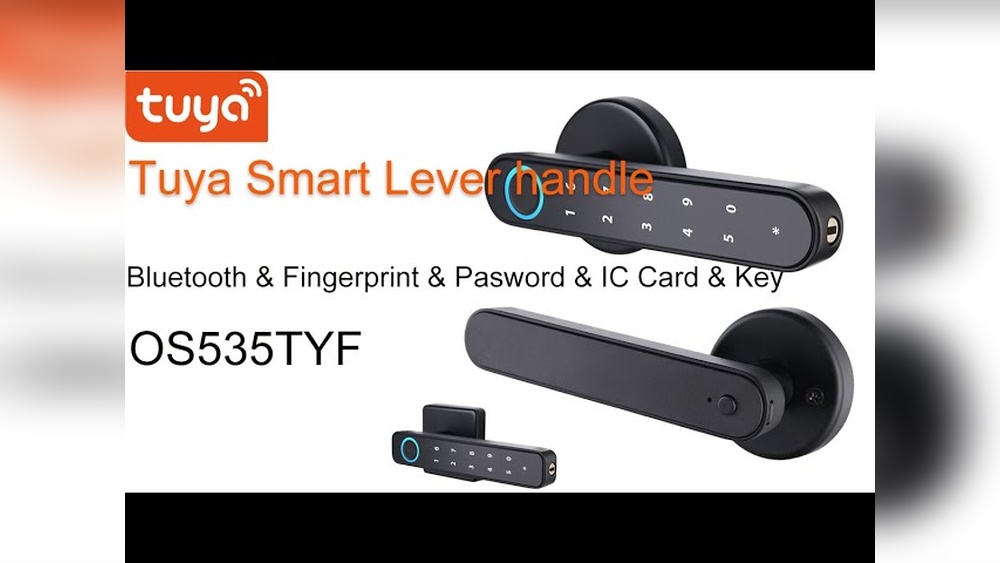

Have you ever found yourself locked out or struggling to change the settings on your Tuya Smart Door Lock? If so, you’re not alone.
Resetting your smart lock can feel confusing, especially when you need quick access or want to fix a glitch. But don’t worry—this guide will walk you through simple, clear steps to reset your Tuya Smart Door Lock with ease. By the end, you’ll feel confident managing your lock and keeping your home secure.
Ready to take control? Let’s get started.
Why Reset Your Tuya Smart Door Lock
Resetting your Tuya Smart Door Lock can solve many issues quickly. It restores the lock to its original settings. This step can fix problems and improve security. Knowing why to reset helps you decide the best action.
Common Reasons For Resetting
Sometimes the lock stops responding. It may not connect to the app or Wi-Fi. You could forget your password or fingerprint data. Resetting clears all stored information. It removes errors and glitches. It also prepares the lock for new users.
When To Consider A Reset
Try resetting if the lock won’t open or close properly. If the app shows connection errors often, reset it. Change of ownership or moving to a new home requires a reset. This ensures old users lose access. Resetting is a smart step before calling support.

Credit: www.youtube.com
Preparing For The Reset
Preparing for the reset is an important step. It helps avoid problems during the process. Taking time to get ready makes the reset smooth and safe. Follow simple steps to prepare well.
Gathering Necessary Tools
Start by collecting all tools you need. Usually, a small screwdriver is required. Check your lock’s manual for specific tools. Have fresh batteries ready to avoid power loss. Keep your smartphone nearby for app access.
Backing Up Your Settings
Save your lock settings before resetting. This prevents losing important codes or user data. Use the Tuya Smart app to back up settings. Write down PIN codes and user information. This helps restore your lock quickly after reset.
Reset Methods For Tuya Smart Door Lock
Resetting a Tuya Smart Door Lock can solve many issues. It helps clear errors and restore default settings. You can reset the lock in several ways. Each method suits different situations and user preferences. Follow the steps carefully to ensure a smooth reset.
Using The Physical Reset Button
Locate the reset button on your door lock. It is usually inside the battery compartment. Press and hold the button for about 10 seconds. Release the button when the LED light flashes. The lock will restart and reset to factory settings. This method works without the app or codes.
Reset Via Tuya App
Open the Tuya Smart app on your phone. Select your door lock device from the list. Find the settings or device management section. Choose the reset option and confirm your choice. The lock will reset remotely through the app. This method requires an internet connection and app access.
Factory Reset Through Admin Code
Enter the admin code on the lock keypad. Press the reset or star () button after the code. Hold the button until the lock beeps or flashes. The lock will erase all data and restore factory defaults. Use this method if you remember the admin code and want a full reset.
Step-by-step Reset Instructions
Resetting your Tuya Smart Door Lock can solve many common issues. It also helps you restore factory settings. Follow the clear steps below for a smooth reset process.
Choose the method that suits your situation best. Each method is simple and quick to follow. Keep your lock and any tools handy before starting.
Reset With Button Press
Locate the reset button on your Tuya Smart Door Lock. It is usually inside the battery compartment. Press and hold the reset button for about 10 seconds. Wait until the lock beeps or flashes. Release the button once you see the signal. The lock will reset to factory settings. After this, you need to set up the lock again.
Reset Through Mobile App
Open the Tuya Smart or Smart Life app on your phone. Go to the device settings for your door lock. Find the option labeled “Reset” or “Factory Reset.” Tap on it and confirm your choice. The app will send a reset command to the lock. Wait for the confirmation message. Your lock will now be restored to default settings.
Reset Using Keypad
Enter your current password on the lock keypad. Press and hold the “” or “” button. Hold for about 10 seconds until the lock signals a reset. Release the button. The lock will erase all settings and reset. You will need to reprogram your lock codes after this.
Troubleshooting Reset Issues
Resetting a Tuya Smart Door Lock can sometimes be tricky. Problems may arise during the process that stops the reset from working. Knowing how to fix these issues saves time and frustration. This section guides you through common troubles and their solutions.
Common Problems During Reset
The lock does not respond to the reset button. This often happens if the button is pressed too briefly or too long.
The lock’s battery is low. Weak power can cause the reset to fail or the lock to act strangely.
The lock is still connected to the app or Wi-Fi. Active connections can block the reset process.
Physical damage or dirt on the lock. This can stop the reset button from working properly.
Solutions To Reset Failures
Press and hold the reset button exactly as the manual says. Count seconds carefully for the right timing.
Replace the batteries with fresh ones to ensure enough power.
Disconnect the lock from the Tuya app and Wi-Fi before resetting.
Clean the lock and the reset button gently to remove dust or grime.
Try resetting again in a calm and stable environment to avoid interruptions.
Credit: www.acslocks.com
Reconfiguring Your Lock After Reset
After resetting your Tuya Smart Door Lock, the next step is to reconfigure it. This process ensures the lock works correctly and keeps your home secure. Follow these simple steps to set up new access codes, reconnect the lock to the app, and test all functions.
Setting Up New Access Codes
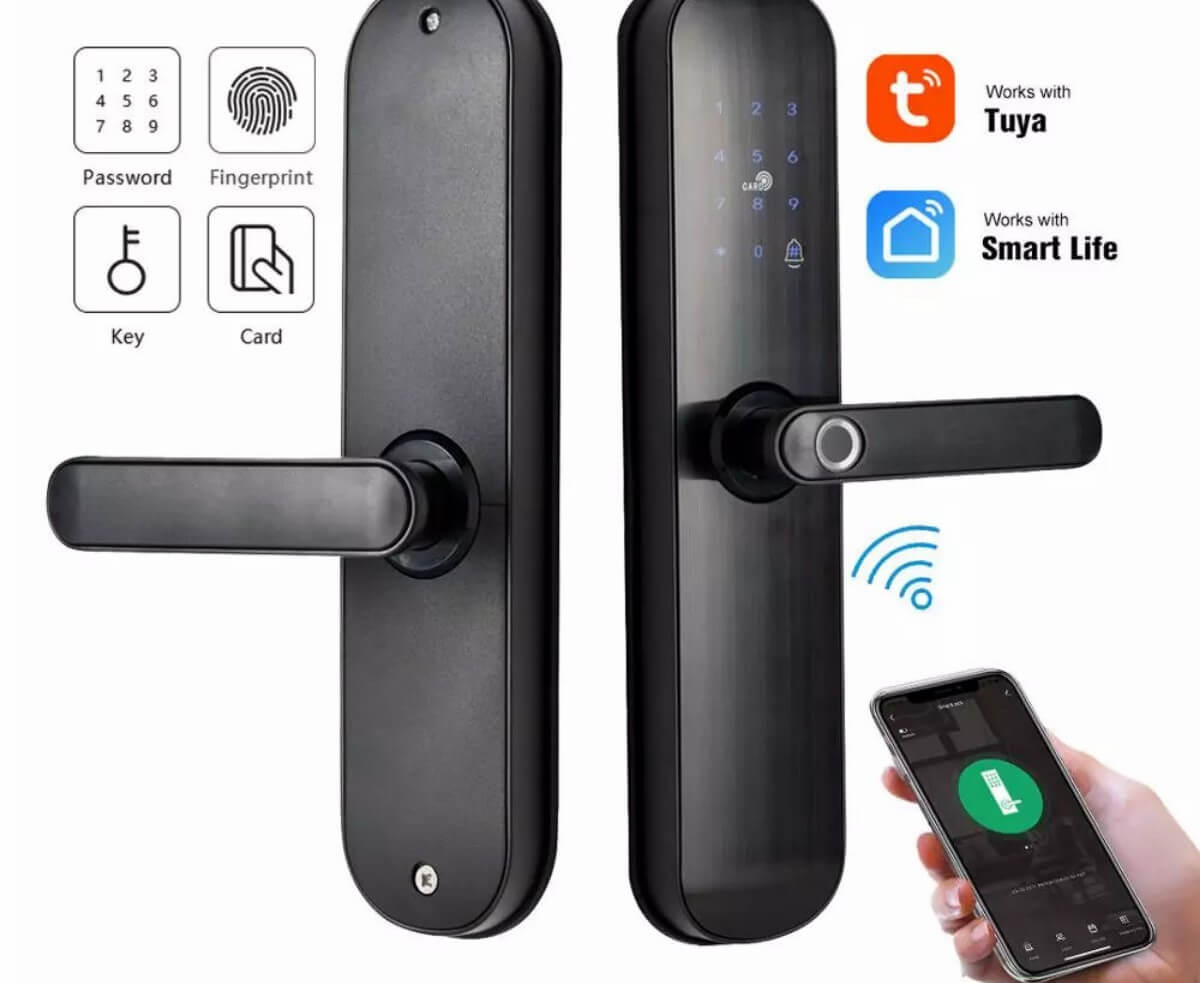
Start by creating new access codes for your lock. Use the lock’s keypad or the Tuya app. Choose codes that are easy for you to remember but hard for others to guess. Avoid simple sequences like “1234” or “0000.” Change codes regularly for better security.
Reconnecting To The App
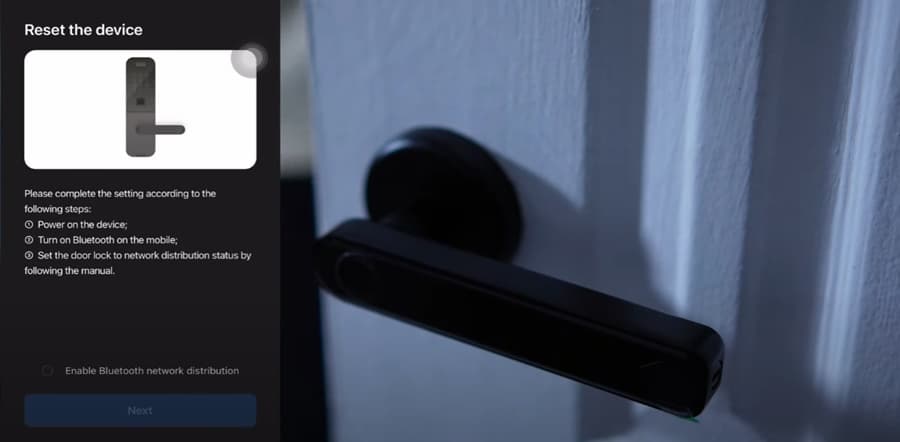
Open the Tuya Smart app on your phone. Follow the instructions to add your lock again. Ensure Bluetooth or Wi-Fi is enabled. This step links your lock to your phone for remote control and notifications. Check the connection status before moving on.
Testing Lock Functions
Test the lock after setup. Use the new access codes to unlock the door. Try locking and unlocking with the app. Listen for sounds and watch the lock’s movement. Confirm all functions work smoothly. This step confirms your lock is ready to use.
Tips To Avoid Frequent Resets
Frequent resets of your Tuya Smart Door Lock can be frustrating. They disrupt your routine and may cause security concerns. Simple habits help keep your lock running smoothly. Follow these tips to reduce the need for resets and improve your lock’s performance.
Regular Maintenance
Clean the lock regularly to remove dust and dirt. Use a soft cloth and mild cleaner. Avoid water or harsh chemicals that damage the device. Check the battery level often and replace it before it runs out. Tighten loose screws to keep parts secure. Regular care helps prevent malfunctions and extends the lock’s life.
Updating Firmware
Keep your lock’s firmware up to date. Updates fix bugs and improve security. Open the Tuya app and check for new versions. Install updates promptly to avoid glitches. Updated software keeps your lock stable and reliable. It also protects against new security threats.
Secure Password Practices
Choose a strong, unique password for your smart lock app. Avoid easy-to-guess passwords like “123456” or “password.” Change your password regularly for extra safety. Don’t share your login details with others. Using secure passwords reduces hacking risks and unnecessary resets.
Credit: www.ilockey.com
Frequently Asked Questions
How Do I Reset My Tuya Smart Door Lock?
To reset your Tuya Smart Door Lock, press and hold the reset button for 10 seconds. The lock will beep, indicating a successful reset. This restores factory settings and deletes all user data, allowing you to set it up again from scratch.
Can I Reset Tuya Lock Without The App?
Yes, you can reset the Tuya lock manually using the physical reset button. Locate the button on the lock’s interior panel and hold it for 10 seconds. This bypasses the app but erases all stored data and settings.
What Happens After Resetting Tuya Smart Lock?
After resetting, all user codes and settings are deleted. The lock returns to factory default mode. You must reconfigure the lock and re-add users through the Tuya Smart app to use it again.
Is A Reset Required If Lock Is Unresponsive?
Yes, resetting the lock can fix unresponsiveness. It clears software glitches causing the issue. After reset, reconnect the lock to the app and test its functions.
Conclusion
Resetting your Tuya smart door lock is simple and fast. Just follow the steps carefully to avoid errors. A reset can fix many common problems with your lock. Keep your device working well and secure. Remember to set a new password after resetting.
Doing this helps protect your home from unwanted access. Regular checks and proper use extend your lock’s life. Stay safe and confident with your smart door lock. Easy to manage, easy to trust.