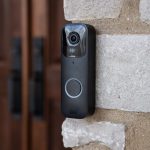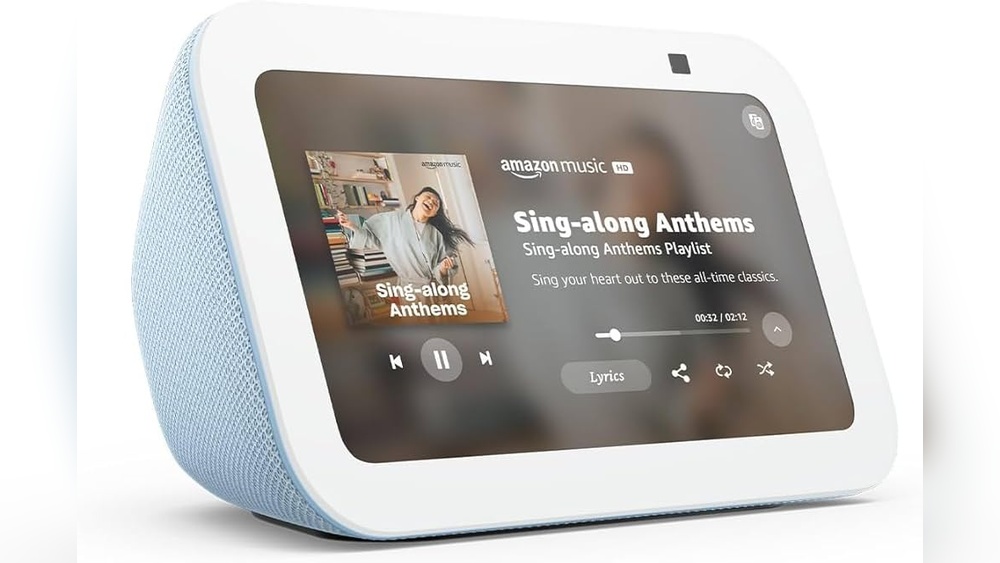

Imagine this: someone rings your doorbell, and instead of rushing to the door, you see exactly who’s there right on your Lyric screen. Sounds convenient, right?
If you want to make your home smarter and safer, getting your Lyric screen to show your doorbell video is a game-changer. You’ll discover simple steps to connect your doorbell camera with your Lyric system. By the end, you’ll have the power to check visitors instantly, all from one screen.
Ready to take control of your home security? Let’s dive in.
Credit: www.homedepot.com
Requirements For Lyric Screen
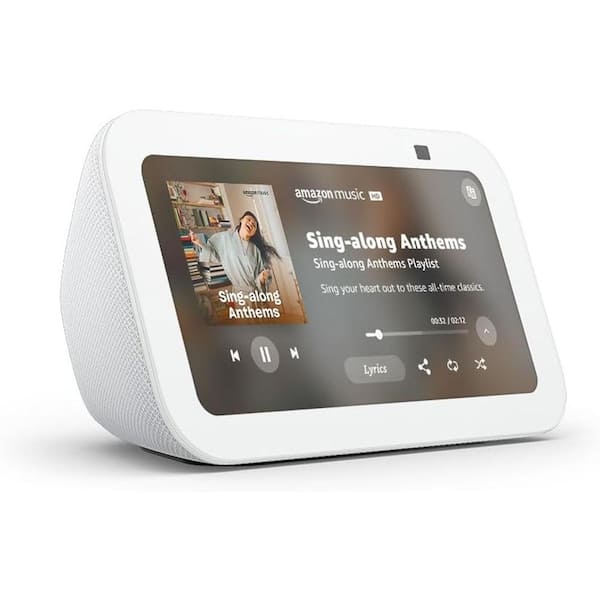
To show doorbell video on your Lyric Screen, certain requirements must be met. These requirements ensure smooth connection and clear video display. Meeting these will help you enjoy your doorbell’s live feed without interruptions.
Compatible Doorbell Models
Not all doorbells work with the Lyric Screen. You need a model that supports video integration. Honeywell’s Lyric Round and Lyric Wi-Fi doorbells are common examples. Check if your doorbell mentions Lyric compatibility. Using compatible models prevents connection issues.
Necessary Software Versions
The Lyric Screen must have updated software to show video. Older versions may lack support for doorbell video feeds. Keep your Lyric Screen firmware up to date. Also, update your doorbell’s app to the latest version. Updated software improves stability and video quality.
Network And Connectivity Needs
A strong Wi-Fi network is key for video streaming on the Lyric Screen. Both the doorbell and screen should connect to the same network. Weak signals cause video lag or disconnections. Use a 2.4 GHz Wi-Fi band for better range. Ensure your router supports stable connections for smart devices.
Credit: www.amazon.com
Preparing Your Devices
Preparing your devices is the first step to show your doorbell video on the Lyric screen. This process helps your devices work together smoothly. It ensures a clear video feed and quick response times. Follow these simple steps to get started.
Installing The Lyric App
Start by downloading the Lyric app from your phone’s app store. The app controls your Lyric screen and doorbell settings. Open the app and create an account if you do not have one. Sign in to access all features. The app guides you through setup and device management.
Connecting The Doorbell To Wi-fi
Next, connect your doorbell to your home Wi-Fi network. A strong Wi-Fi signal is important for video quality. Open the Lyric app and select the option to add a new device. Follow the instructions to enter your Wi-Fi details. Make sure your doorbell is close to the router during setup.
Updating Firmware
Keep your devices updated with the latest firmware. Firmware updates fix bugs and improve performance. Check for updates in the Lyric app settings. Download and install any available updates for both the doorbell and the Lyric screen. This step ensures smooth video streaming and new features.
Configuring The Lyric Screen
Configuring the Lyric Screen to show your doorbell video is simple. This setup helps you see visitors right on your screen. Follow these steps to connect and customize your device.
Accessing Device Settings
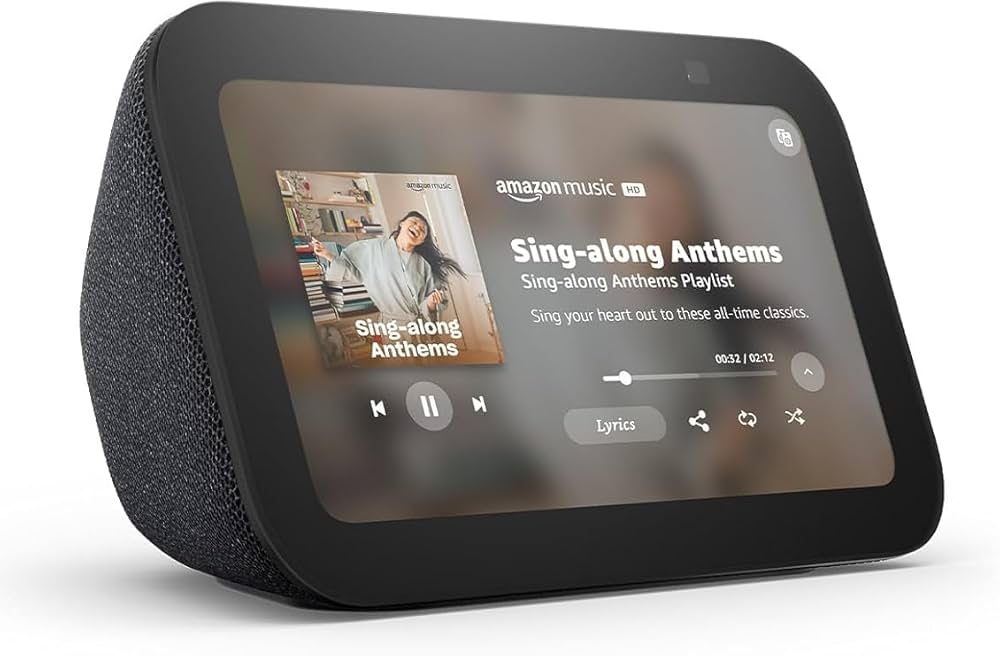
First, turn on your Lyric Screen. Go to the main menu and find the settings icon. Tap it to open device options. Look for the section labeled “Video” or “Camera.” This area holds all video-related controls.
Use the touch screen to scroll through settings. Find options related to connected devices. Make sure your screen is updated to the latest software for best results.
Linking The Doorbell Video Feed
Next, connect your doorbell camera to the Lyric Screen. In the video settings, select “Add Device” or “Link Camera.”
Choose your doorbell brand from the list. Enter any required login information for the camera. This lets the screen access the live video feed.
Once linked, test the connection by pressing the doorbell. The video should appear on the Lyric Screen instantly.
Adjusting Display Preferences
Customize how the video shows on your screen. Change brightness and volume for clear viewing and sound alerts.
Set the screen to show video automatically when the doorbell rings. Adjust the video size and position to fit your preference.
Save your settings. Your Lyric Screen will now display the doorbell video as you want.
Troubleshooting Common Issues
Troubleshooting common issues helps keep your Lyric Screen showing doorbell video smoothly. Simple fixes often solve most problems quickly. This section covers the main issues users face and easy steps to fix them.
Video Not Showing
Check if your doorbell camera is powered on. Sometimes, the video won’t appear if the camera is off. Restart the camera by unplugging it or removing the battery. Make sure the Lyric Screen firmware is up to date. Outdated software can block video display. Clear the app cache to remove any corrupted data. Try closing and reopening the app to refresh the connection.
Connectivity Problems
Weak Wi-Fi signals cause video delays or failures. Place your router closer to the doorbell and screen. Restart your router to fix temporary network issues. Ensure your devices connect to the same Wi-Fi network. Avoid using public or guest networks for better stability. Check for Wi-Fi interference from other devices. Changing the Wi-Fi channel may improve the connection.
App Sync Errors
Sync errors happen when the app and devices lose communication. Log out and log back into the app. This action refreshes your session and may fix sync problems. Verify your app has the latest update installed. Old versions can cause errors. Remove the device from the app and add it again. This step often resets sync and restores normal function.
Tips For Optimal Performance
Getting the Lyric screen to show your doorbell video clearly needs some care. Small steps make a big difference. Follow simple tips to keep the video smooth and fast. Avoid delays or glitches that spoil the experience.
Maintaining Strong Wi-fi Signal
Wi-Fi strength affects video quality a lot. Place your router near the Lyric screen. Avoid walls or metal objects between them. Use a Wi-Fi extender if the signal is weak. Strong Wi-Fi means clear and fast video streaming.
Regular Software Updates
Keep your Lyric screen and doorbell updated. Updates fix bugs and improve performance. Check for updates in the device settings often. Updated devices work better and connect faster. This reduces freezing or lag during video display.
Securing Your Devices
Protect your devices with strong passwords. Avoid simple or default passwords. Use the latest security settings on your router and devices. Secure devices prevent hacking and unwanted access. Safe devices keep your video feed private and reliable.
Credit: www.homedepot.com
Frequently Asked Questions
How Do I Connect Lyric Screen To My Doorbell Video?
To connect Lyric Screen to your doorbell video, link your smart doorbell app to Lyric. Enable video streaming in settings for live view.
Can Lyric Screen Display Video From Any Doorbell Brand?
Lyric Screen supports popular smart doorbells like Ring and Nest. Check compatibility before setup to ensure smooth video display.
What Are The Steps To Enable Doorbell Video On Lyric Screen?
Open Lyric app, go to device settings, select doorbell video, and toggle the video display option on for live feed.
Why Is My Doorbell Video Not Showing On Lyric Screen?
Check your Wi-Fi connection and app permissions. Ensure the doorbell firmware and Lyric app are updated for proper video streaming.
Conclusion
Getting your Lyric Screen to show doorbell video helps keep your home safer. Follow the steps carefully to connect devices correctly. Check your Wi-Fi and app settings for smooth operation. Test the video feature to make sure it works well.
Enjoy seeing who’s at your door without moving. Stay updated with your devices to avoid problems. Simple changes can make your smart home easier to use. Keep your system ready for any visitor or delivery.