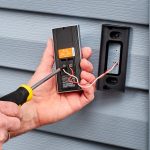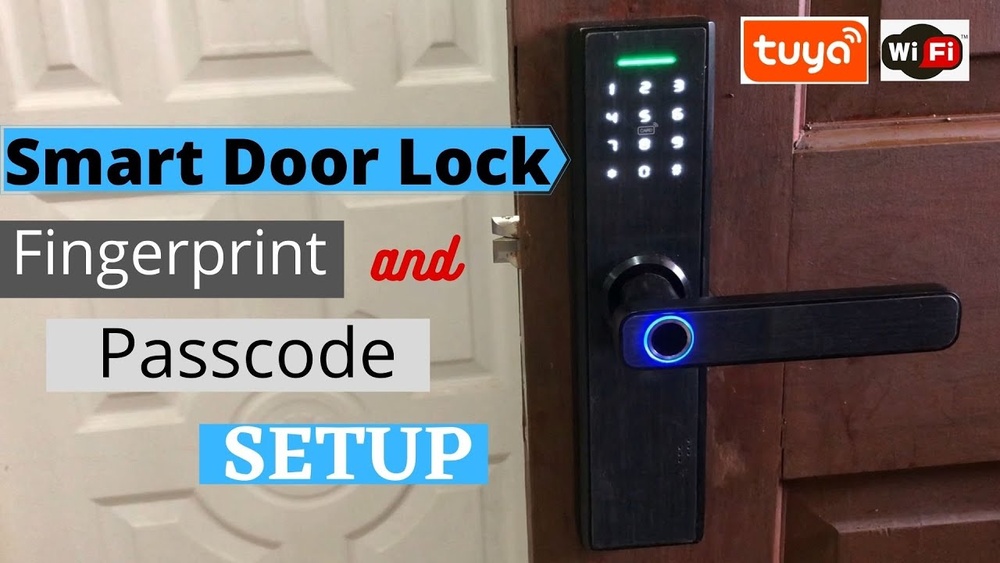

Are you ready to make your home smarter and more secure? Setting up your Tuya Smart Door Lock is easier than you think, and once done, it gives you complete control over who enters your space.
Imagine unlocking your door with just a tap on your phone or even a simple voice command. This guide will walk you through every step, making sure you don’t miss anything important. By the end, you’ll feel confident managing your smart lock like a pro.
Keep reading to discover how simple it is to upgrade your home security today.

Credit: www.youtube.com
Choosing The Right Tuya Smart Door Lock
Choosing the right Tuya smart door lock is important for security and convenience. Different locks offer various features and fit different doors. Picking the best option makes your home safer and easier to access.
Types Of Tuya Smart Locks
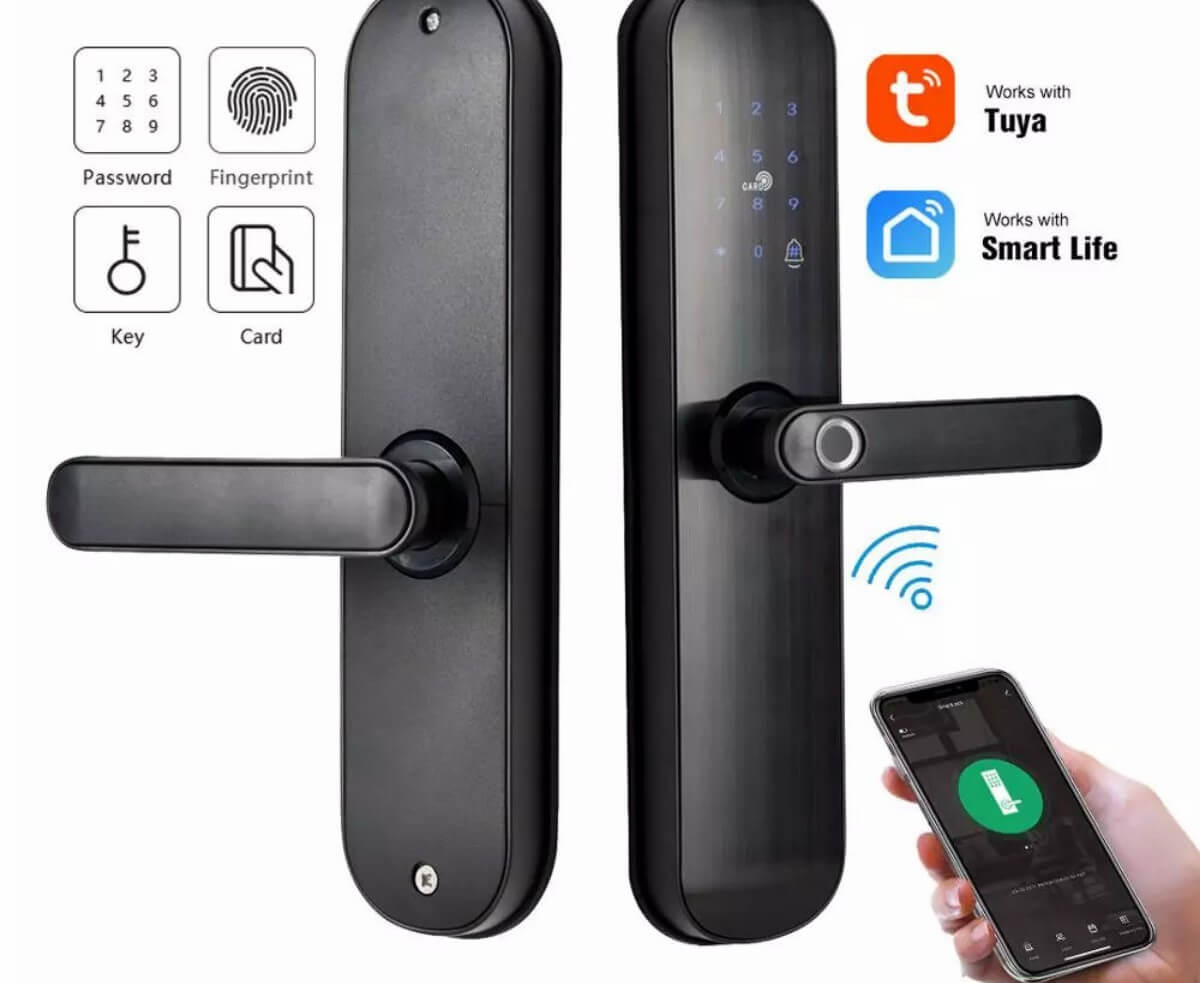
Tuya smart locks come in several types. Fingerprint locks use biometric sensors for quick access. Keypad locks allow entry with a code. Some models combine fingerprint and keypad for extra security. There are also Bluetooth and Wi-Fi locks for remote control. Choose the type that fits your lifestyle and security needs.
Key Features To Consider
Look for features like battery life, ease of installation, and alert notifications. Some locks send alerts when someone tries to open the door. Auto-locking features add safety by locking the door after a set time. Check if the lock supports multiple user codes or fingerprints. These features improve security and user experience.
Compatibility With Your Door
Measure your door’s thickness and check the lock’s size requirements. Some smart locks work only on specific door types, like wooden or metal doors. Make sure the lock fits your door’s design and locking mechanism. Confirm the lock’s installation method matches your door. Proper fit ensures smooth operation and security.
Credit: www.ilockey.com
Preparing For Installation
Preparing for the installation of a Tuya Smart Door Lock is the first step to ensure a smooth setup. Proper preparation saves time and avoids mistakes. It includes gathering tools, checking door compatibility, and following safety tips. Each part is important for a safe and effective installation.
Tools And Materials Needed
Gather all tools before starting the installation. You will need a screwdriver, measuring tape, pencil, and drill. Keep the Tuya Smart Door Lock kit close by. Some kits include extra screws and batteries. Having everything ready makes the process faster and easier.
Checking Door Specifications
Measure your door thickness to match the lock size. Most Tuya locks fit doors between 35 to 55 millimeters thick. Check the door edge for space to fit the lock latch. Also, ensure the door swings correctly for the lock to work smoothly. Confirm the lock fits the existing holes or be ready to drill new ones.
Safety Precautions
Wear safety goggles to protect your eyes during drilling. Use gloves to avoid hand injuries. Keep children and pets away from the work area. Turn off any nearby electrical devices to avoid accidents. Follow the instruction manual carefully to avoid damage to the lock or door.
Installing The Tuya Smart Door Lock
Installing the Tuya Smart Door Lock is straightforward and quick. This guide helps you replace your old lock with a smart one. Follow each step carefully for a smooth setup. You don’t need special tools or skills.
Removing Existing Lock
Start by removing the old door lock. Use a screwdriver to take out screws on the lock plate. Gently pull the lock out of the door. Keep screws safe for later use or discard if new ones are provided. Check the door edge for any extra parts to remove.
Mounting The New Lock
Place the new Tuya Smart Door Lock in the door hole. Align it so the lock fits flush with the door surface. Insert the lock’s latch into the door edge. Make sure the keypad or handle faces outside. Hold the lock steady while preparing to fix it.
Securing Components Properly
Fasten screws to secure the lock on both sides of the door. Tighten screws evenly to avoid misalignment. Attach the interior plate and battery compartment last. Check all parts move smoothly without sticking. Test the lock manually before connecting to the app.
Connecting To The Tuya Smart App
Connecting your Tuya Smart Door Lock to the Tuya Smart App is the first step to control your lock remotely. This process lets you manage access, monitor activity, and receive alerts right on your phone. Follow these simple steps to get started easily.
Downloading The App
Open your phone’s app store. Search for “Tuya Smart” in the search bar. Tap the install button to download the app. Wait a few moments for the app to install. Once done, open the app to begin setup.
Creating An Account
On the app’s welcome screen, tap “Sign Up.” Enter your email address or phone number. Create a strong password for your account. Verify your email or phone by entering the code sent to you. After verification, log in to your new account.
Pairing The Lock With Your Phone
Turn on the Bluetooth and Wi-Fi on your phone. Follow the app’s instructions to add a new device. Press the pairing button on your door lock. The app will search and find your lock. Select the lock and complete the setup by following prompts.
Configuring Lock Settings
Configuring the lock settings of your Tuya Smart Door Lock is essential for a secure and smooth experience. This step lets you control how the lock works daily. You can set access codes, turn on biometric features, and adjust auto-lock times. Each option helps customize the lock to fit your needs.
Setting Access Codes
Access codes allow you to open the door without a key. Use the Tuya app to create new codes. Assign different codes to family members or guests. Change or delete codes anytime for security. Keep codes simple but not easy to guess. This keeps your home safe and accessible.
Enabling Biometric Features
Biometric features use your fingerprint to unlock the door. This is quick and secure. Set up fingerprints through the app or lock panel. Register multiple fingerprints for family members. The lock reads your fingerprint in seconds. It reduces the risk of lost keys.
Adjusting Auto-lock Options
Auto-lock keeps your door secure by locking it automatically. Set how many seconds after closing the door it locks. Shorter times improve security but may be less convenient. Longer times give you more exit time. Choose the timing that fits your routine best.
Managing User Access
Managing user access is a key feature of the Tuya Smart Door Lock. It helps control who can enter your home or office. You can add new users, remove old ones, and set special rules for temporary access. This keeps your space safe and easy to manage.
Adding And Removing Users
To add a user, open the Tuya app and go to the lock settings. Tap “Add User” and enter the new person’s details. You can assign a unique code or use fingerprint access if supported. Removing users is simple. Just select the user from the list and tap “Remove.” This stops them from unlocking the door.
Setting Temporary Access
Temporary access allows guests to enter only for a limited time. Set a start and end time in the app. This is perfect for visitors or service workers. The lock will automatically block access after the time ends. No need to change codes manually.
Monitoring Entry Logs
The Tuya app keeps a record of all entries and exits. You can see who opened the door and when. This helps track activity and spot any unusual access. Checking logs regularly improves your home security.
Troubleshooting Common Issues
Setting up the Tuya Smart Door Lock can sometimes lead to small issues. These problems often stop the lock from working correctly. Troubleshooting these issues quickly helps keep your home safe and your lock reliable. This section covers common problems and easy fixes for your Tuya Smart Door Lock.
Connection Problems
Connection issues are common with smart locks. Check if your Wi-Fi signal is strong near the door. Move your router closer if the signal is weak. Restart your lock and the app to refresh the connection. Make sure your phone and lock use the same Wi-Fi network. Update the app and lock firmware to fix bugs. Reset the lock’s network settings if problems continue.
Lock Malfunctions
Sometimes the lock does not open or close smoothly. Clean the lock’s keyhole and keypad with a dry cloth. Check for any physical damage or blockage. Tighten loose screws or parts carefully. Test the lock manually to see if it sticks. Reset the lock to factory settings if it still malfunctions. Contact support if the lock fails after these steps.
Battery Replacement Tips
Low battery causes many lock problems. Use high-quality batteries for longer life. Replace batteries when the lock signals low power. Remove old batteries carefully to avoid damage. Insert new batteries matching the correct polarity. Test the lock after battery change to ensure proper function. Keep spare batteries ready to avoid unexpected lockouts.
Maintaining Your Tuya Smart Door Lock
Maintaining your Tuya Smart Door Lock is key to keeping your home safe and the device working well. Simple care steps help avoid problems and extend the lock’s life. Regular check-ups and updates keep the lock secure and reliable.
Regular Cleaning
Clean the lock surface gently with a soft cloth. Avoid harsh chemicals that can damage the finish. Dust and dirt can block sensors and affect performance. Wipe the keypad and handle often to keep them responsive. Check for signs of wear or damage regularly.
Software Updates
Keep the lock’s software updated for better security. Updates fix bugs and add new features. Use the Tuya app to check for updates frequently. Install updates as soon as they are available. This helps protect your lock from new threats.
Security Best Practices
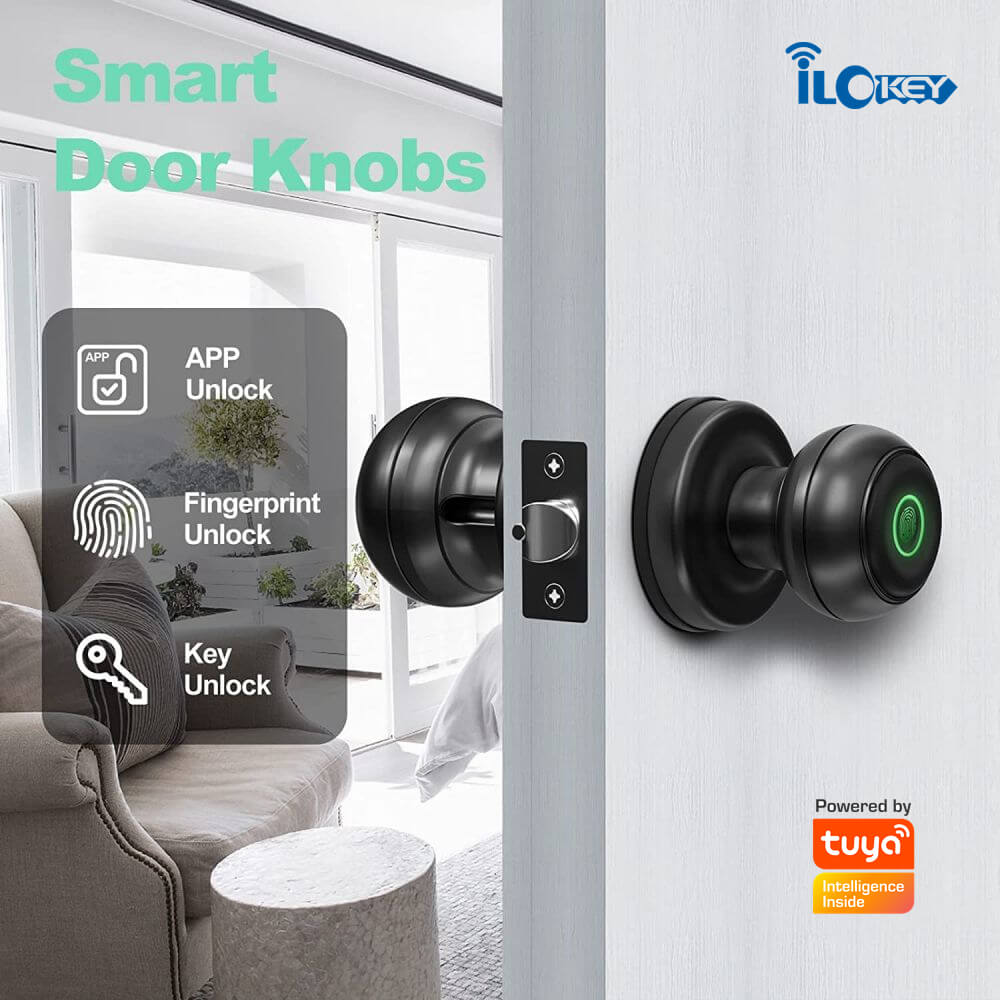
Change your access codes often to prevent unauthorized entry. Use strong, unique codes that are hard to guess. Enable two-factor authentication in the Tuya app. Monitor lock activity to spot unusual access attempts. Share access only with trusted people and remove it when no longer needed.
Credit: www.ilockey.com
Frequently Asked Questions
How Do I Install The Tuya Smart Door Lock?
First, mount the lock on your door using the included screws. Next, connect the battery and power it on. Finally, follow the app instructions to sync the lock with your smartphone.
How To Connect Tuya Smart Lock To The App?
Download the Tuya Smart app, create an account, and log in. Turn on Bluetooth and Wi-Fi on your phone. Then, follow the in-app steps to add and pair your smart door lock.
Can I Share Access With Family Or Friends?
Yes, the Tuya Smart app lets you share temporary or permanent access. Simply invite users via the app, and they can unlock the door with their own devices.
What To Do If The Lock Doesn’t Respond?
Check the battery level and replace if needed. Ensure your phone’s Bluetooth and Wi-Fi are active. Restart the app and re-sync the lock if problems persist.
Conclusion
Setting up your Tuya Smart Door Lock is simple and quick. Follow each step carefully to ensure proper installation. Double-check the app connection for smooth operation. Your home gains extra safety with this smart device. Enjoy easy access control and peace of mind.
Keep your lock updated to maintain security. Troubleshoot minor issues by reviewing the user guide. Feel confident managing your smart lock every day. Smart home security made easy and reliable.