Want to make your home smarter and more connected? Imagine answering your front door with just your voice or seeing who’s there on your TV screen without moving a step.
Connecting your Echo Dot, Firestick, and Ring Video Doorbell can make this possible—and it’s easier than you think. In this guide, you’ll learn simple steps to link these devices so your home works together seamlessly. Keep reading, and you’ll soon enjoy a smarter, safer, and more convenient living space.
Setup Requirements
Before connecting your Echo Dot, Firestick, and Ring Video Doorbell, check the setup requirements. This ensures smooth operation and avoids connection problems. Prepare your devices, apps, and network to get started quickly.
Compatible Devices
Ensure your Echo Dot supports Alexa features for Ring devices. Use a Firestick model that allows app downloads and voice commands. The Ring Video Doorbell must be a supported version for Alexa integration. Check the product manuals or websites for compatibility details.
Necessary Apps
Install the Alexa app on your smartphone or tablet. It helps link your Echo Dot and Ring Video Doorbell. Download the Ring app to configure your video doorbell settings. Both apps must be updated to the latest versions for best results.
Network Needs
Use a stable Wi-Fi network for all devices. A 2.4 GHz band works better with Ring devices. Ensure your internet speed is enough for video streaming and voice commands. Keep devices within Wi-Fi range to avoid disconnections.
Connecting Echo Dot To Firestick
Connecting your Echo Dot to the Firestick enhances your smart home experience. It allows voice control over your TV and streaming apps. You can play shows, change volume, and open apps using simple voice commands.
This connection is easy to set up with a few steps. Follow the guide below to link your devices and start using Alexa with your Firestick quickly.
Enable Alexa On Firestick
Turn on your Firestick and go to the settings menu. Find the “Alexa” or “Voice” section. Select the option to enable Alexa voice control. This will allow your Firestick to listen to commands from your Echo Dot.
Make sure your Firestick software is up to date. This helps avoid problems during setup. Restart the Firestick after enabling Alexa for the best results.
Linking Devices Via App
Open the Alexa app on your smartphone or tablet. Tap on “Devices” at the bottom of the screen. Choose “Add Device” and select “Fire TV” from the list.
Sign in with the same Amazon account used on your Firestick. Follow the on-screen instructions to link your Echo Dot with the Firestick. The app will confirm when the devices connect successfully.
Testing The Connection
Try using voice commands through your Echo Dot. Say “Alexa, open Netflix on Firestick” or “Alexa, play the next episode.” Check if the Firestick responds correctly.
If it does not respond, repeat the linking steps or restart both devices. Once connected, voice control will work smoothly for your Firestick.
Integrating Ring Video Doorbell With Echo Dot
Integrating your Ring Video Doorbell with Echo Dot enhances home security and convenience. It allows you to see and talk to visitors hands-free. The Echo Dot announces who is at your door. You can also view live video on compatible devices like Firestick. This integration makes your smart home smarter and more responsive.
Installing The Ring Skill
Start by opening the Alexa app on your smartphone. Search for the Ring skill in the Skills & Games section. Tap “Enable to Use” to add it to your Echo Dot. Sign in with your Ring account to connect your devices. This step links your Ring Doorbell to your Echo Dot system.
Authorizing Device Access
After enabling the skill, Alexa asks for permission. Grant access to your Ring devices for full functionality. This allows Alexa to control the Doorbell and show video feeds. Without authorization, some features will not work properly. Ensure you accept all necessary permissions for smooth use.
Customizing Notifications
You can choose how Alexa alerts you about visitors. Set announcements for doorbell rings or motion detection. Decide if alerts should be on Echo Dot or Firestick. Customize notification sounds and frequencies in the Alexa app. Tailoring alerts helps you stay informed without interruptions.

Credit: sankaa.be
Using Voice Commands
Using voice commands makes connecting your Echo Dot, Firestick, and Ring Video Doorbell easy and fast. You can control your devices without touching a button. Just speak and let Alexa do the work. This hands-free control adds convenience and safety to your home.
Viewing Doorbell Feed On Firestick
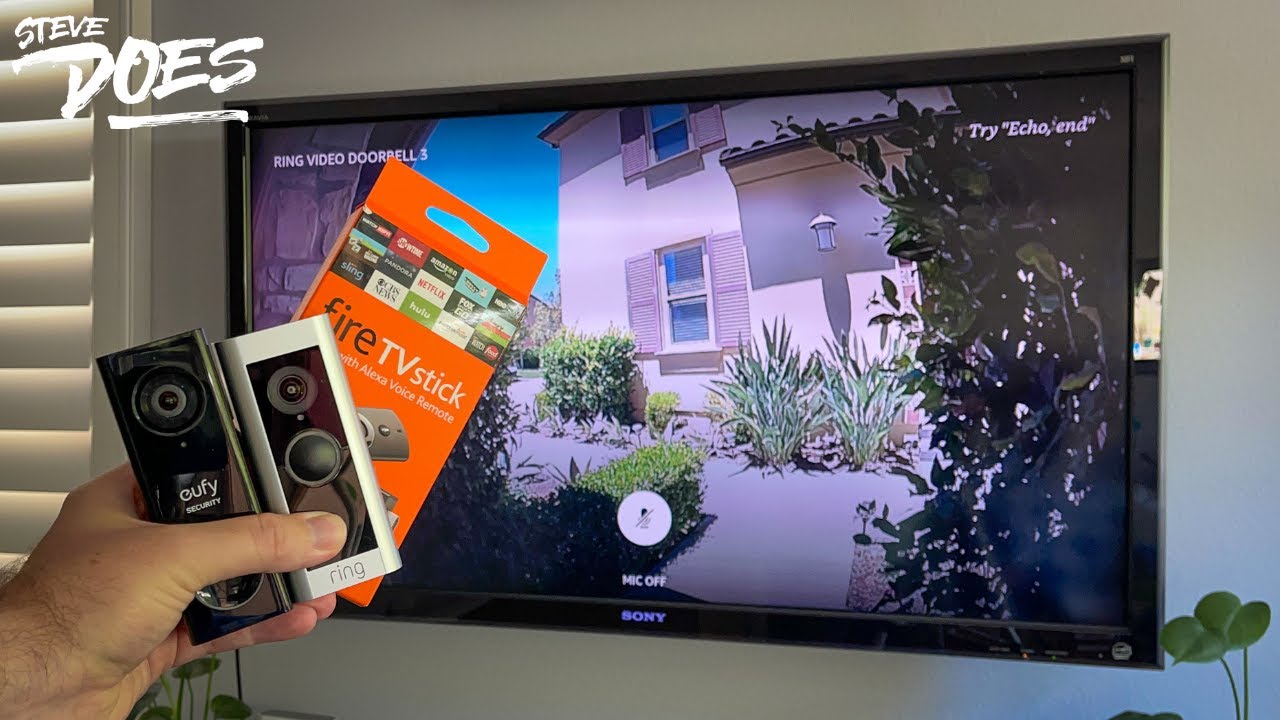
Ask Alexa to show the Ring doorbell feed on your Firestick. Say, “Alexa, show the front door.” The live video appears on your TV screen. You can see visitors or deliveries without leaving the couch. This way, you stay aware of your home’s entrance anytime.
Controlling Devices Hands-free
Use voice commands to manage your connected devices easily. Turn on lights, lock doors, or adjust the thermostat by speaking to Alexa. Say, “Alexa, lock the front door,” or “Alexa, turn on the porch light.” This hands-free control saves time and keeps your hands free for other tasks.
Troubleshooting Voice Issues
If Alexa does not respond, check the microphone on your Echo Dot. Make sure it is not muted. Also, ensure your devices are connected to the same Wi-Fi network. Restart your Echo Dot or Firestick if problems continue. Clear, slow speech helps Alexa understand commands better.
Optimizing Performance
Optimizing the performance of your Echo Dot, Firestick, and Ring Video Doorbell helps keep all devices running smoothly. Good performance means faster responses and fewer interruptions. Simple steps can improve how these devices work together.
Improving Wi-fi Signal
Strong Wi-Fi is key for all smart devices. Place your router in a central spot. Avoid walls and metal objects between devices and the router. Use a Wi-Fi extender if your signal is weak. This helps reduce delays and disconnections.
Updating Software
Keep your devices’ software up to date. Updates fix bugs and add new features. Check for updates regularly in the settings menu. Automatic updates are best for continuous improvements. Updated software keeps your devices secure and fast.
Managing Device Settings
Adjust settings for better performance. Turn off features you do not use. Lower video quality on the Ring Doorbell if streaming lags. Set Firestick to a lower resolution for smoother playback. Manage volume and alerts on Echo Dot for clear audio.
Credit: www.youtube.com

Credit: kdfoundation.org
Frequently Asked Questions
How Do I Connect Echo Dot To Firestick?
To connect Echo Dot to Firestick, enable Alexa on Firestick. Use the Alexa app to link your devices for voice control. This allows you to control Firestick using Echo Dot commands easily.
Can I Use Echo Dot With Ring Video Doorbell?
Yes, you can connect Echo Dot with Ring Video Doorbell. Enable the Ring skill in the Alexa app. This lets you receive doorbell alerts and view live video on Echo Dot devices with screens.
What App Is Needed To Link These Devices?
The Alexa app is required to connect Echo Dot, Firestick, and Ring Doorbell. It manages device settings and skills for seamless integration and voice commands across all devices.
Why Won’t My Echo Dot Control Firestick?
If Echo Dot won’t control Firestick, check device compatibility and Wi-Fi connection. Ensure both devices use the same Amazon account and that Alexa skill is enabled on Firestick.
Conclusion
Connecting your Echo Dot, Firestick, and Ring Video Doorbell makes home life simpler. You can see who’s at the door without moving. Use voice commands to control your devices easily. This setup saves time and adds security. Try these steps today to enjoy smart home benefits.
Keep your devices updated for the best experience. Smart home tech works best when all parts connect well. Simple, fast, and helpful—your smart home awaits.