
Have you ever missed an important moment because your Ring Doorbell didn’t record long enough? Adjusting the video recording time can make sure you never miss a thing.
Whether you want longer clips to capture every detail or shorter ones to save storage, knowing how to change these settings puts you in control. In this guide, you’ll learn simple steps to customize your Ring Doorbell’s recording time quickly and easily.
Keep reading to make your home security smarter and more tailored to your needs.

Credit: vixencomposites.com
Check Current Video Settings
Before changing the video recording time on your Ring Doorbell, check the current video settings. This step helps you understand how your device records and stores videos. Knowing the current setup makes adjusting easier and more effective.
Checking these settings also helps avoid mistakes. You will see what length your videos are and how much storage they use. This information guides you in choosing the best recording time for your needs.
Accessing The Ring App
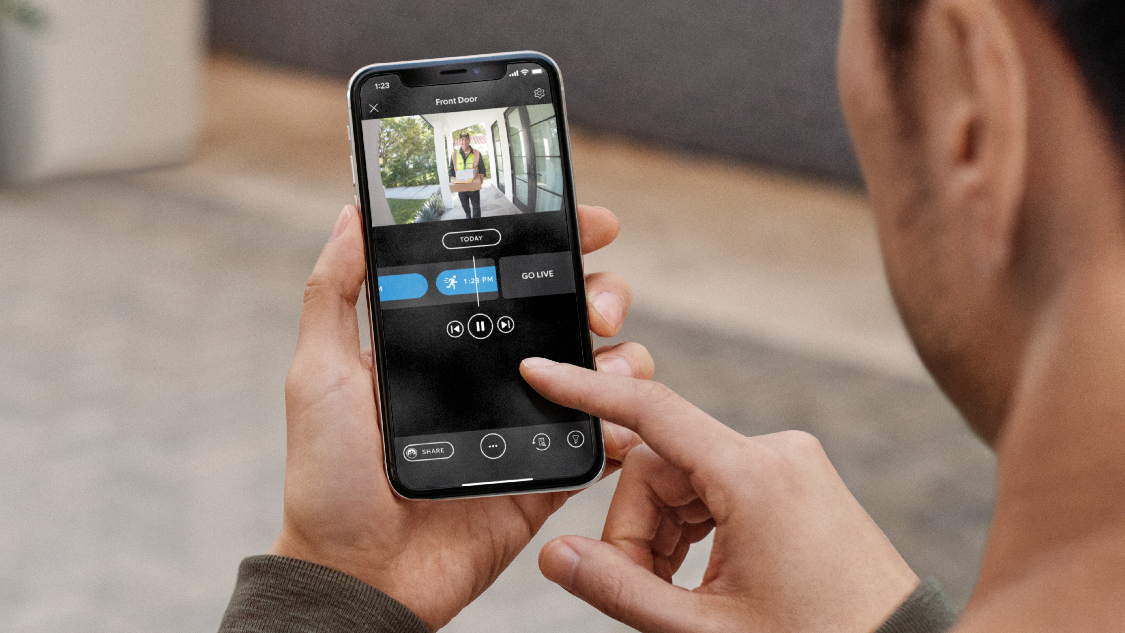
Open the Ring app on your smartphone or tablet. Use your login details to sign in. The app controls your doorbell and lets you change settings.
Locate Your Device Settings
Find your Ring Doorbell in the app menu. Tap the device name to open its settings. This section shows video options and recording times.
Review Video Recording Length
Look for the recording duration or video length option. Note the current time set for each video clip. This number controls how long your doorbell records after detecting motion.
Check Video Quality Settings
Video quality impacts recording size and time. See if your doorbell uses standard or high definition. Higher quality needs more storage and might limit recording time.
Understand Storage Limits
Storage space affects how many videos your device can keep. Review your subscription plan for cloud storage details. Limited storage might require shorter video clips.
Credit: ring.com
Access Ring App
To adjust the video recording time on your Ring Doorbell, start by accessing the Ring app. This app controls your device settings easily. It lets you customize how long your doorbell records videos. Accessing the app is simple and quick.
Using the Ring app ensures you can manage your doorbell from anywhere. It works on smartphones and tablets. The app keeps you connected to your home security at all times.
Download And Install The Ring App
Find the Ring app in your device’s app store. It is free to download. Search for “Ring” and tap install. Wait a few moments for the app to finish installing.
Create Or Log In To Your Ring Account
Open the app after installation. Create a new account if you do not have one. Use a valid email and create a strong password. If you already have an account, enter your login details to sign in.
Connect Your Ring Doorbell To The App
Follow the app’s instructions to add your Ring Doorbell. Make sure your doorbell is powered on. Connect it to your home Wi-Fi network for smooth operation. The app will guide you through each step.
Once your doorbell is connected, open the device menu. Select your Ring Doorbell from the list. Tap on “Device Settings” to access all options. This menu controls video recording and other features.
Navigate To Device Settings
Navigating to the device settings is the first step to adjust your Ring Doorbell’s video recording time. The device settings control many features, including how long your videos are saved. Accessing these settings is simple and quick.
Start by opening the Ring app on your smartphone. The app is your main tool for managing your Ring Doorbell. Inside the app, you will find the device settings that allow you to make changes.
Open The Ring App
Locate the Ring app on your phone. Tap the icon to open it. Make sure you are logged in to your account. Without logging in, you cannot access your device settings.
Select Your Ring Doorbell
After opening the app, see the list of devices linked to your account. Find your Ring Doorbell on the list. Tap on it to open the device’s main page.
Access Device Settings
On your Ring Doorbell’s page, look for the settings icon. This icon usually looks like a gear. Tap the gear icon to open the device settings menu.
Find Video Settings
Inside the device settings, scroll down until you see video options. This section controls your video recording time. Tap on it to open video recording settings.
Credit: ring.com
Locate Video Recording Time
Finding the video recording time on your Ring Doorbell is the first step to adjusting it. This setting controls how long the device records after it detects motion or a doorbell press.
Knowing where to locate this option helps you manage storage and battery life better. It also ensures you capture the right amount of footage for your needs.
Open The Ring App
Start by opening the Ring app on your smartphone or tablet. This app controls all settings for your Ring Doorbell.
Go To Device Settings
Tap the menu icon and select your Ring Doorbell device. Then, find the “Device Settings” option to access its controls.
Find Video Settings
Inside Device Settings, look for the “Video Settings” section. This part contains options related to recording time and video quality.
Locate Recording Length
Within Video Settings, find the “Recording Length” or similar option. This shows the current video recording duration set for your doorbell.
Check Current Recording Time
The app displays the recording time in seconds. This is how long the Ring Doorbell records after an event triggers it.
Adjust Recording Duration
Adjusting the video recording time on your Ring Doorbell is simple. Open the app, find video settings, and select your preferred duration. This helps save storage and captures only what you need.
Why Adjust Recording Duration?
Adjusting the recording duration on your Ring Doorbell helps save storage space. It also ensures you capture important moments without long videos. Short clips are easier to review and share.
Choosing the right length depends on your needs. A longer recording captures more detail. A shorter one uses less data and battery.
Steps To Change Recording Duration
Open the Ring app on your phone. Go to the device settings for your doorbell. Find the recording settings option. Select the recording length you want. Save your changes to apply them.
You can set clips from a few seconds to over a minute. Adjust and test to find the best length for your home.
Tips For Optimal Recording Length
Keep recordings short if you want quick alerts. Longer clips suit areas with more activity. Balance between video length and storage space. Regularly check your settings to keep them updated.
Short videos load faster and use less internet. Longer videos give more context but may slow playback.
Save And Test Changes
After adjusting the video recording time on your Ring Doorbell, saving and testing the changes is key. This step ensures your new settings work as expected. It also helps you avoid missing important footage or recording too long.
Saving your settings correctly locks in the changes you made. Testing the recording lets you see how your doorbell performs with the new time limit. Both steps improve your overall user experience and security.
Save Your New Recording Time
First, find the save button in the Ring app. Tap it to apply the new recording time. Do not close the app before saving. Unsaved changes will be lost, and the doorbell keeps old settings.
Test The Video Recording
Next, trigger a test recording. Walk in front of your doorbell or press the doorbell button. Watch the video to check the recording length. Confirm it matches the time you set earlier.
Adjust And Repeat If Needed
If the recording is too short or too long, go back to settings. Change the time again and save. Test the recording once more. Repeat until the recording time fits your needs.
Troubleshooting Common Issues
Adjusting the video recording time on your Ring Doorbell can sometimes cause issues. Troubleshooting these problems helps keep your device working well. This section covers common issues and easy fixes.
Understanding these problems saves time and frustration. Follow simple steps to fix your Ring Doorbell quickly.
Check Your Internet Connection
A weak internet connection may stop video recording. Make sure your Wi-Fi signal is strong near the doorbell. Restart your router if needed. A stable connection improves video quality and recording time.
Update Your Ring App And Device
Outdated software can cause recording problems. Regularly update the Ring app on your phone. Also, check for firmware updates on the doorbell. Updates often fix bugs and improve performance.
Adjust Motion Settings Properly
Incorrect motion settings can limit recording time. Open the Ring app and select your device. Go to motion settings and adjust the recording length. Set it to your preferred duration for better results.
Restart Your Ring Doorbell
Restarting can clear minor errors. Press and hold the setup button for 15 seconds. Release and wait for the device to reboot. This simple step often solves recording time issues.
Check Your Subscription Plan
Some recording features need a Ring Protect plan. Without it, video length may be limited. Review your plan details in the app. Upgrade if necessary to access longer recordings.
Tips For Optimal Recording Time
Adjusting the video recording time on your Ring Doorbell helps save space and improve security. Setting the right length ensures you capture important events without using too much storage. Use these tips to find the best recording time for your needs.
Choose The Right Recording Length
Set the recording time based on your daily activity. Short clips work well for busy areas with many events. Longer clips capture more details but use more storage space.
Test Different Time Settings
Try recording times of 15, 30, and 60 seconds. Watch the clips to see which length captures clear and useful footage. Pick the time that balances detail and storage.
Consider Your Storage Capacity
Check your cloud or device storage. Longer videos need more space. Adjust recording time to avoid running out of storage quickly.
Use Motion Zones Wisely
Set motion zones to focus on important areas. This reduces unnecessary recordings. It helps keep only useful videos and saves space.
Update Your Device Regularly
Keep your Ring Doorbell software up to date. Updates can improve video quality and recording options. This helps optimize your recording time settings.
Frequently Asked Questions
How Do I Change Recording Time On My Ring Doorbell?
To change recording time, open the Ring app, select your device, tap on Video Settings, then adjust the recording duration under Video Recording Length.
Can I Customize Motion Recording Length On Ring Doorbell?
Yes, you can customize motion recording length by accessing Motion Settings in the Ring app and choosing your preferred duration.
Why Is My Ring Doorbell Recording Too Short?
Short recordings may result from default settings or limited subscription plans. Adjust recording length in the app or upgrade your plan.
Does Adjusting Video Length Affect Battery Life?
Longer recordings may consume more battery. Shortening video length helps conserve battery on battery-powered Ring Doorbells.
Conclusion
Adjusting the video recording time on your Ring Doorbell is simple and useful. It helps save storage and captures only what matters. You can change settings anytime to fit your needs. Keep your home secure without extra hassle. Try different recording lengths and see what works best.
Small changes make a big difference in your Ring Doorbell experience. Stay safe and in control with easy steps anyone can follow.